

Process automation FAQ
The following are frequently asked questions and recommendations regarding Process automation:
What is the difference between Standard and Plus?
Process automation - Standard is available to you out-of-the-box. The differences between Process automation - Standard and Plus vary between alerts and scheduled tasks:
Alerts
For more information about out-of-the-box alerts, see Overview of out-of-the-box alerts.
| Feature | Standard | Plus |
|---|---|---|
Alert task | Enable/Disable | |
| x | Add, copy |
| x | Edit name, description, type |
Data sources | Add, edit and delete | |
Conditions | Add, edit and delete | |
Alert (Tab) | ||
| Add, delete | |
| x | Edit |
Alert set | Delete alerts | Add, delete, create new alert sets |
Some out-of-the-box tasks are system alerts that are enabled and included in system alert sets by default for all installs and upgrades.
Scheduled tasks
All scheduled tasks are disabled by default. For more information about out-of-the-box scheduled tasks, see Overview of out-of-the-box scheduled tasks.
| Feature | Standard | Plus |
|---|---|---|
Scheduled tasks | Enable/Disable | |
| x | Add, copy |
| x | Edit name, description, type |
Triggers | Add, edit and delete | |
| Data sources | Add, edit and delete | |
| Conditions | Add, edit and delete | |
| Actions | Edit | Add, edit, delete |
| x | Edit |
| Edit the Recipient data source | |
| Edit the Run a report action | |
| x | Edit |
| Logs | Search by status and start dates | |
Why does the task trigger, but the email isn't sent?
Typically, communication templates are setup and designed before they are used in a scheduled task. When this template is configured, you can choose a default recipient query (Choose recipients), and begin using the Insert fields available to you because of the chosen recipient query.
If you use this same communication template in a scheduled task and select a different Recipient data source, recipient fields used in the template need to have a corresponding Display column in the query used as the Recipient data source in the action. You can click on the communication template in the action to verify that the fields are mapped. Any that are not mapped will display an error.
NoteFor more detailed information about communication templates, see Creating a new communication template.
Example
For example, say this communication template was configured from Marketing > Communication templates. The query you select from Choose Recipients contains the Executive Director data, and is used as the default recipient query for this communication template.
Now, say you navigate to RiSE > Process automation, and configure a scheduled task using this same communication template. For this scheduled task, you select a different Recipient data source than the default recipient query in the communication template. The new Recipient data source you select does not contain the Executive Director data.
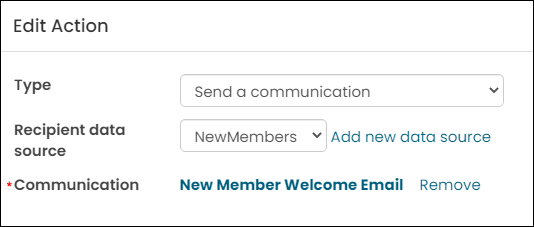
The missing data results in errors, and your communication will not send, even if the task is triggered. To fix this, you will need to add the initial recipient query to the Data sources tab so that the communication can locate the Executive Director data.
Troubleshooting tips
The following are troubleshooting tips:
- Preview the communication by clicking on the template name in the action and clicking Preview. If there is an @TriggerID filter, temporarily remove that filter from the source query in order to test the template. The @TriggerID filter means that the query will not return any results when you run the query in IQA. Next, verify that there are no errors merging the data, and that if you navigate to Choose recipients there is no warning that recipients cannot be identified.
- If you encounter either of these problems, ensure that the recipient query has an ID column and that any properties (Insert fields) used in the template are included in the Recipient data source query identified in the Action, or included as additional data sources queries in the template.
- Run Now will not work with a task that is set up to run on a database change (if the data sources/IQA queries are using the @TriggerID filter). This is because any queries that have a filter of @TriggerID will not return results unless they are being triggered by a database change - not when they are triggered by clicking Run Now.
- If a task has run and the communication was not sent, examine the logs (Marketing > Communication logs) for any information.
If a task has multiple steps and one step fails, does the task stop running or do subsequent steps still get triggered?
The task stops running and the subsequent steps do not get triggered.
How do I set up a triggered task on a system event? What criteria should I have in my filter?
For information about system events, see Creating and editing scheduled tasks .
What is the difference between #party.Email and #recipient.Email? How do I know which one to use?
You can define who is going to receive the communication while you are creating the communication template, or when you are defining the scheduled task on the Actions tab. This is called the recipient query. Any Display columns included in the recipient query are available as properties to merge and insert into the communication. For example, if there is an email display column property defined in the recipient query, then the Insert field drop-down will display #recipient.Email.
The party data source represents contact information about each recipient, and is available in each communication by default. The party insert information does not become useful until a recipient query is selected. By default, the party query uses the selected contact information, and the selected contact is the person conducting the communication.
After a recipient query is selected, the communication creator identifies the ID column in the recipient query and uses that ID to automatically provide additional party (contact) properties that you might want to use. One of these additional properties is email, but many others are also available.
In this example, there is no difference between #recipient.Email and #party.Email because the party data source is using the ID property from the recipient data source.
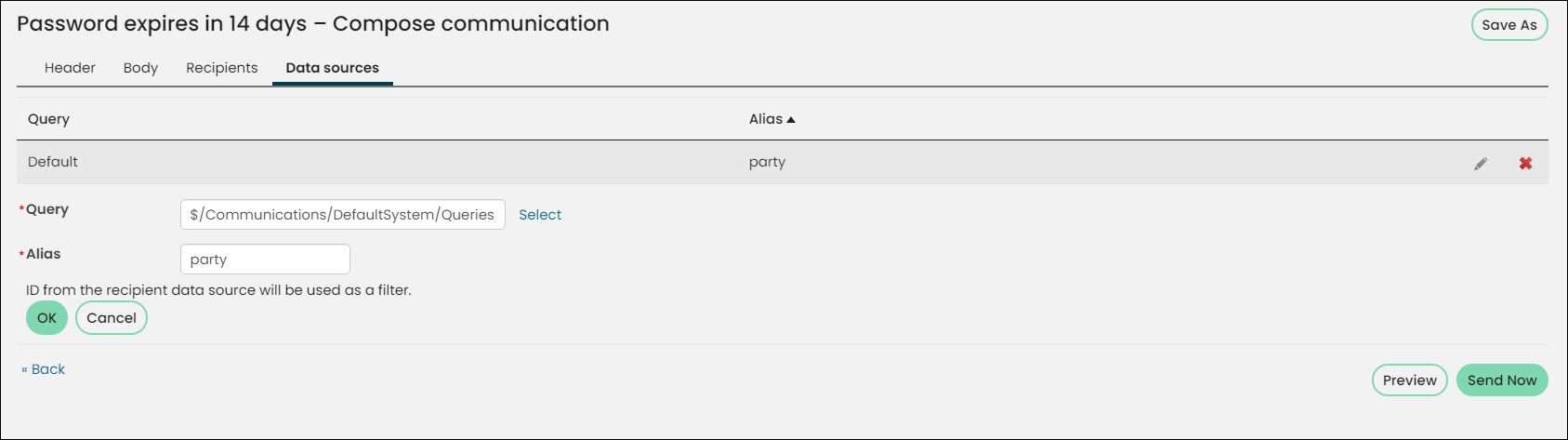
If you select Additional data sources, you can modify the query that the party data source is pulling from, resulting in a difference between #recipient.Email and #party.Email. The one you choose is determined by which query you are wanting to pull email data from.
When should I use a condition?
A condition should be used if the task should only perform the action (such as sending an email) when the condition queries return results. For example, if you are scheduling an email to be sent to any new members who joined today, you can add a condition query of new members who joined today (same query that is used to send the email) so that the task will not even try to send the email if there are no new members. The task will still work if you do not include this condition, because it will attempt to send an email that has no recipients.
See Specifying Conditions for more information.
Can I use Process automation with Advanced email? What are the limitations?
Advanced email will work the same with Process automation as if you had sent the Advanced email manually. Process automation just sends the communications for you on a schedule or on a trigger so that you don’t have to manually send the emails. There are a few limitations when defining an Advanced email template compared to defining a regular communication template, but these limitations are not specific to Process automation.
Be aware that scheduling overlapping email jobs will cause some delay. Advanced email jobs sent using a Process automation task are usually executed as defined in the Process automation task – whether on a schedule or by a database change. However, if there are other email jobs being processed at the time the Advanced email job is scheduled to go out, the task will be delayed until the earlier tasks are completed.
Can I use SSRS reports in my process automation tasks?
If the task action is Run a report, you can use an SSRS report, but the report must be a standalone SSRS report. This means that the data must be completely contained in the report. If the data is being passed into the report using an IQA query, the report will not populate and the end user will essentially receive a report with no data. See Creating standalone SSRS reports for more information.
If the task action is Send a communication and there is an SSRS report (standalone or IQA-based) attached to the communication template, the recipients ID will be passed through the task (if the report has a parameter for ID). At this time, the ID filter is the only supported filter.
Updated 3 months ago