

Commerce: Settings
The Commerce settings are crucial for any organization that actively adds new products or gifts. You can manage all products and product classes, define shipping and handling methods, and select order confirmation default settings.
These features are available to System Administrators only. To access these configuration settings, go to Settings > Commerce.
Manage products
From the Staff site, go to Settings > Commerce > Manage products. This is where you can view and edit existing products. Use the Select a query drop-down to filter the products based on the available queries.
Select a product. The following tabs are available:
- (Summary tab) The basic properties of the product. Edit details you want to change, then Save.
- (Accounting tab) Update or change any of the Accounting settings.
Configuring shipping
From the Staff site, go to Settings > Commerce > Shipping. From here you can select all default shipping methods:
- (Configuration tab)
- Default shipping method set - Enter the default shipping method you want to use when shipping orders. Define these method sets from the Method Sets tab.
- Tax Category - Select a default tax category.
- Automatic calculation of shipping - Select this option to allow iMIS to automatically calculate shipping costs based on values you configure in the system.
- Calculation type - Set the type of shipping calculation iMIS will automatically perform. This configuration option is a global setting. The Calculation type will also determine the columns that are displayed on the Methods & Charges tab. The options include:
- Total Quantity - The system will calculate the shipping charge based on the total number of items to be shipped. If you select Total Quantity, the Minimum Charge and Maximum Charge columns are displayed on the Methods & Charges tab. You can configure the Minimum Charge and Maximum Charge for a shipping method.
- Click Add.
- Enter a minimum quantity for which the defined shipping charges apply.
- Define the shipping charge to apply to the range of items in the order.
- Total Price - The system will calculate the shipping charge based on the total price of all items to be shipped. If you select Total Price, the Minimum Charge and Maximum Charge columns are displayed on the Methods & Charges tab. You can configure the Minimum Charge and Maximum Charge for a shipping method.
- Click Add.
- Enter a minimum dollar value for which the defined shipping charges apply.
- Define the shipping charge to apply to the range of dollar values in the order.
- Percentage of Total Price - The system will calculate the shipping charge based on a specified percentage of the Total Price value. You can specify the percentage value in the Methods & Charges tab. If you select Percentage of Total Price, the Minimum Charge and Maximum Charge columns are displayed on the Methods & Charges tab, along with the Percent of Order column. You will be able to configure the Minimum Charge, Maximum Charge, and Percent of Order for a shipping method.
You will also be able to add specific shipping charges in the Charges List. The Charges List allows you to define a set of graduated charges depending upon the amount of the order. The Total Quantity calculation type uses shipping charges, if defined:
You will also be able to add specific shipping charges in the Charges List. The Charges List allows you to define a set of graduated charges depending upon the amount of the order. The Total Quantity and Total Price calculation type both utilize shipping charges, if defined:
- (Methods & Charges tab) Click Add to add new shipping methods. You can also edit any shipping methods you have already set up.
- Click Add to add a new shipping method, or select to edit a method.
- Enter a required Name for the shipping method, as well as a Display Name and a Description.
- Configure the Shipping Charges fields.
- Total Quantity - The system will calculate the shipping charge based on the total number of items to be shipped.
- Total Price - The system will calculate the shipping charge based on the total price of all items to be shipped.
- Percentage of Total Price - The system will calculate the shipping charge based on a specified percentage of the Total Price value.
- (Method Sets tab) Add and edit accepted shipping methods. Select a default shipping method from this window.
Do the following when adding or editing a shipping method:
The Calculation type setting determines which Shipping Charges values are used in a shipping charge calculation:
📘 Note
If a calculation results in a value less than the Minimum Charge or above the Maximum Charge, the Minimum Charge or Maximum Charge, respectively, is used.
- If the Calculation type is not Percentage of Total Price, then the Charges List provides the ability to define charges based on quantity or price in conjunction with the Minimum Charge or Maximum Charge values.
- If the Calculation type is Percentage of Total Price, then the Percent of Order is the only field that is considered in addition to the Minimum Charge or Maximum Charge values.
Handling
From the Staff site, go to Settings > Commerce > Handling. From here you can select all default handling methods:
- Tax category - Select a tax category.
- Automatic calculation of handling - Select this option to allow manual overriding of a handling charge in an order.
-
Calculation Type - Set the type of handling calculation iMIS will automatically perform. This configuration option is a global setting. The Calculation Type will also determine what is displayed on the Charges tab:
Total Quantity
The system will calculate the handling charge based on the total number of items to be handled. If you select Total Quantity, the Minimum Charge and Maximum Charge columns are displayed on the Charges tab. You can configure the Minimum Charge and Maximum Charge for a handling method.
You will also be able to add specific handling charges in the Charges tab.
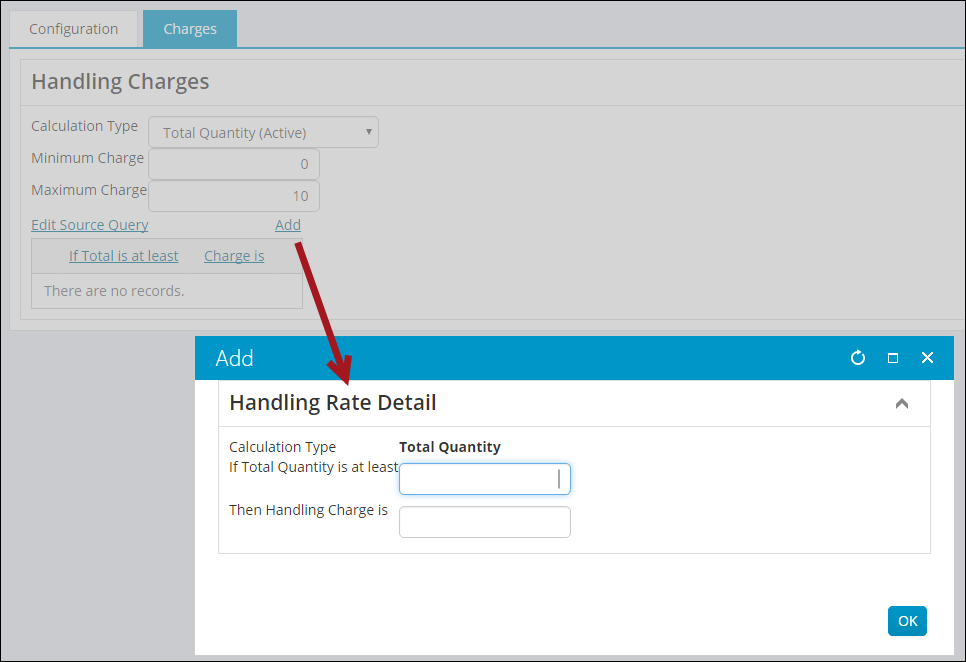
From here you can define a set of graduated charges depending upon the amount of the order. The Total Quantity Calculation Type uses handling charges, if defined:
- Select Add.
- If Total Quantity is at least - Enter a minimum quantity for which the defined handling charges apply.
- Then Handling Charge is - Define the handling charge to apply.
Total Price
The system will calculate the handling charge based on the total price of all items to be handled. If you select Total Price, the Minimum Charge and Maximum Charge columns are displayed on the Charges tab. You can configure the Minimum Charge and Maximum Charge for a handling method.
You will also be able to add specific handling charges in the Charges tab.
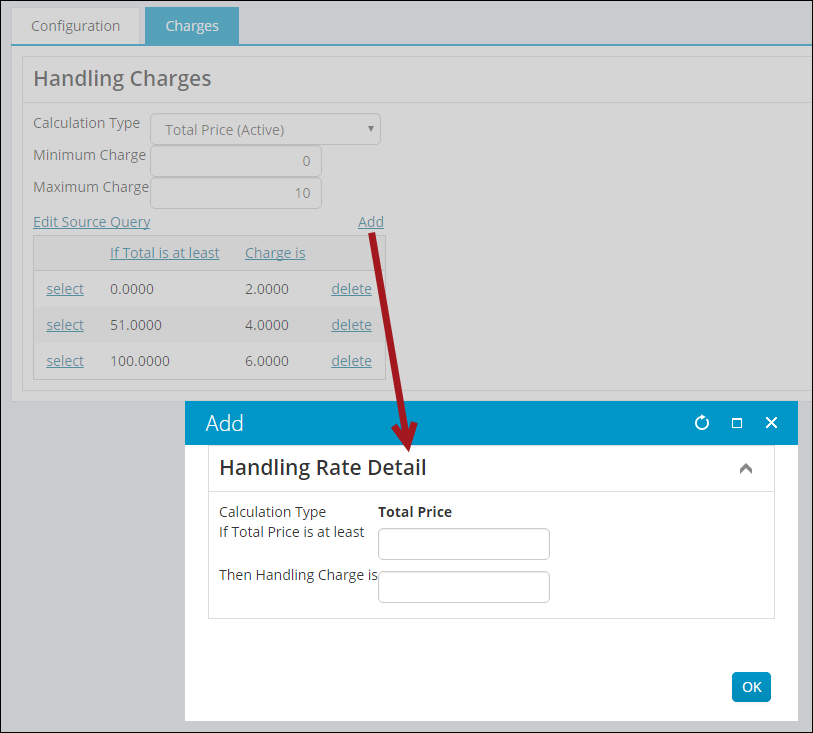
This allows you to define a set of graduated charges depending upon the amount of the order:
- Select Add.
- If Total Price is at least - Enter a minimum dollar value for which the defined handling charges apply.
- Then Handling Charge is - Define the handling charge to apply to the range of dollar values in the order.
Percentage of Total Price
The system will calculate the handling charge based on a specified percentage of the Total Price value. You can specify the percentage value (Charge is total price x) in the Charges tab, along with the Minimum Charge and Maximum Charge for the handling method.
Percentage of Shipping Price
The system will calculate the handling charge based on a specified percentage of the Shipping Price value. You can specify the percentage value (Charge is shipping price x) in the Charges tab, along with the Minimum Charge and Maximum Charge for the handling method.
Product classes
To learn all about product classes, please see Managing product classes.
Order confirmations
Set the default email address for each type of order confirmation communication that your organization sends.
From the Staff site, select Settings > Commerce > Order confirmations:
- Email address that order confirmations are sent from – Specifies the email address that will appear to have sent the confirmations. Ensure that it is valid to receive any replies to those confirmation emails.
- Email address to CC on order confirmations - Specifies the email address that will be copied on all order confirmations.
- Email address to BCC on order confirmations - Specifies the email address that will be blind-copied on all order confirmations.
📘 Note
If the user does not have a Preferred Mail email address, they will not receive a confirmation, but the Email address to CC on order confirmations and Email address to BCC on order confirmations recipients still receive confirmations. If none of the receipts have email addresses set, the email is not sent.
- Email address to CC on order confirmation resends - Specifies the email address that will be copied when email resends are sent.
- Email address to BCC on order confirmation resends - Specifies the email address that will be blind-copied when email resends are sent.
Updated 3 months ago