

Managing event templates
Using event templates is a great way to guarantee similar events contain consistent information, recurring events are ready for registration in seconds, and minimal time is spent on event creation. Once an event template is created, it can be saved for future use as the basis for a new event.
Event templates can be managed in the Staff site from Events > Manage templates:
- To edit a template, click the event template Name, then select Edit from the drop-down.
- To completely delete a template, click
 .
. - Click Add new template to create a new event template.
- Questions, program items, registration options, and any other event features can be defined and saved in a template.
NoteAny changes made to a template will not apply to existing events using the template.
If you have created custom event queries or reports, you will need to exclude event templates from the query results. To exclude event templates from user-created event queries or reports using IQA, do the following:
-
Open the query for edit.
-
Click the Sources tab.
-
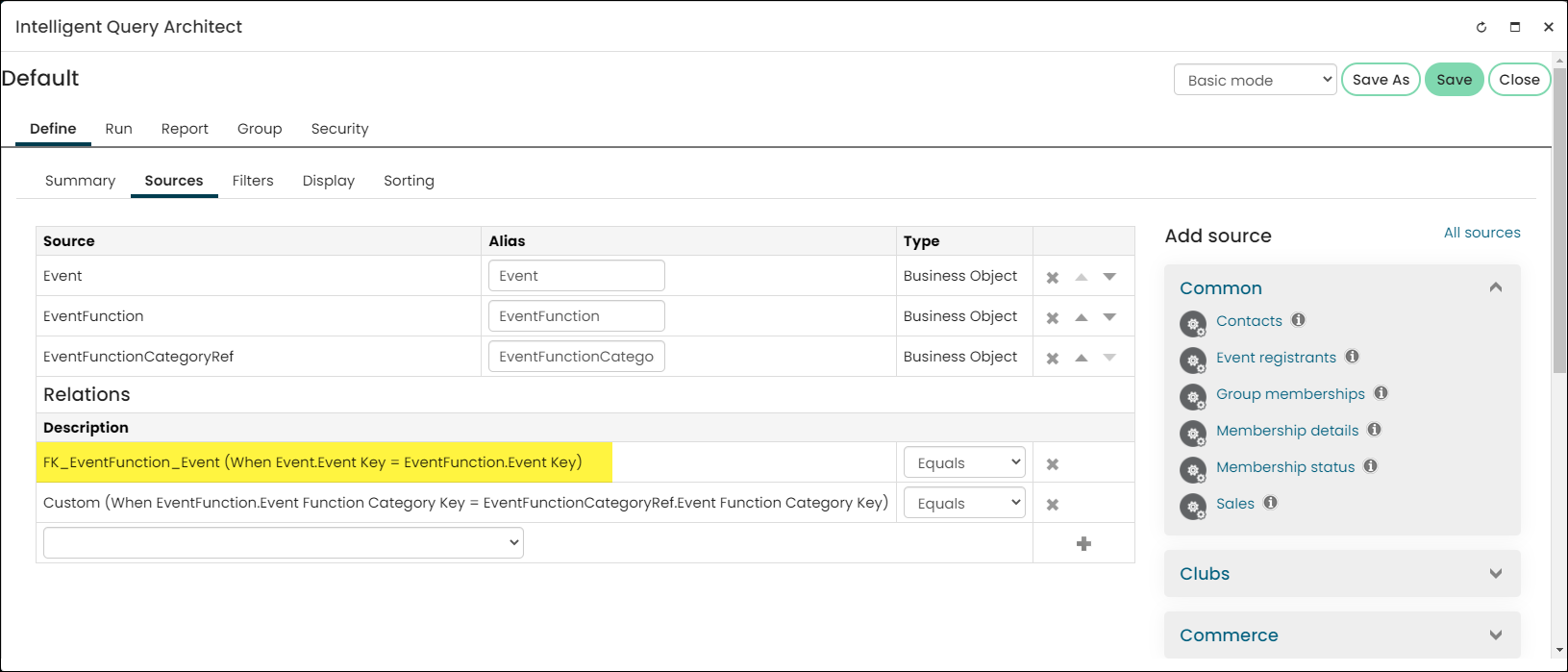
Check to see if the Event business object exists in the Source list. If not, then add it.
-
If there is no default join between the existing business objects and the Event business object, then add a custom join that is equal to the Event business object.
- Click the Filters tab.
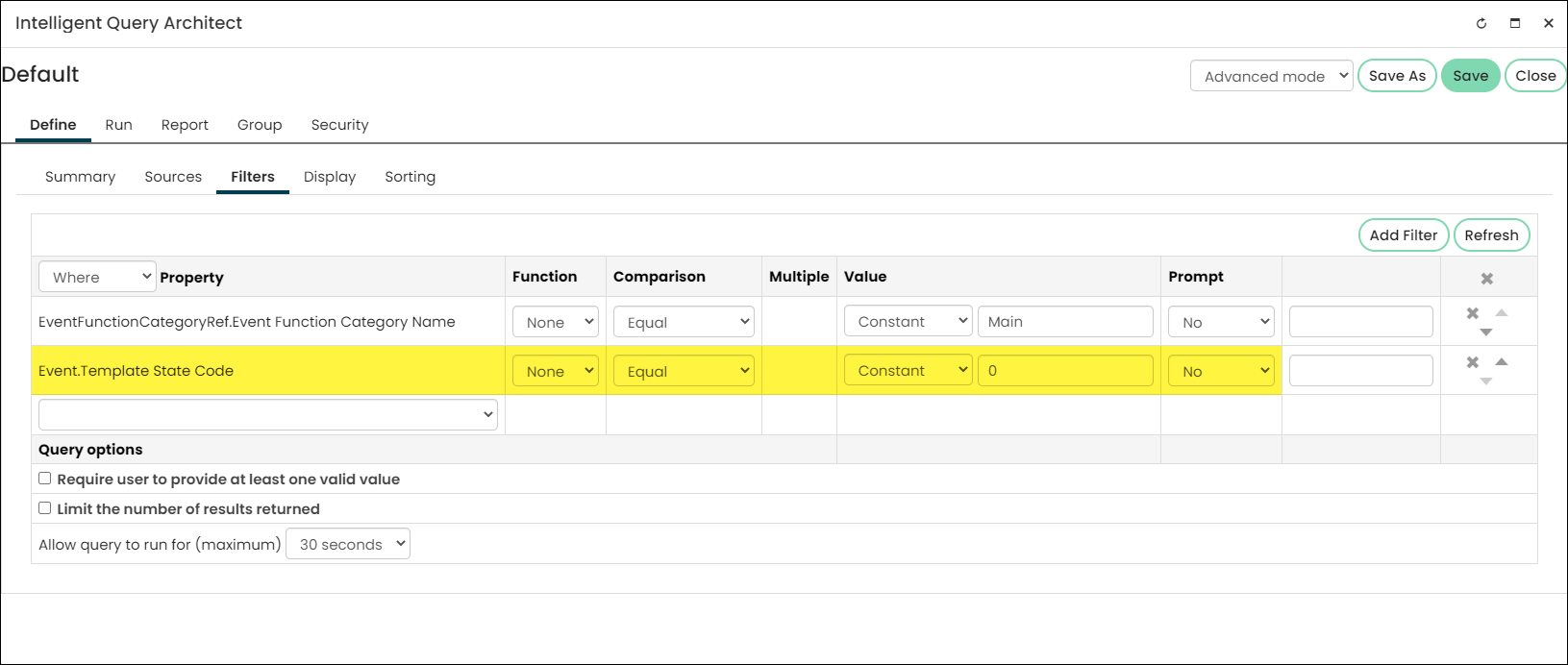
- Add the Template State Code filter:
-
Set the Comparison to Equal.
-
Set the Value to 0.
-
Click the + icon.
-
If you are using a custom query or report that does not use an Event business object but is still returning event templates (for example, custom SQL data sources for an SSRS report, custom business objects, or custom IQAs), you will need to modify the data source.
To filter out event templates from a custom data source, locate the Event table in the data source then apply the following filter:
Event.Template_State_Code=0.Updated 5 months ago