

Searching for events
Every event in iMIS can be searched for from one interface. You can configure how you want these events to display in your search list, or if you want them displayed at all.
Event search
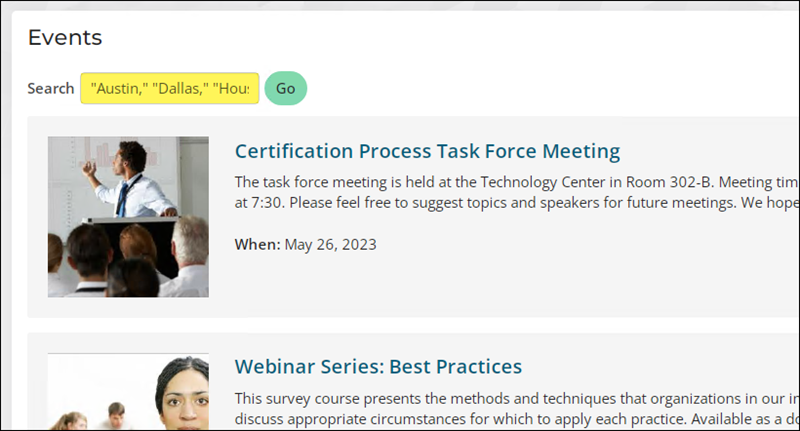
You can search for events by month, event name, city, state, or province, or topic in Events > Find events. When searching for multiple locations for City and State, put each value in quotations and use commas between multiple values. For example, enter "Austin," "Dallas," "Houston" to search for events in those three cities.
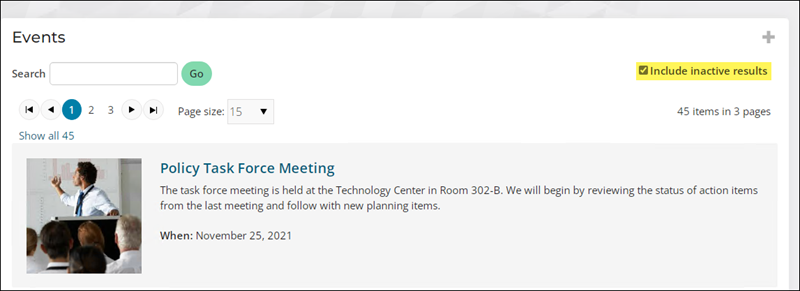
If you would like to search for an inactive event, select the checkbox Include inactive results before you search. This will include search results that are inactive, not yet published, expired, or otherwise unavailable.
Sorting the event list
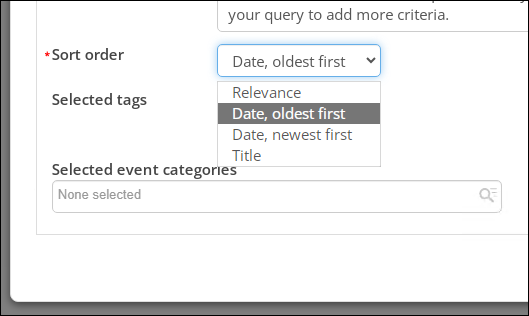
The Events > Find events list can be sorted by the following:
- Relevance
- Date, oldest first
- Date, newest first
- Title
1. Copying the event list
Before you can change the sort order of the event list, you must first ensure you are working with a copy of the out-of-the-box event list page. Do the following to check if you are using copied content or system content:
-
Go to Events > Find events.
-
Enable Easy Edit.
-
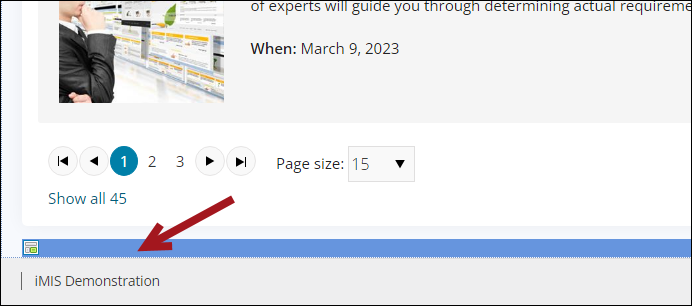
Scroll down to the bottom of the page, then click the edit bar.
-
Review the following to determine next steps:
-
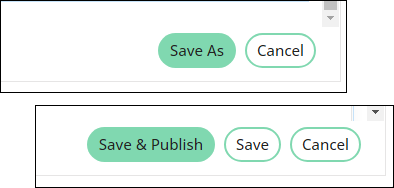
If the save button is Save As, then you must first copy the content record before you can make changes. See Updating out-of-the-box content records.
-
If the save button is Save & Publish, then you are already using copied content. Continue to the next section.
-
2. Changing the sort order
Do the following to sort the event list:
-
Go to Events > Find events.
-
Enable Easy Edit.
-
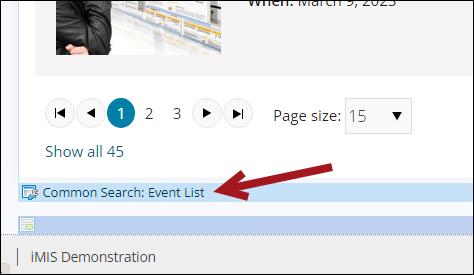
Scroll down, then click the Common Search: Event List edit bar.
-
From the Sort Order drop-down, select the desired option.
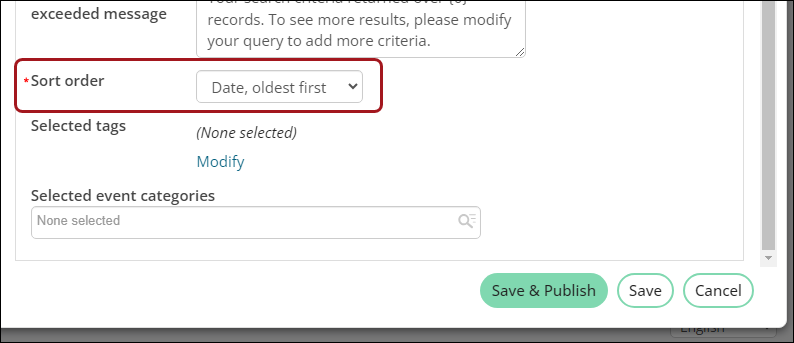
- Click Save & Publish.
Event not appearing in search
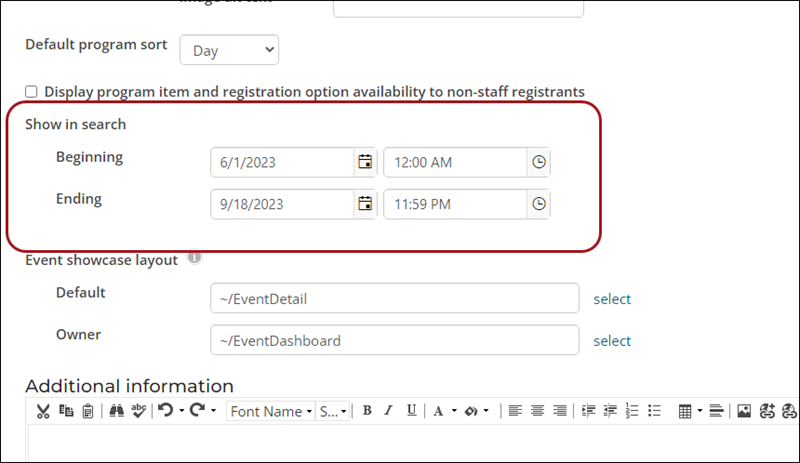
If an event is Not currently available in the search results, you may need to update the Show in search dates.
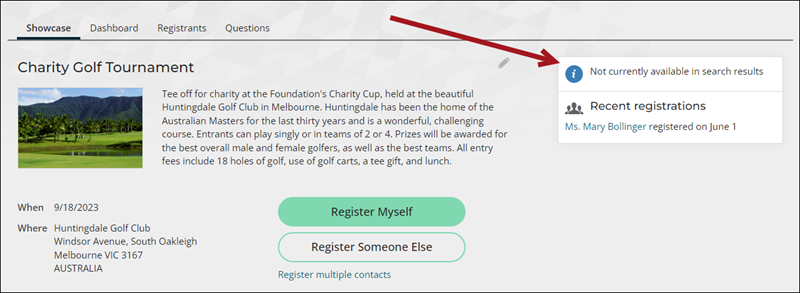
Do the following to update the Show in search dates for the event:
-
Open the event for edit.
-
Click the Display tab.
-
In the Show in search date fields, make sure the Beginning date is defined with today's date or a date in the past. If the date is in the future, the event will not display in the search results.
- Click Save & Exit.
Updated 5 months ago