

Applying an open credit
Open credits are a positive balance on a contact's account that can be used for a future purchase or an existing open invoice balance. You can configure iMIS to allow members to apply their own open credits or only allow staff users to apply open credits.
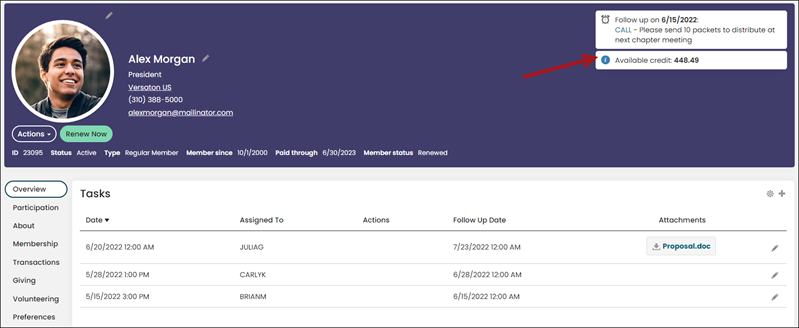
When does a contact receive an open credit?
Contacts receive an open credit when any of the following are performed:
- A paid invoice is completely reversed
- A paid invoice is adjusted (removed or reduced the price of an item):
- A prepayment is applied to the contact's account
When is an open credit removed from a contact's account?
The open credit is removed from the contact's account if any of the following are done:
- The related payment is reversed
- A refund is recorded in iMIS
- The contact uses the open credit for a new purchase or existing open invoice
Notes about open credits
Review the following notes about open credits before using open credits:
- The staff and public payment method sets must be configured with an open credit payment method before you can begin using open credits. See Configuring open credit as a payment method.
- The cart (if copied and is custom) must include the Open Credit Display content item to display available credits in the cart.
- Open credits cannot be applied if a recurring transaction is in the cart.
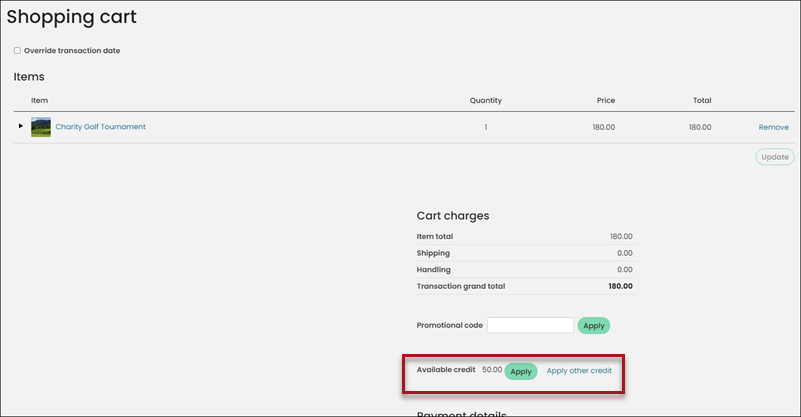
- All users may use any credit available for the Bill to contact. Staff users may additionally find and apply any available open credit in the system using the Apply other credit link.
Configuring open credit as a payment method
To accept open credits as a form of payment, do the following:
- From the Staff site, go to Settings > Finance > PayCentral .
- Click the Payment methods tab:
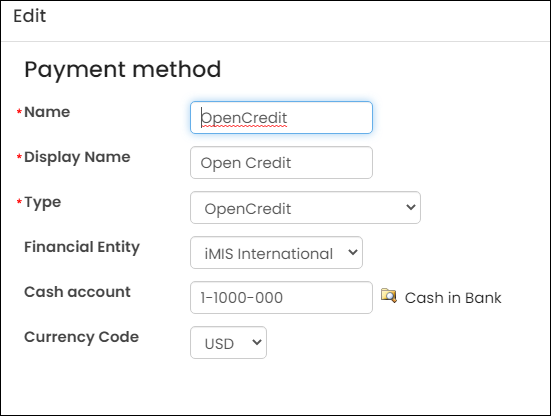
- Select Add new payment method.
- Name - OpenCredit
- Type - OpenCredit
- Click Save.
- Click the Payment method sets tab.
- Select the Staff payment method set.
- Select Add :
- From the Payment Method drop-down, select OpenCredit.
- Click OK.
- If you want members to apply their own open credits, you must repeat the process for the Public payment method set:
- From the Payment method sets tab, select the Public payment method set.
- Select Add.
- From the Payment Method drop-down, select OpenCredit.
- Click OK.
Applying an open credit
You can apply an open credit toward an item after the item has been added to the cart. To apply the open credit towards the cart balance, click Apply. The system applies the credit to the cart balance and refreshes the screen to show the applied credit amount and the new, reduced balance.
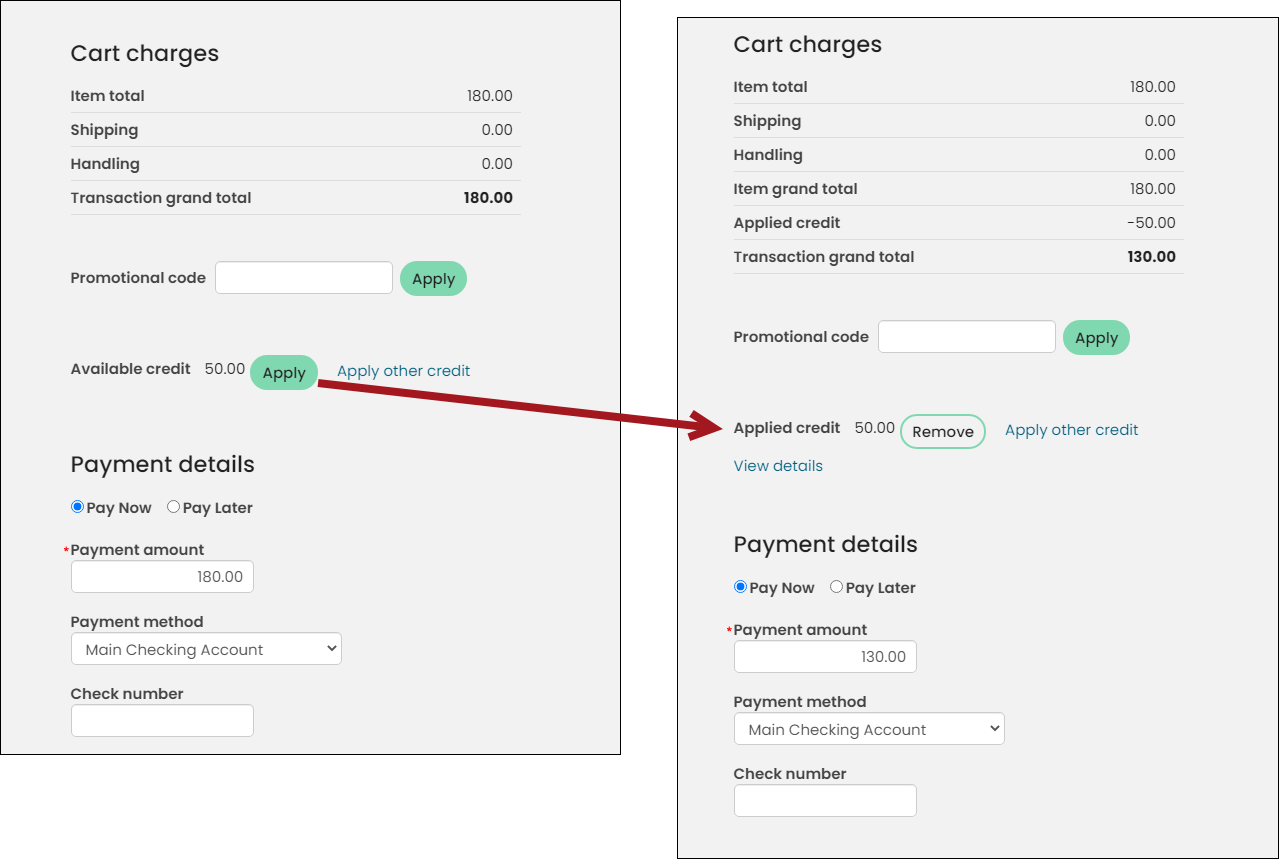
If you change your mind about applying the open credit, click Remove. Once submitted, the payment is partially or fully applied to the respective invoices.
Viewing contact's with an open credit
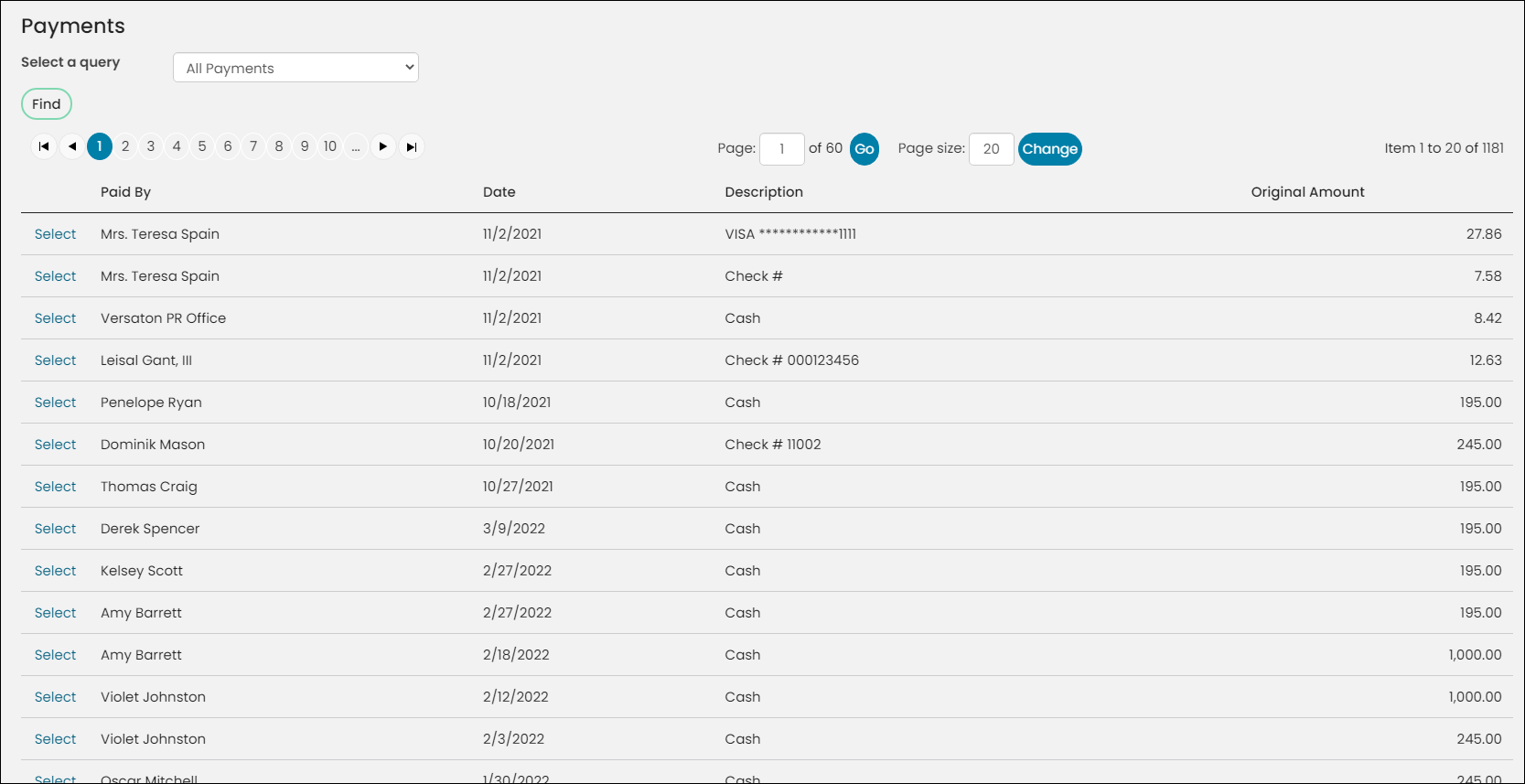
View payments with open credit balances from the Staff site (Finance > Pay Central > Find payments. Staff can use the Payments with Credit Balance query to review accounts with an open or unapplied balance.
The Payments with Credit Balance query results include the name of the contact who made the payment (Paid By), the date the payment was made (Date), a Description of the payment method, the Original Amount that was paid, the amount that was applied to the payment (Applied Amount), and the balance (Credit Amount).
Use the Select link to open a payment item from the Payments with Credit Balance results and issue a refund. See Recording a refund for more information.
You can also view a list of all payments with a credit balance in your system from the Accounting report, Payments with Credit Balance.
Updated 5 months ago