

Club check-in
NoteYou must be licensed for Clubs to use a club-related functionality. Contact ASI for more information.
The Club Check-in content item provides the ability for staff users to check contacts in and out of a club. It must be used on a content record within the Club Staff site, as contacts are checked in to the club currently selected in that site.
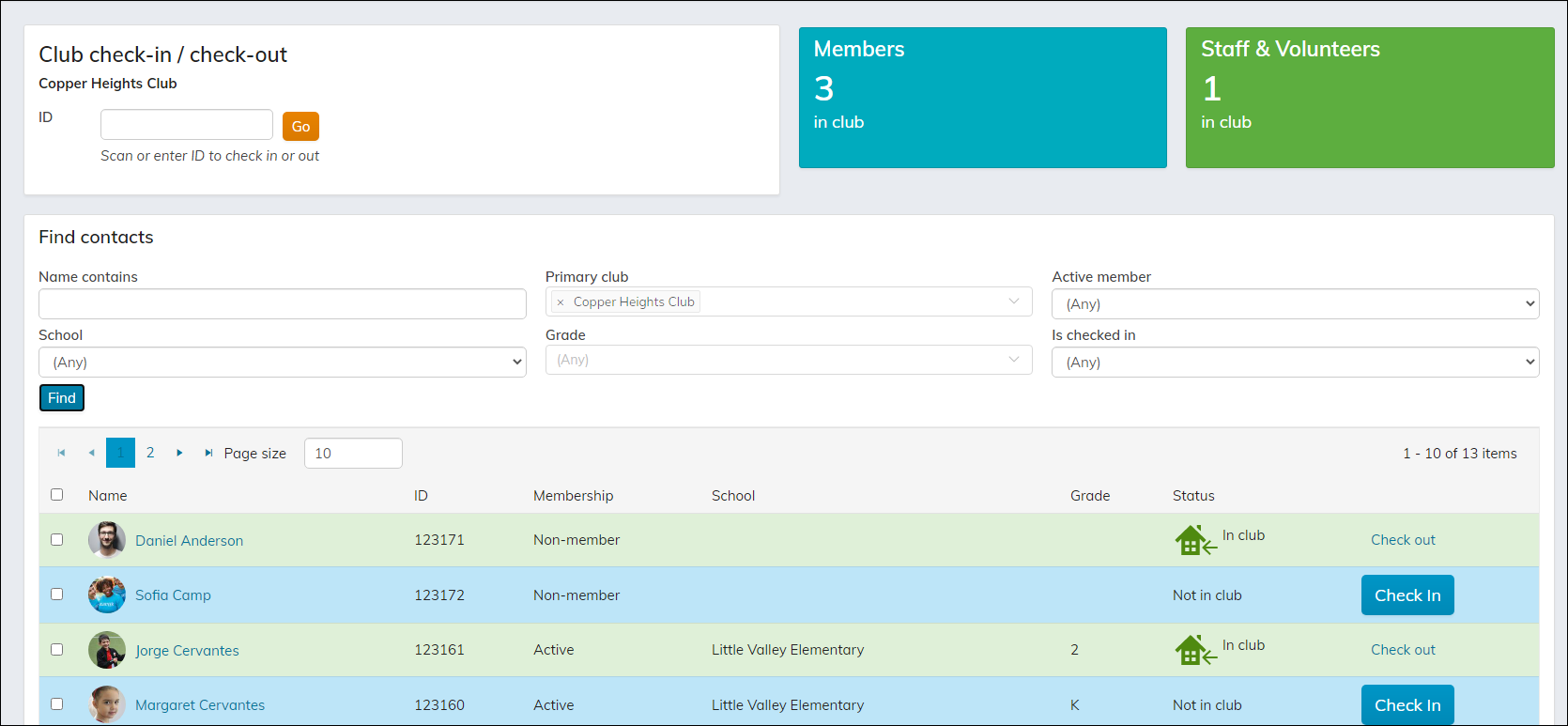
Club Check-in Display configuration options
- Name - Enter a name for the event session. The default title is Club check-in / check-out.
- Title - Enter the text to display above this content item on the rendered page. If blank, no title displays.
- Heading level - Select a header level to be applied to the content item Title. For example, a value of 1 will apply an H1 element to the Title. The default is 2. None applies the default value (2).
- Do not render in design mode - Select this option to prevent content record data from being loaded in the content editor. This improves performance during design time.
- CSS class - (optional) Enter the name of a CSS class to associate with this content item, which will add a DIV so named around the content item. Add this CSS class to an appropriate style sheet. Using such classes lets you apply special formatting to targeted content items in a reusable way.
- Display a border around this content - Select this option to display a border around this content item on the rendered page.
- Display content within a collapsible panel - Enable to allow users to minimize the panel within the page, to work with dense pages more efficiently.
- Show the content as collapsed - Enable to display the panel minimized by default. Be sure that the Title makes clear what data is hidden from view.
- Display on screen sizes (for responsive themes only):
- Extra-small screens - When disabled, this content item is hidden on extra small devices, such as smartphones, where the width of the screen is less than 768px.
- Small screens - When disabled, this content item is hidden on small devices, such as tablets, where the width of the screen is greater than 768px and less than 991px.
- Medium screens - When disabled, this content item is hidden on medium devices, such as laptops, where the width of the screen is greater than 992px and less than 1199px.
- Large screens - When disabled, this content item is hidden on large devices, such as wide computer monitors, where the width of the screen is greater than or equal to 1200px wide.
NoteWhen Easy Edit is enabled, all content items for a page are displayed, regardless of the Display on screen sizes (for responsive themes only) options that are selected.
- Check-in title - Enter the text to display for the name of the check-in screen displayed in the top left check in by ID area.
Counter tile 1
- Title - Enter a name for the first counter tile. The default value is Members.
- Description - Enter a description for Members. The default value is in club.
- Source query for count - (required) Select the query that will display a count in the first tile. The default query displays the total number of members checked in to the selected club. The IQA query should include a display column for the numeric count value, aliased as Count or Sum_Total.
- Source query for linking to details - Select a query to be used as the link details. This query is used to populate the filters and grid when the user clicks on a counter tile to view details. If left blank, the counter tile will not create a link to details.
Counter tile 2
- Title - Enter a name for the second counter tile. The default value is Staff & Volunteers.
- Description - Enter a description for the counter tile. The default value is in club.
- Source query for count - (required) Select the query that will display a count in the second tile. The default query displays the total number of non-members checked in to the selected club. The IQA query should include a display column for the numeric count value, aliased as Count or Sum_Total.
- Source query for linking to details - Select a query to be used as the link details. This query is used to populate the filters and grid when the user clicks on a counter tile to view details. If left blank, the counter tile will not create a link to details.
Contact search options
- Title - Enter a name for the contact search area. The default value is Find contacts.
- Source query or folder - (required) Select a link for choosing an IQA query or enter the file path.
- Allow date and time override - Allows the user to override the date and time when checking in using contact search. The default is enabled.
Updated 5 months ago
Did this page help you?