

Summary Display
The Summary Display content item displays a single row of query results in a form view. Out-of-the-box, this content item is located on the Giving tab of staff-facing account pages.
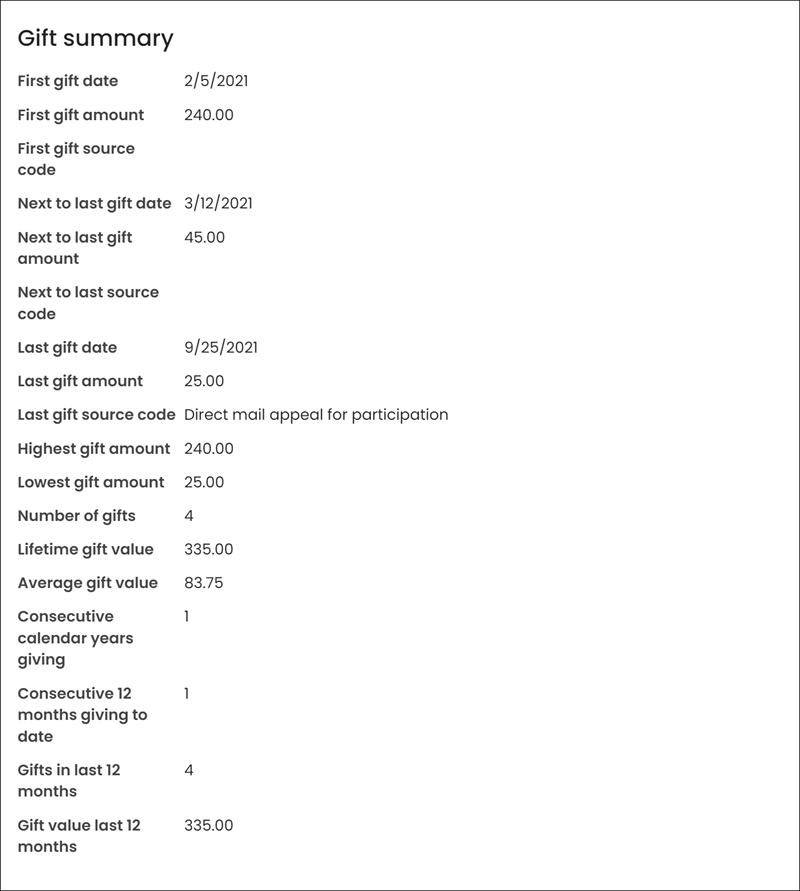
When creating a query that you want to display in the Summary Display content item, keep the following guidelines in mind:
- The Summary Display content item only displays a single row of query results.
- If you connect the Summary Display content item to a query that returns more than one row of results, only the first row is displayed.
NoteYou can dynamically filter your query results by the currently logged-in user, a selected contact, or a date. See Adding dynamic filters to queries for more information.
- Selecting the Hide content item when there is no data to display option hides the Summary Display content item if no results are returned by the query.
- Fields without data can be hidden by selecting the option Hide individual fields with no data to display.
This content item uses the Common content item configuration options, in addition to the following:
- Limit users who can view data for other contacts (enabled by default) - If this option is enabled,
only authorized users can view information for contacts other than themselves. This prevents other users from changing the ID in
the URL to access another contact's data. Authorized users include staff and Group Member Administrators for a group that the contact belongs to.
Disable this option to allow all users to view information for other contacts, such as for a public profile. If this option is disabled,
the system security settings determine whether a user must be logged in to view information for other contacts. - Select an IQA query - Click Select and browse to the IQA query
you want to display in the content item. - Label position – Choose where the label is positioned. The options are Left (default), Top, or Do not display labels.
- Display style - Choose how the data displays. The options are In columns, which will display the data in the defined number of columns, or In line, which displays the data in a single column.
- Hide iPart when there is no data to display - When enabled, this content item will hide
if there are no results in the selected query. - Hide individual fields with no data to display - When enabled, individual fields will not display if there
is no data for that field.
Updated 5 months ago
Did this page help you?