

Creating a new school
Adding a new school consists of:
- Creating an account page for the school
- Adding the new account to the Schools group
Creating the school account page
Do the following to create an account page for the school:
-
Go to Community > Add contact.
-
Switch the Account type to Organization.
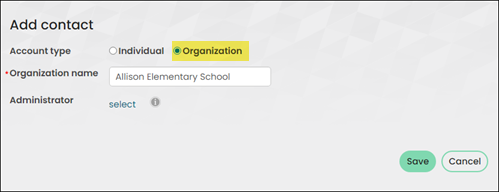
- In the Organization name field, enter the school name and optionally select or create an Administrator for the school. See What can the administrator do? for details.
- Click Save.
- You are redirected to the new account page where you can update the contact details, addresses, or profile image.
Add the school to the Schools group
Do the following to add the new school to the Schools group:
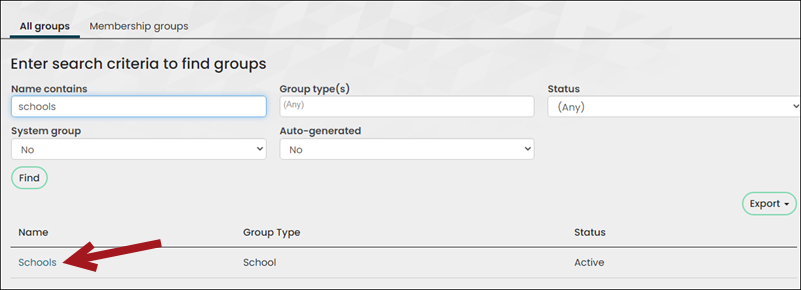
- Go to Community > Find groups.
- In the Name contains field, enter Schools.
- Click Find.
- Select the Schools group.
-
Select Add a contact.
-
From the Select a query drop-down, select organization.
-
In the Name contains field, enter the name of the school you added.
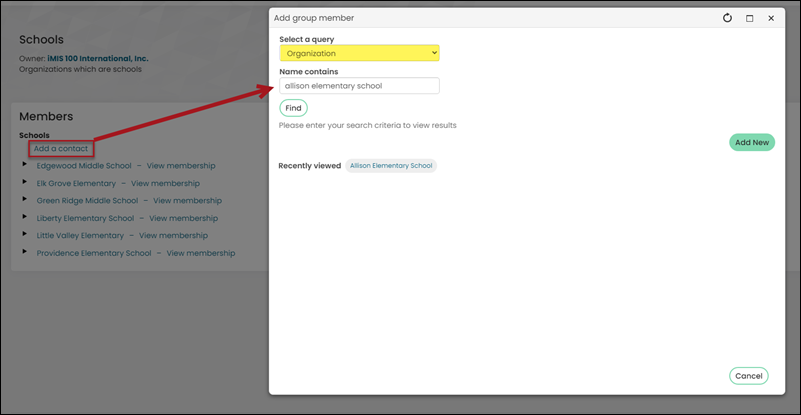
- Click Find.
- Select the Full Name of the school.
- Click Save & Close.
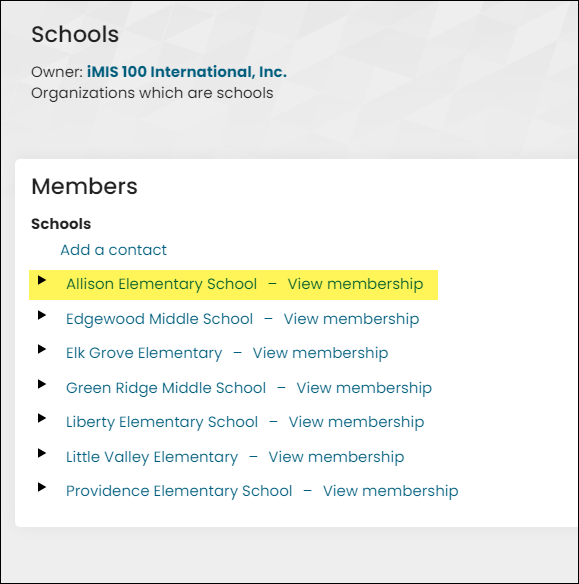
The school (organization) is now part of the Schools group, has a group type of School, and is correctly configured as a school in iMIS.
Updated 5 months ago
Did this page help you?