

European taxation (VAT)
Value-Added Tax (VAT) is a tax levied on goods and services sold within the European Union (EU). iMIS supports VAT, so you can tailor your organization's taxation method for the EU member countries in which you have operations. Applicable taxes then will be calculated automatically based on a customer's country.
To charge VAT, you multiply the net price by the VAT rate (to calculate how much VAT to charge) and then add that amount to the net price to give the gross (inclusive) price:
Net price = £100
+ VAT due at 20% = £20
= Gross price = £120
NoteWhen prices are entered that are VAT inclusive, iMIS derives the VAT amount from the net price to arrive at a per-unit VAT amount, which is then multiplied by the quantity sold. The result is a VAT amount per each line item.
Setting up VAT
You have the power to set up tax schedules, categories, exemptions and authorities specifically for VAT to best meet your specific requirements.
Before you get started with setting up the tax information, there are a few things that need to be set up for VAT to work properly in your system.
Go to Settings > Addresses > Countries. Every country in Europe for which VAT will be charged needs to have the EU Country Code field populated.
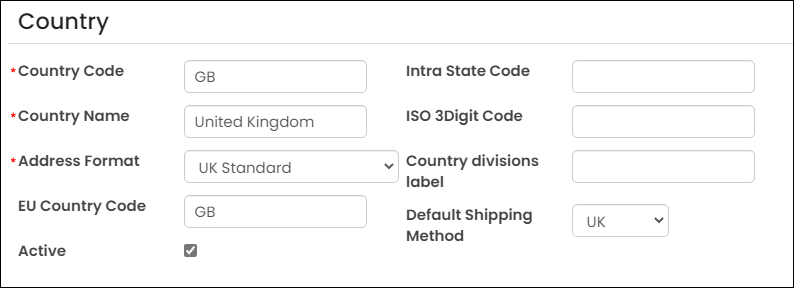
If a country does not have the EU Country Code field populated, then iMIS assumes that country is outside the scope for VAT and the order transaction in which this country is in the address will be exempt from VAT. This occurs if that specific Exemption reason is in effect.
Next, go to Settings > Finance > Financial entity. The country that is selected from the drop-down needs to be the home country of the organization. This will determine if the shipping address for the order transaction is eligible for the Reverse Charge exemption if the customer is registered and if that particular Exemption reason is in effect.
The Default country under Settings > Finance > General also needs to be the home country of the organization. If the shipping address is blank, iMIS will assume the Default country is the selected country in this setting.
Once those options have been set up, go to Settings > Finance > Taxes.
Tax schedules
A tax schedule is an ordered list of tax authorities interested in levying sales or use tax in a particular situation.
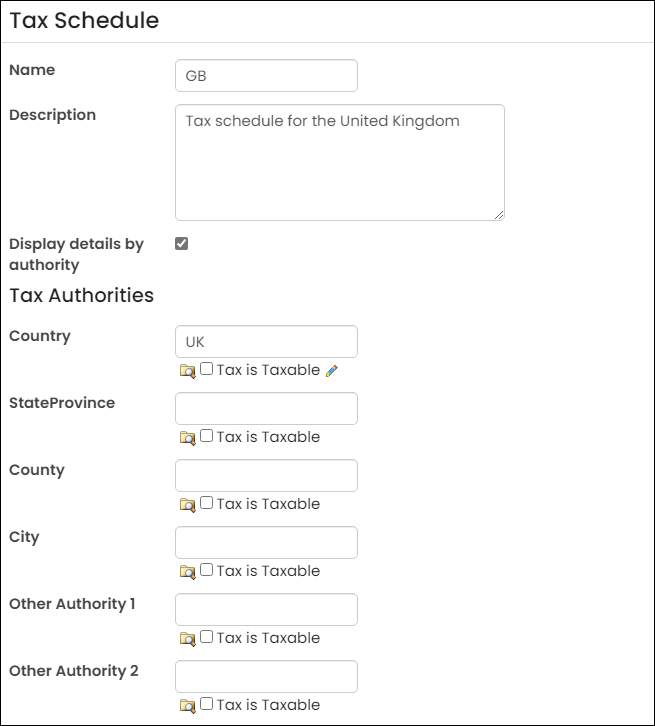
You only need to define schedules for the countries and/or tax authorities for which your organization will collect taxes. Add or select the tax schedule for the UK.
- When using VAT, always populate the two-character country code in the Name field and enable the Display details by authority checkbox.
- Enter UK in the Country field or use the lookup icon.
- Click Save.
Tax categories
A tax category is a general collection of items that have common taxation rules. For example, if you need to tax event registrations in a specific way, you would create a category named Events. Make sure that the exemptions are in place for each applicable category.
- Edit an existing category or click add for a new one.
- Enter the Name and Description for this category.
- Select the Applicable exemption reasons.
📘 Note: Exemption reasons are defined when setting up tax exemption reasons. Only the exemption reasons that have been previously defined will display as an option. See Setting up tax exemption reasons for more information.
- Click Save.
📘 Note: If a category is zero-rated and the Applicable exemption reasons are enabled, the zero-rated message will not display in the invoice's VAT Summary section.
Tax authorities
A tax authority is a geographical area to which a set of specific taxing rules apply. Select a tax authority for the UK.
- Select Settings > Finance > Taxes.
- Select the Authorities tab.
- Edit an existing authority or click add for a new one.
- (Define tab) Define the following:
- Enter the Name and Description for this tax authority.
- Select Country from the Level drop-down at which to apply this tax.
- Select the EU Country to be associated with this tax authority.
- Enter VAT for the Authority Code. This is the abbreviation you want to assign to the tax category, such as a state or province abbreviation.
📘 Note: Any value you enter in the Authority Code field will be displayed in the cart as part of a tax-included statement. When using VAT, enter VAT in the Authority Code field. When you purchase a product for which the VAT is included, a message similar to the following is displayed in the cart: (includes 0.85 VAT). Combine the EU Country code and VAT, such as GB VAT if you plan to collect VAT for multiple countries.
- (Liability GL Accounts tab) Define the following:
- Select the Tax Liability Account you would like to associate with your Financial Entity. See Setting up tax information for more information.
- Select Validate Accounts for the system to verify that the selected GL account entered exists on the GL Accounts table.
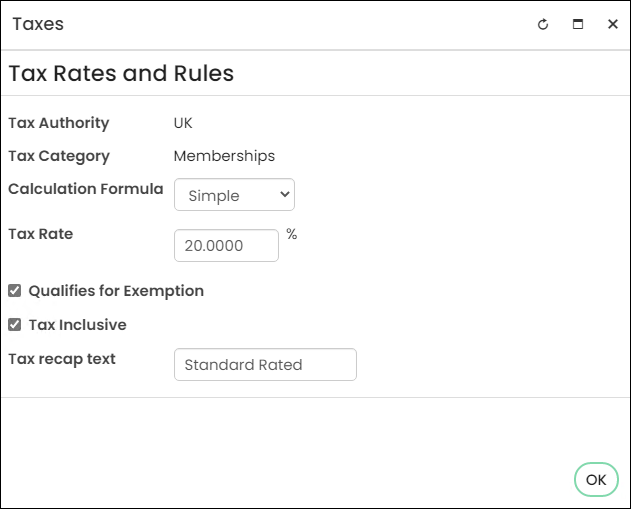
- (Rates and Rules tab) Select each category to make sure all settings are correct. Define the following:
- Click select to edit the Tax Rates and Rules of each Tax Category.
- Select either Simple or Advanced for the Calculation Formula.
- Define the Tax Rate. Make sure to enter the rate as a percentage and not as a decimal.
- (optional) Enable Qualifies for Exemption.
- (optional) Enable Tax Inclusive.
- (optional) Enter the Tax recap text. The text is restricted to a maximum of 100 characters. This text will appear on VAT invoices and other related reports, so exact spelling is important.
- Click Save.
For example, if you want to charge standard VAT for merchandise, the tax rates and rules would look like the following:
📘 Note: You should only define authorities for the authority for which taxes are collected. If an organization only collects VAT for the UK, then there should only be a single authority in place for the UK.
Exemption reasons
Staff members can enter tax exemptions both globally or on behalf of contacts who cannot grant themselves exemptions. It is exemptions on Bill To contacts that affect the calculation of sales tax. See Setting up tax information for more information.
Global
To enter a global exemption, go to the Staff site and select Settings > Finances > Taxes. Select the Exemption Reasons tab.
When you add a new reason or edit an existing reason:
- Select Add New and choose from one of the six reasons provided in the Reason drop-down:
- Registered in the applicable tax authority: For customers that are registered to collect taxes within the primary tax authority and are exempted from paying taxes on purchases made within that tax authority's region. This reason is for a common scenario when sales are made to an organization that is registered to resell goods (for example, issued a Resale Certificate) within the taxing authority and are exempt from being charged tax.
- In a different country from the Financial Entity: Applies when the transaction scenario is such that only customers whose location is within the same country as that of the financial entity should be charged tax. Although it is common to not create tax schedules for taxing authorities for which no tax should be collected (for example, no tax authorities or schedules would be defined for taxing authorities in a different country) this exemption reason would typically be used when tax is based upon a fixed location (for example, the financial entity's location) and that fixed location is represented by a tax schedule assigned directly to a product. However, the fixed location's tax should only apply to transaction situations where the customer's address is within the same country as the financial entity.
- Outside the EU: For European organizations that need to exclude charging VAT to customers with addresses outside of the European Union. With this exemption reason, no tax will be charged if the country within the customer's address is not assigned an EU country code.
- Registered in a different EU Country from the Financial Entity: For customers who are registered in a location that is in a different EU country from that of the seller. This exemption reason is for when VAT is not charged due to a Reverse Charge scenario (when a vendor in an EU country that sells to a VAT registered customer and that customer's address is in a country different than that of the vendor and the customer holds a VAT Registration in that different EU country, then no VAT tax is charged).
- Exempt in ANY tax authority: For customers that do not need to formally register with a tax authority, but are exempt from being charged tax. For example, a charitable organization who is not required to register with the taxing authority, but who qualifies for an exemption when they prove that they are a qualified charitable organization. This reason would apply to any customer who has a tax exemption with an exemption type of Exempt and in which the tax authority for the exemption is set to any authority.
- Exempt in the applicable tax authority: This is similar to the reason Exempt in ANY tax authority, except this reason restricts the exemption to only those customers that carry a tax exemption with an exemption type of Exempt and the primary tax authority for the tax schedule is assigned to the transaction that matches the tax authority assigned to the tax exemption.
- (optional) Provide a custom message to communicate why a tax was not charged. This message will display on all invoices where the exemption applies.
- (optional) Enable the exemption reason as Default. When a new tax category is defined, the list of applicable tax exemption reasons for this new tax category will default to include all exemption reasons that are selected as default.
- Click Save. The following columns appear:
- Available For Renewals - If there is a check in this column, the related Reason is considered when processing renewals. Reasons of Registered in the applicable tax authority and Exempt in the applicable tax authority are not supported for renewals.
- Up/Down arrows - Use the Move Up or Move Down arrows to define the exemption reason priority. The first listed exemption reason has the highest priority.
For VAT taxation, mark Outside the EU, Registered in a different EU Country from the Financial Entity and Exempt in ANY tax authority as Default.
VAT invoice report
After you have set up the tax information to use VAT, you will need to update the invoice report to point to the VAT invoice report.
- Go to RiSE > Site Builder > Manage shortcuts.
- Search for InvoicePrint in the Shortcut contains field.
- Edit the shortcut.
- From the URL or content record field, select @/iCore/Finance/Invoices/Detail/VAT_Invoice_Report.aspx.
- Click Save.
See Setting up the invoice report for more information on using custom invoice reports.
Assigning taxes to products and events
The last step is to assign the appropriate tax settings to each product you want VAT charged to. This needs to be done on a per-product basis.
- Go to Commerce > Find products.
- Search for the product you want VAT charged to.
- Select the product and then select Edit.
- The Accounting tab is where you will determine the tax schedule and category. See Defining products for more information.
- Click Save.
You can also assign the appropriate tax settings to events that you want VAT charged to. This needs to be done on a per-event basis.
- Go to Events > Find events and locate the event you want VAT charged to.
- Open the event for edit and click the Pricing tab.
- Open the registration option and select the Accounting tab.
- Define the tax category and schedule.
- Save all changes.
Examples
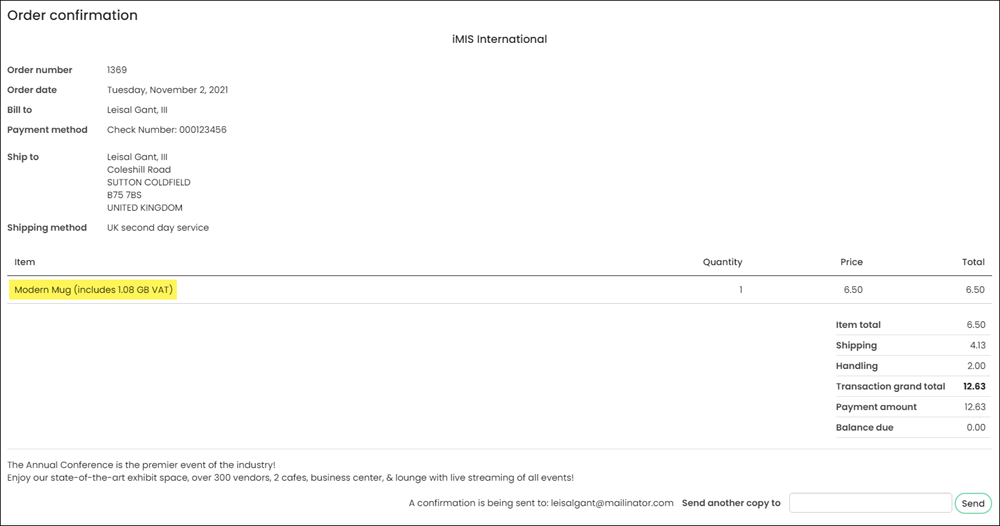
Non-registered customer within the UK is charged tax
For this example, the customer has a shipping address in Belgium, a country in the EU, but one that does not match the country in the Financial entity.
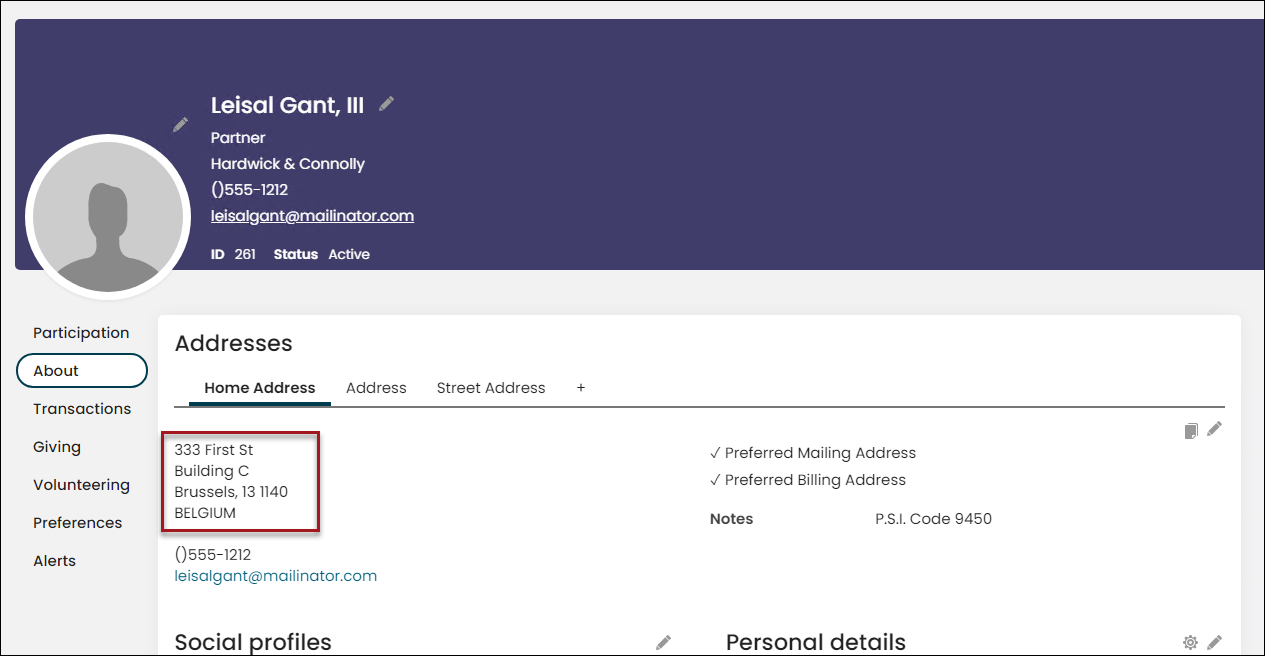
That customer will be charged VAT identical to a UK customer.
Registered customer within the same country as the financial entity
For this example, there is a company with an address within the UK.
A tax exemption reason with the Exemption type of Registered is inserted for the company.
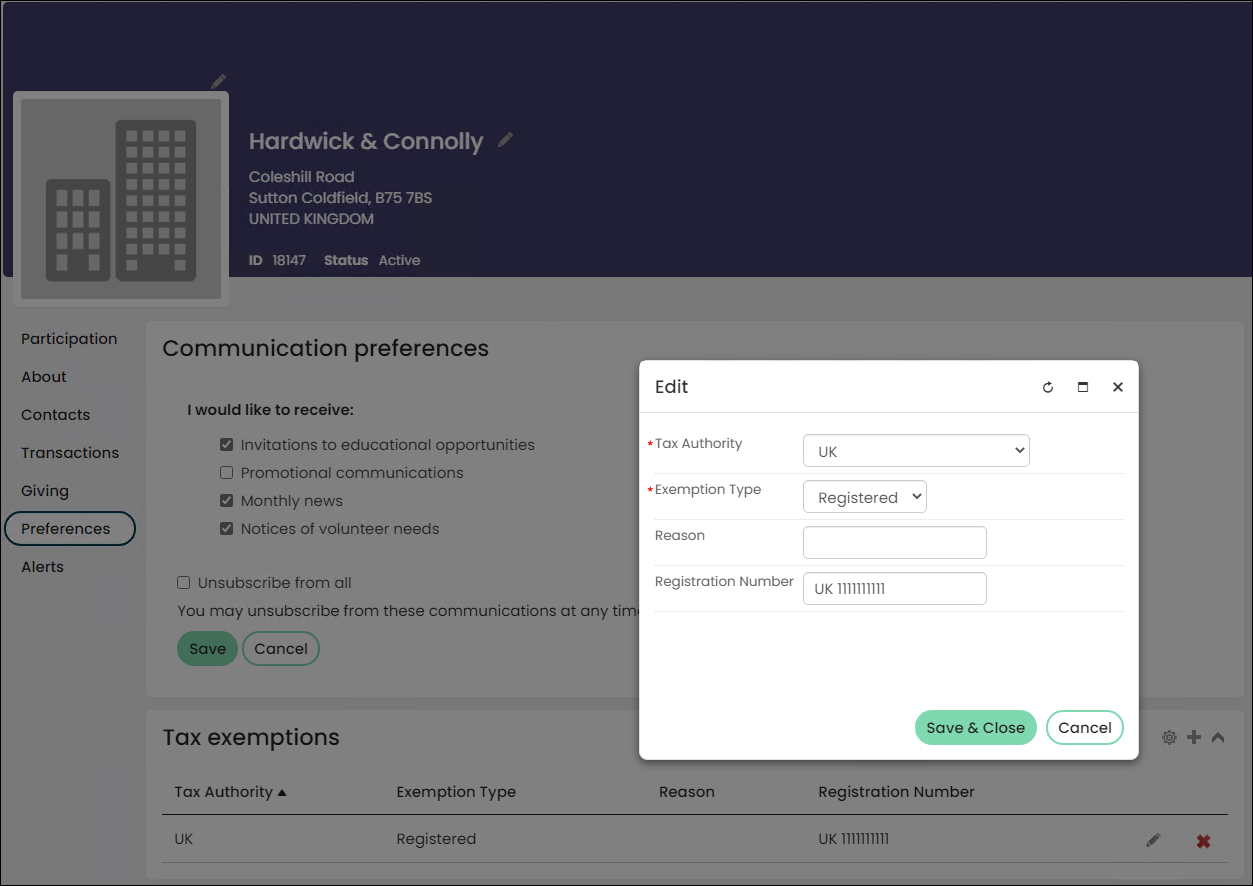
Once a product is added to the cart, VAT will be charged.
Registered customer in a different EU country
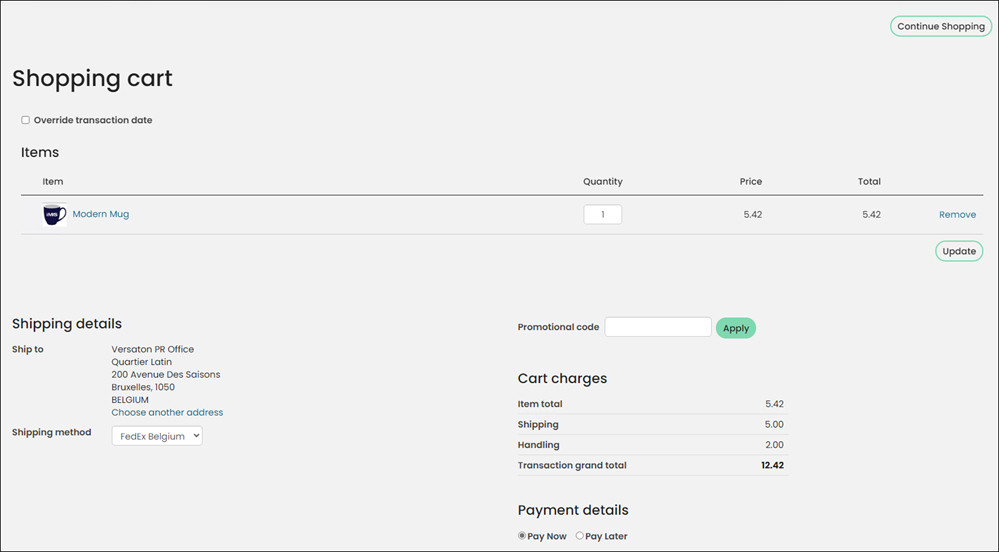
For this example, we have a customer with a shipping address in Belgium. This customer also has a tax exemption type of Registered.
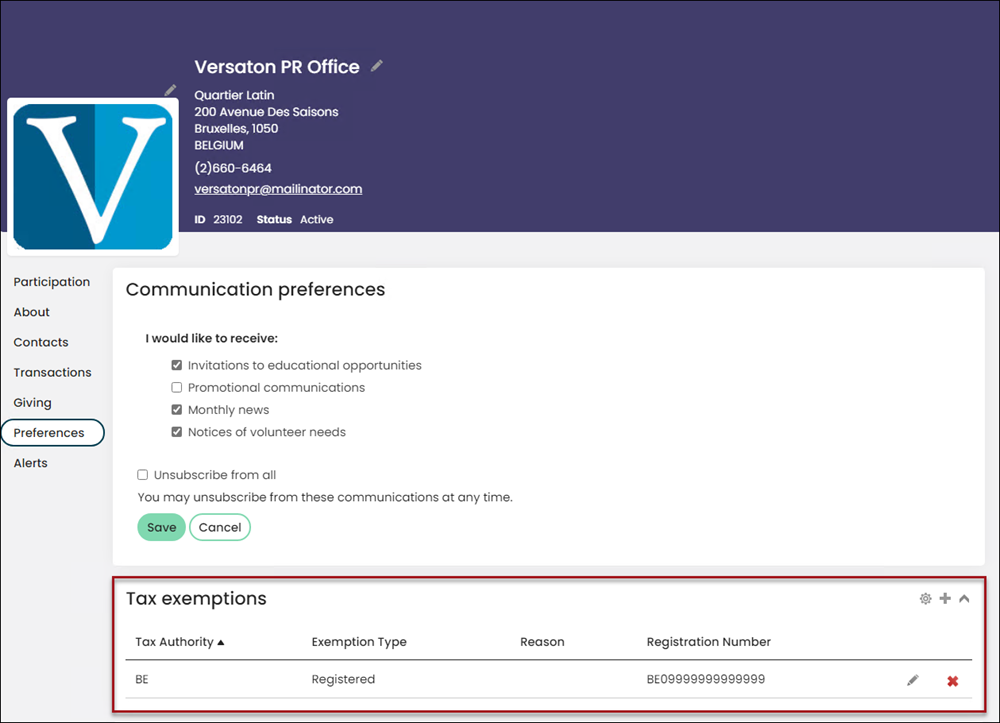
The customer is not charged VAT.
Customer outside of the EU country
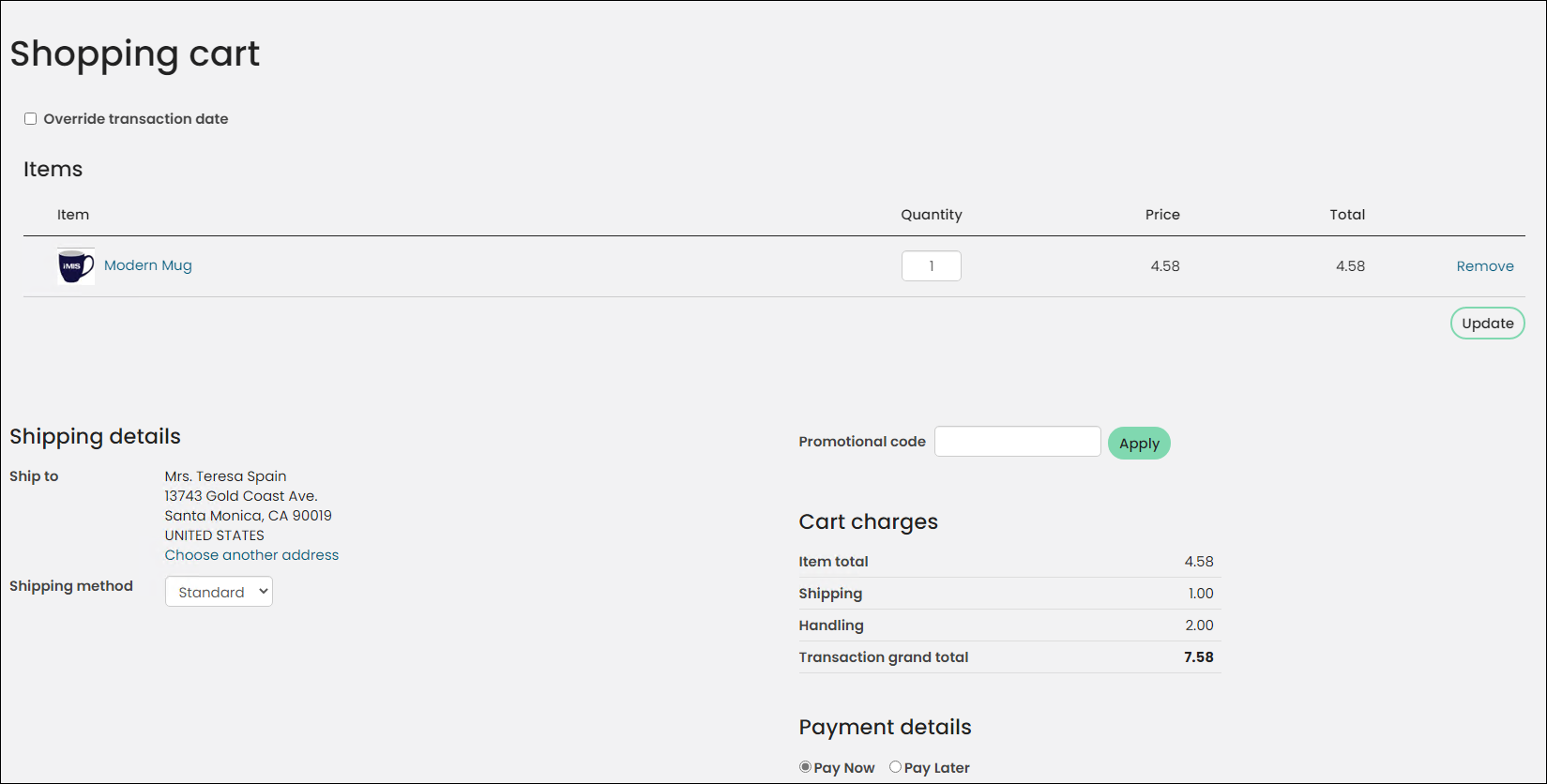
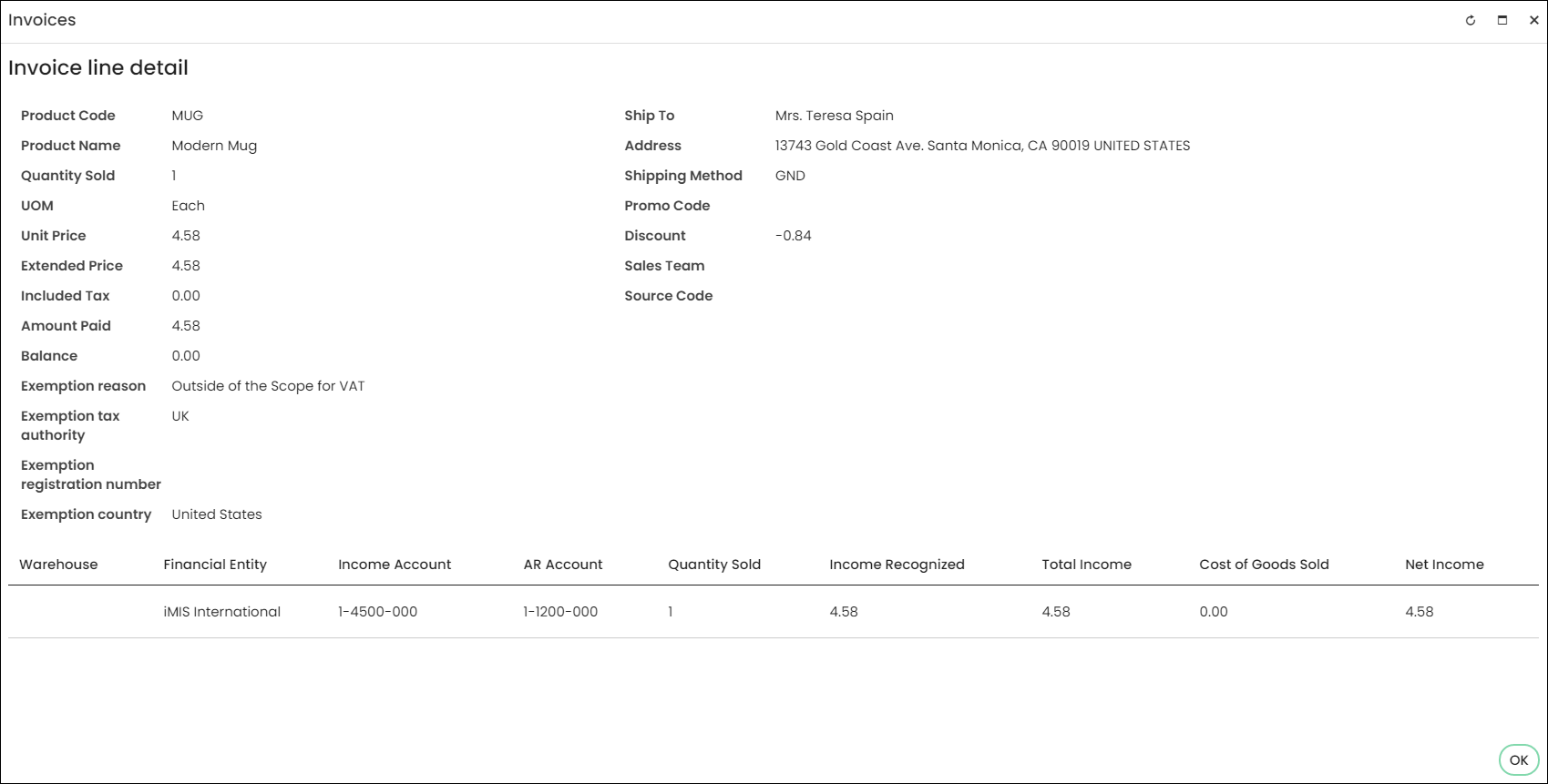
For this example, the customer has a US address and no tax exemptions.
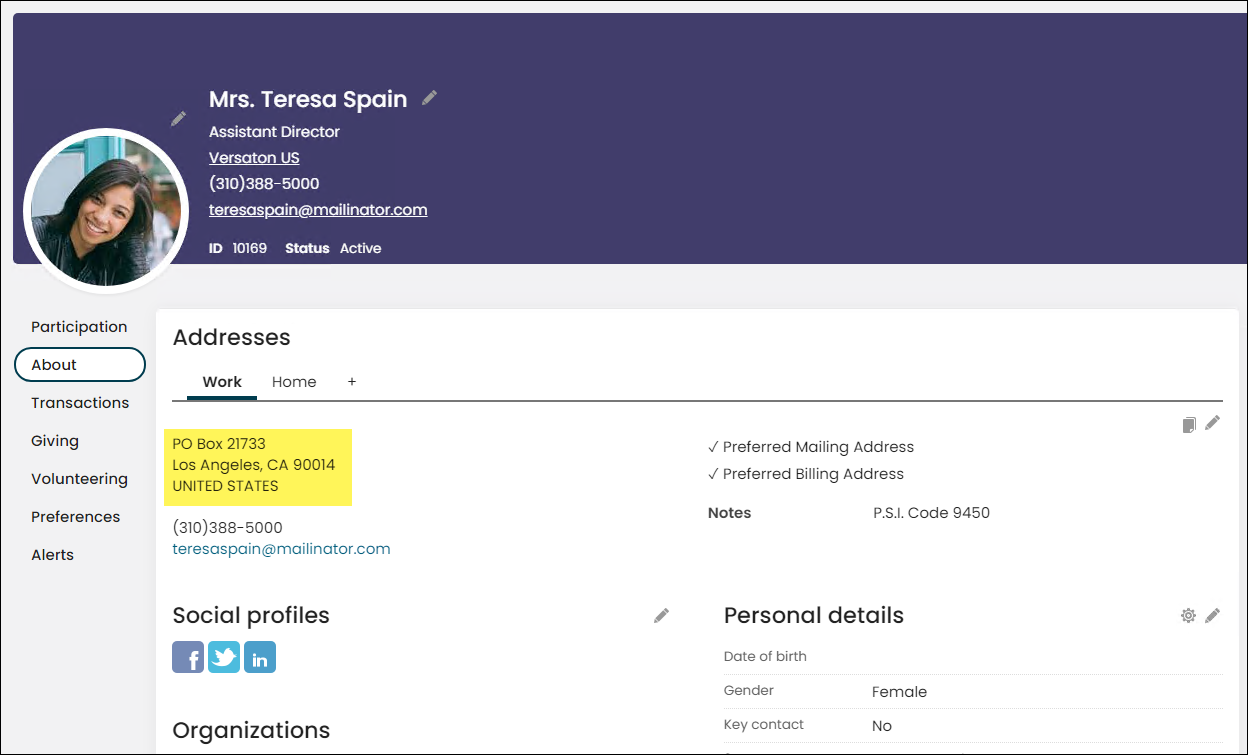
When checking out, VAT is not charged.
The correct exemption reason is applied to the invoice detail.
Updated 5 months ago