

Adding reports to account pages
NoteiMIS Report Writer is a licensed feature, where you can choose from a Basic or Plus license. Basic includes ExpressView reports, and Plus includes ExpressView, AdvancedReports, and Dashboards. Contact your AiSP for more information.
The out-of-the-box Report Writer reports with "selected contact" in the name are either already located on the out-of-the-box account pages, or they can be added to your custom account pages. Before adding a report to the account page, you must already be working with custom (not out-of-the-box) account pages, so you have the ability to edit the account page. See Understanding and modifying account pages.
Report Writer reports on the out-of-the-box account page
The following "selected contact" reports are located on the out-of-the-box account pages.
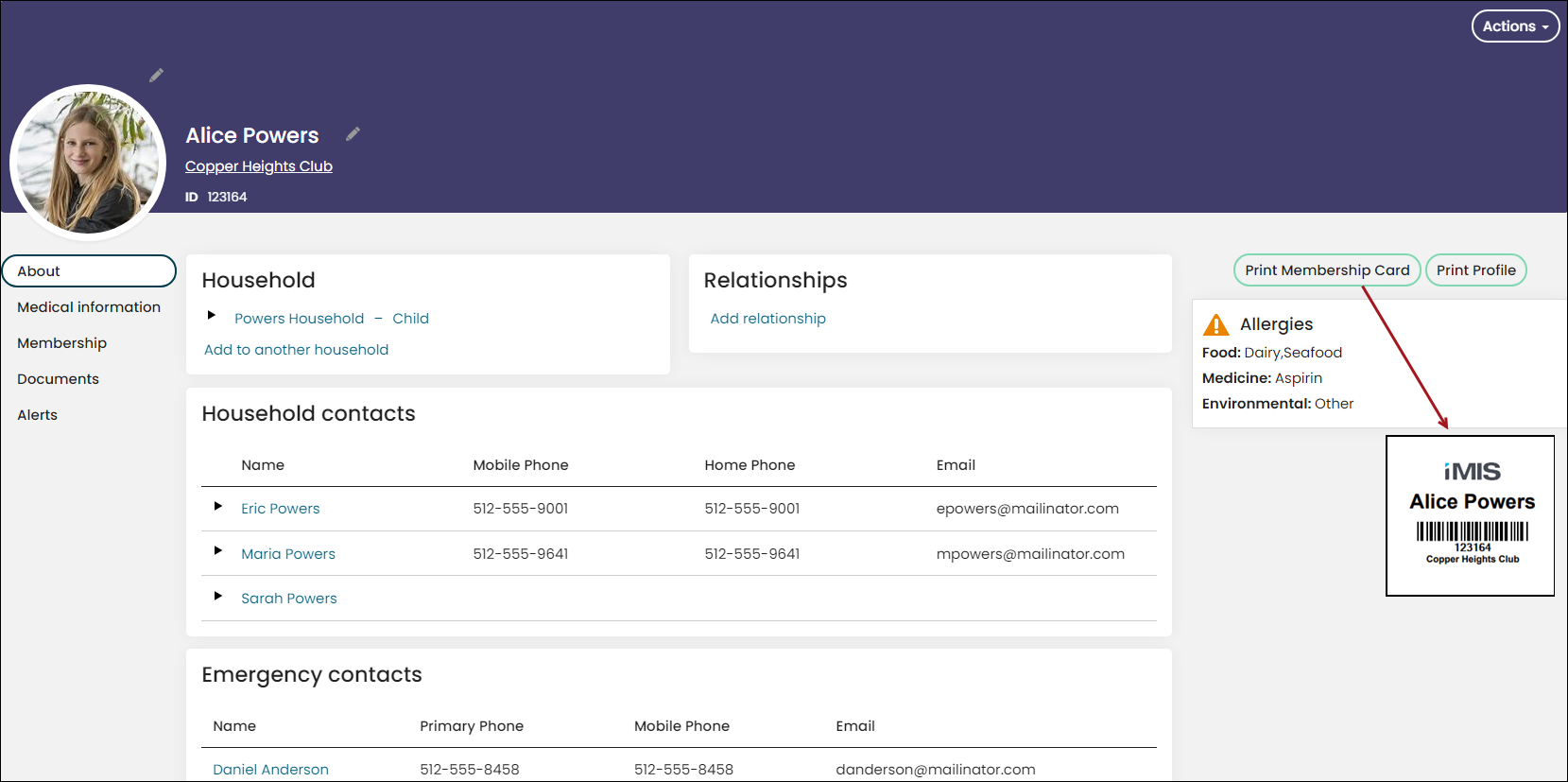
Membership Card for Selected Contact
Access the Membership Card for Selected Contact report from the out-of-the-box Club account pages using the Print Membership Card button. The Print Membership Card button uses the PrintMembershipCard shortcut. Update this shortcut to point to a custom version of this report on the Club Staff account pages.
TipIf you are not licensed for iMIS for Clubs, learn how to add this report to the Staff account pages in the section below.
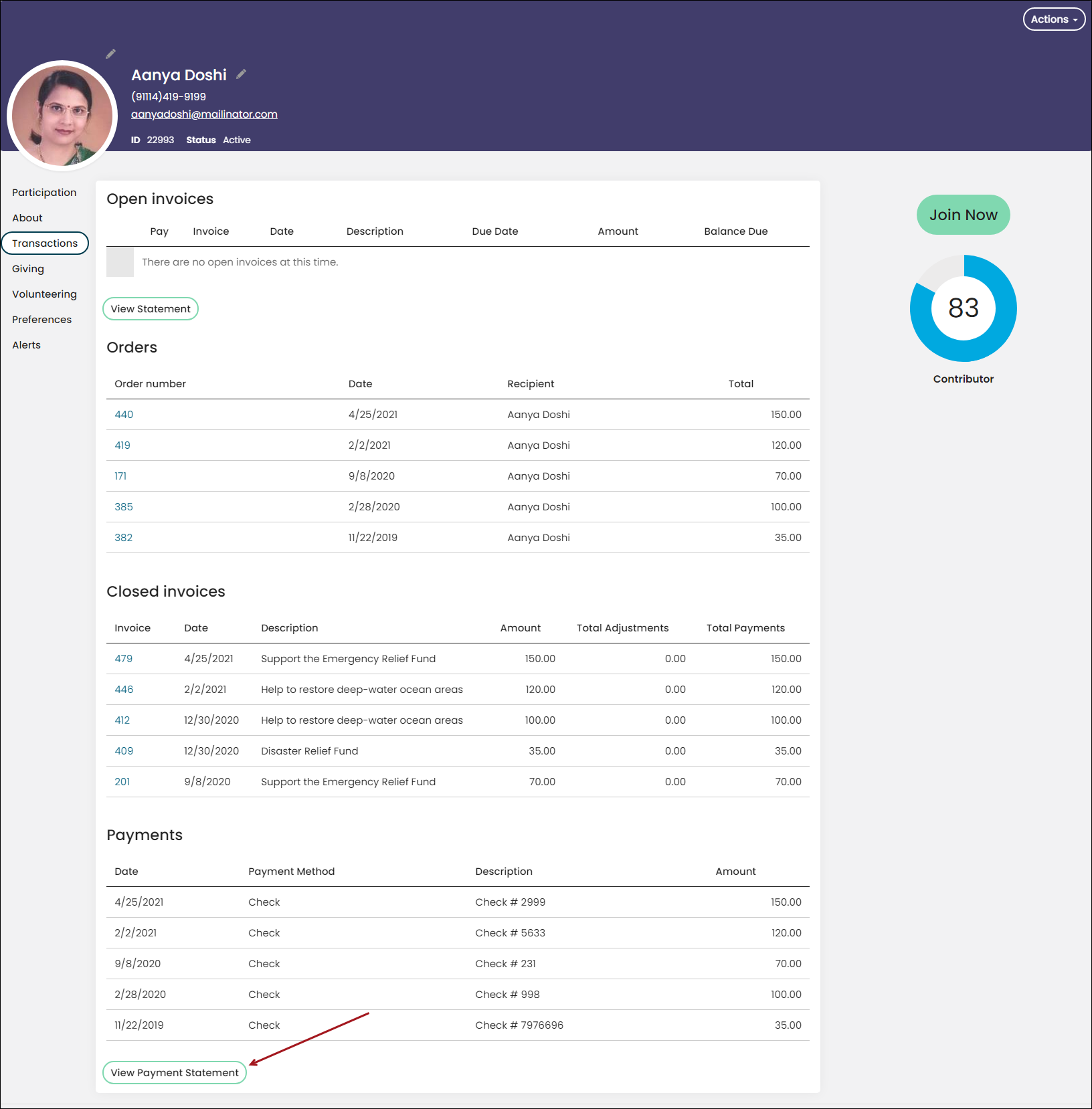
Payment Statement for Selected Contact
Access the Payment Statement for Selected Contact report from the Transactions tab on staff account pages, staff club household account pages, and organization account pages from the View Payment Statement button. Public users also have access to this button from their public account pages, including the household contact pages (iMIS for Clubs).
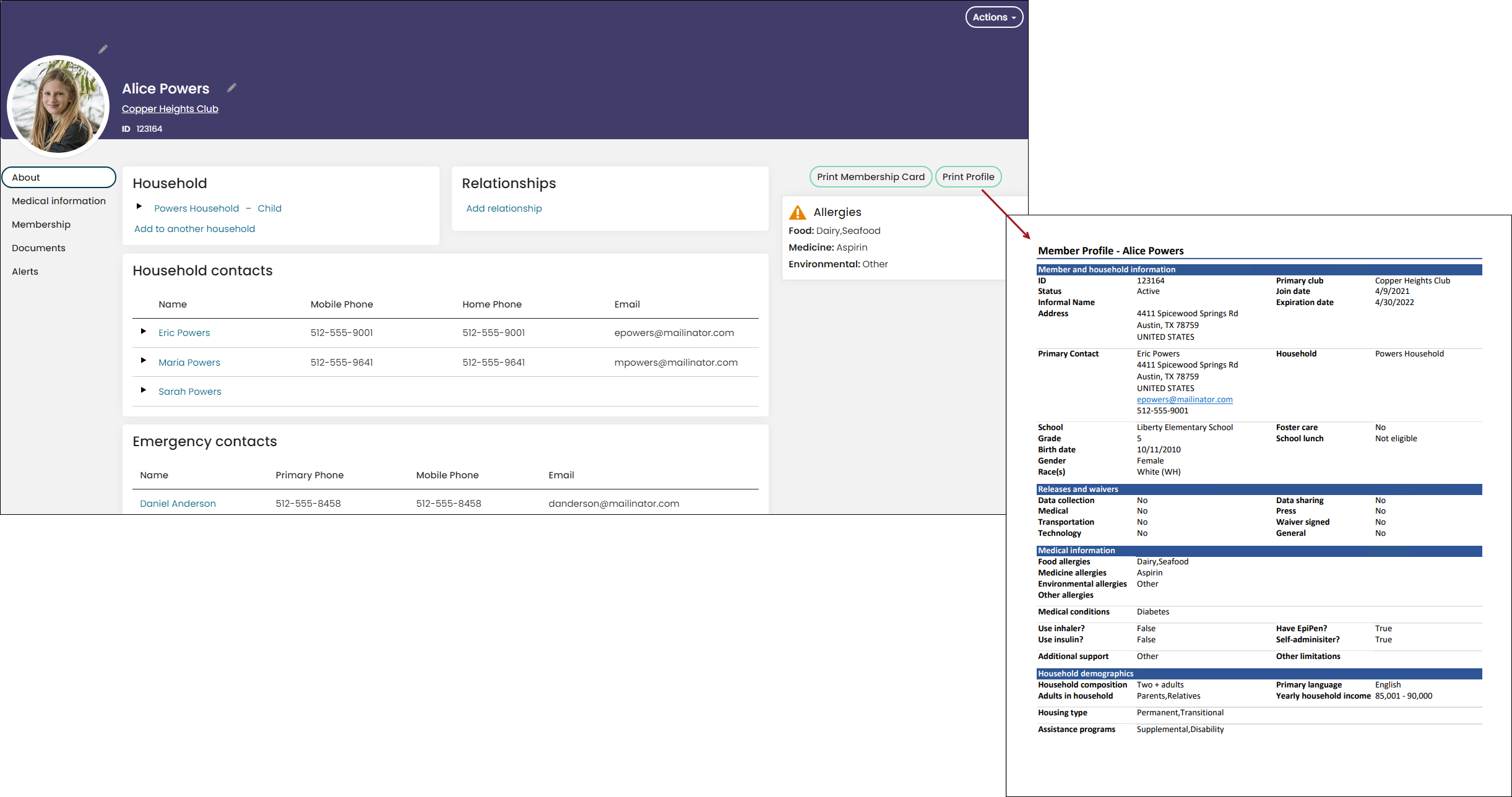
Member Profile for Selected Contact
NoteYou must be licensed for iMIS for Clubs to have access to this report.
Access the Member Profile for Selected Contact report from the out-of-the-box Club account pages using the Print Membership Profile button. The Print Membership Profile button uses the PrintProfile shortcut. Update this shortcut to point to a custom version of this report on the Club Staff account pages.
Adding a Report Writer report to the account page
To add a custom Report Writer report to the account pages, the report must have an ID filter that is equal to @ContactKey@.
Example: Adding the Membership Card for Selected Contact report to the account page
Do the following to add the Membership Card for Selected Contact report to the Staff account page:
- Go to RiSE > Page Builder > Manage content.
- Choose a non-system folder, then select New > Website Content.
- Enter a Title.
- Select Add content.
- Open the Utility folder, then select the Report Writer Display content item.
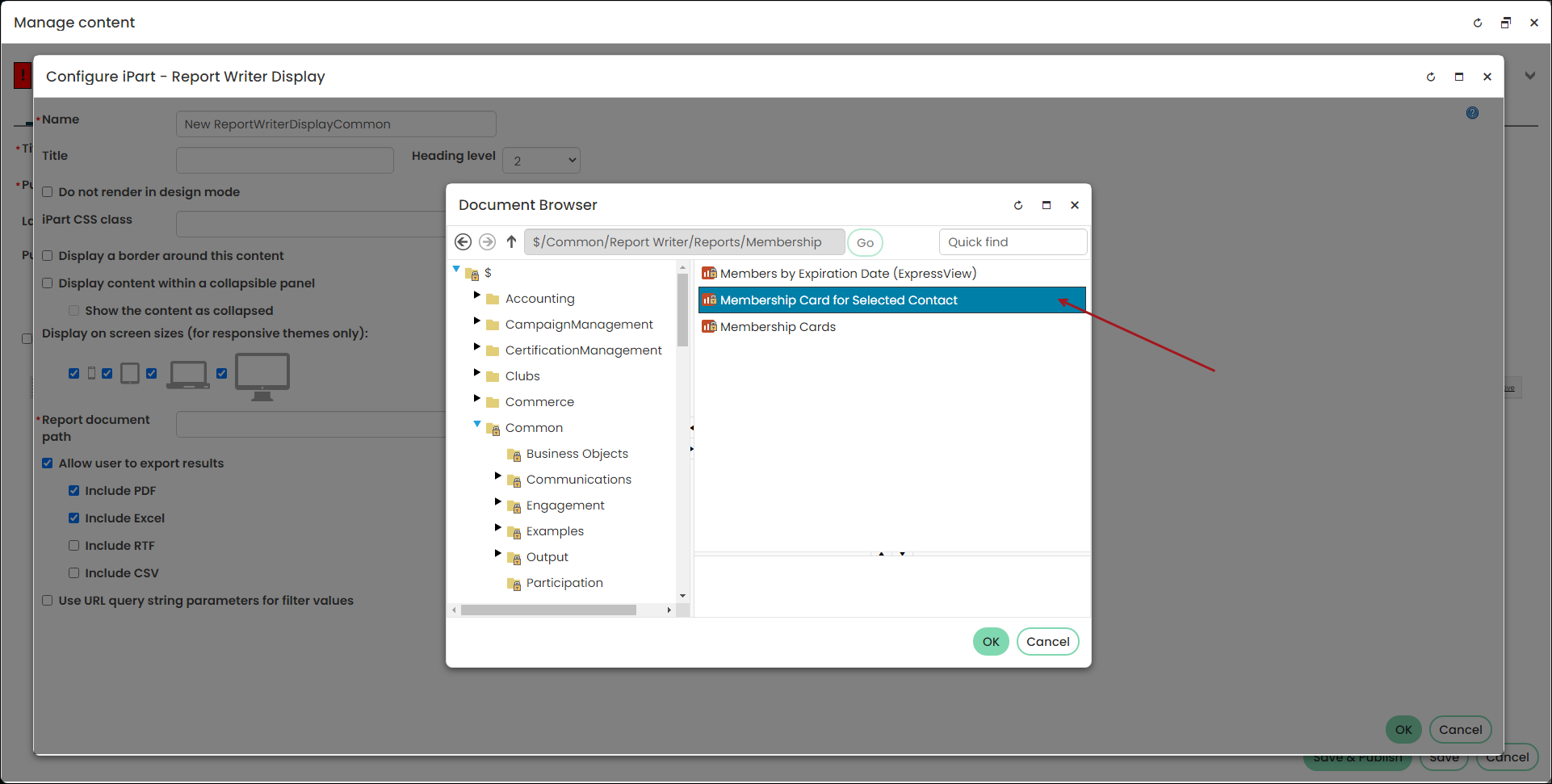
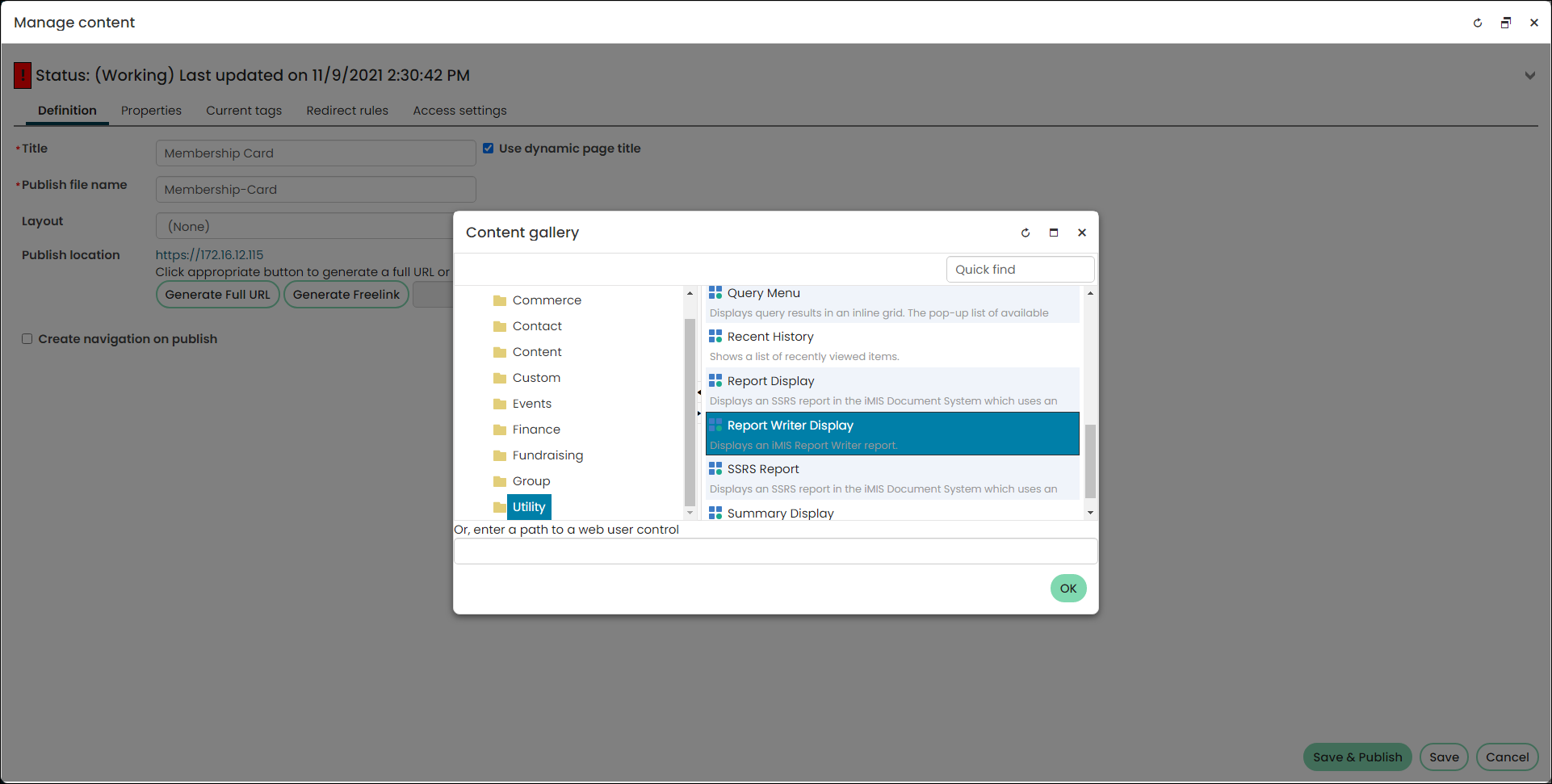 6. From the Report document path, navigate to $/Common/Report Writer/Reports/Membership and select the Membership Card for Selected Contact report.
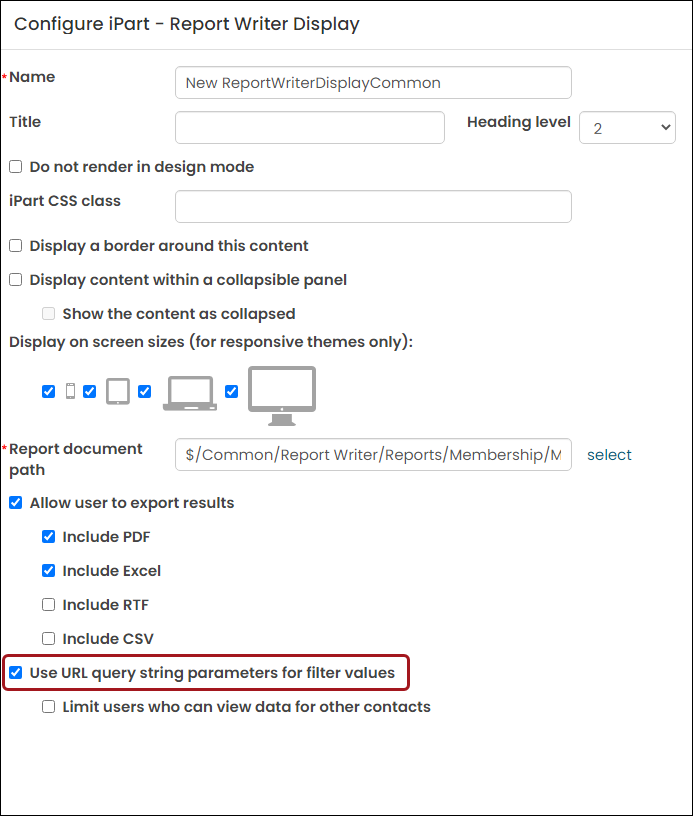
 7. Enable Use URL query string parameters for filter values.
 8. Click OK, then click Save & Publish.
 - Navigate to the page on which you want to add the membership card button and open it for edit.
- Select Add content.
- Open the Content folder, then select Big Button Panel:
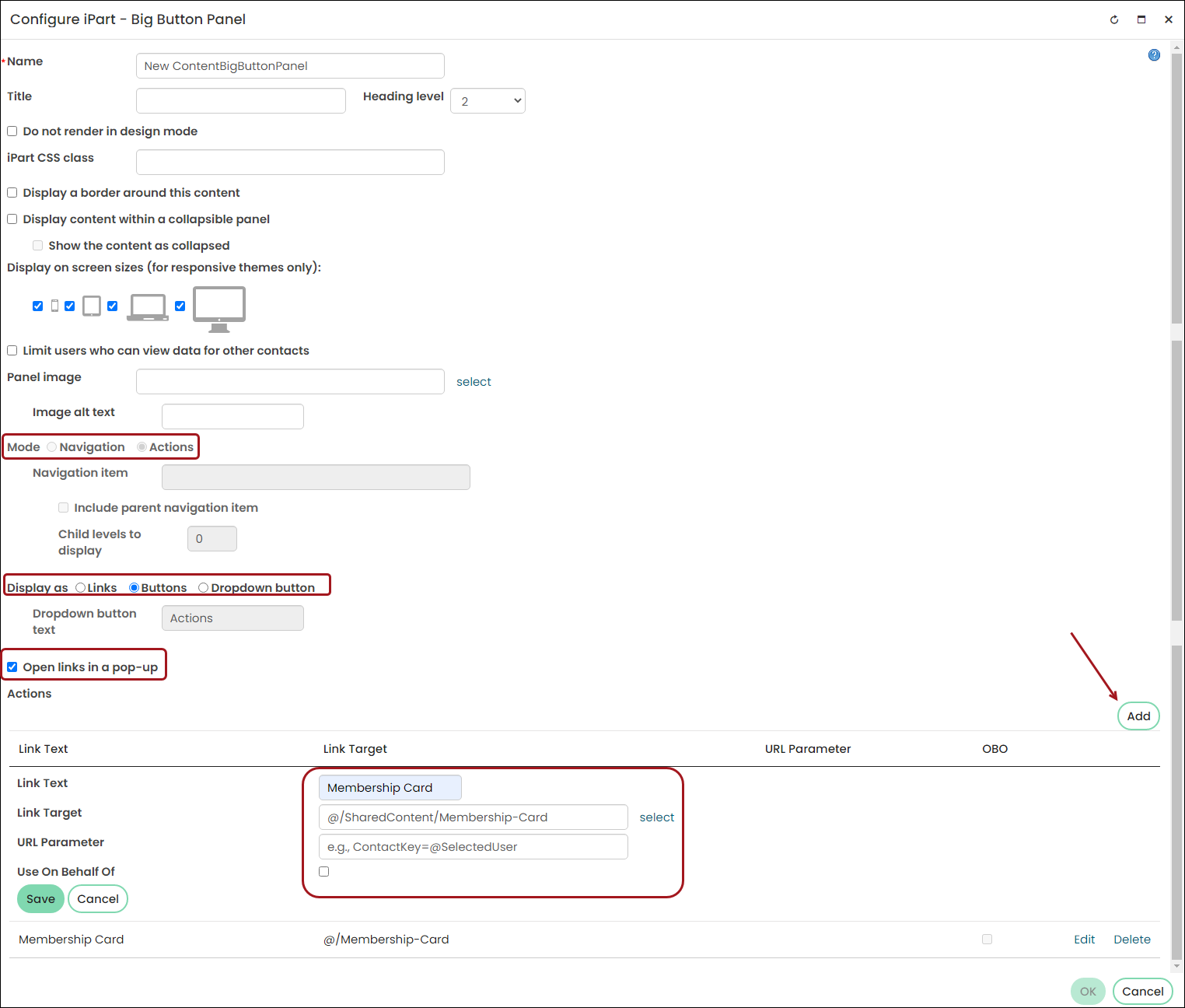 1. From Mode, choose Actions.
2. From Display as, choose Button.
3. Enable Open links in a pop-up.
4. Click Add:- Link text: This is the button text. For this example, enter Membership Card.
- Link Target: Choose the content record you created in the previous steps.
- URL Parameter: Enter ContactKey=@SelectedUser.
- Click Save.
- Click OK, then click Save & Publish.
- Navigate to an account page and verify the button appears and the report opens correctly.
Updated 5 months ago