

Using special pricing
You can give individual contacts special prices by adding special pricing rules to commerce products and membership fees. Special pricing rules only apply to contacts who have values entered in fields used by the special pricing rules. All other contacts are charged the default standard or discount price.
This article details many different examples in which you could use special pricing.
Understanding special pricing configuration options
Special pricing rules apply to membership billing products and products available on your online store. Do the following to create special pricing rules:
- From the Staff site, do one of the following:
- Go to Commerce > Find products and select Edit.
- Go to Commerce > Add product to create a new product.
- On the Summary tab, click Add pricing rules for Standard price or Discount price.
- Select a Rule type:
- Use the value of a numeric property as the price - This value is defined by a user-defined panel property. If a contact has a price defined in the selected panel property, that price is used here.
- From the Source drop-down, select a special pricing source panel. All sources with Decimal and Currency properties are displayed. See Defining your own data with Panel Designer for more information on creating a new source panel and properties.
- Add source – Select from a list of applicable business objects.
📘 Note
You must select a business object with a property that can be identified as a ContactKey and have only one row per contact. The chosen business object will be available as the active selection in the Source drop-down. - From the Property drop-down, select the property. Decimal and Currency properties in the selected source panel are displayed. The property is the field in the source panel that contains the special price.
- The Default price field displays the same value as the field (Standard price or Discount price) to which you are adding the special pricing rule. Changing the value in one field results in changes to the other field.
If a business object is chosen as the Source, the Property drop-down offers applicable business object properties.
- From the Source drop-down, select a special pricing source panel. All sources with Decimal and Currency properties are displayed. See Defining your own data with Panel Designer for more information on creating a new source panel and properties.
- Map property values to prices - Select this option to create rates based on values matched to character fields.
- From the Source drop-down, select the special pricing source panel. All sources with Text properties with pre-defined values and Yes/No properties are displayed. See Defining your own data with Panel Designer for more information on creating a new source panel and properties.
- Add source – Select from a list of applicable business objects.
📘 Note
You must select a business object with a property that can be identified as an ID or ContactKey and have only one row per contact. The chosen business object will be available as the active selection in the Source drop-down. - From the Property drop-down, select the property. Text properties with pre-defined values (where the user selects a pre-defined option) and Yes/No properties in the selected source panel are displayed. The property is the field in the source panel that contains the value that you are mapping to a special price.
- The Default price field displays the same value as the field (for example, Standard price or Discount price) to which you are adding the special pricing rule. Changing the value in one field results in changes to the other field.
- Click Add new.
- From the Property Value drop-down, select the value that you want to map to a special price. The property value is the option selected in the field in the source panel. For example, in a State property, you could select a value of Texas.
- Specify the special price in the Price field.
- Click Save. Repeat this process to map additional property values to special prices.
If a business object is chosen as the Source, the Property drop-down offers applicable business object properties.
- From the Source drop-down, select the special pricing source panel. All sources with Text properties with pre-defined values and Yes/No properties are displayed. See Defining your own data with Panel Designer for more information on creating a new source panel and properties.
- Map numeric ranges to prices - Select this option to determine the price based on a range of possible values for user-defined panel properties.
- From the Source drop-down, select the special pricing source panel. All sources with Decimal, Integer, and Currency properties are displayed. See Defining your own data with Panel Designer for more information on creating a new source panel and properties.
- Add source – Select from a list of applicable business objects.
📘 Note
You must select a business object with a property that can be identified as an ID or ContactKey and have only one row per contact. The chosen business object will be available as the active selection in the Source drop-down. - From the Property drop-down, select the property. Decimal, Integer, and Currency properties in the selected source panel are displayed. The property is the field in the source panel that contains the value that you are mapping to a special price value range.
- The Default price field displays the same value as the field (for example, Standard price or Discount price) to which you are adding the special pricing rule. Changing the value in one field results in changes to the other field.
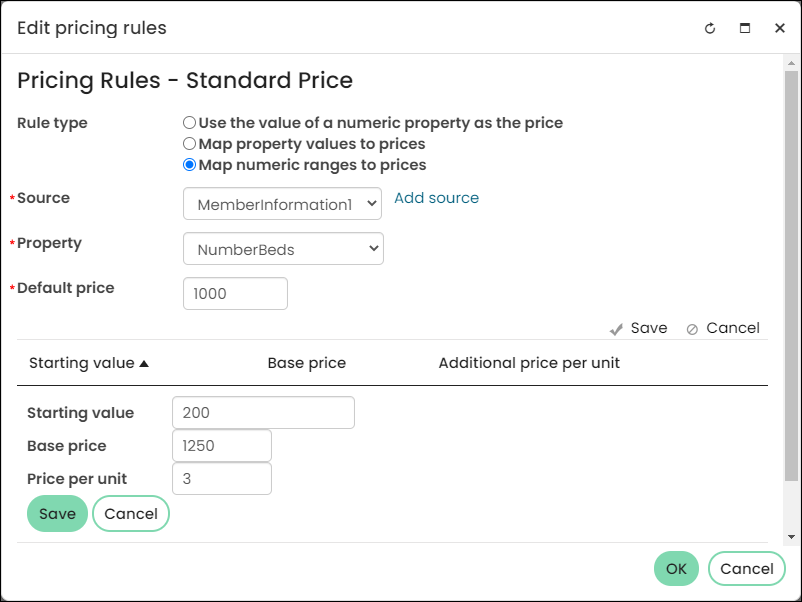
- Click Add new.
- Enter a Starting value for your value range.
- Enter a Base price for property values that fall within this range.
- Enter a Price per unit for additional units beyond the bottom of the value range.
- Click Save. Repeat this process to create additional special pricing value ranges.
If a business object is chosen as the Source, the Property drop-down offers applicable business object properties.
- From the Source drop-down, select the special pricing source panel. All sources with Decimal, Integer, and Currency properties are displayed. See Defining your own data with Panel Designer for more information on creating a new source panel and properties.
- Use the value of a numeric property as the price - This value is defined by a user-defined panel property. If a contact has a price defined in the selected panel property, that price is used here.
📘 Note
Special pricing will be calculated using the following formula:Base price + (User’s property value - Starting value) * Price per unit
Using a simple price for a specific customer
This method for applying special pricing uses a price specified in a field in the contact’s account page. For example, you can use this type of special pricing if you negotiate a contracted price or fee for a specific customer, such as membership fees negotiated on a member-by-member basis.
Do the following to use a simple price for a specific customer:
- In the Panel Editor, create a special pricing data source with Decimal or Currency properties on the account page content record. The properties will be displayed as editable fields on a contact's account page. See Defining your own data with Panel Designer for more information on creating a new data source and properties.
- In the contact’s account page, enter the special price in the appropriate field on the source panel.
- Select Commerce > Find products.
- Search for the product that needs the special pricing rule. Highlight the product title.
- Click Edit.
- You can add or edit special pricing rules for the Standard price or the Discount price.
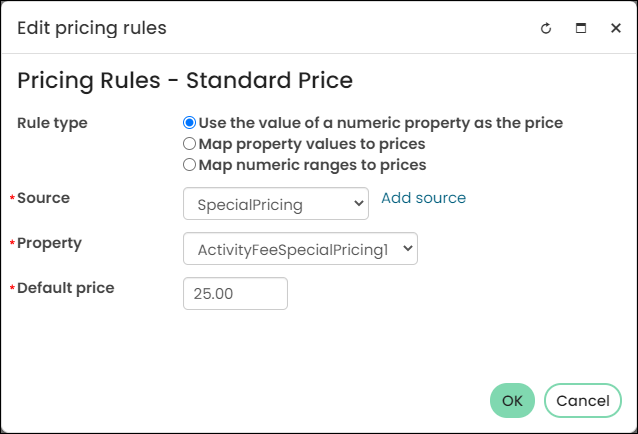
- In the Edit pricing rules dialog box, select Use the value of a numeric property as the price as the Rule type. This option uses a price specified in a field in the contact’s account page.
- From the Source drop-down, select the special pricing data source. All sources with Decimal or Currency properties are displayed.
- From the Property drop-down, select the property. Decimal and Currency properties in the selected data source are displayed. The property is the field in the source panel that contains the special price.
- (optional) Enter a Default price. This field displays the same value as the field (for example, Standard price or Discount price) to which you are adding the special pricing rule. Changing the Default price changes the price to which you are adding the special pricing rule.
- Click OK.
📘 Note
You must create a single-instance data source with at least one Decimal or Currency property.
📘 Note
If you cannot edit the panel in the contact’s account page, confirm that the Allow users to edit checkbox is selected in the panel’s configuration window.
📘 Note
Click remove to clear the special pricing rules from the Standard price or the Discount price.
If a special pricing rule is applied to the Standard price and the Discount price does not have a special pricing rule applied, the Discount price automatically inherits the pricing rules for the Standard price. If you do not want the Discount price to inherit the pricing rules for the Standard price, click remove below the Discount price field to clear the pricing rules or edit the Discount price rule. When you remove the Discount price rules, a Use Standard Pricing Rules link is displayed. Click this link to allow the Discount price to inherit the Standard price rules.
Example Business Scenario: A simple price for a specific member
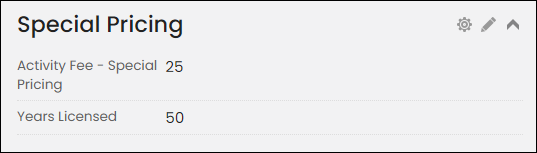
An activity fee is usually $25 for members. However, you want to charge only $20 to a specific member who is highly involved in your organization. The amount billed is determined by the rate that was manually entered for the member in the user-defined ActivityFeeSpecialPrice field.
Use simple pricing when a user-defined property matches a specific value
This method maps an exact value in a Text or Yes/No field in the contact’s account page to a price specified in the special pricing rules. For example, you can use this type of special pricing when membership fees are based on subcategories assigned within a single membership class. Each subcategory is assigned a specific fee amount.
- In the Panel Editor, create a special pricing data source with Text properties with pre-defined values or Yes/No properties on the account page content record. The properties will be displayed as editable fields on a contact's account page. See Defining your own data with Panel Designer for more information on creating a new data source and properties.
- On the contact’s account page, select an option in the appropriate field on the source panel.
- Select Commerce > Find products.
- Search for the product that needs the special pricing rule. Highlight the product title.
- Click Edit. The Edit Item window is displayed.
- To add or edit special pricing rules for the for the Standard price or the Discount price, select Add pricing rules or Edit pricing rules for the appropriate field. The Edit pricing rules dialog box is displayed.
- In the Edit Pricing Rules dialog box, select Map property values to prices as the Rule type. This method bases special pricing on an option selected in a field in the contact’s account page.
- From the Source drop-down, select the special pricing data source. All sources with text properties with pre-defined values or Yes/No properties are displayed.
- From the Property drop-down, select the property. Text properties with pre-defined values (where the user selects a pre-defined option) and Yes/No properties in the selected source panel are displayed. The property is the field in the data source that contains a user-defined value that determines the special price.
- (optional) Enter a Default Price. This field displays the same value as the field (for example, Standard Price or Discount Price) to which you are adding the special pricing rule. Changing the Default Price changes the price to which you are adding the special pricing rule.
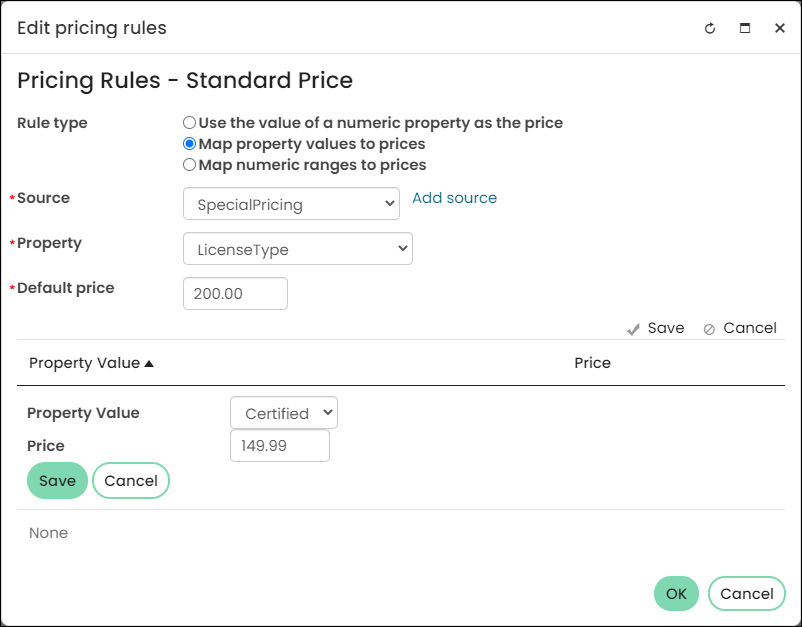
- Select Add new.
- From the Property Value drop-down, select the value that you want to map to a special price. The property value is a value selected in the field in the source panel on a contact’s account page.
- Specify the special price you want to map to the selected property value in the Price field.
- Click Save.
- Repeat steps 11 to 14 to map additional property values to special prices.
- Click OK, then click Save and close.
📘 Note
You must create a single instance data source that includes Text properties with pre-defined values or Yes/No properties.
📘 Note
If you cannot edit the panel in the contact’s account page, confirm that the Allow users to edit checkbox is selected in the panel’s configuration window.
📘 Note
Click remove below the appropriate field to clear the special pricing rules from the Standard price or the Discount price.
📘 Note
To edit a saved property value and price, select its row and click Edit selected.
If a special pricing rule is applied to the Standard Price and the Discount Price does not have a special pricing rule applied, the Discount Price automatically inherits the pricing rules for the Standard Price. If you do not want the Discount Price to inherit the pricing rules for the Standard Price, click remove below the Discount Price field to clear the pricing rules or edit the Discount Price rule. When you remove the Discount Price rules, a Use Standard Pricing Rules link is displayed. Click this link to allow the Discount Price to inherit the Standard Price rules.
Tips
- Text property values used in special pricing rules are set by staff users from an explicit list or from the results of a query:
- If the property values were defined by a query, the query column containing the property values was selected from the Display Value drop-down in the Add property dialog box.
- If the property values were defined by an explicit list, each property value was entered in the Display Value field and the data that it represents was entered in the Data Value field in the Add property dialog box.
For example, if using states as property values, you might enter TX in the Data Value field and Texas in the Display Value field.
- If you define a property value in a text property using a query when creating a panel data source for special pricing purposes, select a query that retrieves results that can be used as options in a drop-down. For example, if you want a user to select a state from a drop-down in the source panel, select a query that retrieves states.
Example Business Scenario 1: Membership fees based on license types
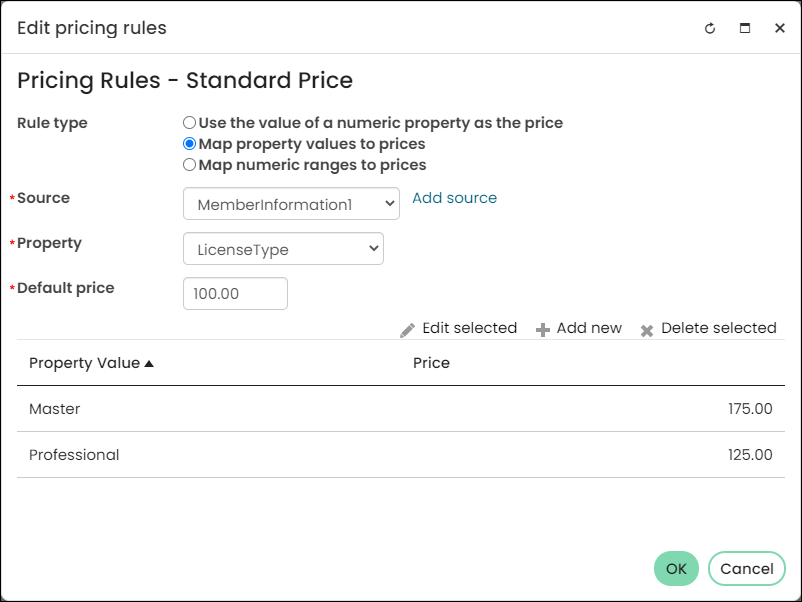
A professional society wants to base membership fees on members’ license types. The license type is specified in the user-defined LicenseType field in the contacts’ account pages. In the special pricing rules, each license type is mapped to a specific price. A member with a Professional license type is charged a fee of $125.00. A member with a Master license type is charged a fee of $175.00.
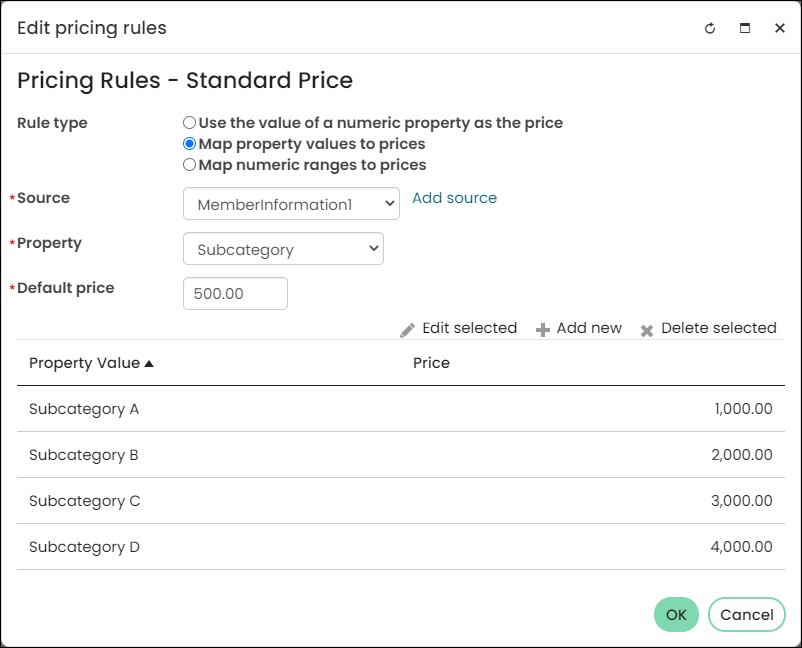
Example Business Scenario 2: Membership fees based on subcategories of a single membership type
A professional association bases membership fees for Associate Members on an assigned subcategory.
- Associate Members assigned to Subcategory A are billed $1000.00.
- Associate Members assigned to Subcategory B are billed $2000.00.
- Associate Members assigned to Subcategory C are billed $3000.00.
- Associate Members assigned to Subcategory D are billed $4000.00.
- Associate Members not assigned to a subcategory are billed the default price of $500.00.
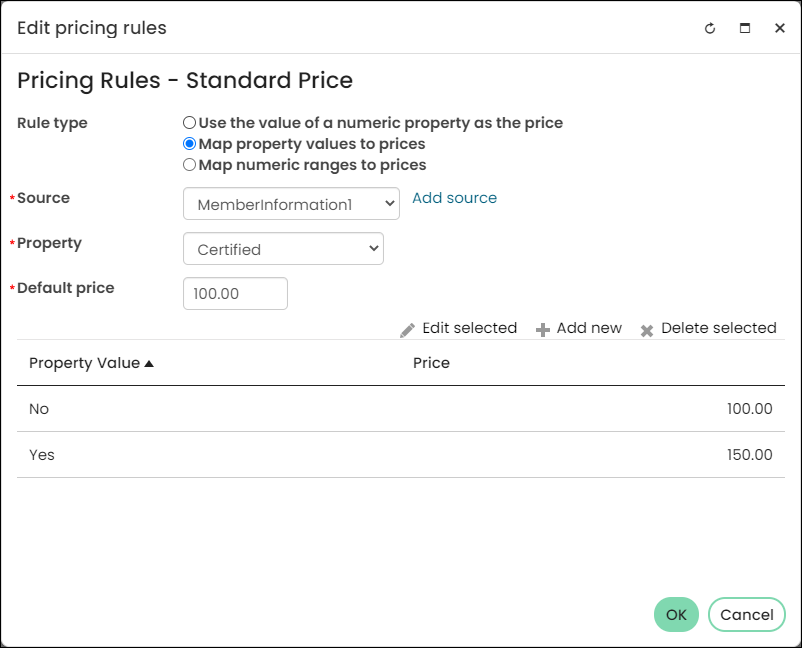
Example Business Scenario 3: Membership fees based on whether or not a member is certified
Each member’s certification status is indicated by a Yes/No value, represented by a Certified checkbox. If the Certified checkbox is selected, the member is billed $150.00. If the Certified checkbox is not selected, the membership fee is $100.00.
Use simple pricing when a numeric user-defined property falls in a range of values
This option maps a value in a field in the contact’s account page to a price specified for a range of values. For example, you can base membership fees on a sliding scale tied to a user-defined value, such as organization revenue, number of employees, or number of beds.
Do the following to use simple pricing when a numeric user-defined property falls in a range of values:
- In the Panel Editor, create a special pricing data source with decimal, integer, or currency properties on the account page content record. The properties will be displayed as editable fields on contacts’ account pages. See Defining your own data with Panel Designer for more information on creating a new data source and properties.
- In the contact’s account page, enter a numeric value in the appropriate field on the source panel.
- Select Commerce > Find products.
- Search for the product that needs the special pricing rule. Highlight the product title.
- Click Edit. The Edit Item window is displayed.
- To add or edit special pricing rules for the Standard Price or the Discount Price, select Add pricing rules or Edit pricing rules for the appropriate field.
- In the Edit Pricing Rules dialog box, select Map numeric ranges to a price as the Rule type. This option maps a value in a field in the contact’s account page to a price specified for a range of values.
- From the Source drop-down, select the special pricing data source. All sources with decimal, integer, or currency properties are displayed.
- From the Property drop-down, select the property. Decimal, integer, and currency properties in the selected source panel are displayed. The property is the field in the source panel where you enter the number on which you want to base the special price (for example, number of beds in a hospital, number of members in an organization, or amount of revenue last year). The special price depends on where the this option falls in a specified value range.
- (optional) Enter a Default Price. This field displays the same value as the field (Standard Price or Discount Price) to which you are adding the special pricing rule. Changing the Default Price changes the price to which you are adding the special pricing rule.
- Select Add new to add information for a new value range.
- Specify a Starting value for the value range.
- Specify a Base price for property values that fall within the value range.
- Specify Price per unit for additional units beyond the bottom of the range.
- Click Save.
- Repeat steps 11 through 15 to add additional value ranges.
- Click OK.
📘 Note
You must create a single instance data source with at least one decimal, integer, or currency property.
📘 Note
If you cannot edit the panel in the contact’s account page, confirm that the Allow users to edit checkbox is selected in the panel’s configuration window.
📘 Note
Click remove below the appropriate field to clear the special pricing rules from the Standard Price or the Discount Price.
📘 Note
You must enter a Starting value, Base price, and Price per unit to save the value range. If you want the special price to be a simple multiplication of the value times the Price per unit, you can set the Base price to zero (0). If you do not want to include an incremental increase in the special price beyond the Base price for additional units, you can set the Price per unit to zero (0). However, you cannot set both the Base price and Price per unit fields to zero (0) for the same value range.
📘 Note
Each value range encompasses all values up to the Starting value for the next range. For example, if the Starting value for the first value range is 1 and the Starting value for the second value range is 25, both 24 and 24.9999 would fall within the first value range.
📘 Note
To edit the information for a saved value range, select its row and click Edit selected.
If a special pricing rule is applied to the Standard Price and the Discount Price does not have a special pricing rule applied, the Discount Price automatically inherits the pricing rules for the Standard Price. If you do not want the Discount Price to inherit the pricing rules for the Standard Price, select remove below the Discount Price field to clear the pricing rules or edit the Discount Price rule. When you remove the Discount Price rules, Use Standard Pricing Rules displays. Select this link to allow the Discount Price to inherit the Standard Price rules.
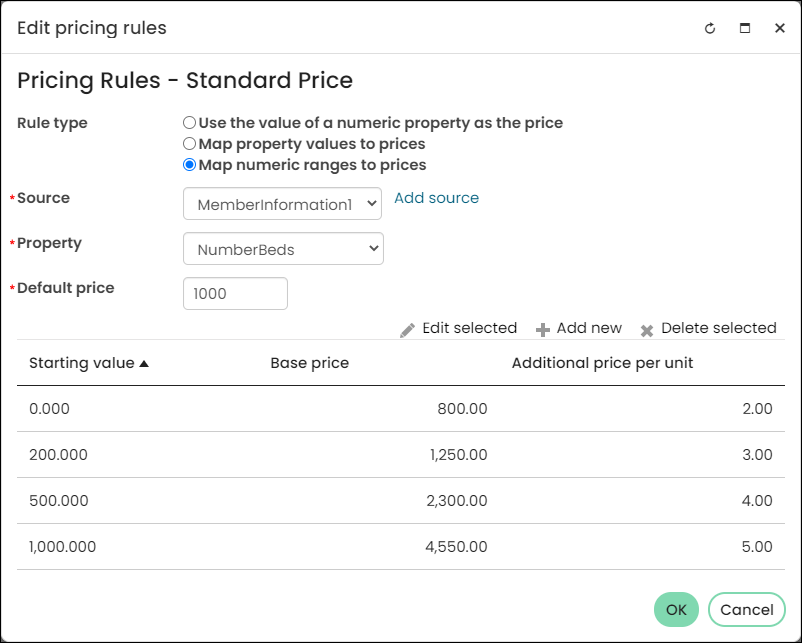
Example Business Scenario 1: Membership fees based on the number of beds in a hospital
A trade association for hospitals charges membership fees dependent on the number of beds in a facility. The number of beds for each hospital is manually entered in a user-defined NumberBeds field.
- For hospitals with 199 beds or less, the association charges a base price of $800.00 plus an incremental price of $2.00 per bed.
- For hospitals with 200 to 499 beds, the association charges a base price of $1250.00 plus an incremental price of $3.00 per bed.
- For hospitals with 500 to 999 beds, the association charges a base price of $2300.00 plus an incremental price of $4.00 per bed.
- For hospitals with 1000 beds or more, the association charges a base price of $4550.00 plus an incremental price of $5.00 per bed.
For example, if a hospital has 250 beds, the trade association will charge a membership fee of $1400.00, which includes the base price of $1250.00 (200 beds) plus $150.00 for additional beds (50 beds).
Example Business Scenario 2: Membership fees based on years licensed
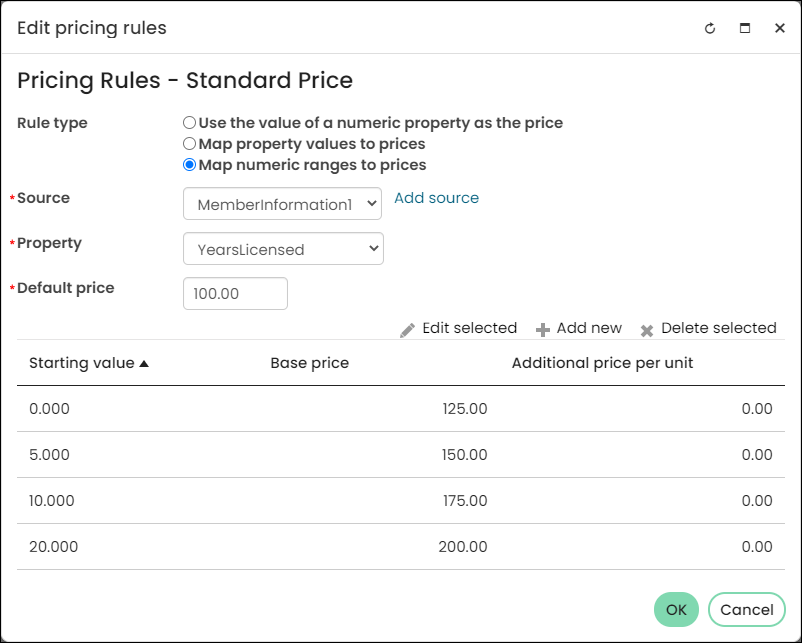
An association charges membership fees based on the number of years members have been licensed. The number of years licensed is entered in a user-defined YearsLicensed field.
- For members licensed less than five years, the membership fee is $125.00.
- For members licensed at least five years but less than ten years, the membership fee is $150.00.
- For members licensed at least ten years but less than twenty years, the membership fee is $175.00.
- For members licensed for twenty or more years, the membership fee is $200.00.
Example Business Scenario 3: Membership fees based on the number of employees in an organization
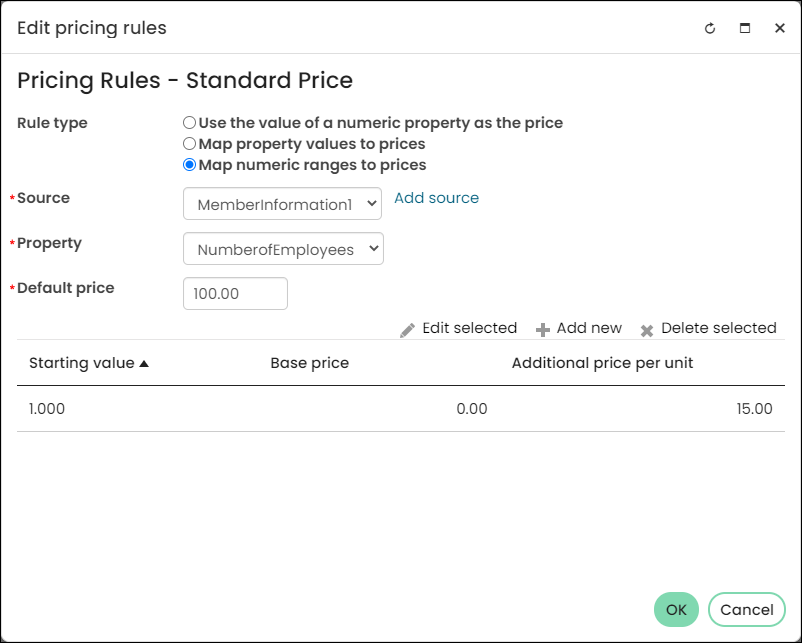
An association charges membership fees based on the number of employees in the organization, billing organizations $15.00 for each employee. The number of employees is entered in a user-defined NumberOfEmployees field. The membership fee is calculated by multiplying the number of employees by $15.00. For example, if an organization has 125 employees, the association charges a membership fee of $1875.00.
Example Business Scenario 4: Membership fees for organization members based on revenue
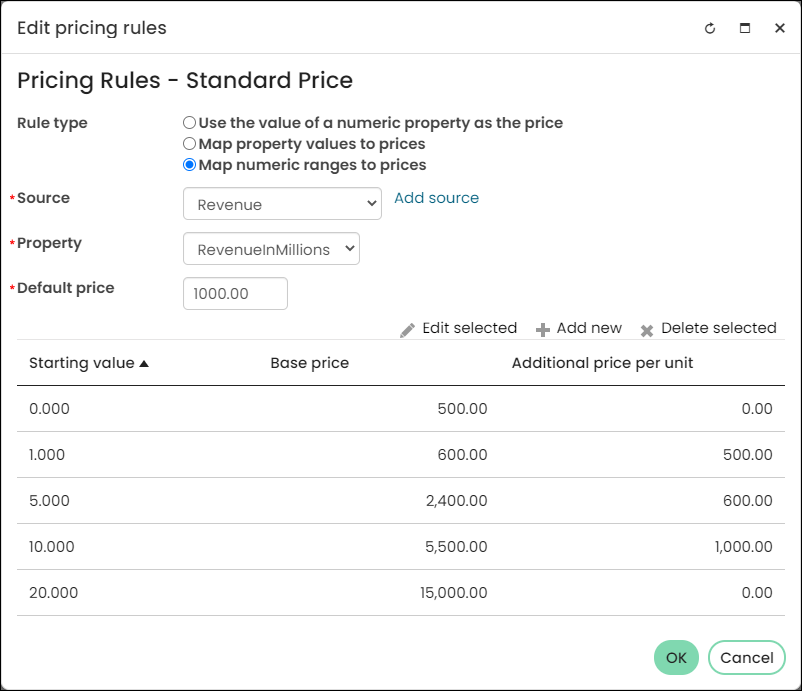
An association charges membership fees for organization members based on their revenue in millions. The revenue is entered in a user-defined RevenueInMillions field. Each revenue range has a base price and medium revenue ranges also have incremental unit pricing:
- For organizations with less than one million in revenue, the association charges a base price of $500.00 with no incremental unit pricing.
- For organizations with revenue of at least one million but less than five million, the association charges a base price of $600.00 plus an incremental price of $500.00 per additional million in revenue.
- For organizations with revenue of at least five million but less than ten million, the association charges $2400.00 plus an incremental price of $600.00 per additional million in revenue.
- For organizations with revenue of at least ten million but less than twenty million, the association charges $5500.00 plus an incremental price of $1000.00 per additional million in revenue.
- For organizations with more than twenty million in revenue, the association charges a base price of $15000.00 with no incremental unit pricing.
For example, if an organization has a revenue of seven million, the association will charge a membership fee of $3600.00, which includes the base price of $2400.00 (five million) plus $1200.00 for additional units (two million).
Updated 5 months ago