

Adding business objects and queries as available sources in Report Writer
The $/Common/Query Sources folder contains the data sources available to choose from when creating a report in Report Writer.
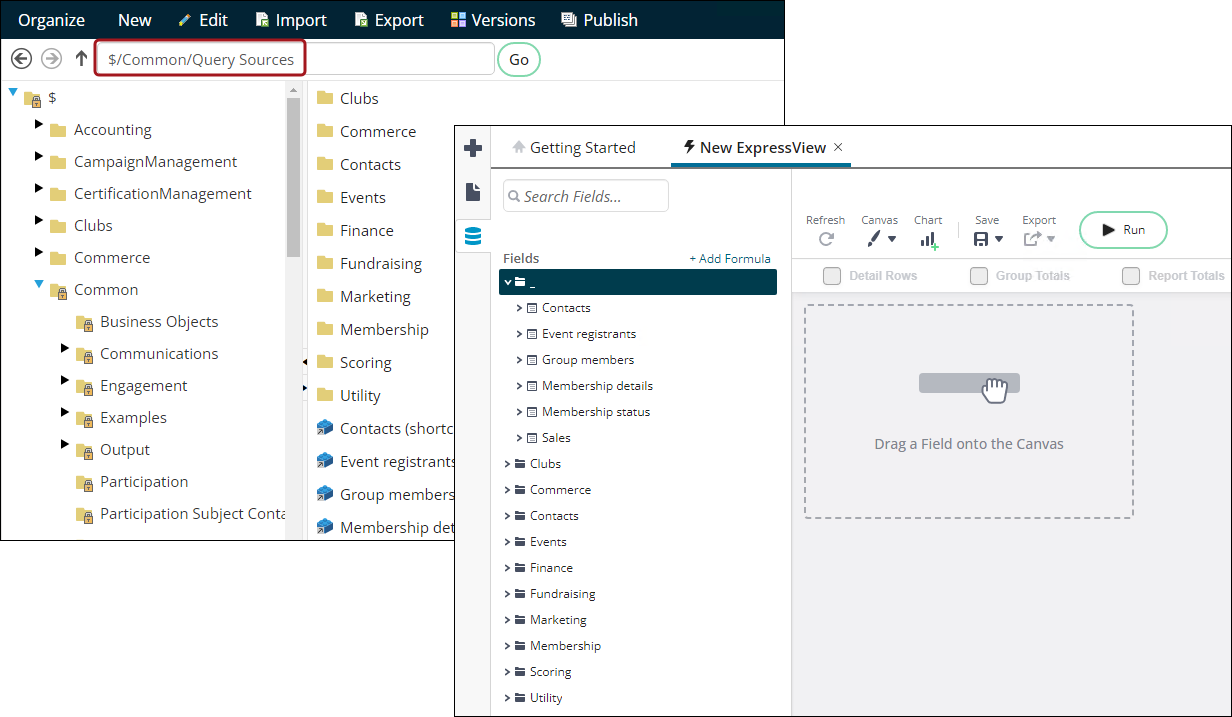
To add data sources, such as user–defined sources, business objects, or queries, to Report Writer, do the following:
- Go to RiSE > Document system.
- Navigate to $/Common/Query Sources.
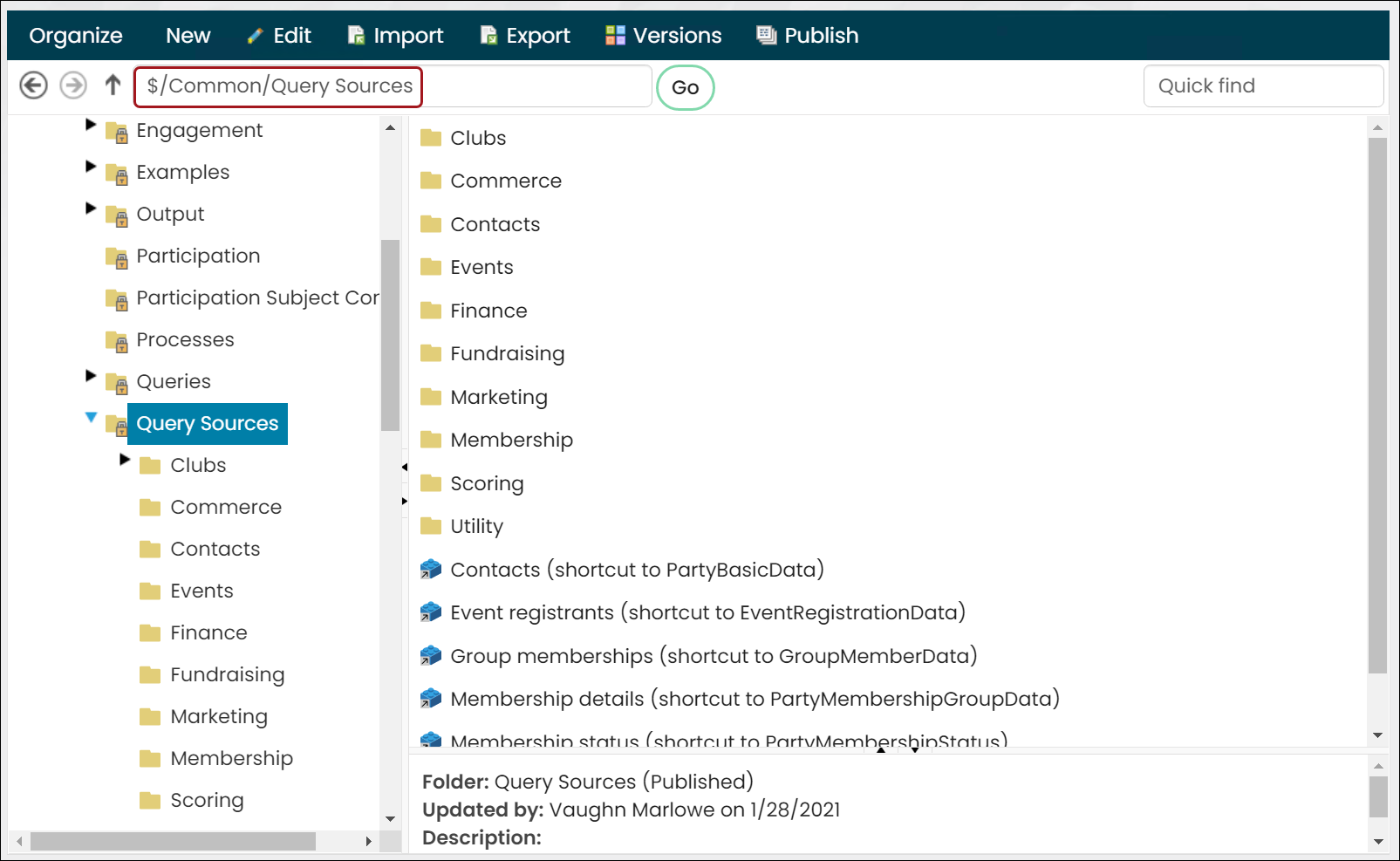
-
Do one of the following:
- Select the folder in which you want the source to appear, or if you want the source to appear in the top Common section, remain in the $/Common/Query Sources folder.
- Create a new folder (New > Folder). Make sure Allow only the following types of objects in this folder (select all that apply) is selected. Hold down Ctrl
(Command for Mac), then choose the following:- Business Object
- Design Business Definition
- Folder
- Query
- Shortcut
-
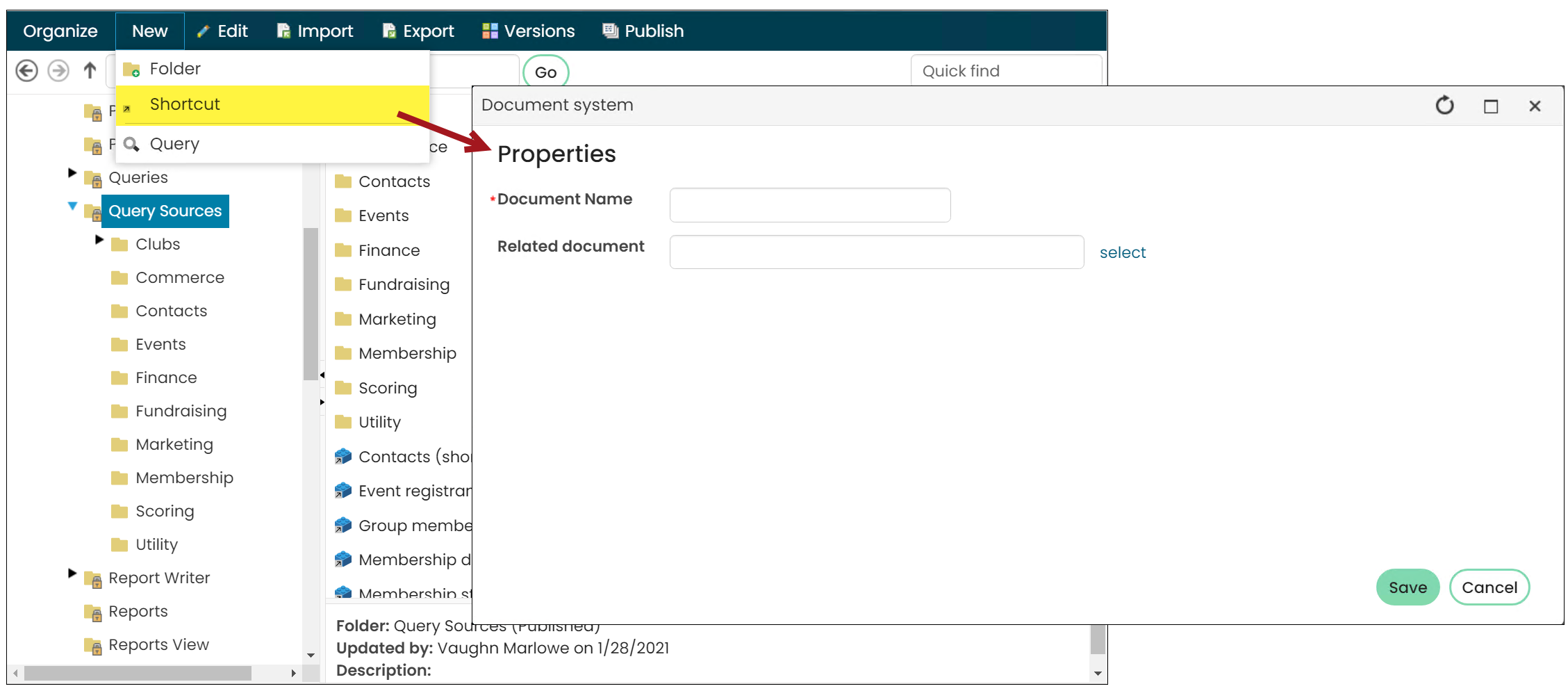
Click New, then select one of the following:
-
To add an existing query, business object, or user-defined source, select Shortcut.
-
In the Document Name field, enter a name for the source. This name will appear in the query definition.
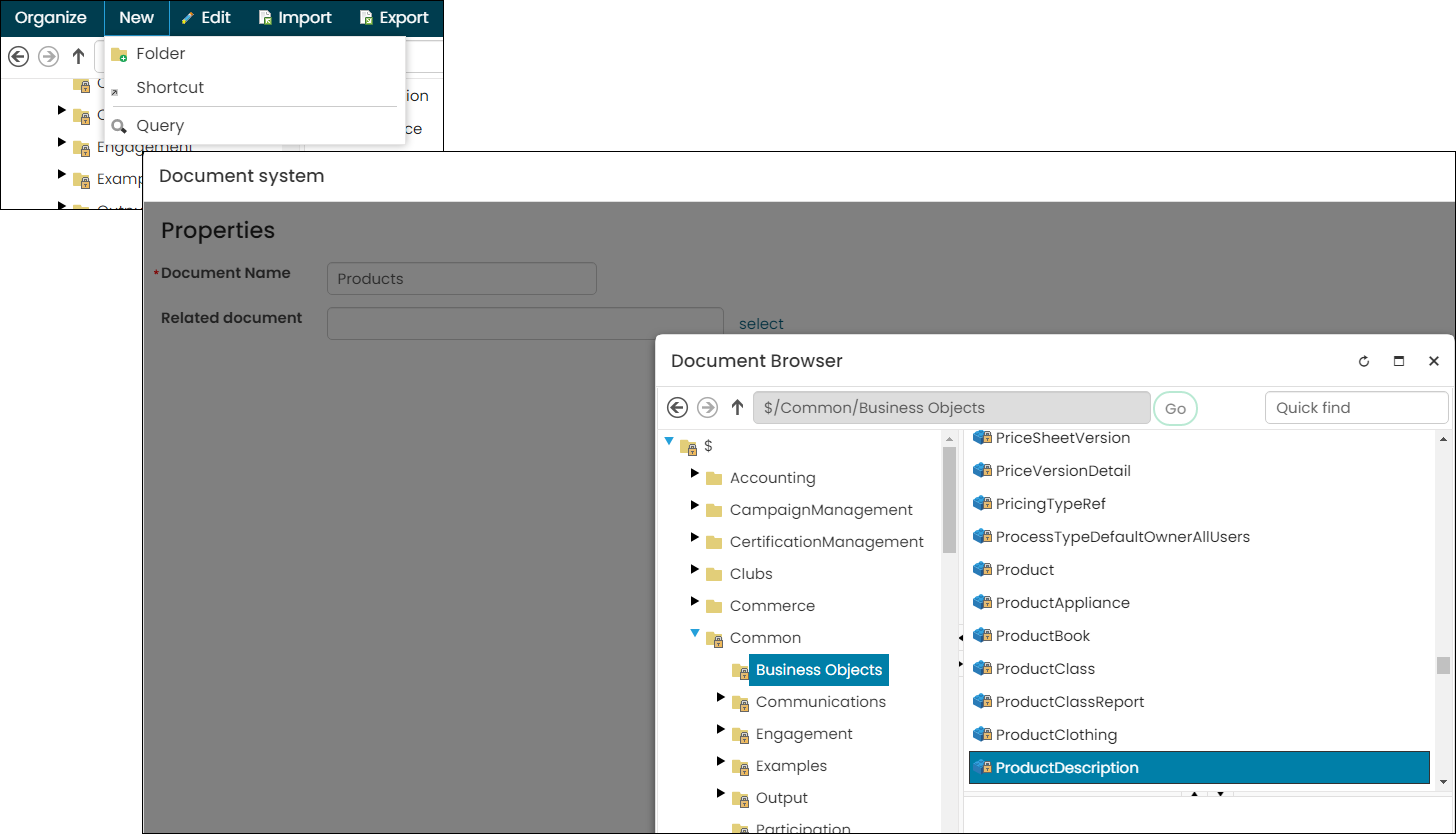 2. In the Related document field, Select the source.
NoteBusiness objects are found in the $/Common/Business Objects folder.
- Click OK, then click Save.
-
-
To add a new query, select Query.
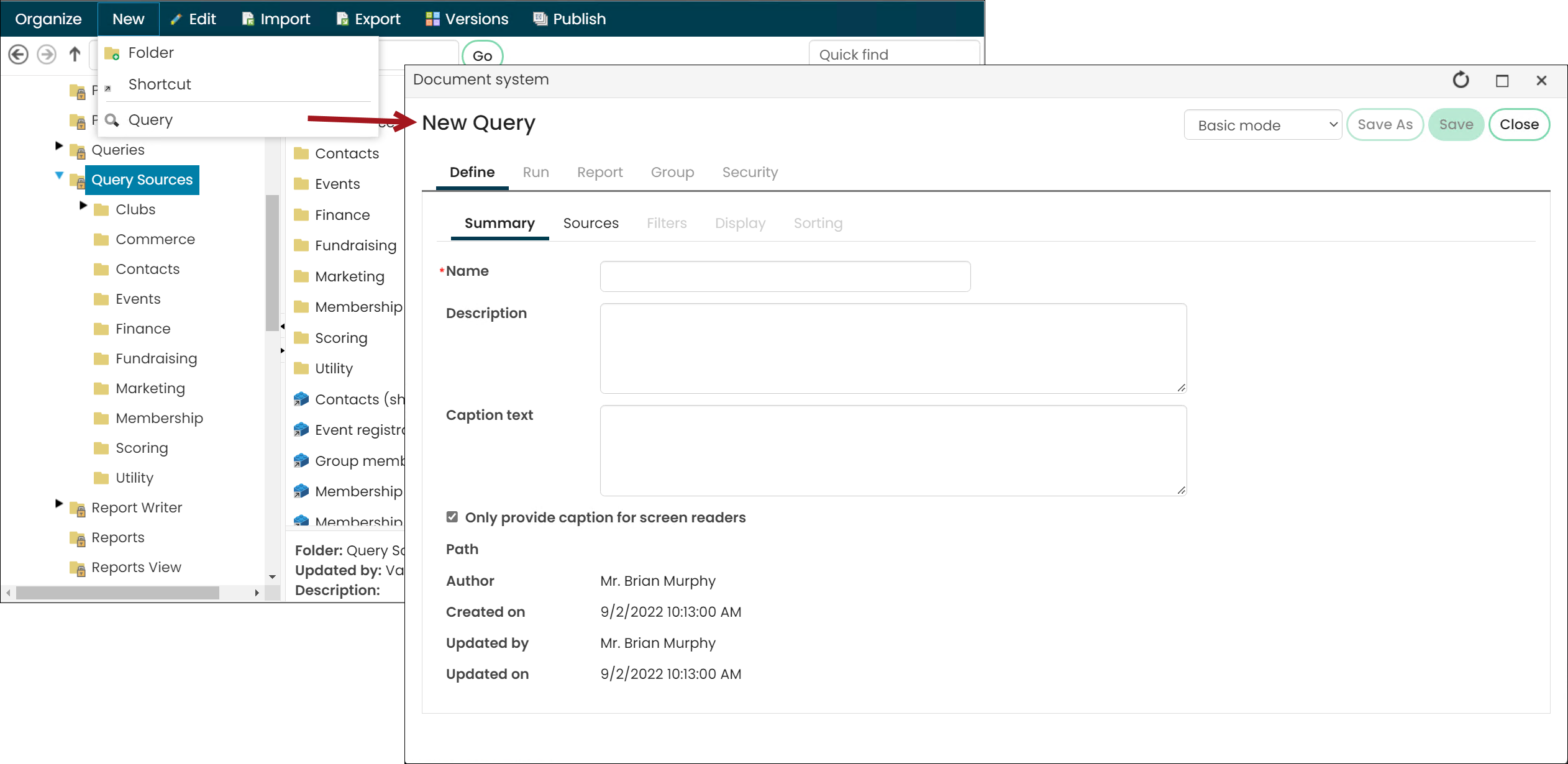
-
Define the query you want to make available to the Report Writer. For more information, see Defining queries.
NoteReport Writer does not support queries with dynamic filters. Instead, dynamically filter the report using a URL parameter. See Filtering reports using URL parameter values.
- Click Save, then click OK.
-
-
NoteWhen using an IQA as the report's data source, it is suggested to use the Top/Bottom report filter (Report Options > Filters > Top/Bottom) instead of enabling Limit the report to the top/bottom values. Using the Top/Bottom report filter will ensure no data is missing in the report.
Updated 5 months ago