

Overview of security throughout iMIS
Security configuration settings can be found in various areas throughout iMIS. Granting access or applying restrictions to certain users depends on what you are wanting to grant or restrict access to. This article goes over the many security options you can configure throughout iMIS.
General
Contact security settings
The contact security queries (Settings > Contact > Contact security) allow you to define the contacts that are visible by unauthenticated users (guests), authenticated users (contacts with a login), and members. Review Contact security queries for more information.
Contacts returned in these queries can be found when searching your website, and their profile pages can be viewed by website visitors. These contacts may also be found through the API for each respective user type. When viewed through our API and in search, the following information can be obtained for contacts in these queries: Full name, ID, Profile picture, City, State/province, Country, Email, and Phone number.
👍 Example
- All users access query returns group A: All website visitors, authenticated, and unauthenticated users can view group A contacts
- Authenticated users access query returns group B: Website visitors who are logged in can view groups A and B contacts
- Members access query returns group C: Members of your organization can view group A, B, and C contacts
User security
System Administrators and Staff users
The two main types of administrative users are system administrators and staff users.
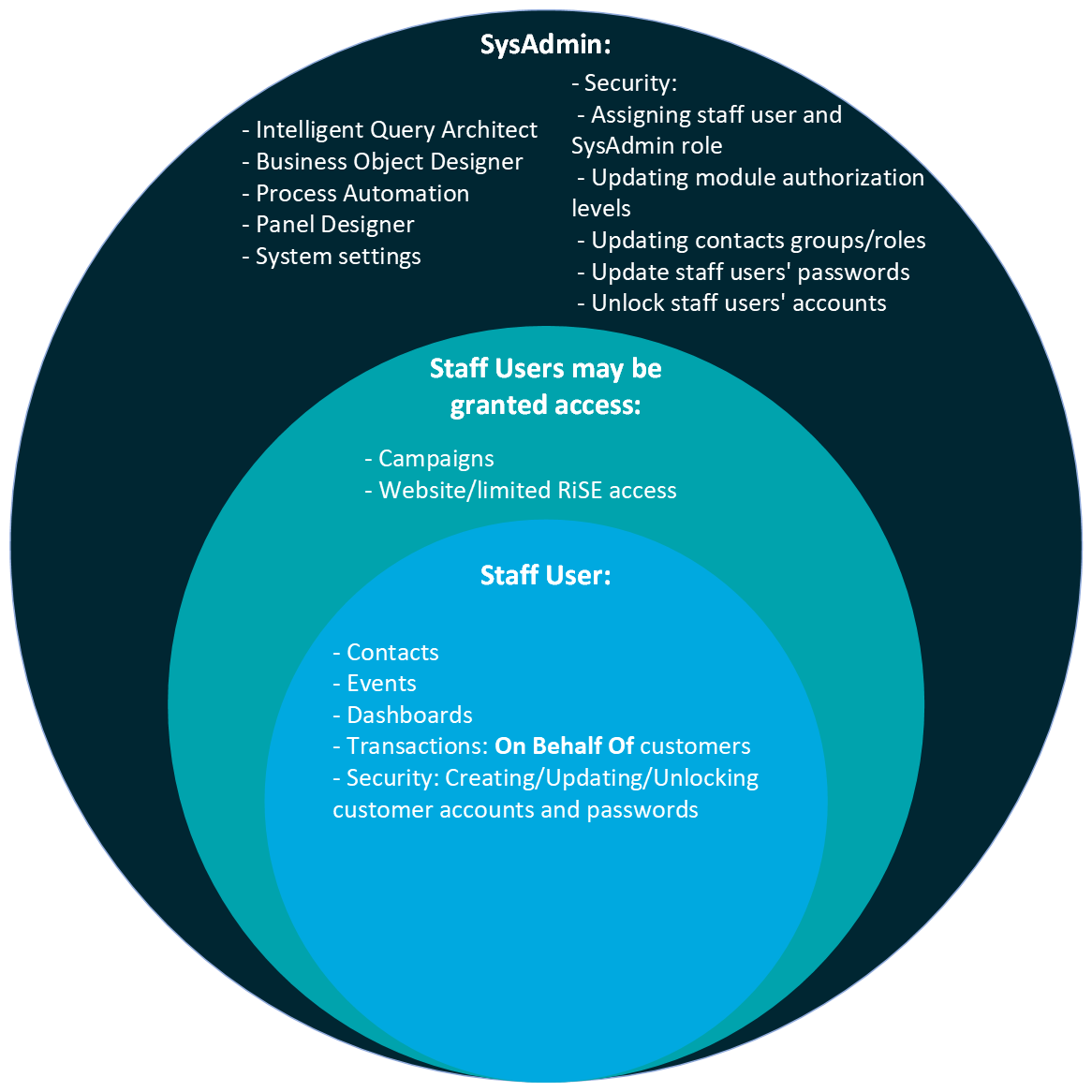
Staff have access to the following:
- Security:
- Unlocking a user’s account (excluding other staff users)
- Updating a user’s password (excluding other staff users) Creating a username and password for a user
📘 Note
Perform these security actions from the Security tab on contact account pages or from Community > Security > Users. - Contacts
- Events
- Dashboards
- Reports
- Transactions on behalf of other contacts.
Staff users do not have access to the following but can be granted access:
- Website/RiSE access
- Campaigns
- Security:
- Assigning someone else the staff user role
- Updating a contact’s groups and roles
- Update passwords for other staff users
- Unlock other staff users’ accounts
- Intelligent Query Architect (IQA)
- Business Object Designer (BOD)
- Process automation
- Panel Designer
- System settings
🚧 Warning
Staff users do not have access to the following, and can never be granted access (system administrators only):
Staff users can be added to the staff group by going to Community > Security > Users. Staff users can be granted access to Site Builder, Page Builder, Tagging, and Easy Edit by being added to Content Authority Groups (CAGs). Staff users can also be granted access to Campaigns by being added to the Campaign groups (Marketing > Campaigns > Settings > Security Groups).
Security best practices for staff user accounts
As a security best practice, staff user accounts should never be shared between staff users. Each staff user should have their own account, so that tracking changes to contact accounts, edits to the website, modifications to published content, and so forth, are all easily identifiable. Contact ASI Technical Support to learn more about how you can increase your available staff user accounts in iMIS.
It is recommended that two-factor authentication and session timeouts are enabled for staff users. See Password security for more information about configuring these settings.
As a built-in security best practice, staff user accounts are automatically logged out of iMIS if an additional log in is detected from another browser; for example, if you continue your iMIS work on another computer, you are logged out of other iMIS session on any other computer. This does not apply to a single browser session with multiple tabs but does apply to separate browsers, such as using Chrome for one session and Firefox in another session.
System Administrators
System administrators have all the permissions of staff, plus they also have access to everything that staff users do not have access to. System administrators are super users with access to everything in the system.
From the Security tab on user account pages or from Community > Security > Users, system administrators can update any contact’s security details, such as the username, password, security groups, user class, and staff access.
Group Member Administrator
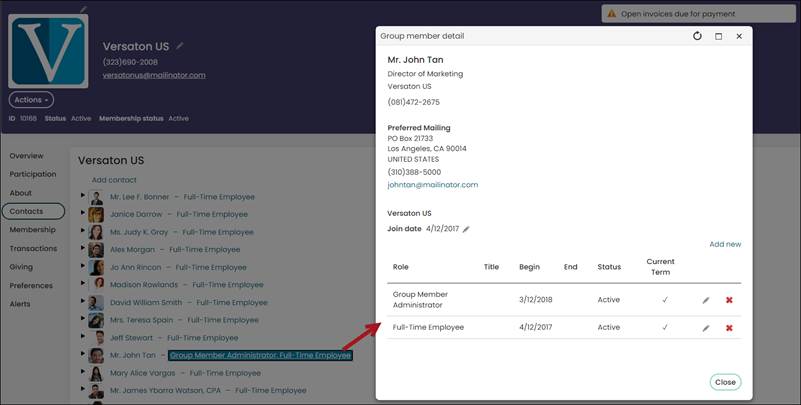
The Group Member Administrator is a versatile role that allows group member administrators to manage organizational specific tasks in a variety of ways. The Group Member Administrator for an organization can manage organization profile information, manage the roster, update account information for organization members, and register members for events.
A staff user can assign the Group Member Administrator role to a member. Contacts are able to be Group Member Administrator for more than one organization.
If you navigate to a member’s profile page and click the About tab, you'll see the groups and organizations they are members of. See Managing organizations for more information.
📘 Note
As a security precaution to ensure Group Member Administrators cannot give themselves edit permissions for contacts they should not have access to, administrators cannot search for and add existing contacts to their organization. When adding a new contact to the organization's account page, the Group Member Administrator only has the option to create a new contact. When an administrator adds a new contact, no duplicate checking is performed, resulting in potential duplicate contact account records being created. To avoid duplicate records, have the contact add themselves to the organization from their account page.
Resetting passwords
Review the following information related to resetting passwords.
Public users resetting their own passwords
Although staff users have access to reset passwords, it is recommended that staff users direct public users to reset their own passwords:
- Verify that the public user's email is current on their iMIS account page.
- Direct the public user to the Sign In page and have them click on the Forgot my password link.
- User resets their own password following the process outlined in the email sent to them.
Public users creating their own credentials
If the user has an iMIS account page but does not have existing credentials (e.g., a staff user added them as a contact but did not assign them a username and password) , they can create their own credentials by clicking the Forgot my username link on the Sign In page.
📘 Note
Ensure the Allow "Forgot my username" to automatically create user credentials for existing contacts setting (Settings > Contacts > Account management) is enabled.
Forgot password link
The Forgot password? link is displayed using the Contact Sign In content item. Out-of-the-box, the SignIn shortcut is used to display this content item.
Manager Account
iMIS is shipped with an account referred to as the Manager Account. This account's purpose is to initially create system administrator accounts. After you have created accounts for system administrators, you should begin using the system administrator accounts to administer your iMIS system.
🚧 Warning
Never remove the System administrator role from the manager or administrator account.
It is not a secure practice to use the Manager Account as a remote service account, and it is not recommended that you continue to use the Manager Account after you have created your system administrator accounts. It is also policy that you never change the username or password of the Manager Account.
The Manager Account is scheduled to be deprecated in the coming years.
Group security
Product purchase groups
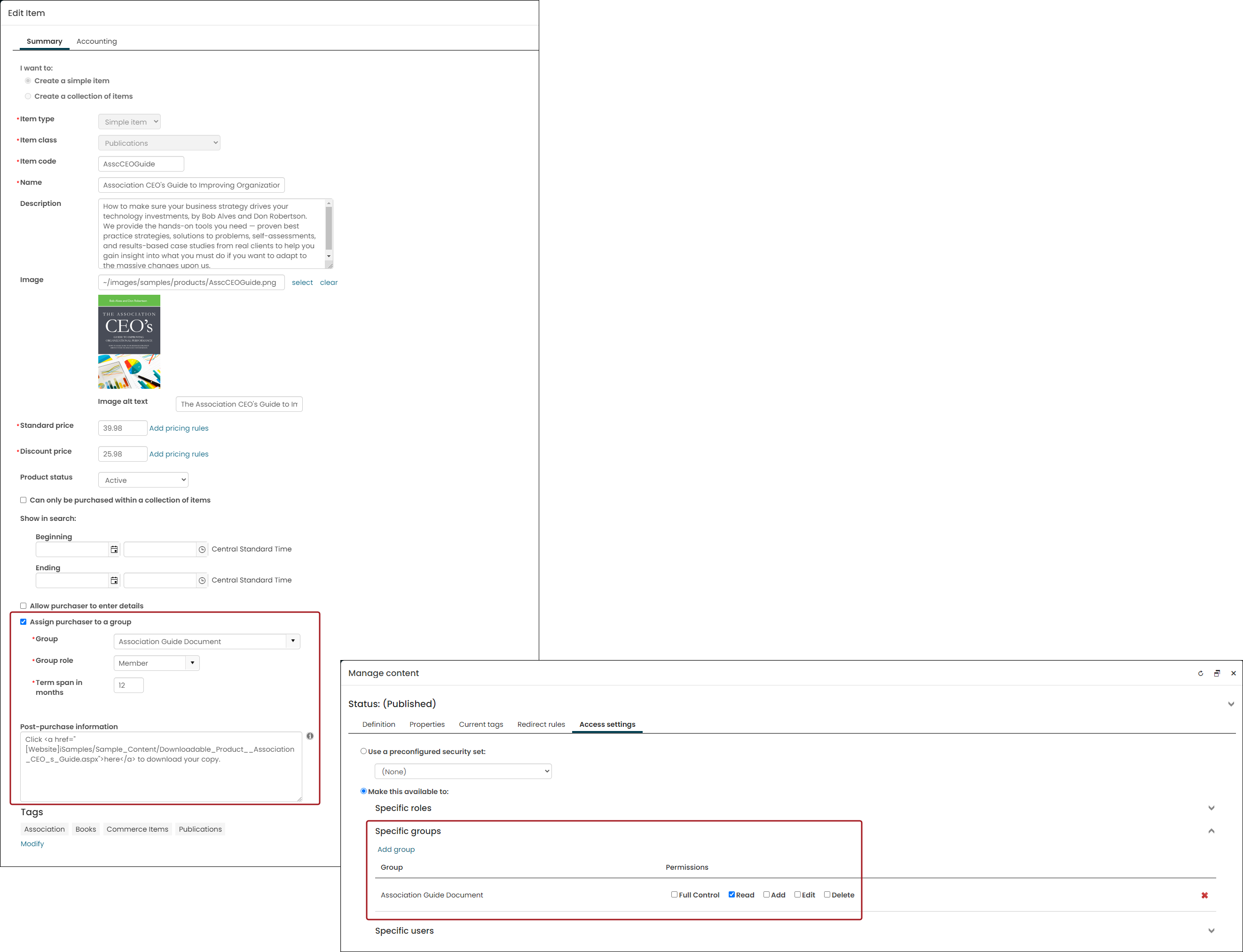
Products can be set up so that users are added to a group. This group can be used to grant access to particular content, such as downloadable and online products. The content that you grant access to can simply be a secure web page that only the purchaser should have access to, or it could contain a downloadable file. The security setting for only allowing a group to access a specific content record is found on the content record's Access Settings tab.
Granting specific access to a product is defined when creating or editing the individual product. These two security features can be combined so that when purchasers buy the product, they are granted access to the content record. See Granting access to secure website content and the associated video for more information.
Creating groups with IQA
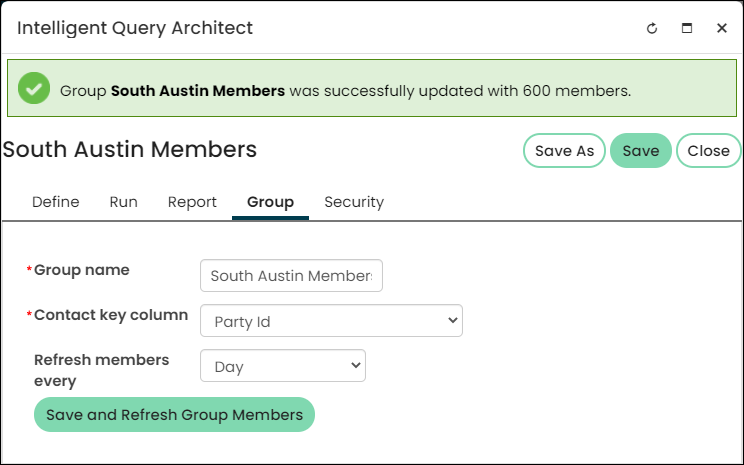
Staff users can create groups based off of an IQA query. After query sources are defined, you can select the Group tab to define the group elements. This feature allows staff users to create a group that automatically refreshes the query to determine the members of the group by the query results. By assigning members to this dynamic group, users can create a group, for example, that includes only active members of a certain member type. These groups can be used to grant access to items in iMIS using Access Settings. For more information, see Creating Groups with IQA.
Content security
Content Authority Groups
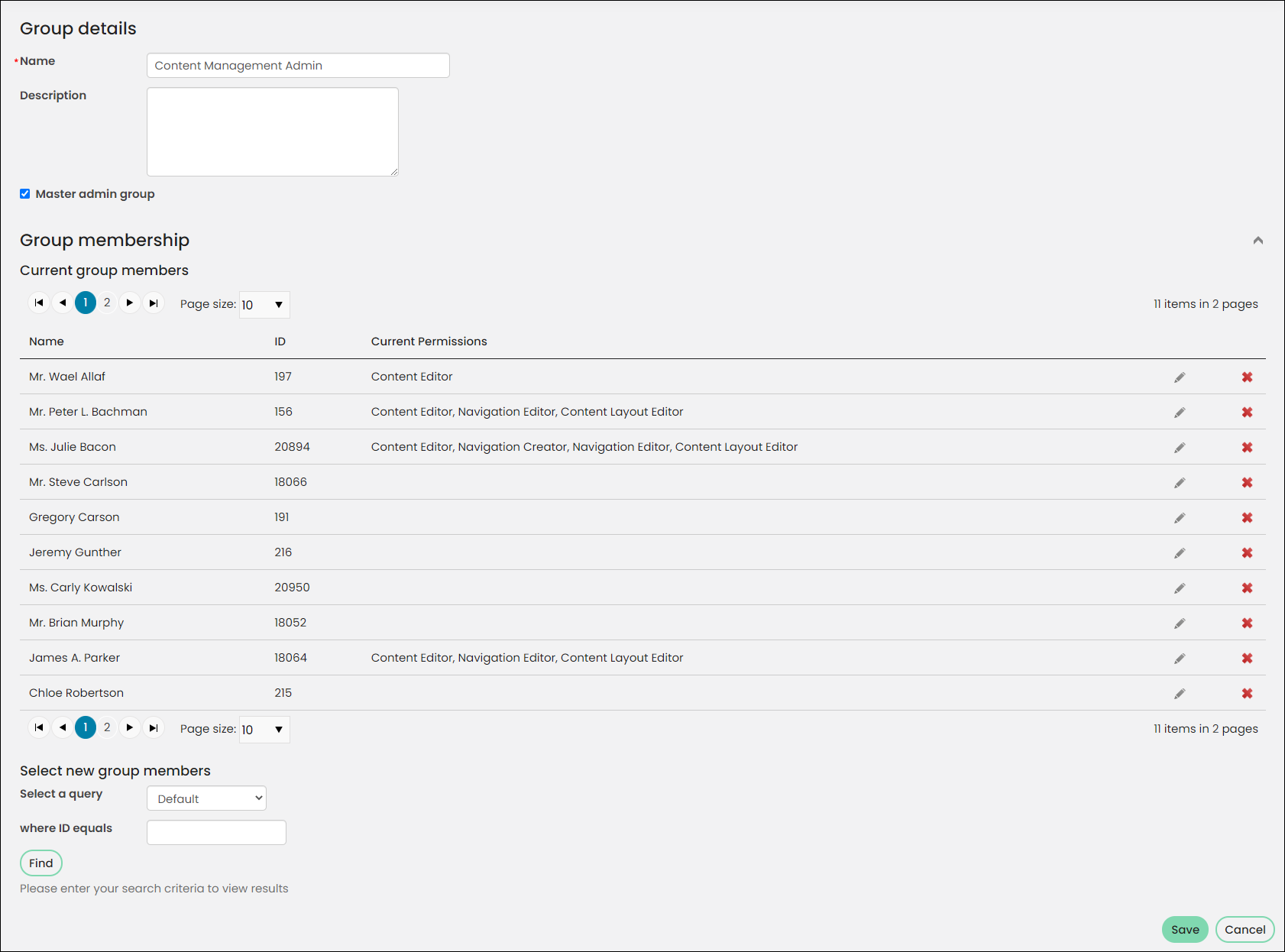
Content Authority Groups (CAGs) are extremely important. Creating CAGs help you control who has access to edit content within iMIS and to what extent. For example, you can allow someone to edit content but not delete content. They are a great way to let non-administrator users create content for your site.
Content authority groups contain several group roles that allow for different content permissions. Although you can add anyone in your iMIS database, including members, to a content authority group, you will want to be cautious when specifying members of the group. Adding the wrong person or designating the wrong role to someone can grant an user edit permissions that you generally wouldn’t want them to have.
Staff users and Content Authority Group members
Staff users have access to everything in the iMIS Staff site except for the RiSE and Settings navigation items. Without CAG permissions, staff users cannot modify any website content.
Members of the master CAG group have access to RiSE, depending on the various permissions you grant them. For example, if someone only has editor permissions enabled, they only have the ability to suggest edits to pages and to the Manage sitemaps and Manage shortcut navigation items. If the user has all CAG permissions enabled, they have access to Site Builder (only Sitemaps and Shortcuts), Page Builder, Theme Builder, and Tagging.
If you need a staff user or CAG member to have access to other parts of RiSE, such as IQA or Panel Editor, you must grant them System Administrator access.
For more information about how dynamic content authority groups are, see Defining content authority groups.
Access Settings
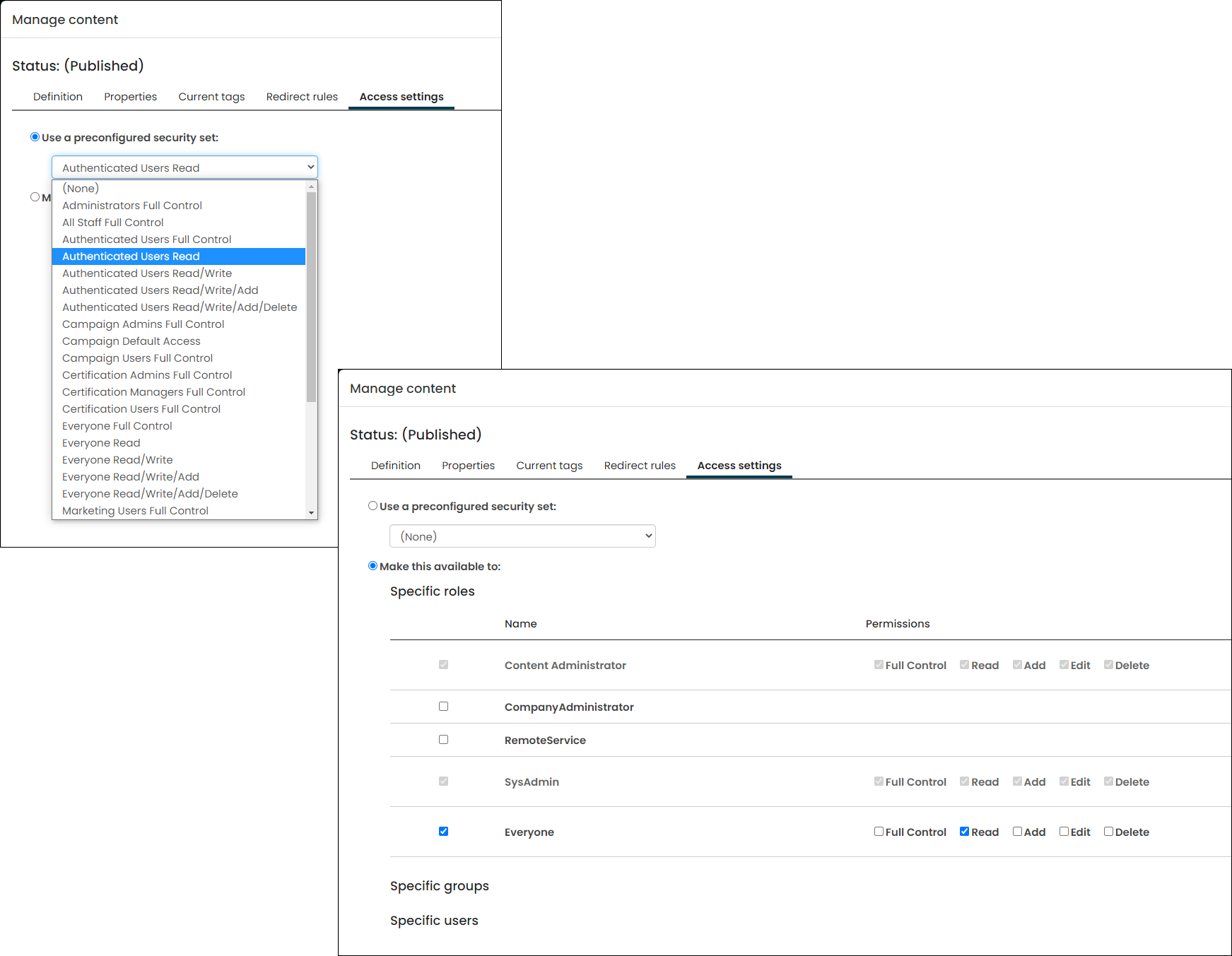
Access Settings give you a consistent way to apply security (grant permissions) to folders and objects throughout iMIS: entire websites, individual navigation items, content records, queries, business objects, and the wide array of objects that you can define, import, and store in the Document system.
Access Settings are immensely flexible: they let you tie an object’s permissions to iMIS security roles, security groups, specific users, member types, or your organization’s staff (licensed iMIS users). See Using Access Settings for more information.
Within Access Settings there are preconfigured security sets. Throughout iMIS, whenever you configure Access Settings, you see a drop-down list of available security settings that you can apply to individual folders and objects. These security sets offer you easier control and faster iMIS performance than defining custom ones. For more information, see Preconfigured security sets.
You also have the ability to grant access to specific groups, roles, and users. For more information, see Custom security groups.
Updated 5 months ago