

Granting access to secure website content
Organizations can grant or restrict access to content available in iMIS based on a group membership, for example, downloadable and online products. Staff users can do the following:
- Define content, then restrict access to that content to a particular group.
- Define a product, and assign purchasers of that product to the group, which controls access to certain content.
Creating products that offer group-based access
Create products that offer group-based access to post-purchase information and content:
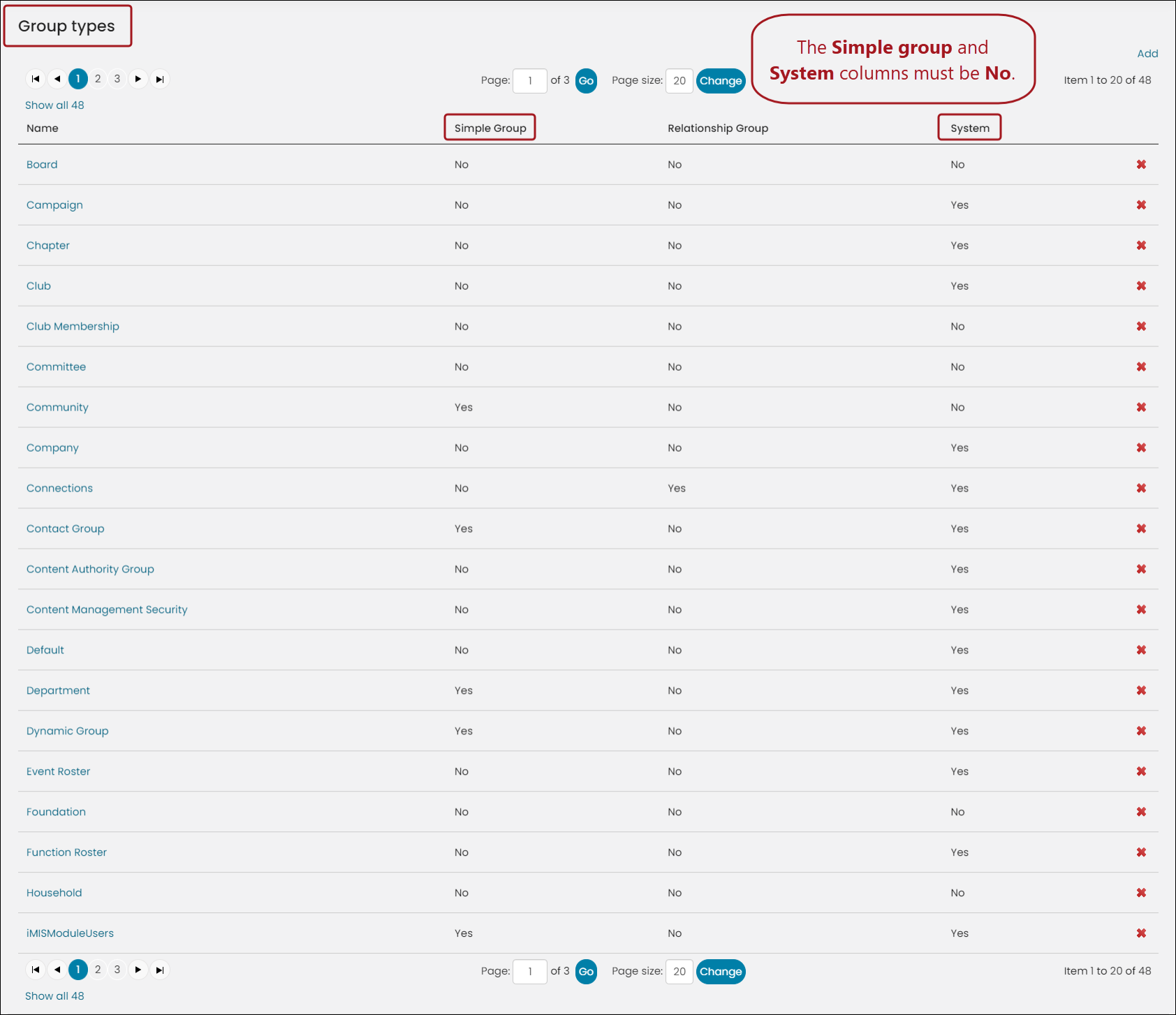
- (optional) Create a Group Type. You can also use existing group types, if the group Type meets the following requirements:
- Not a Simple Group.
- Not a System group.
- At least one specified Role.
- A Member Status of Active.
- Select Date Limited if you want to limit access to the purchased content to a specific time frame.
-
Select <b>Extend Active Membership Term</b>. This option allows purchasers to extend their access to the product and post-purchase information and content (purchase the product again) before their current term span (defined when the product is created) is expired.</li><p><img src="https://files.readme.io/211b0bcc437e7fa9975329fde708c33bab24b4ce174a8ecce413934742446091-_Commerce_Granting_access_to_secure_website_content_1_v100.png" style="max-width: 840px"/></p></ul></li> - (optional) Create a group for your post-purchase information and content. You can also use existing groups. See Setting up groups for more information.
- Create the content you want to provide to purchasers.
- Configure group access to the content:
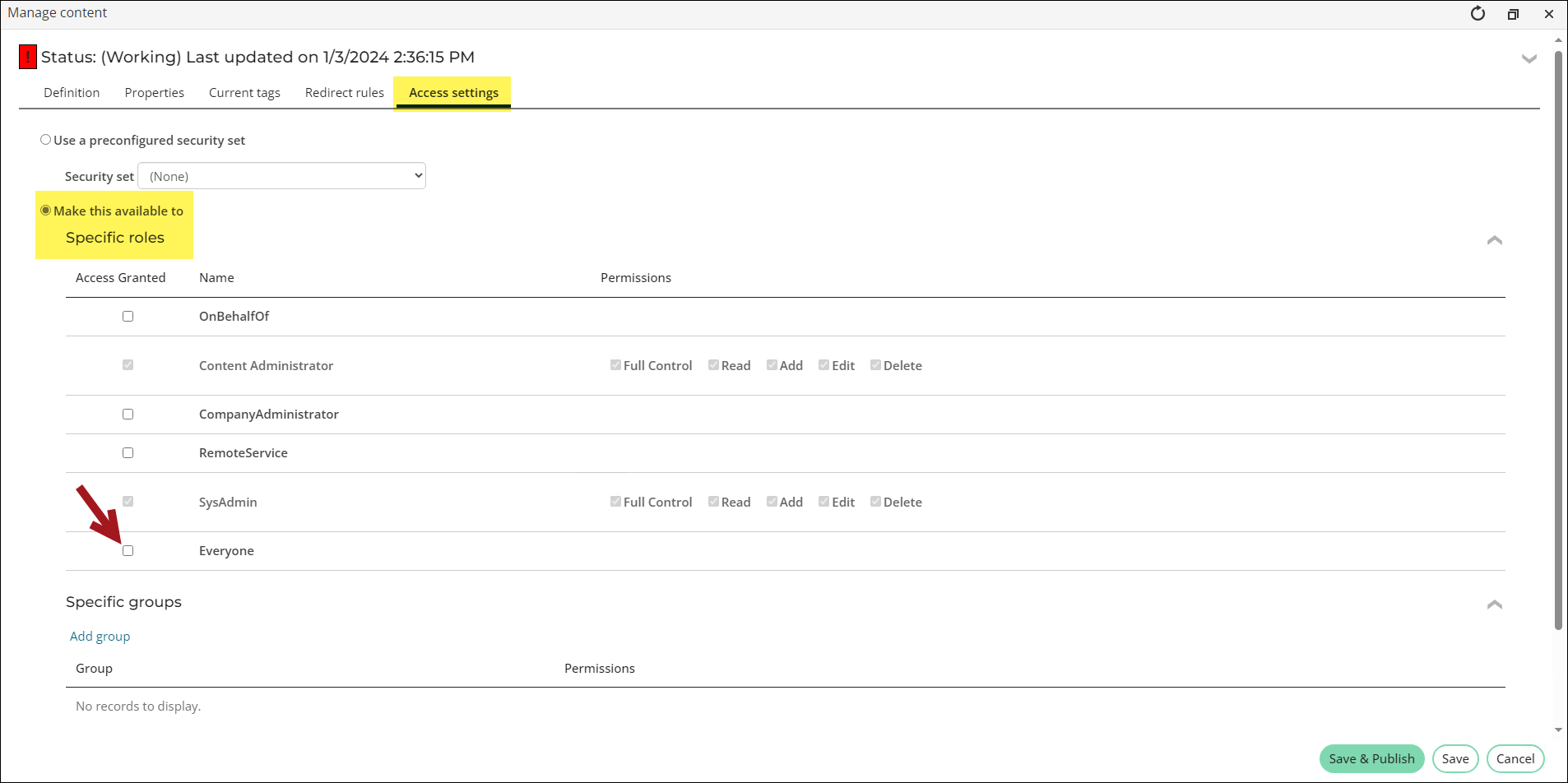
- On your content record (Rise > Page builder > Manage content), select the Access settings tab.
- (Access settings tab) Select Make this available to.
- Deselect Everyone under Specific roles.
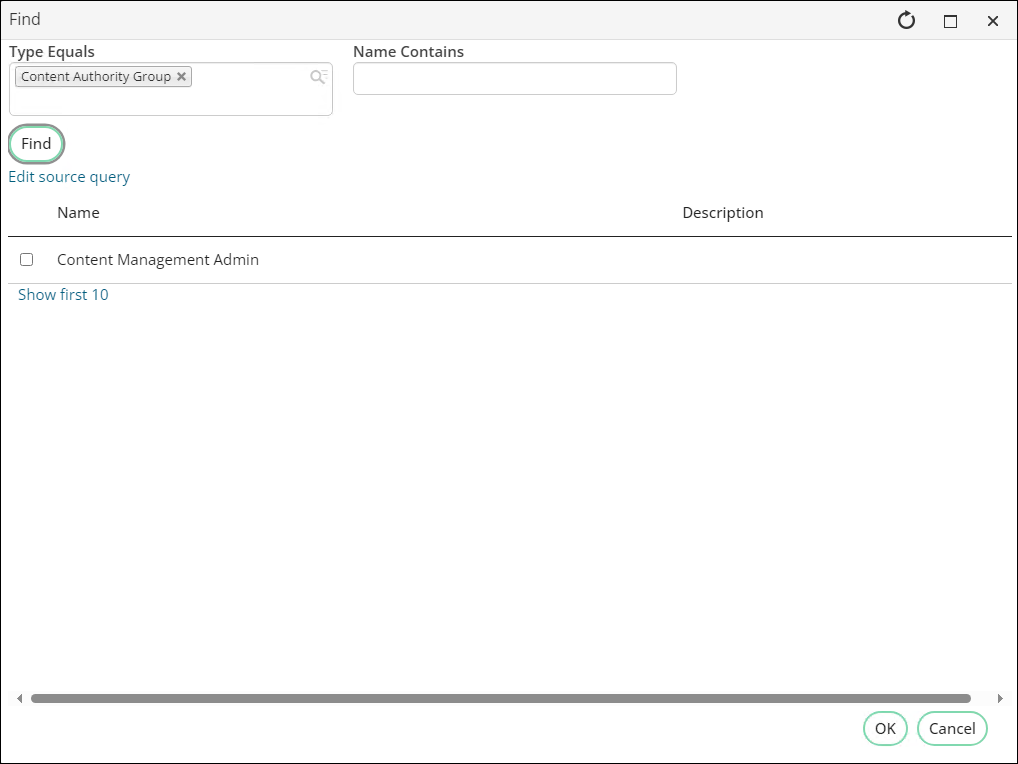
- Click Add group under Specific groups. If you created a group previously, select that group. Otherwise, you can select any appropriate group that meets the requirements.
- Click OK.
- Select Read permission only for this group.
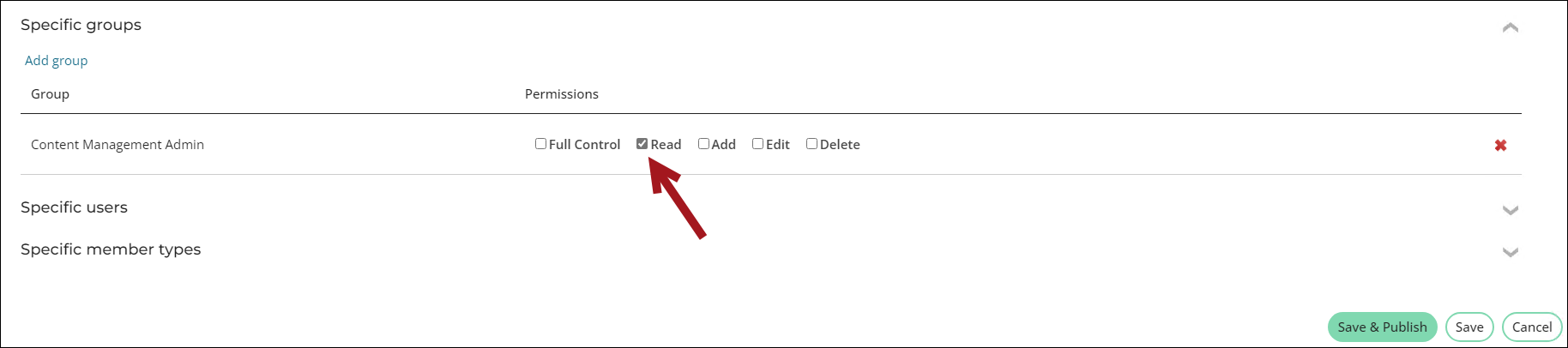
- Click Save & Publish. Everyone who purchases any product associated with this group will become members of the group and have access to content restricted to members of this group.
📘 Note
When specifying a role in the group type, a Default Member Status is required. This will enable the group to be available for selection when you add or edit a product.📘 Note
If you are defining a new group, be sure to deselect Is Member. Groups defined for product purchasers must not have the Is Member option selected.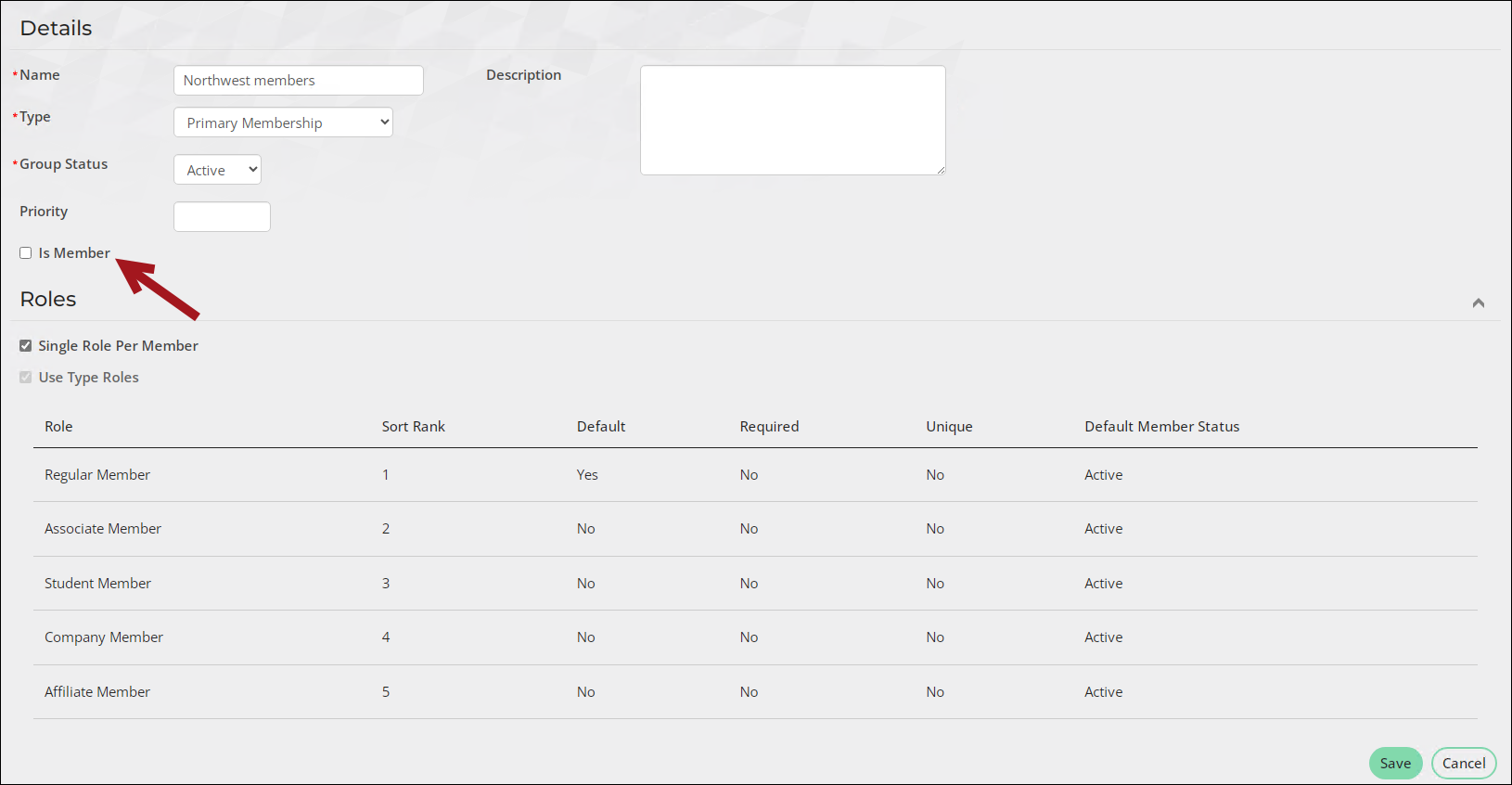
Defining downloadable products
You can use this feature to provide downloadable content for purchase.
Do the following to define a downloadable product:
- Add a new product or edit an existing product to offer your post-purchase information and content. See Adding products for more information.
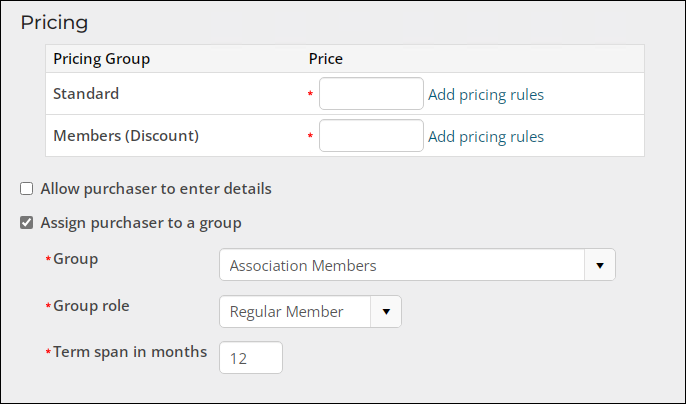
- Select Assign purchaser to a group. This adds the purchaser to a group you specify. This in turn grants the purchaser access to view the post-purchase information and content under the conditions you have defined.
- Select an existing group. If you created a group previously, select that group.
- Select the appropriate Group role.
- (optional) If you selected Date Limited when defining your new group type, you can define the Term span in months during which a purchaser will remain a member of your group.
- Select the Prorate fees. Prorating is only available when groups bill on an annual or fixed-term basis, as opposed to an anniversary or rotating term basis:
- Do not prorate - Same dues regardless of when customer joins.
- Standard monthly prorating - Prorating for the current year (depends on the billing interval). For example, if a customer joins in month 7 and annual dues are $200, the calculated dues would be one half of the total dues, or $100 (six months out of twelve).
- Use a custom schedule - User-defined prorating rules, depending upon the needs of the organization. If the Use a custom schedule option is enabled, proration rules are created from defining schedules on the Staff site.
- Enable Advance end date to end of subsequent term starting in month to extend the length of the membership term to the following term. The month that is selected is the month to which the expiration date of the new membership will be extended in the next fiscal year. This option is only displayed if the Term span in months value is 12.
👍 Example
The first month in the membership for the selected group is January, and membership renewals are sent out around August. A new member elects to enroll in the selected membership group in October. Instead of offering the October-joining member a short-length term and prorated fees, I want to simply extend their membership to the end of the next membership cycle, resulting in the member receiving about 15 months of membership for the price of a single year. To do this, I enable Advance end date to end of subsequent term starting in month and choose January for the month. -
Create a downloadable product:
- (optional) Create a contact record or edit an existing record. You can describe the product, provide information about the product, and so forth.
- Add a Content File content item.
- Enter a Name. This is the displayed name of the downloadable content.
-
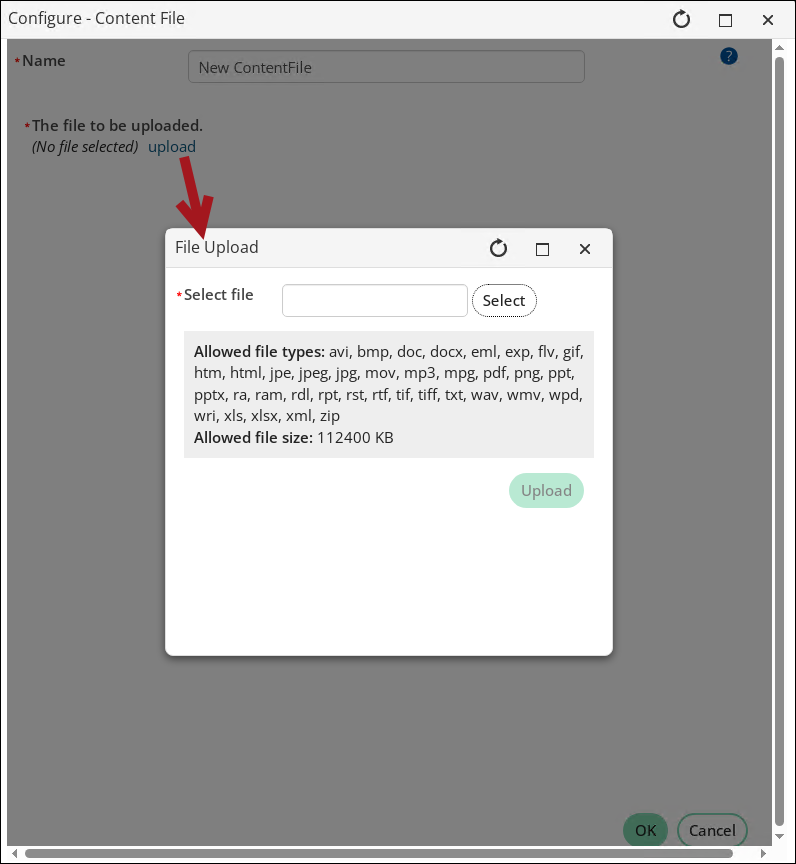
Click upload to select the file you want to upload and offer as downloadable content. Browse to find the file you want to offer, then click Upload. You can upload a new file to replace a previous file, or you can delete the file you have uploaded.
- Click OK.
📘 Note
Shipping and handling charges will occur for downloadable products unless shipping minimum values are set to 0 or the shipping method calculation is set to ship by weight. -
Configure group access to the content. Select the Access settings tab:
- Select Make this available to.
- Deselect Everyone under Specific roles.
- Click Add group under Specific groups. If you created a new group when you created the product, search for that group.
- Click OK.
- Select Read permission only for this group.
📘 Note
The group Type must be Purchased Products.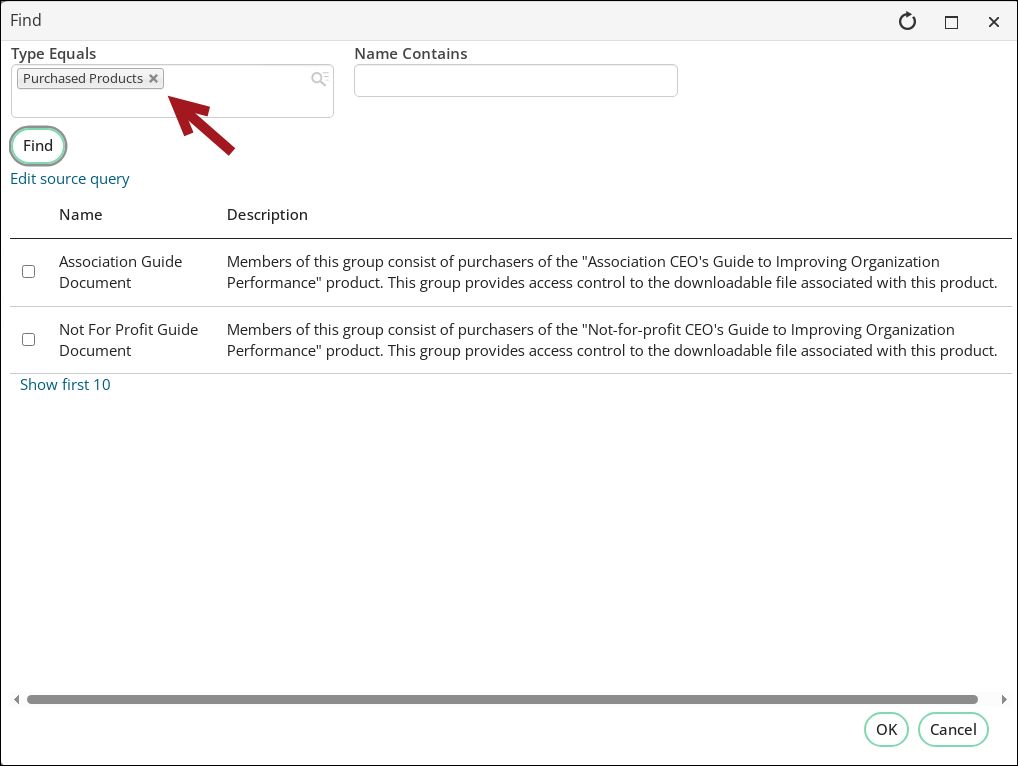
-
Click Save & Publish.
-
Open the content record once it is published, and click Generate Full URL. Make a note of this URL; you will use this to help define your product and post-purchase information.
- Enter Post-purchase Information. This is information available to the purchaser. Whatever is entered in this field (for example, instructions, a link, or a simple message) is available as soon as the product is purchased.
- Finish defining your product and click Save.
- In an on-screen order confirmation upon successful order submission.
- In an order confirmation email.
- In the order history for a contact.
📘 Note
You must be aware of the restrictions to group membership based on accounting method:
- Accrual: The purchaser is an active member of the group as soon as the invoice is issued. Purchasers can access the content immediately, even before the invoice has been paid.
- Cash: The purchaser is not an active member of a group until the invoice is paid. You can restrict immediate access to purchased and post-purchase information and content until the transaction is complete and the funds have been received.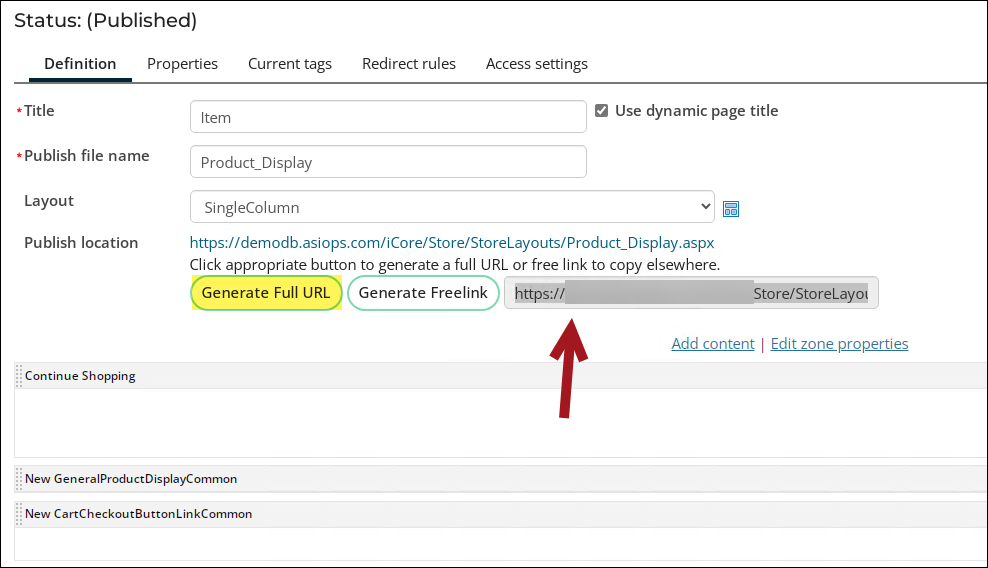
📘 Note
You must enter the generated full URL. You can add HTML tagging to make this a live link for a purchaser, for example:Congratulations! You have purchased the Sample Guide to Examples! You can download your copy by clicking <a href="http://
where yourwebsite.com is the actual name of your website, and contentpath/contentname is the path and name of the content item containing the purchased content.
You can also use the [website] variable in place of your actual website name if your customers can purchase content from multiple websites, for example, Donor. This link takes the customer back to the website from which they made their purchase. For example:<br/><code>Congratulations! You have purchased the Sample Guide to Examples! You can download your copy by clicking <a href=[<i>website</i>]<i>contentpath</i>/<i>contentname</i>.aspx"> here </a> at any time.</code></blockquote>The information you added in the Post-purchase Information field, including a link to the purchased content, is delivered to the purchaser:
📘 Note
You might have a customer who wants to purchase a second copy of content they have already purchased. To ensure your content product can be purchased a second time, consider the following:
- The product accounting type must be Cash accounting.
- The product is associated with a group whose associated group type's Extend Active Membership Term option is enabled.
- The original transaction is complete and the initial copy of the product is paid-for.
Updated 5 months ago