

Defining prorating rules
Prorating means allocating or assigning an amount to an activity or product that is proportional to some base
. Prorating is only applied to organizations that bill on an annual or fixed-term basis, as
opposed to an anniversary or rotating term basis.
The options available to define prorating rules include the following:
- Do not prorate – Same dues regardless of when customer joins.
- Standard Monthly Prorating
– Prorating for the current year (depends on the billing interval). For example, if a customer joins in month 7 and annual dues are $200, the calculated dues would be one half of the total dues, or $100 (six months out of twelve). - Use a custom schedule
– User-defined prorating rules, depending upon the needs of the organization. If the Use a custom schedule option option is enabled, proration rules are created from defining schedules on the Staff site (Commerce > Prorating schedules). Prorating rules can be used for unique situations that require more than simple monthly prorating within the first year, such as:- Quarterly or semi-annual prorating
- Multiple prorating rules for your organization.
NoteWhen using a prorate rule, don’t forget to select the prorate rule for the product in the Prorate drop-down.
Creating a prorating schedule
Prorating schedules are only for when the prorate fees option Use a custom schedule is selected for annual membership term basis. See Applying a prorated fee for more information.
-
From the Staff site, go to Commerce > Prorating schedules.
-
Select Add schedule to define a new prorating schedule.

- Enter a Name and Description.
- The Schedule is based on the rate per each fiscal month. The first fiscal month is defined in the membership group term basis.
Note
When entering a rate per month, only non-negative numbers are valid.
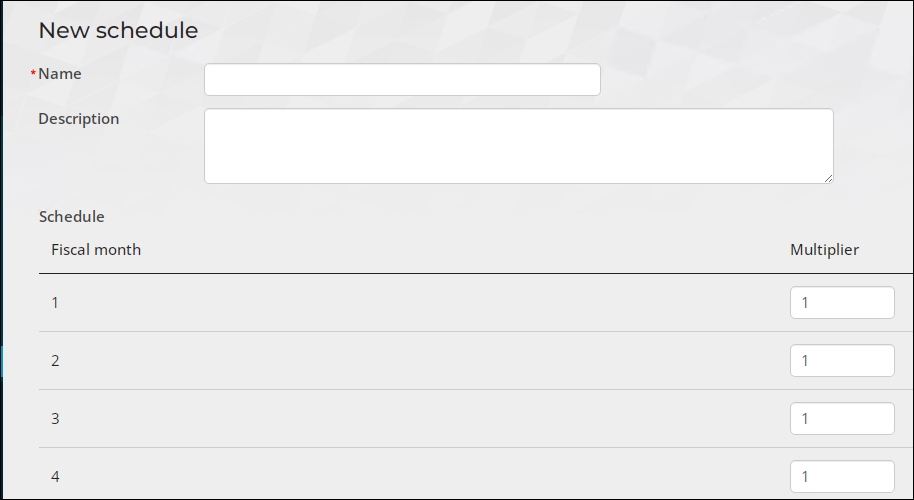
- Click Save & Exit.
Applying a prorated fee
Do the following to define the group Membership Term Basis:
-
From the Staff site, go to Community > Find groups.
-
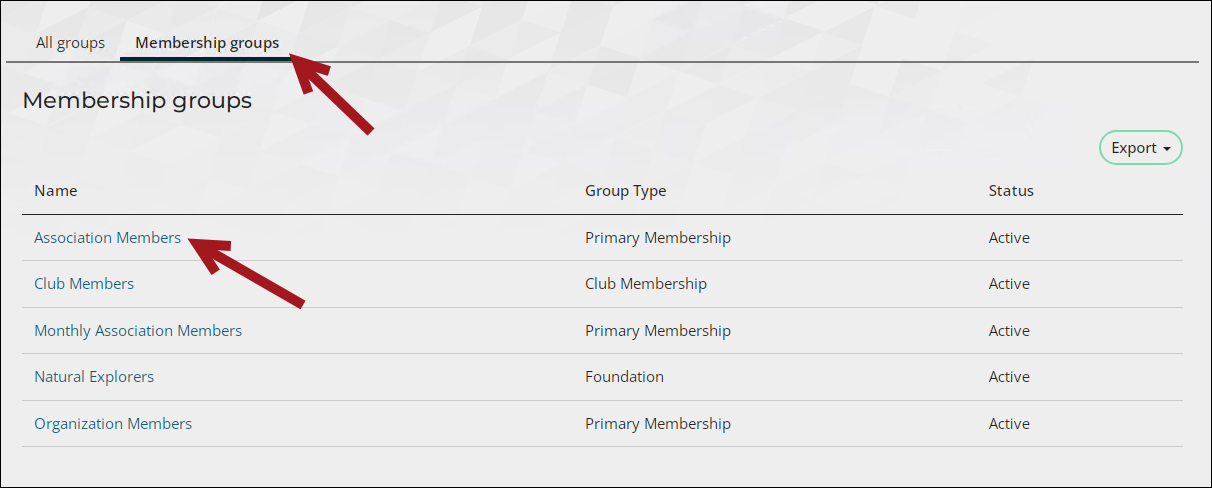
Click the Membership groups tab, then select the group.
-
Click the edit icon.
-
In the Membership term basis area, select Annual.
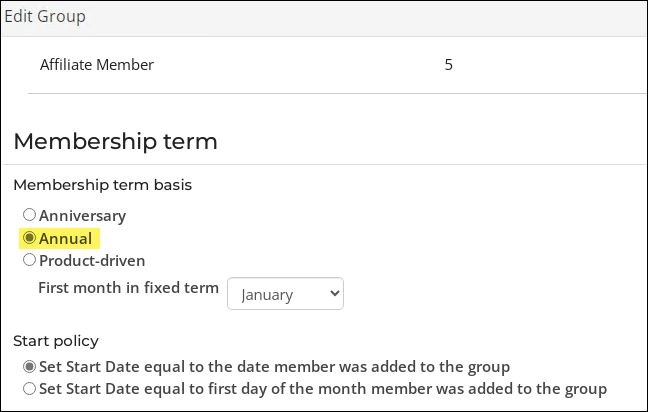
- Select the First month in the fixed term for when the customer membership term will begin.
Do the following to create a product for members to purchase online:
-
From the Staff site, go to Commerce > Add product.
-
Create a simple item and provide information for the required areas.
-
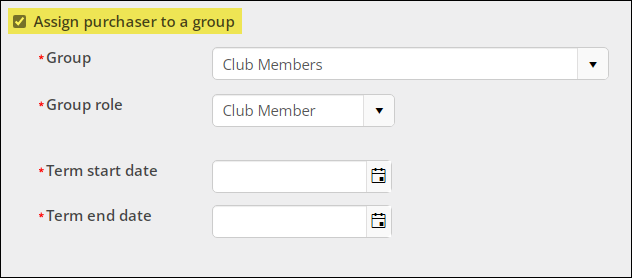
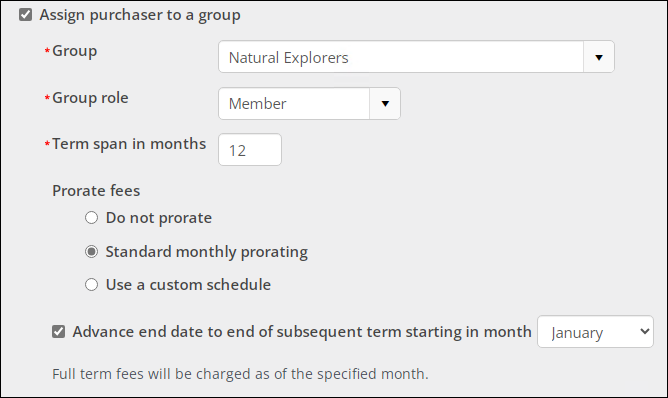
Check Assign purchaser to a group and select the group that has an Annual membership term basis.
 Note
NoteThe Prorate fees options will not display if the group has an Anniversary or Product-driven membership term basis.
-
Select a Prorate fees option:
-
Do not prorate
-
Standard monthly prorating
-
Use a custom schedule
NoteA drop-down displays all of the custom prorating schedules. See Creating a prorating schedule for more information.
-
-
Check Advance end date to end of subsequent term starting in month to extend the length of the membership term. Select the month of the subsequent fixed membership term. The month that is selected is the month during which the expiration date of the new membership will be extended to and included in the next fiscal year. This option will only display if the Term span in months is equal to 12 months.
- Click Save.
Updated 5 months ago