

Using Form Designer and the Form Library
Form Designer allows you to design your forms and prepare them for deployment. Currently, Form Designer works in drag-and-drop mode only.
Drag-and-drop mode allows you to quickly create straightforward responsive forms using iMIS fields plus text areas and headings. A variety of page layouts are supported as standard. Rules can be applied to drag-and-drop forms to perform special tasks such as setting default values, making fields required or optional and hiding form sections.
The following list details the available features associated with Drag-and-Drop mode:
- Ability to use Form Rules
- Ability to use Bootstrap layouts
- Ability to use Health Check
- Access to essential Contact and Address fields with the Individual and Institute fields
- Access to all Panel Sources
Navigating the form library
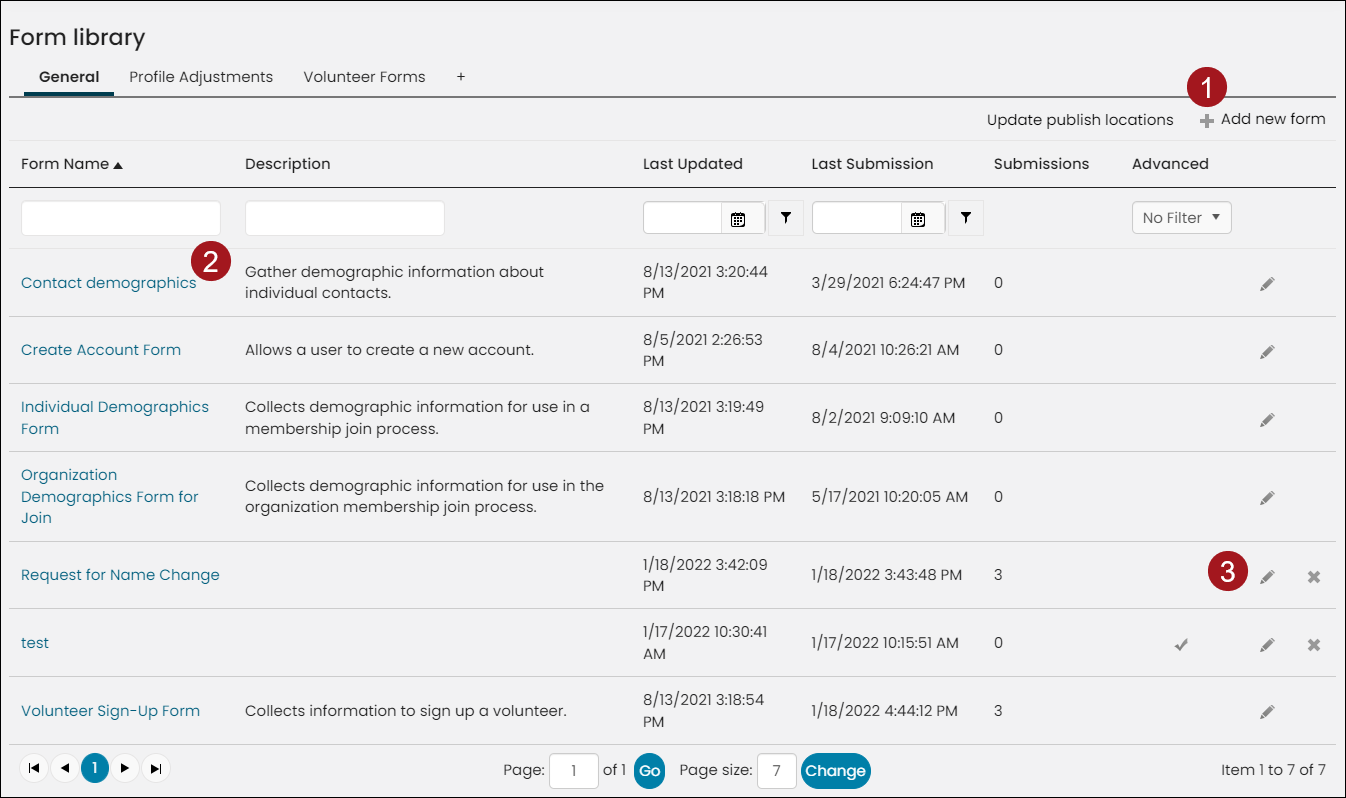
To access the Form Library, navigate to RiSE > Form Builder > Form library. From the Form library, you can create a new form or edit an existing form by the following ways:
- Click Add new form to create a new form.
- Click the Form Name to go to Form Designer to update the form layout.
- Click the pencil icon to edit the form attributes, change the form name or description, find the published locations or review the form’s health check results.
Updated 5 months ago