

Event Display
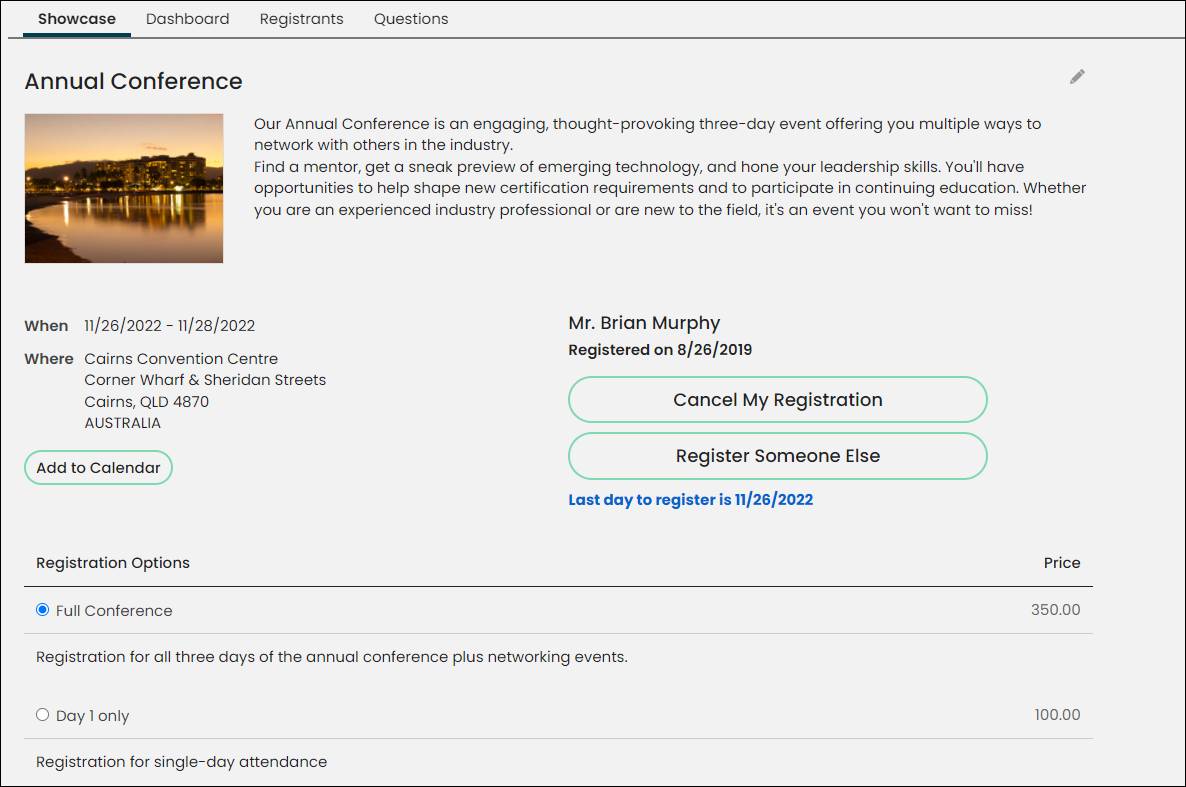
The Event Display content item displays event details, and allows users to do the following:
- Register for events for themselves or for someone else
- Add an event to their itinerary
- Add the registration to their cart
This content item will add its title information, usually the event name, to the browser window or tab page title when the Use dynamic page titles checkbox is selected on the parent content record.
Event Display configuration options
- Name - Enter a name for the content item.
This text appears during design mode (configuration). - Do not render in design mode - Select this option
to prevent content record data from being loaded in the content editor.
This improves performance during design time (configuration). - Display a border around this content - Select
this option to display a border around this content item on the rendered page. - Event key - The key of the specific event to be displayed. This comes from the Event.EventKey column.The key can also be supplied using the URL. A key specified in the content item configuration takes precedence over a key in the URL.
- Width of image - The width in pixels of the image to be displayed. Smaller pictures are scaled up to this width; larger pictures are scaled down.
- 0 - displays the image at full size
- 1 - hides the image
- Prompt unauthenticated users to sign in or create an account - Enable to generate a label with links to sign in or create an account. The label appears only if you are an unauthenticated user with items in your cart.
- Add to calendar - Allows users to add the event to their Yahoo!, Google, and iCalendar calendars. iCalendar is compatible with iCal (.ics) files, such as iOS mail, Gmail, and Outlook. This button can be configured to Never show, Show after registration, or Always show.
NoteUsing the # symbol in event titles and descriptions should be avoided because it may not generate the Add to calendar link.
- IQA query used when registering someone else - The results of the selected query are displayed when using Register Someone Else to register an existing contact. The query will alert you if the contact has already been registered. If no query is selected or no contacts are available, you are given the option to add a new contact.
The default query ($/Events/DefaultSystem/Queries/Events/Registrant Search) lists the user's coworkers, but you might need to broaden or tighten its criteria. If you write your own query, you must include the following query display columns:
-
An iMIS Id property.
-
A name property so that it is clear which contact the user is selecting. For example, Individual. Full Name.
-
New contact settings for Register Someone Else - The following settings apply when a user registers someone else and that contact is not already in the database:
-
Do not allow adding new contacts – Enable to prevent users from creating new contacts. When enabled, users only have the option to register existing contacts, and the remaining settings in this section are disabled.
NoteIf this option is enabled and there are no contacts available for the user to select for registration, then a message appears: "There are no contacts eligible for you to register at this time."
-
Create address purpose - Select the address purpose to which the new address will be applied.
-
Require address - Enable to require an address when registering others for events, either through guest registrations or Register Someone Else.
-
Require organization - Enable to require an organization when registering others for events through Register Someone Else.
-
Require email - Enable to require an email when registering others for events through Register Someone Else.
-
Require phone - Enable to require a phone number when registering others for events through Register Someone Else.
-
Organization list query path - If needed, select a custom query for listing appropriate organizations, such as if you have content records specific to different types of users.
NoteIf the query is not found (if the query name is mistyped, for instance), the content item will display an empty list. Delete the query path to re-instate use of the default query.
-
Notes
- If a content record contains several dynamic content items, it is recommended that you turn dynamic page titles off for the entire page in order to limit the title length.
- Calling events by URL:
- If a key value is not set in the configuration page, the content item looks for the key in the URL. To include the key in the URL, use the parameter name EventKey, such as
?EventKey=SPR12. A key specified in the content item configuration takes precedence over a key in the URL. - If no EventKey is specified, the content item hides itself on the page.
- If the URL includes
iSearchResult=true, a content item with a valid key does not hide itself when the event is not found but reports that the event was deleted.
- If a key value is not set in the configuration page, the content item looks for the key in the URL. To include the key in the URL, use the parameter name EventKey, such as
Updated 5 months ago