

Managing organizations as a group member administrator
Staff users can assign the Group Member Administrator role to any contact. A Group Member Administrator can be added as an administrator of any company, even if they are not an employee of the company. They can also administer multiple organizations, if desired.
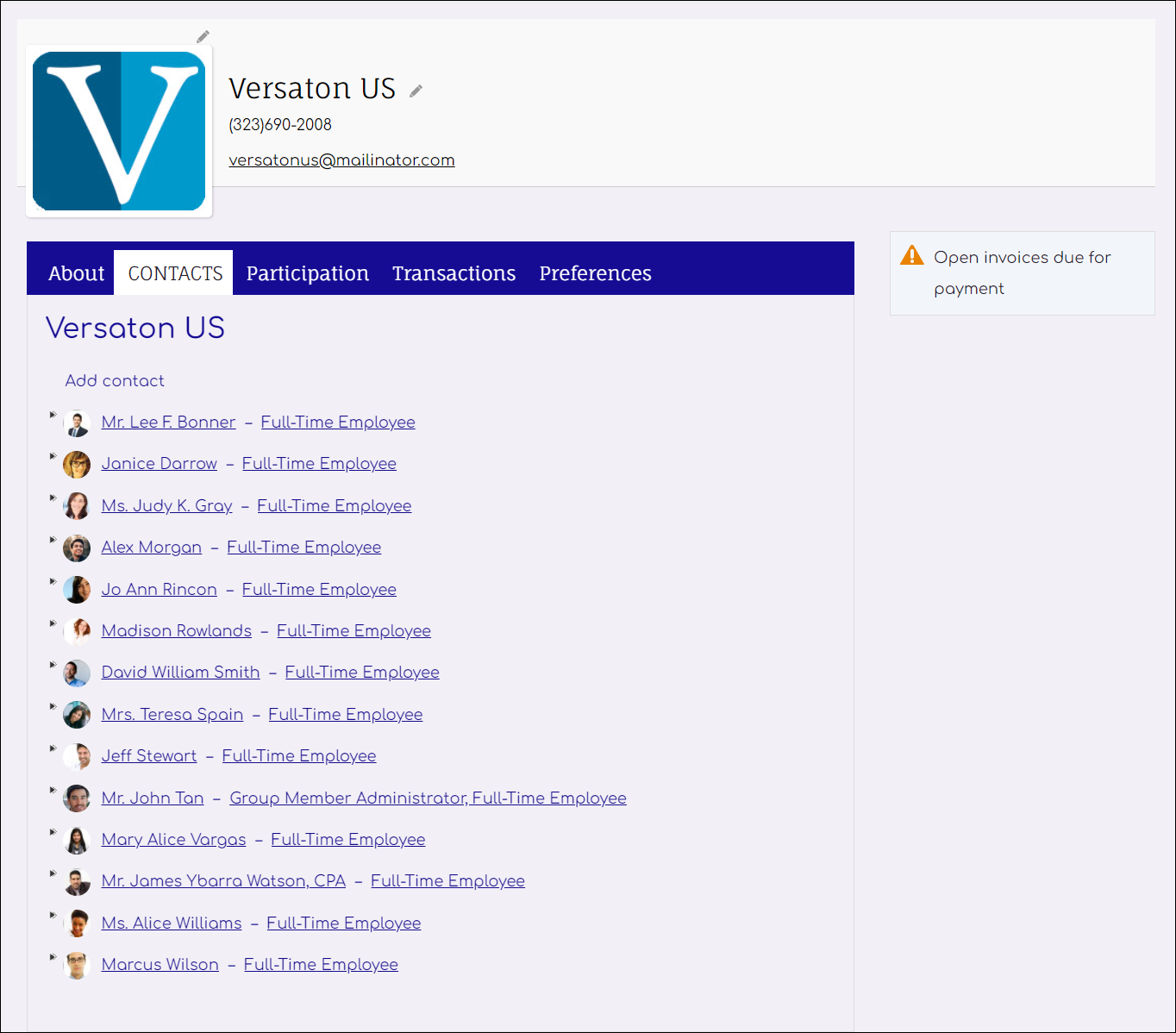
Creating an organization
Do the following to create an organization:
- Go to Community > Add contact.
- Select Organization.
- Enter the organization name and optionally select or create an administrator for this organization.
- Click Save.
You can add additional information on the resulting organization staff account page.
What can an administrator do?
The Group Member Administrator for an organization can do the following:
- Manage organization profile information
- Manage the organization member list:
- Remove members
- Update member roles
- Add new contacts
📘 Note
The Group Member Administrator cannot add existing contacts to their group for security reasons. The Group Member Administrator can add inactive members back into the group or add a brand new contact. - View and update account information for organization members
- Process dues and pay event registration for existing and new contacts
- Pay any outstanding invoices for members and new contacts
- Bill event registrations to the organization
- Manage billing for the organization
Assigning the Group Member Administrator role
Members with the Group Member Administrator role have many different responsibilities. The Group Member Administrator role can be assigned to members in two different ways:
- From the organization’s account page
- Directly to a Group Type Role
From the organization's account page
To assign a member the Group Member Administrator role from the organization’s account page, do the following:
- Login as a staff user or a Group Member Administrator.
- Navigate to the organization's account page.
- Click the Contacts tab.
- Select the role of an existing contact, or select Add new contact.
- (If editing a contact) Select Edit.
- From the Role drop-down, select Group Member Administrator.
- Click Save & Close.
- As a system administrator, go to Settings > Groups > Types.
- Open a group type for edit.
- Click the Roles tab.
- Select a role to update.
- From the Administrator Privileges drop-down, select Group member administrator.
- Click Save & Close.
📘 Note
For contacts that are not members of the organization, you must first add the contact, then select the administrator role and not the Member role.
📘 Note
Enable the Contact Account Creator configuration option Assign selected user as administrator for new organizations to automatically assign the logged-in user as the Group Member Administrator for newly created organizations. If a Staff user creates the organization, they will have the ability to choose the Group Member Administrator.
You have the option to assign the Group Member Administrator role directly to a Group Type Role. For example, there is a company group type defined with roles of President, Vice President, Secretary, and Member. You have the option to define that anyone with the President role is automatically also a Group Member Administrator.
To define a Group Type Role as a Group Member Administrator, do the following:
📘 Note
For more information about the differences between Group administrator and Group member administrator, see Understanding the Administrator roles.
Managing the profile, member information, and billing
Profile
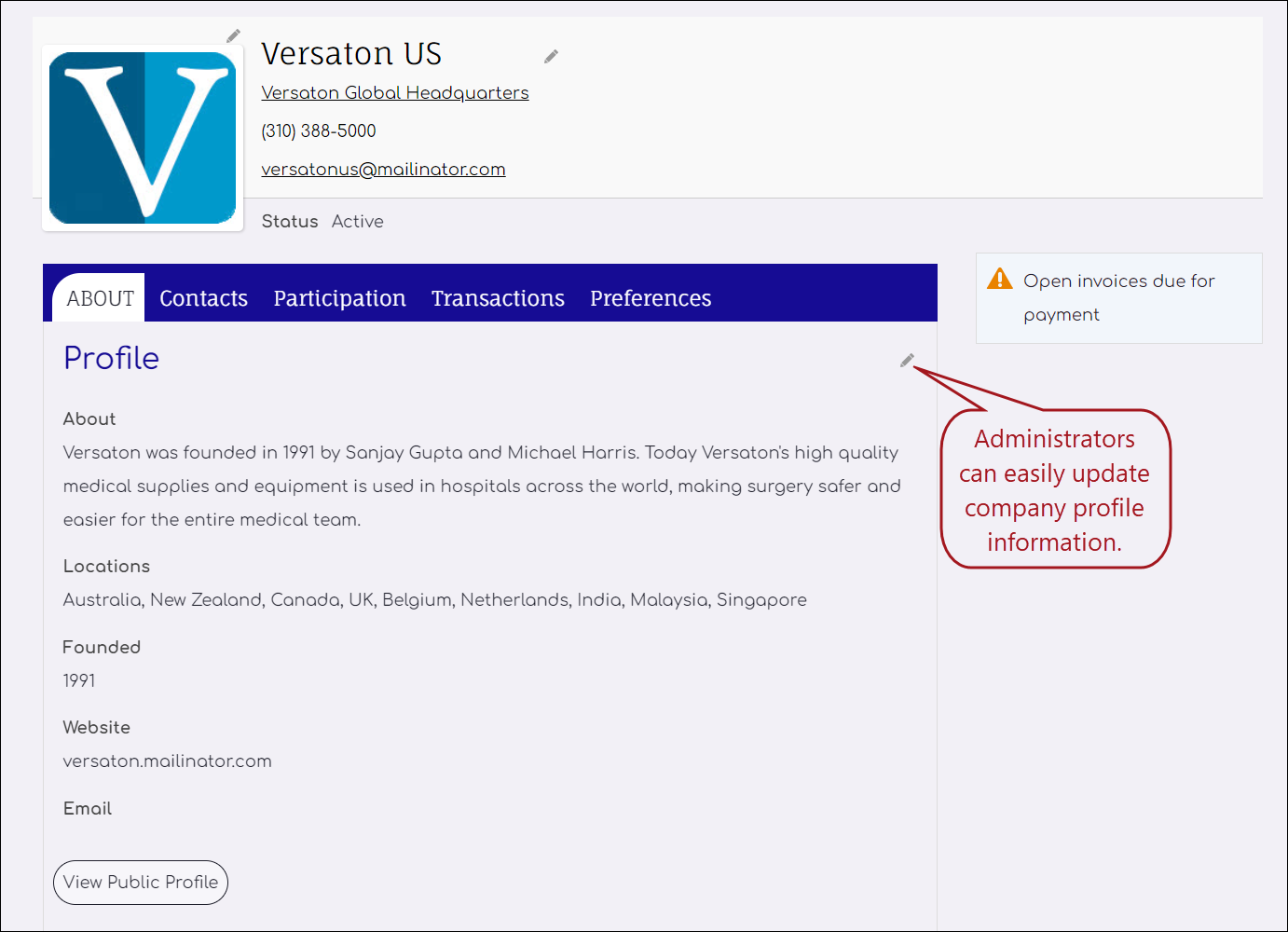
When Group Member Administrators view the account page for their organization, they can update the organization's account and profile, including the name, addresses, and public profile details.
Members
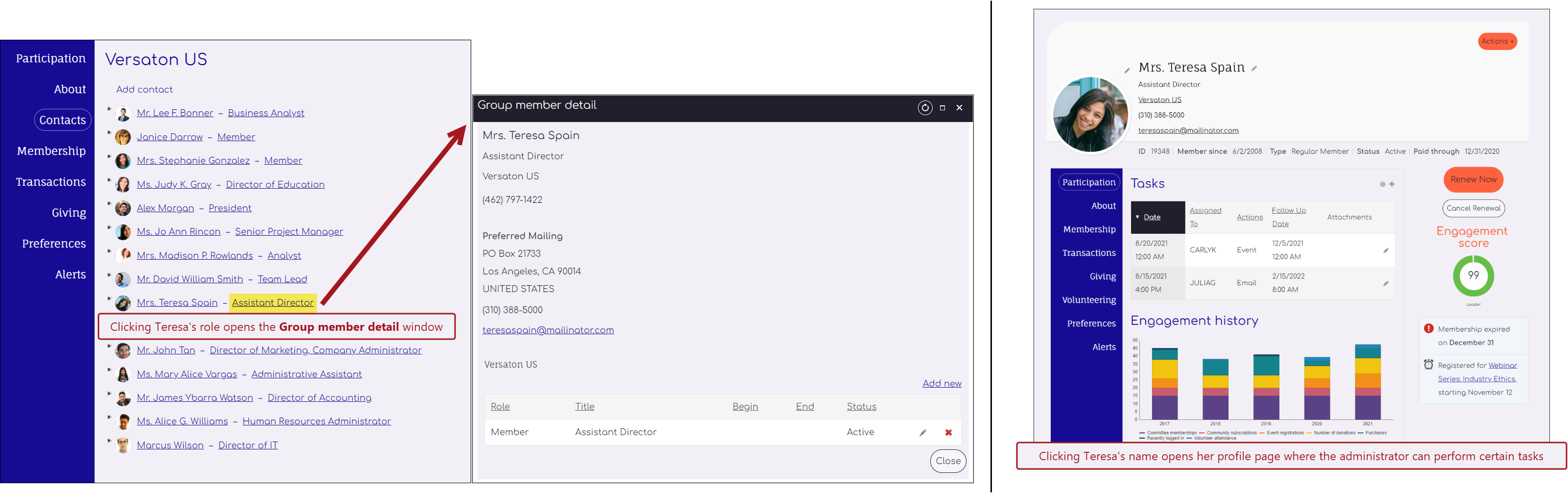
Group Member Administrators have the ability to update contact and profile information for members of their organization, including name, title, organization, addresses, and public profile details. They can also view participation information for the contact, such as billing history.
📘 Note
The Group Member Administrator cannot add existing contacts to their group for security reasons. The Group Member Administrator can add inactive members back into the group or add a brand new contact.
Billing
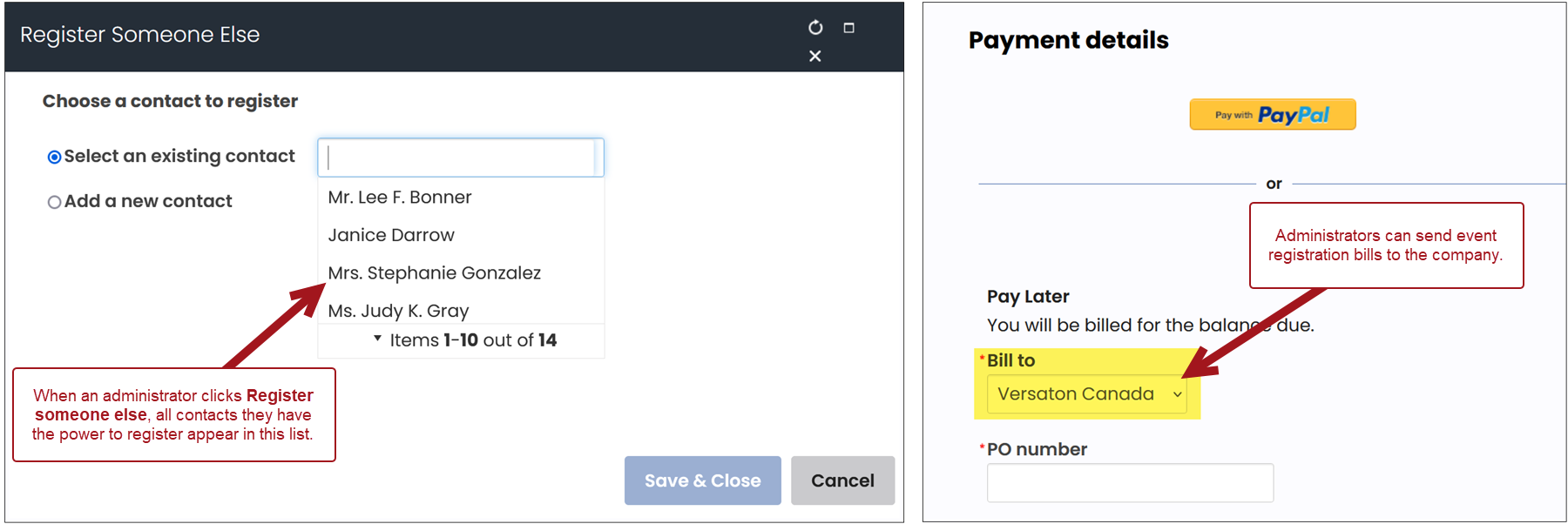
Group Member Administrators can perform the billing-related actions:
- Register members for events that are apart of the organization that they are the administrator of and can then bill the registrations to the organization
- Make purchases and bill the purchase to the organization
- Review past orders and invoices
- Pay recently billed renewal invoices
- Pay renewal invoices using the Renew Now button on the organization's account page
Paying open invoices for a company
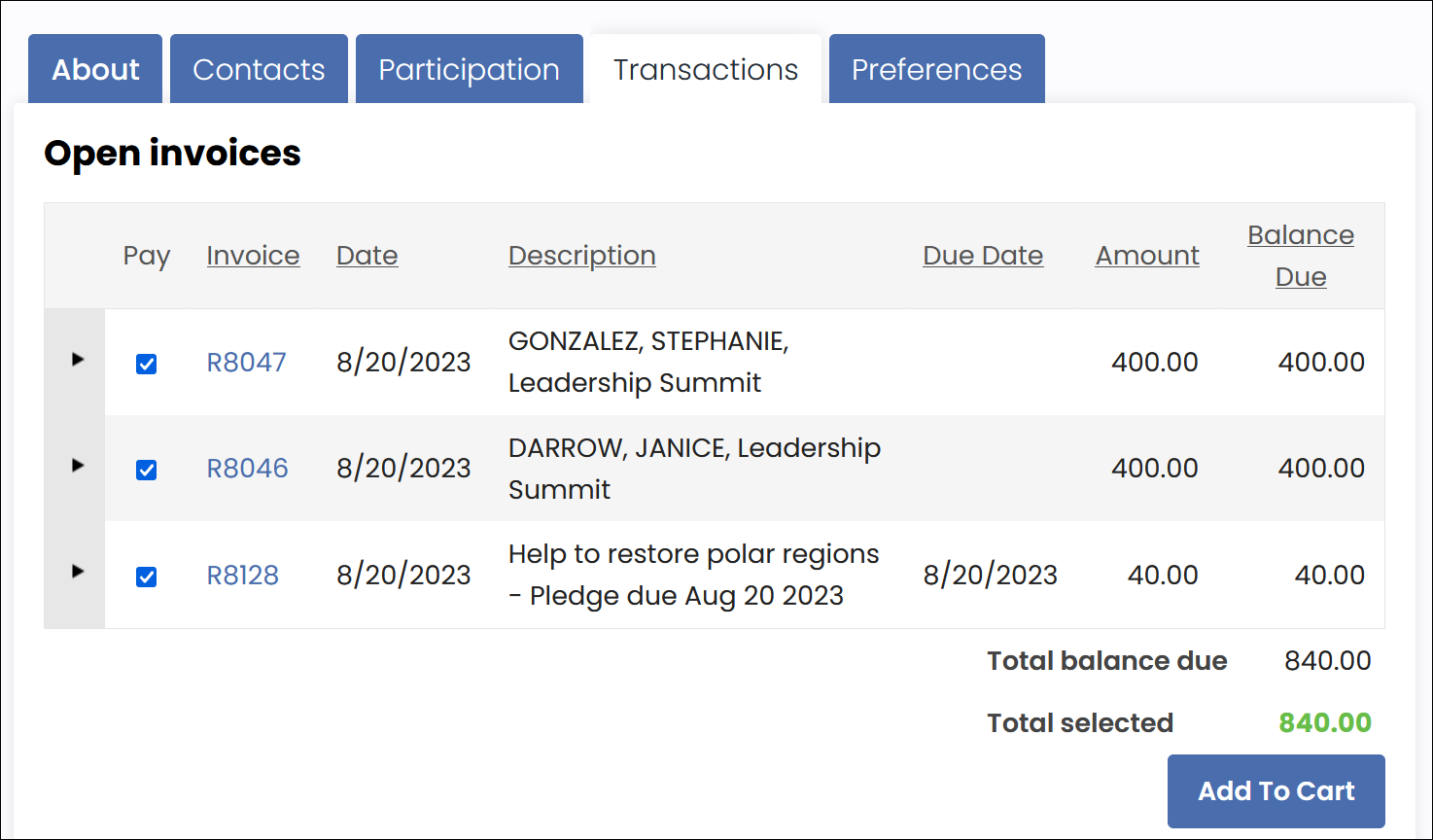
To pay open invoices for the company, do the following:
- Click the Transactions tab.
- All open invoices appear in the Open invoices area. Select the checkbox next to the invoice number.
- Click Add To Cart.
Billing alerts
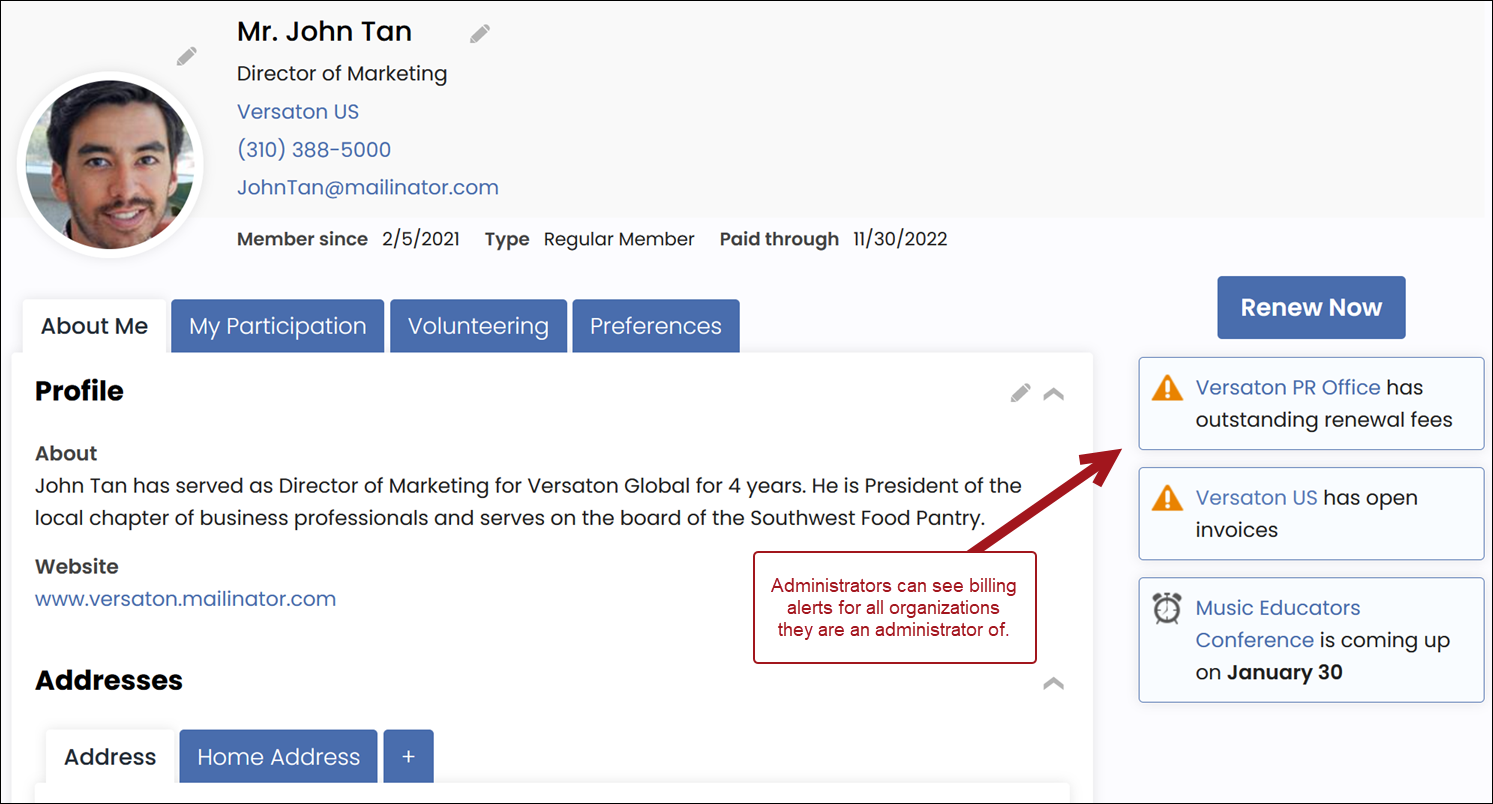
When their associated organization has an outstanding membership renewal invoice, Group Administrators see a notification (for each organization they administer) on their account page that their organization has outstanding renewal fees.
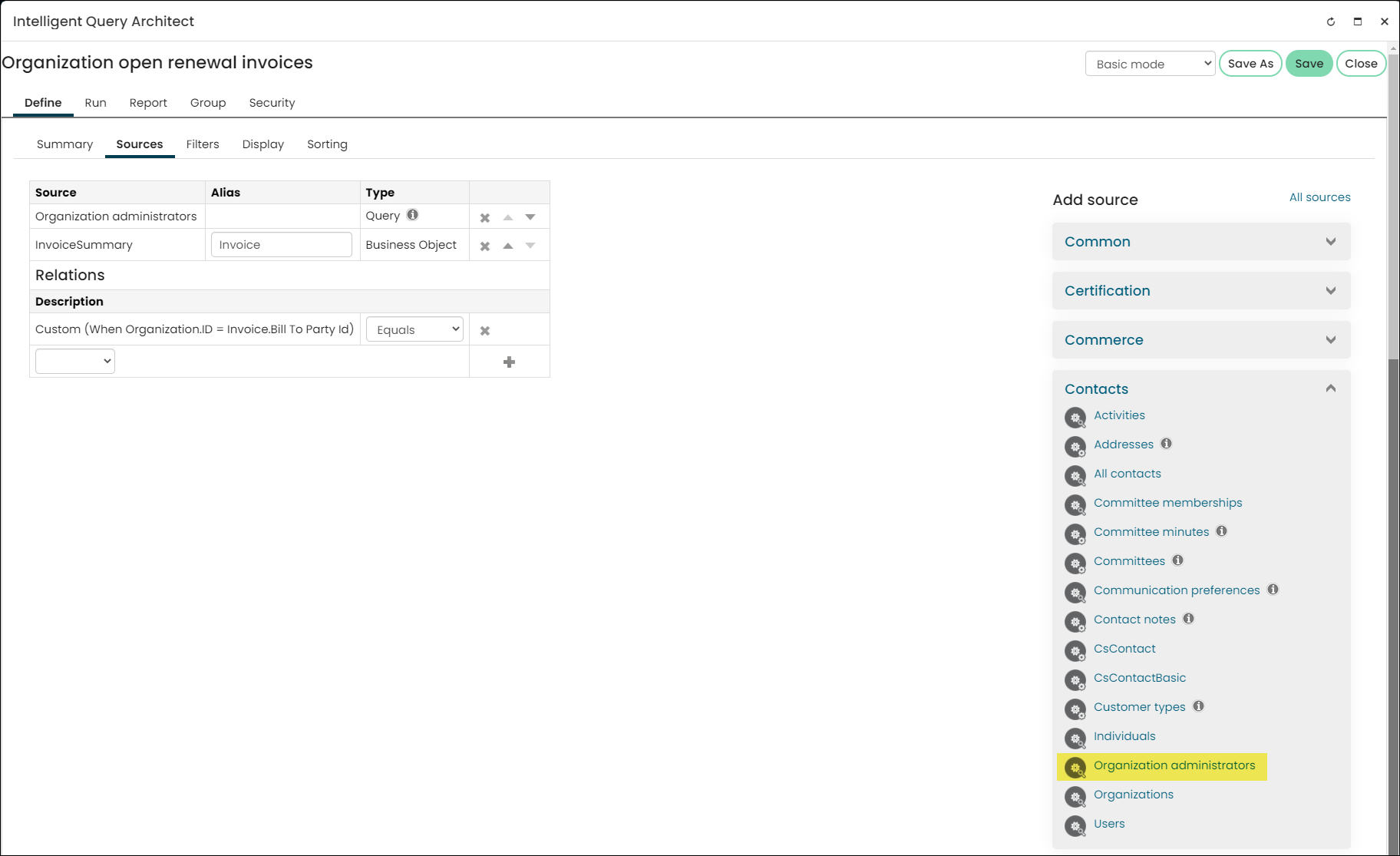
As a staff user, you can review any open membership renewal invoice for members in an organization using the Organization open invoices query ($/Common/Tasks/Queries/Organization open renewal invoices). Staff can also use the Organization administrators query to view a list of organization administrators and the organizations they oversee. This query is easily accessed from the Contacts drop-down in the Add source section when creating a query.
Updated 3 months ago