

Addresses: Settings
Address settings allow you to customize address formats for addresses all over the world. To access these configuration settings, go to Settings > Addresses.
Address formats
Address formats are standard formulas for shipping addresses and are associated with countries. iMIS comes with several out-of-the-box formulas that are already set up for you to use. You can Select to edit the out-of-the-box address formats, or you can add new ones.
Before you create a new address format, review one of the existing out-of-the-box formats as an example. From the Staff site, go to Settings > Addresses > Address formats.
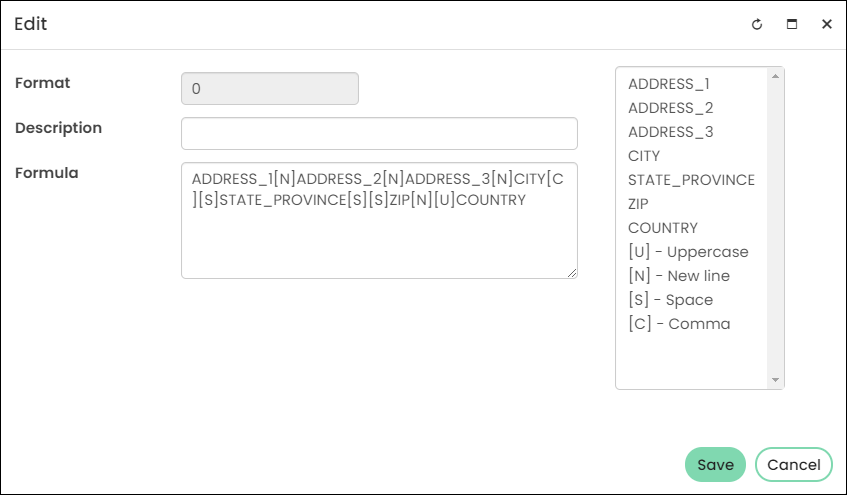
To add a new address format, do the following:
- From the Staff site, go to Settings > Addresses > Address formats.
- Select Add new item.
- Enter in an Address Format Nameand a Description.
- From the Available Address Fields, select how you want your address to be formatted. You must select the Available Address Field options in the order you want them to be arranged.
- Click Save.
States and provinces
iMIS comes with several out-of-the-box States and Provinces already preconfigured for you to begin using. The States and Provinces are organized in alphabetical order. You can edit or delete an existing State or Province, or you can add one that iMIS does not come with:
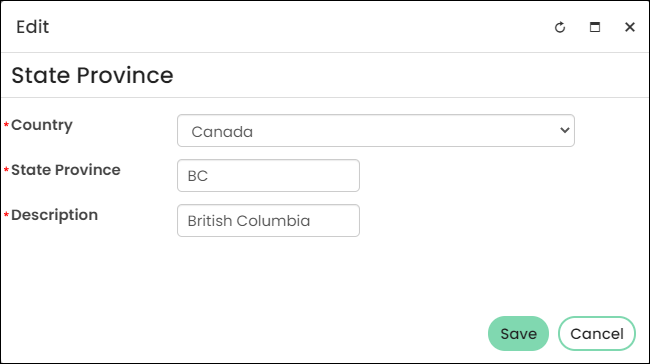
- From the Staff site, go to Settings > Addresses > States and provinces.
- Click the Add new item link.
- Select a Country from the drop-down.
- Enter a State Province abbreviation.
- In the Description field, enter in the full name of the state or province.
- Click Save.
Countries
iMIS comes with several out-of-the-box countries that your organization can begin using. You can edit a country or add a new one that iMIS does not have:
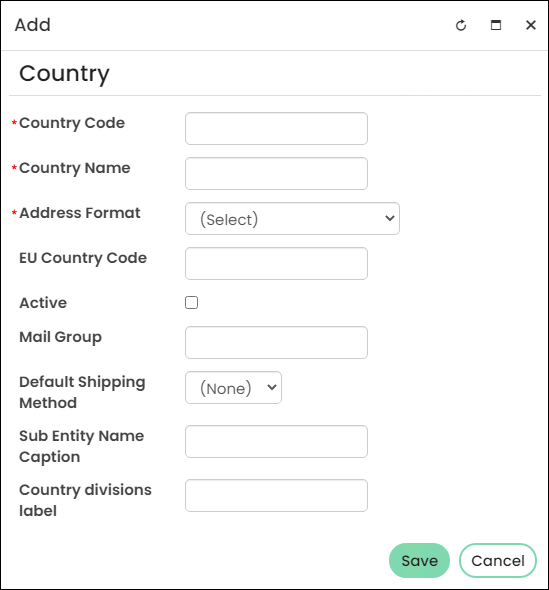
- From the Staff site, go to Settings > Addresses > Countries.
- Select Add new item .
- Enter in an abbreviated Country Code.
- Enter in the full Country Name.
- Select the Address Format you want associated with this country.
- Enter the two-letter EU Country Code.
- Optional settings:
- Active - Select the checkbox if you would like to be an active country that your users can choose from.
- Default Shipping Method - From the drop-down, select the shipping method to display as the default choice for this country. The user can override this method at order entry.
- Country divisions label - Enter the label to be displayed to users when they add an address. This field will display to users only if it is populated here. The defaults for United States (State), Australia (State), and Canada (Province) are installed in iMIS.
- Click Save.
Address Purposes
Address purpose is a description of the addresses used, such as home, work, school, or PO Box. This description is useful for organizing multiple addresses for the same person or organization.
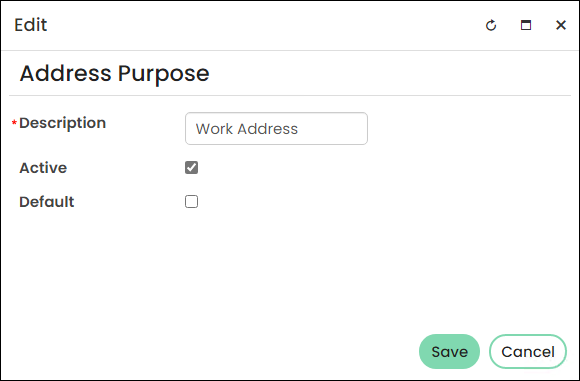
Do the following to create or edit an address purpose:
- From the Staff site, go to Settings > Addresses > Address purposes.
- Do one of the following:
- Select an address purpose to edit.
- Select Add new item to add a new address purpose.
- Enter in a Description for the address purpose, such as Work Address or Home Address.
- When creating a new address purpose, the System field is labeled No by default. This means that this is not an out-of-the-box address purpose and is user created. Out-of-the-box address purposes cannot be deleted.
- Enable Active to allow contacts to use this address purpose. When disabled, the address purpose is not available for contacts to use.
- Enable Default to designate this address purpose as the selected default purpose. The purpose must be Active in order to be the Default.
📘 Note
To change the default address purpose, you must first deselect Default for the current default address purpose, then enable Default for the new address purpose.
Updated 3 months ago