

Reversing past-due membership renewal invoices
If members have outstanding membership renewal invoices for an extended period, you may need to reverse the related invoices. To do this, you can reverse an invoice for one member, or you can reverse multiple invoices.
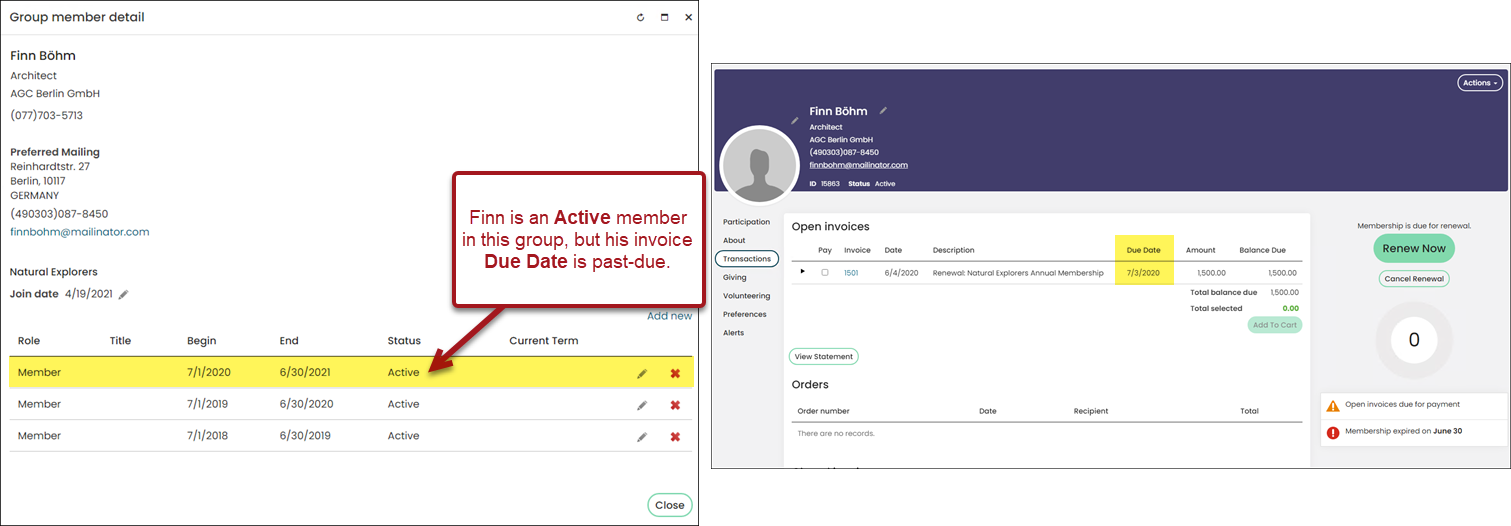
Before reversing multiple past-due membership renewal invoices, you must define the number of days after which a membership-renewal invoice is considered past due:
-
Go to Settings > Contacts > General.
-
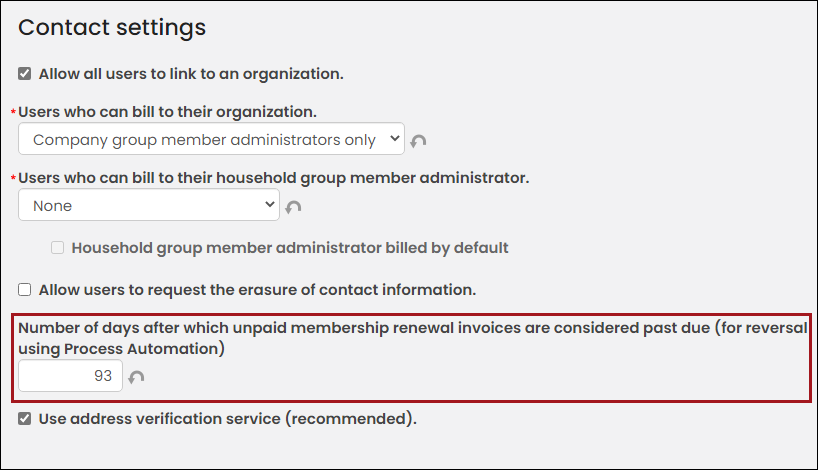
Enter the Number of days after which unpaid membership renewal invoices are considered past due.
 Note
NoteFor example, if you would like to reverse invoices that are at least three months past due, enter 93.
- Click Save.
To review the invoices before they are reversed, run the Past-Due Renewals query ($/Common/Tasks/Queries). The results of the Past-Due Renewals query are controlled by the number defined in the Number of days after which unpaid membership renewal invoices are considered past due setting.
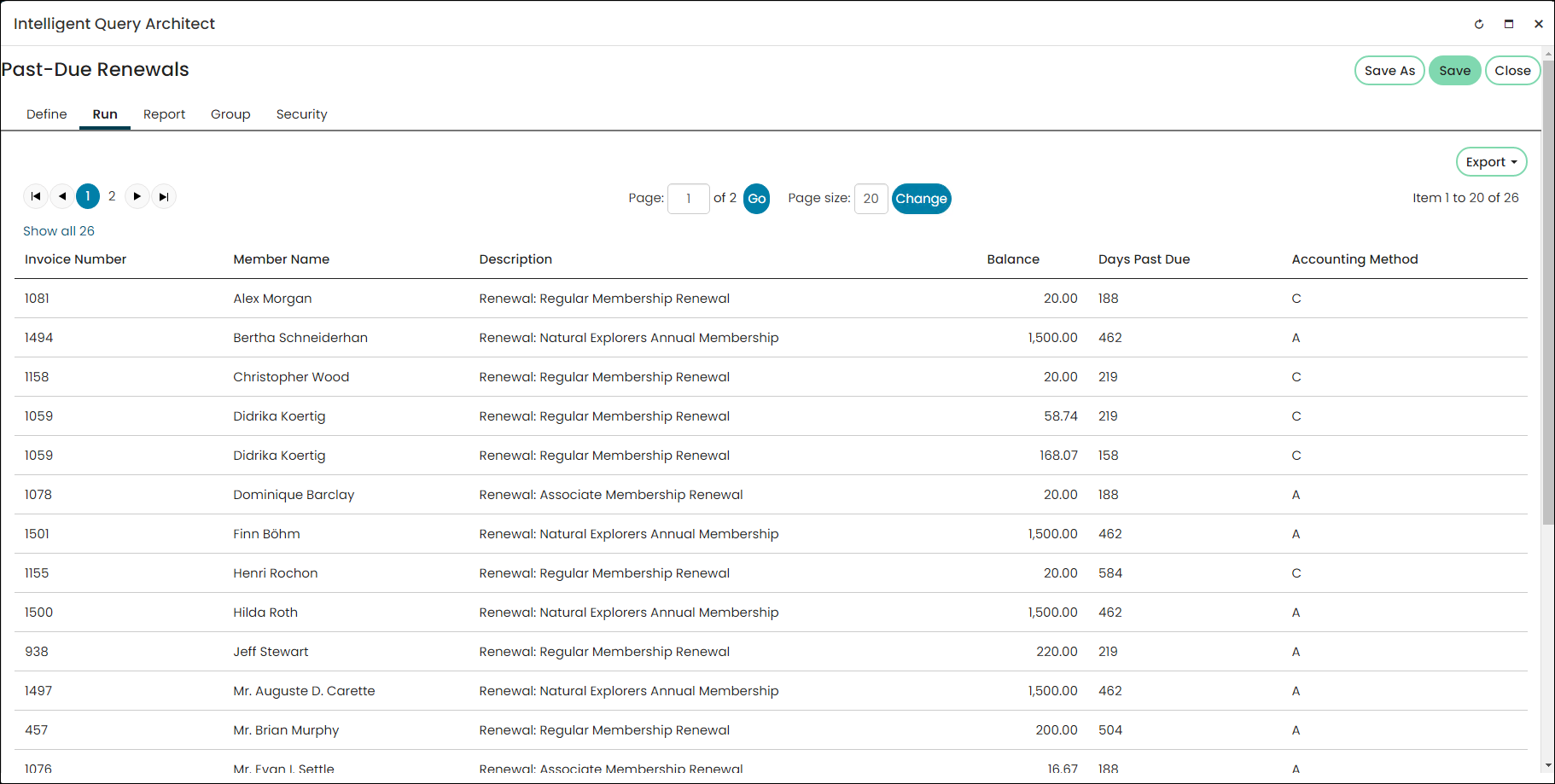
To reverse all invoices returned in the Past-Due Renewal query, do the following:
- Go to RiSE > Process automation.
- Open the Reverse past-due membership renewal invoices scheduled task.
- Click the Actions tab, then click the edit icon for the Reverse past-due renewals action.
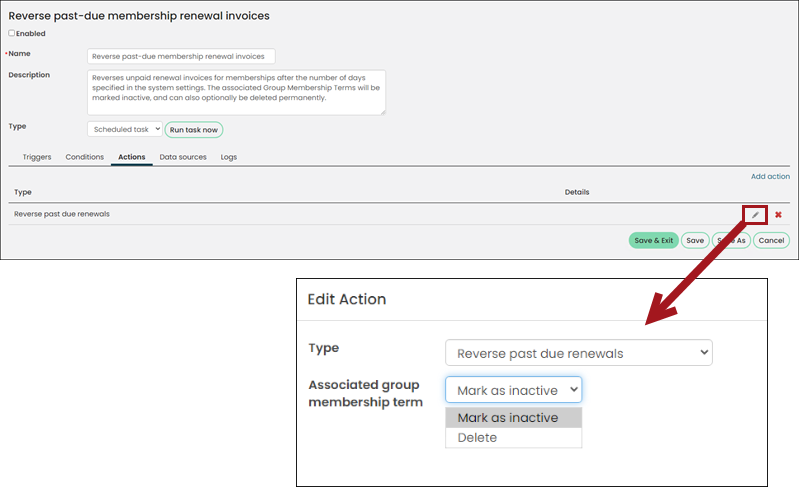 4. From the Associated group membership term drop-down, select one of the following:
-
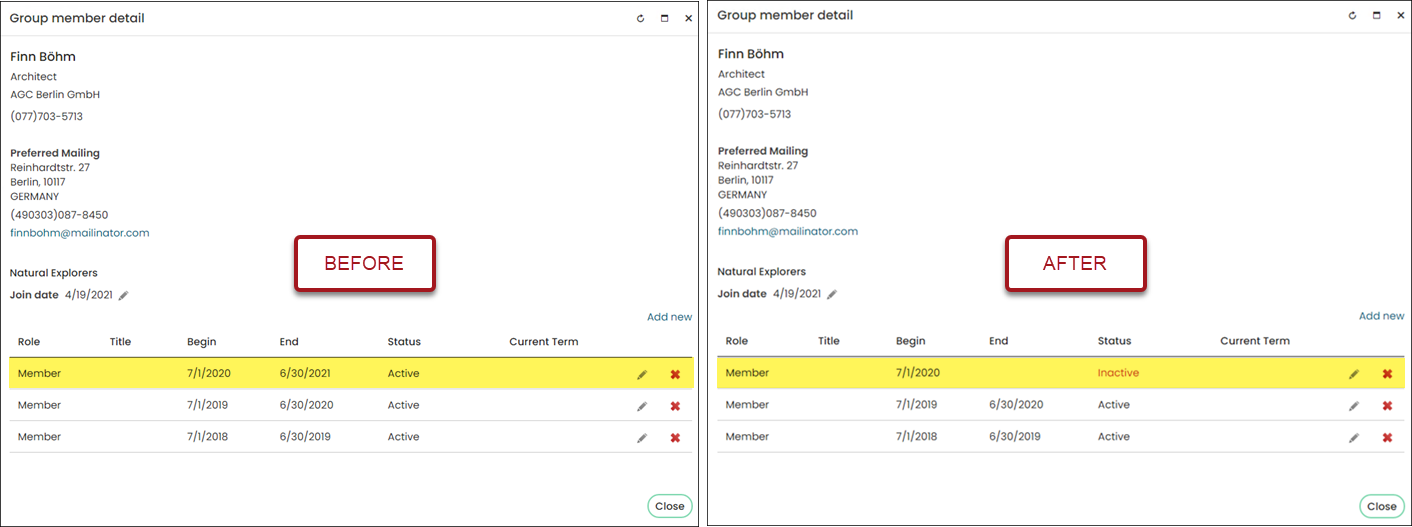
Mark as inactive – (Default) The associated membership term remains in the list with the original Begin date and is marked as Inactive. Enable this option if you want to keep the history of the membership group detail. The member will get picked up in renewals if you have the Include inactive members option enabled in the membership group settings.
-
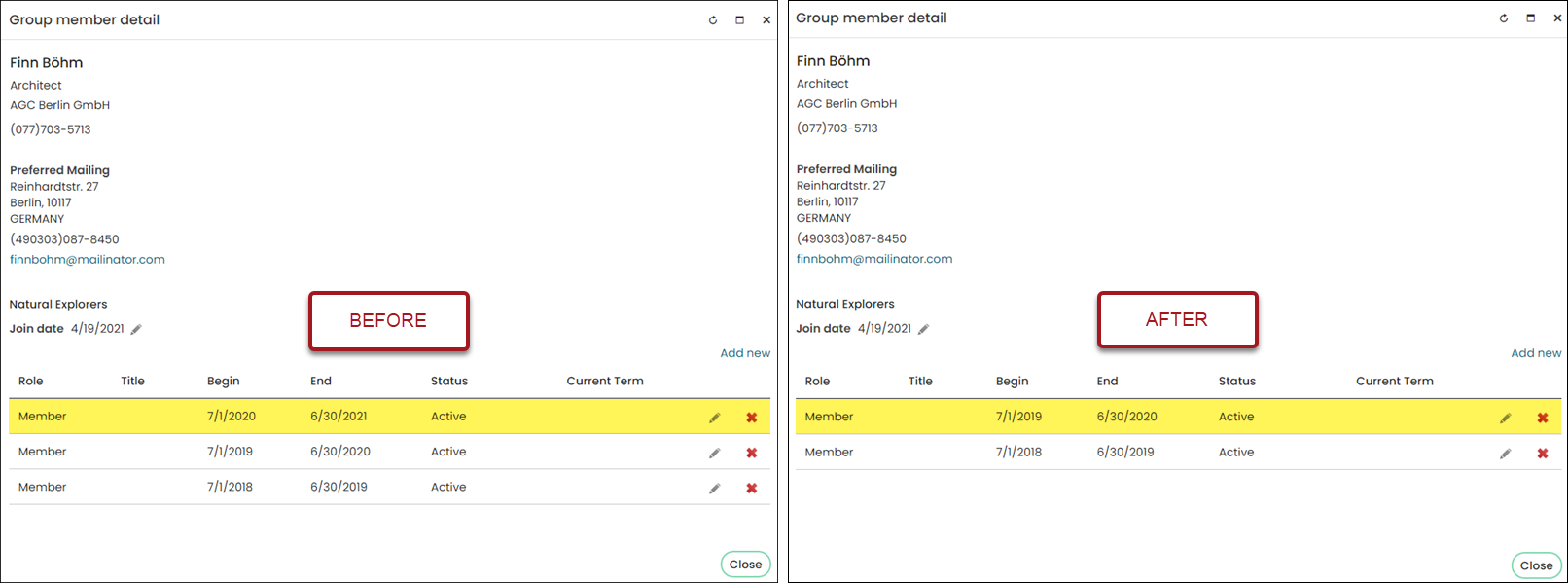
Delete – The associated past-due membership term is completely removed from the Group member detail. The member will get picked up in renewals if you have the Include inactive members option enabled in the membership group settings.
 Note
NoteMembers will still have the ability to join whether their term was Marked as inactive or Deleted.
-
- Click Save.
- Click Run task now.
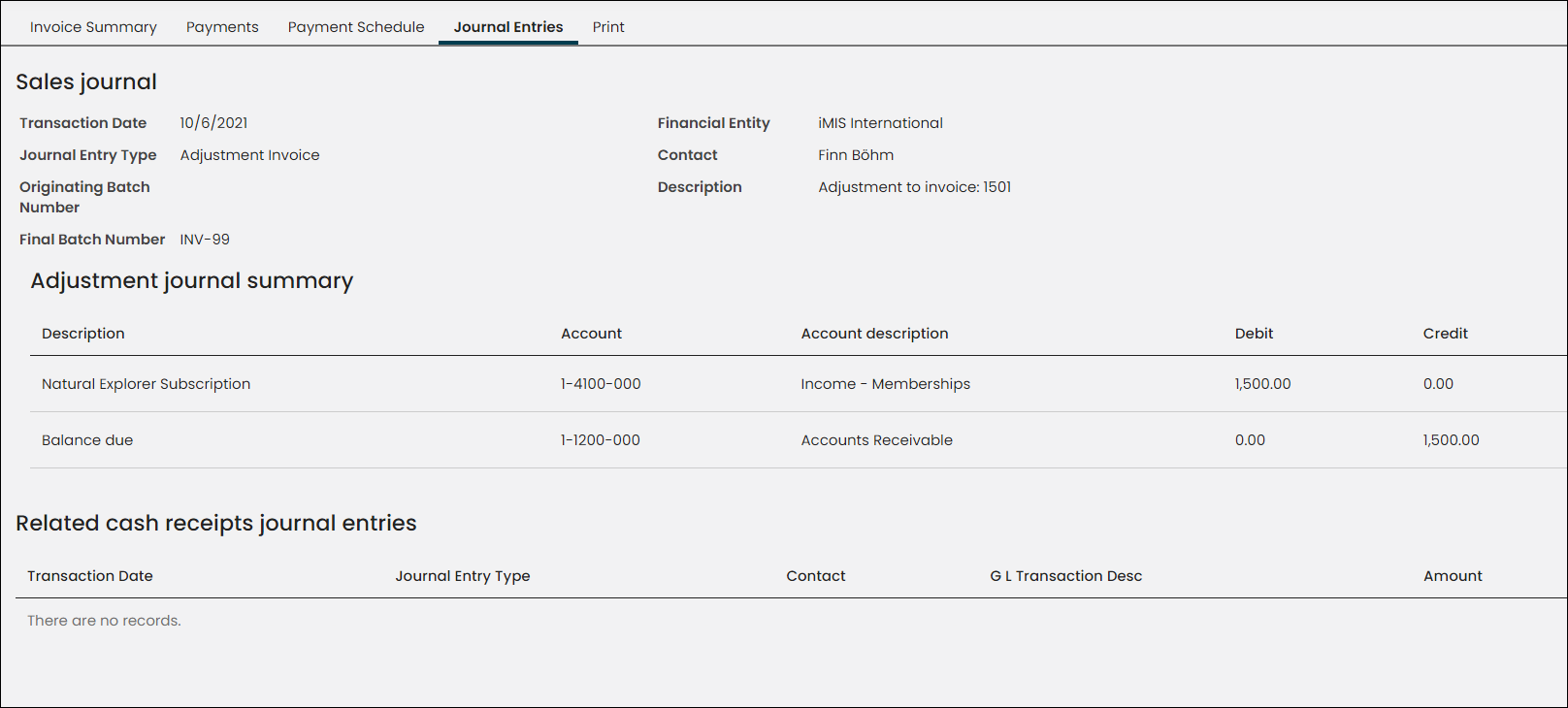
To review the journal entry, search for the invoice (Finance > Invoices) and click the Journal Entries tab. The entry appears in the Sales journal summary section. Only accrual-based memberships have an associated journal entry.
Updated 5 months ago