

Using redirector ASPX pages
Redirector pages can be used to dynamically redirect a user to the correct page based on certain criteria. iMIS offers the following redirector pages out-of-the-box to help you easily create links in HTML or in IQA queries.
Order details page (Order.aspx)
Order.aspx directs users to either the Order Detail page or the Event Registration page. Order.aspx uses the OrderDetails and EventRegistrationDetail shortcuts to redirect users.
Both editable shortcuts are provided out-of-the-box.
Event landing pages (Event.aspx)
The Event.aspx redirector operates based on the Default (public contact event display) and Owner (staff user event display) Event Showcase Layout defined during event definition.
The layouts can be customized content records or shortcuts.
| Event Showcase Layout | Users who can see this page |
|---|---|
| Owner | System Administrators and Staff |
| Default | Public contacts |
Event.aspx directs users to the event landing page specified in the Event Showcase Layout fields for the event. If no customized showcase pages are selected, or no custom shortcut is entered, the default shortcuts of EventDetail (Default) and EventDashboard (Owner) are used.
If you have not modified the out-of-the-box shortcuts for EventDetail or EventDashboard to point to your organization's default event pages, these layouts will show out-of-the-box demo content.
Group landing pages (Group.aspx)
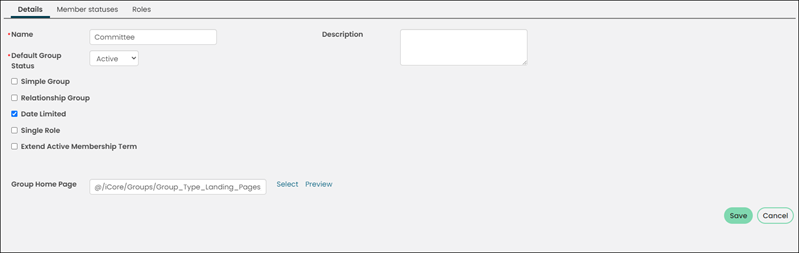
Group.aspx resolves the correct URL for a group depending on the group type’s defined landing page.
If no landing page is defined for that group, it will default to the GroupLandingPage shortcut. The group’s iUniformKey is a required URL parameter.
The link on the group name in this IQA query will direct to the correct landing page for each group.
Contact account pages (Party.aspx)
Party.aspx directs users to the correct account pages depending on the rules defined in the content record specified in the ContactRedirector shortcut . If no target Contact Key is provided, the user will be directed to their own account page.
To edit the rules for redirecting to an account page, do the following:
- Go to RiSE > Page Builder > Manage content.
- Navigate to @/iCore/Contacts/ContactRedirector. If you are licensed for clubs and updating the shortcut for the Club Staff site, navigate to @/iCore/Contacts/ClubStaffContactRedirector.
- Copy (Organize > Copy) the content.
- Paste (Organize > Paste) the copied content into a Shared Content folder.
- Edit the content record and navigate to the Redirect Rules tab.
- Define the rules for each account shortcut. Please see the Creating redirect rules documentation for more information on redirect rules.
- Save and Publish the changes.
After you have made the appropriate changes to the content record, you will need to update the shortcut:
- Go to RiSE > Site Builder > Manage shortcuts.
- In the Shortcut contains field, type ContactRedirector. If you are licensed for clubs and updating the redirector for the Club Staff site, edit the ContactRedirector shortuct specific to the Club Staff site.
- Edit the shortcut.
- In the URL or content record field, select your new content record you just made changes to.
- Click Save.
Individuals:
- System Administrators and staff users viewing any user’s account will be redirected to the FullAccount shortcut.
- Public contacts viewing their own accounts will be redirected to the MyAccount shortcut.
- Public contacts viewing another contact’s account will be redirected to the Profile shortcut. If the logged-in public user has update access to the other contact, such as Group Member Administrator, then they will be redirected to the MyAccount shortcut.
Organizations:
- System Administrators and staff users viewing any company will be redirected to the OrganizationFullAccount shortcut.
- Group member administrators viewing their own company will be redirected to the OrganizationAccount shortcut.
- Public contacts viewing any company will be redirected to the Organization shortcut.
Club Staff site:
- System Administrators and staff users viewing the account page for a contact who is an active member will be redirected to the MemberFullAccount shortcut.
- System Administrators and staff users viewing any Household contact's account page will be redirected to the HouseholdContactFullAccount shortcut.
- System Administrators and staff users viewing staff and volunteer's account pages will be redirected to the StaffVolunteerFullAccount shortcut.
- System Administrators and staff users viewing any club organization account page will be redirected to the ClubOrganizationFullAccount shortcut.
- System Administrators and staff users viewing an account page for an organization that is not a club will redirected to the OrganizationFullAccount shortcut.
- If the selected contact does not meet any of the other criteria, system administrators and staff users will be redirected to the FullAccount shortcut for the Club Staff site.
| Shortcut | Users who can see this page |
|---|---|
| FullAccount |
|
| MyAccount |
|
| Profile | Users who do not have permission to edit the account but have permission to view |
| OrganizationFullAccount |
|
| OrganizationAccount |
|
| Organization | Users who do not have permission to edit the account, but have permission to view |
| HouseholdContactFullAccount | Contacts who are a member of any Household group. This shortcut is for the Club Staff site only. |
| StaffVolunteerFullAccount | Contacts who are staff or volunteers. This shortcut is for the Club Staff site only. |
| ClubOrganizationFullAccount | Organizations who have a type of Club. This shortcut is for the Club Staff site only. |
| MemberFullAccount | Contacts who are active members. This shortcut is for the Club Staff site only. |
HTML Example
Please review your account settingsand fix any inaccuracies.
IQA Example
The link on the individuals full name in this IQA query will direct to the correct profile page.
NoteSee Linking IQA results for more information. See Building IQA queries for a step-by-step example on how to add a link to a query.
Updated 3 months ago