

Creating a basic campaign
A basic campaign generally includes a few appeals and related solicitations, and likely only uses one or two source codes per appeal.
WarningYou cannot set up a basic campaign until the following setup tasks are complete:
- Define setup options for all campaigns
- Set up security groups for campaigns
See Setting up campaigns for more.
Outline
Defining a campaign consists of the following steps:
- Planning the campaign
- Setting up the campaign
- Creating source codes
Creating the campaign
Do the following to create a basic campaign:
Planning
By planning your campaign carefully, you and your staff can perform efficiently and effectively. The planning process includes:
- Setting goals for the campaign.
- Defining campaign components and hierarchy.
- Defining the budget and cost tracking, if any.
- Identifying targets.
- Specifying marketing efforts.
- Defining campaign performance measurement.
See Planning a campaign for more.
Setting up the campaign
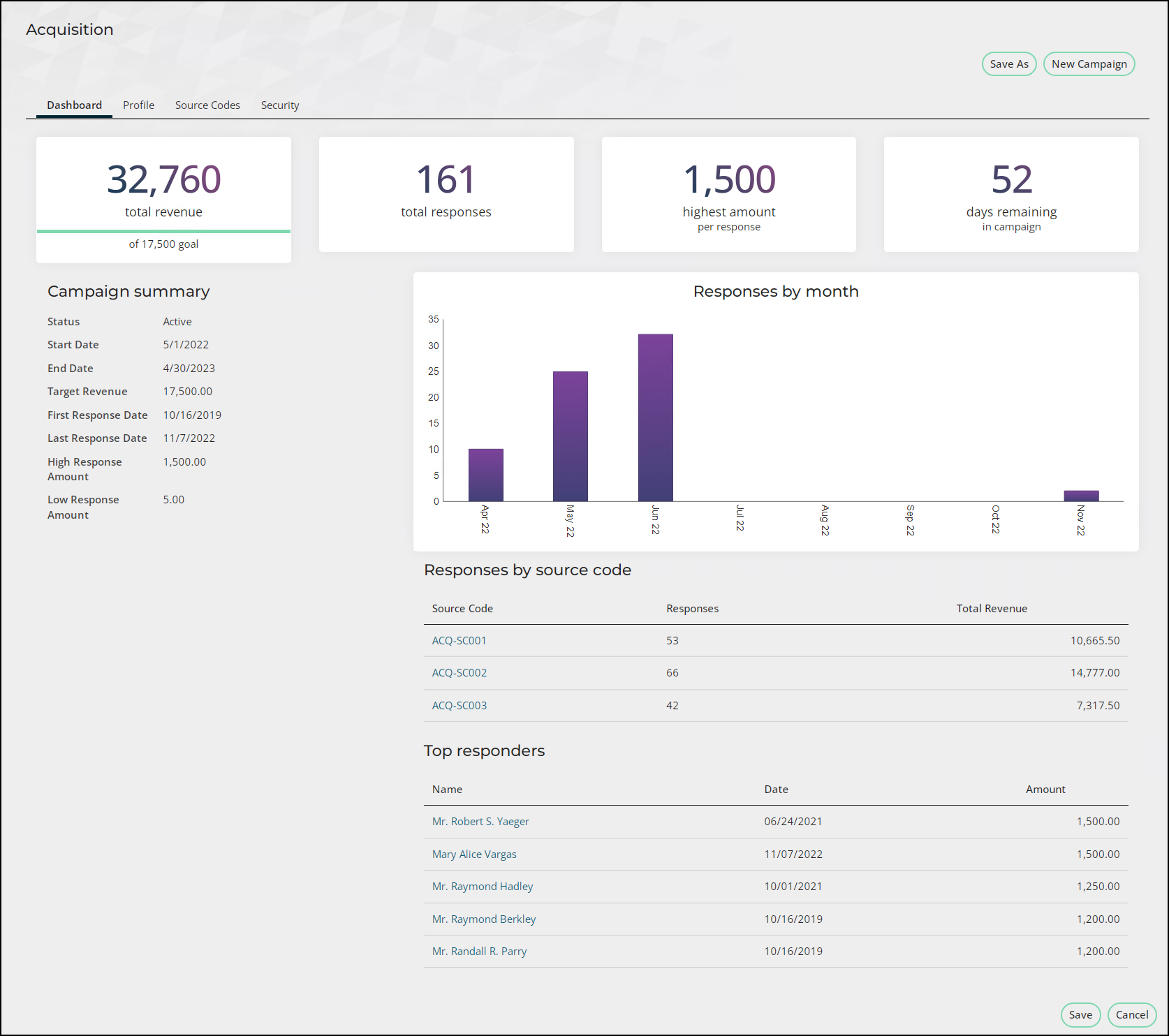
- Go to Marketing > Campaigns > Manage campaigns.
- Select Add a Campaign.
- Enter a Name and Campaign Code.
- (optional) Select a Status (Active or Inactive).
- If the status is changed from Active to Inactive, the status of all child entities is set to Inactive.
- If the status is changed from Inactive to Active, the status of child entities is not affected.
- The status of a source code cannot be changed to Active if the campaign has an Inactive status.
- (optional) Enter a Start Date and an End Date.
- (optional) Enter a Description.
- Click Save. Creating a campaign automatically generates one source code.
Creating source codes
Source codes are the most granular level of measurement in Campaign Management. These codes are used to identify messages you send out and track the responses to these messages. Source codes are linked to reply devices such as postcards, website links, donations, and purchases.
With source codes you can tag marketing messages and track responses, set up codes for bounce-backs and responses that aren’t linked to a specific message, and identify messages that prompt certain responses.
There are two general kinds of source codes:
- Codes assigned to outgoing marketing efforts to track the incoming responses to the effort. Sometimes a contact receives more than one solicitation from your organization in a certain time frame.
- Specific codes that are assigned to ongoing passive ways in which a customer can support your organization, such as web transactions, word-of-mouth, or calls to action.
- Codes that are assigned to capture responses when the actual source code is not known.
🚧 Warning
Before defining source codes, you must have one or more solicitations created.
- Go to Marketing > Campaigns > Manage Campaigns and open a campaign.
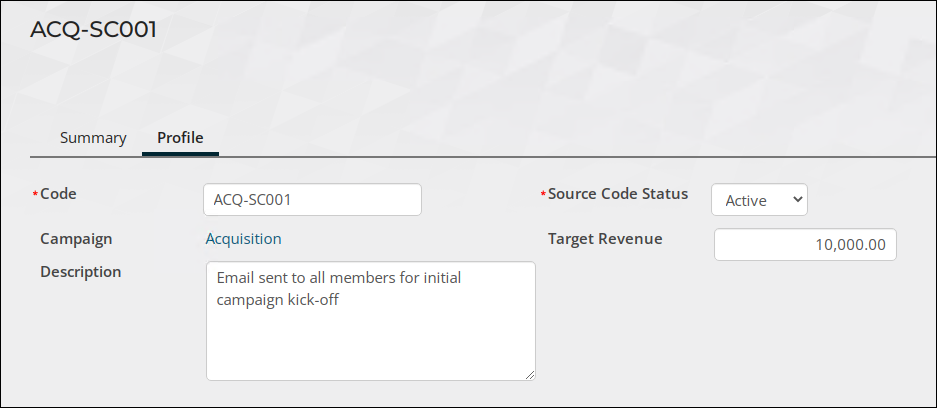
- From the Source Codes tab, select Add a Source Code.
- Enter a Code.
- (optional) Enter a Target Revenue.
- (optional) Enter a Description.
- Click Save.
Cloning a campaign
A cloned campaign is an exact duplicate of the original campaign with the following exceptions:
- The Name and Campaign Code are different.
- The Created Date equals the copy date.
- The Created By field equals the user who copied the campaign.
- The Start Date, End Date, and Reminder Date are adjusted automatically for the copied campaign.
- The copy has the same structure as the original campaign, including all appeals, solicitations, and source codes.
- All copied source codes contain the same inserts and messages as the original campaign.
- Source lists are not copied.
- If Campaign Management is configured to assign source codes automatically, all new source codes are regenerated automatically.
- If Campaign Management is configured to assign source codes manually, all new source codes are formatted as 'Copy of (original code).' If this code already exists, the code is copied until a unique code is found: 'Copy (sequence #) of (original code).'
To create a new campaign quickly, you can clone an existing one and edit it.
- Select Marketing > Campaigns > Define campaigns.
- Select a campaign.
- Click Save As.
- Enter the new campaign Name, Campaign Code, and Type.
- Click Save.
Updated 5 months ago