

Charging a cancellation fee
Once a staff user cancels an event registration, the original registration amount is applied as an open credit to their account. You can apply a portion of this amount as a cancellation fee. To charge a cancellation fee for cancelled event registrations, you must create a cancellation fee product:
- From the Staff site, go to Commerce > Add product.
- Enter in all required fields on the Summary tab. If you do not want this product to show up in a common search, make sure the Show in search dates are dates in the past.
- Click the Accounting tab. Set the GL accounts to match your event's GL account, or the one's you want affected.
- Click Save.
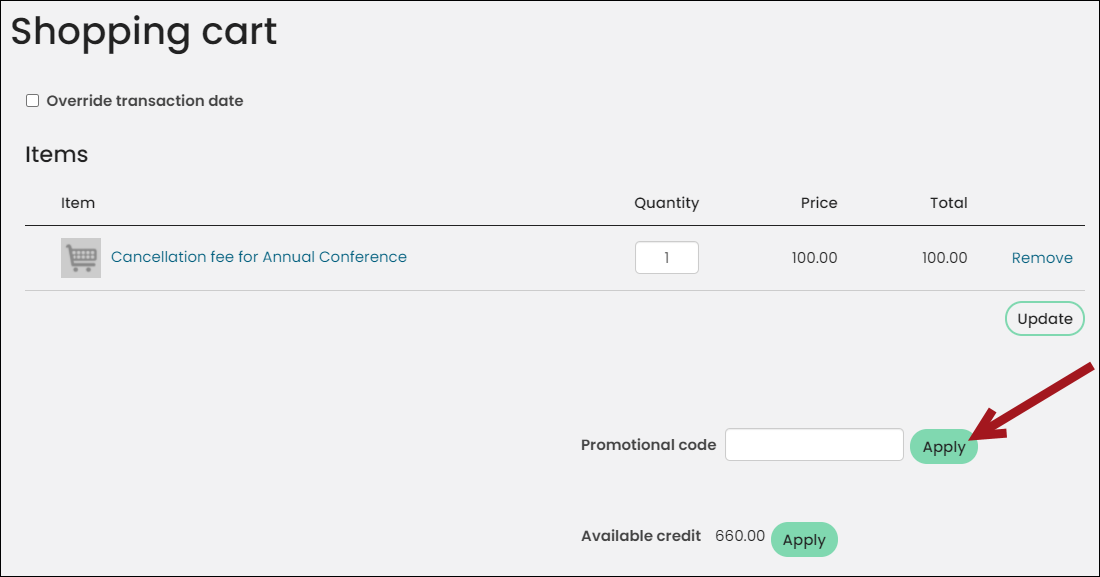
- Begin working On behalf of the cancelled registrant and add the registration cancellation fee to their cart.
- From the Cart next to Available Credit, click Apply.
Note
If you do not see an Available Credit amount, the default payment method set could be incorrectly configured to not include an Open Credit payment method.
- After submitting this order, you will need to adjust the payment in iMIS, and go into your Gateway website to refund the remaining amount to the customer.
Updated 5 months ago
Did this page help you?