

Creating donation pages using the out-of-the-box Give Now pages
Your organization's members and website visitors want a convenient way to donate online.
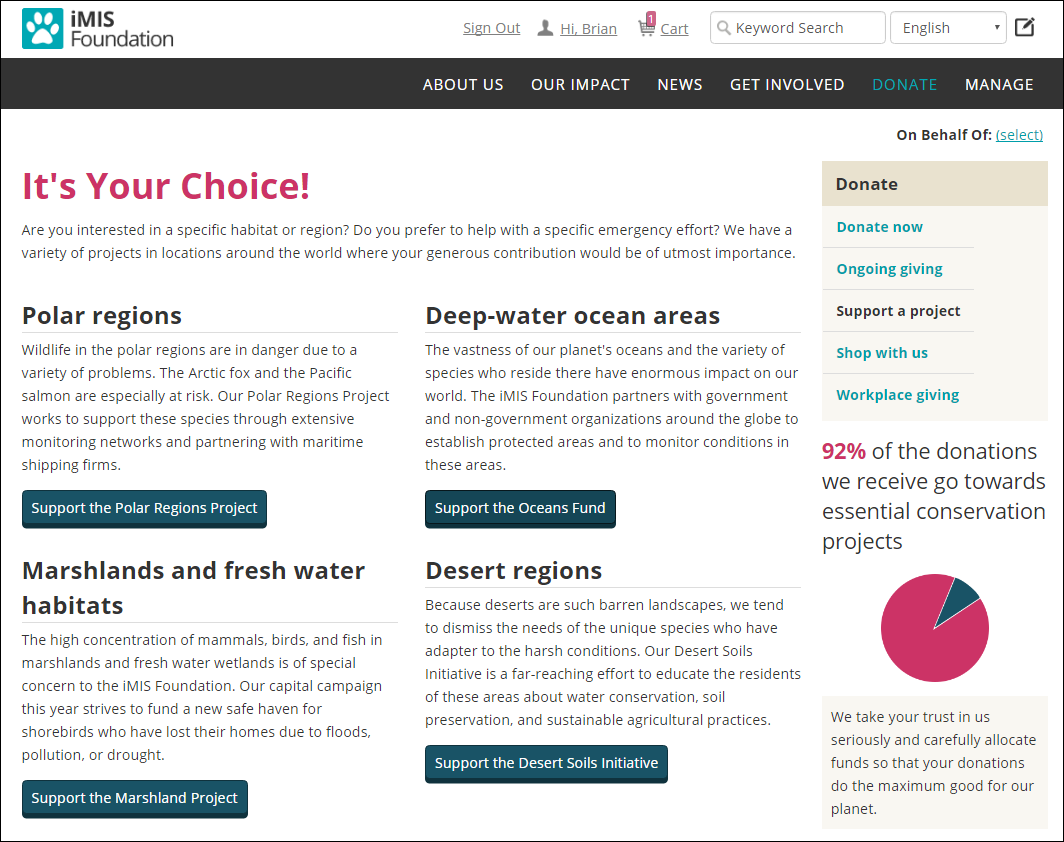
iMIS makes it easy for your supporters to contribute to the causes and projects your organization champions by providing out-of-the-box Give Now web pages to collect donations. You should use one of these out-of-the-box pages as a starting point for your own Give Now page.
Available out-of-the-box Give Now pages
Depending on your donation needs, the following pages are available.
| Page name | Location | Purpose |
|---|---|---|
| Give Now | @/iCore/Fundraising | Use this page if you need to create a donation page for a single gift item. |
| Give Now with Gift Aid | The same as the Give Now page, plus a checkbox to add Gift Aid. | |
| Give Now Dynamic | @/iCore/Fundraising | Use this page if you need the gift item added to a URL instead of specifying a specific gift item. While this page does not need to be copied and modified, it does need a gift item's product ID included in the URL for it to work. Also used for your staff site. |
| Give Now Dynamic with Gift Aid | The same as the Give Now Dynamic page, plus a checkbox to add Gift Aid. |
Creating a Give Now page for a single gift item
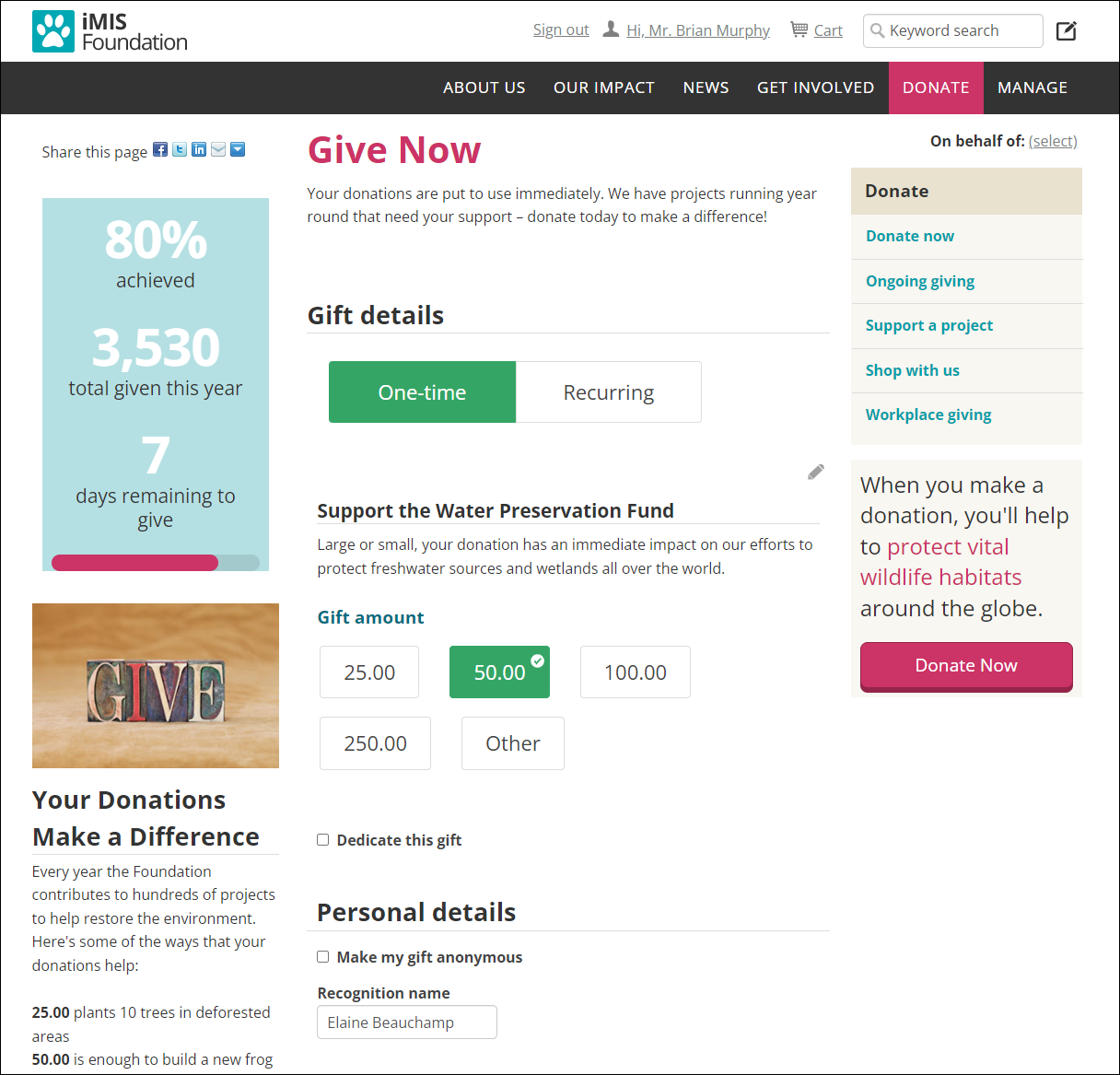
Review the following to understand how to create a Give Now page for a single gift item. The following image is an example of a Give Now page for a single gift item:
Copy and update the 'Give Now' content record
Do the following to use an out-of-the-box page as a starting point for your own Give Now page:
-
Go to RiSE > Page Builder > Manage content.
-
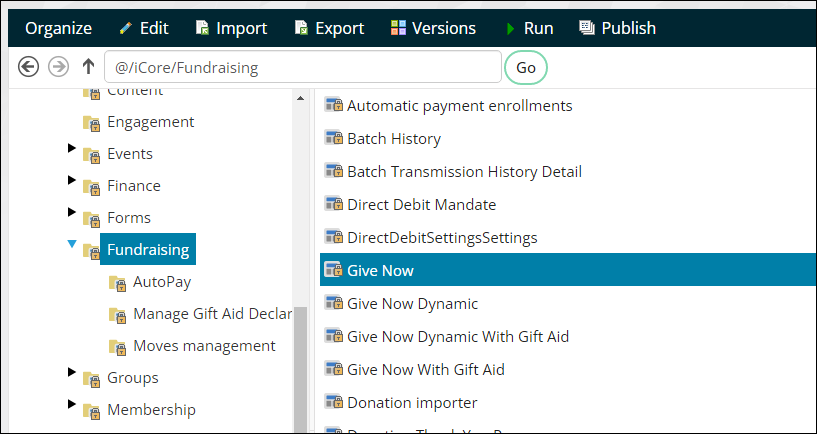
Navigate through the following folder path:@/iCore/Fundraising
-
Copy the Give Now or Give Now with Gift Aid content record (Organize > Copy).
-
Navigate to a non-system folder, then paste the content record (Organize > Paste).
-
Open the content record for edit.
-
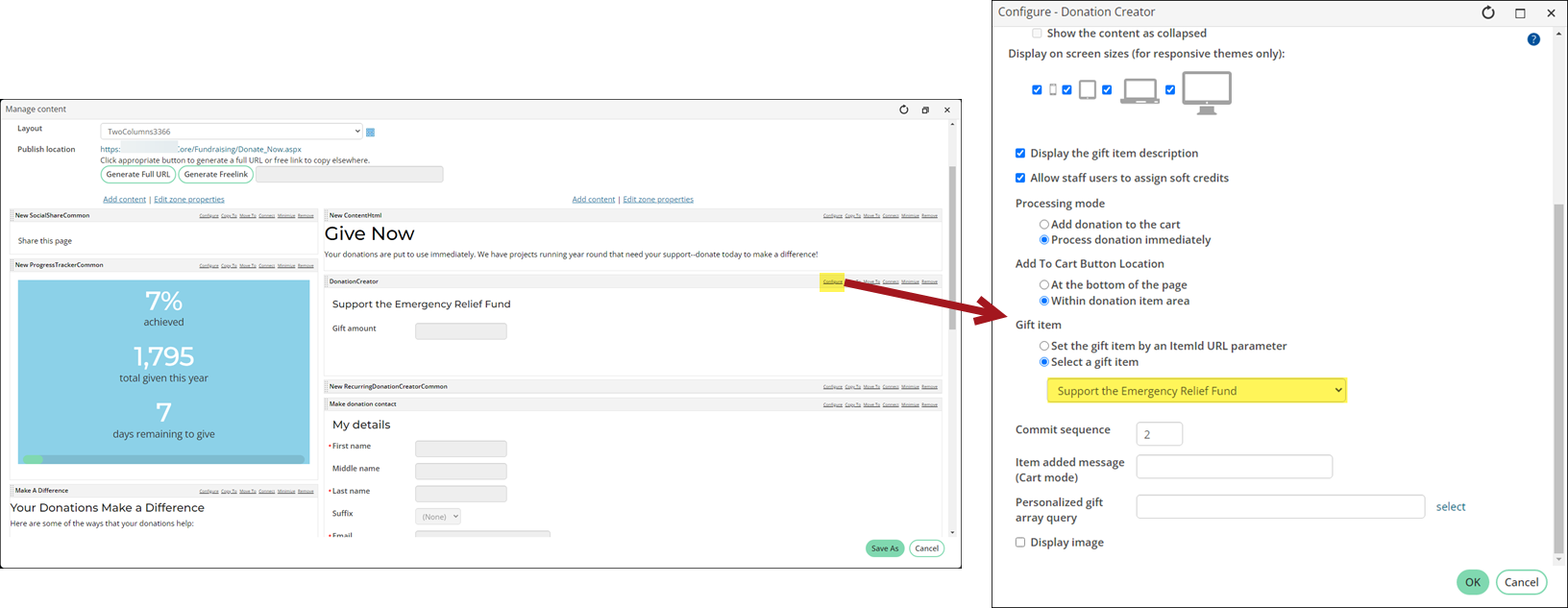
Update the content record, being sure to update the Donation Creator to point to the desired Gift item.
- Save & Publish the content record.
Update the shortcut or Navigation Item
If you are using the GiveNow shortcut on the public website, you should update the shortcut to point to the new content. Do the following to update the GiveNow shortcut:
- Go to RiSE > Site Builder > Manage shortcuts.
- Search for the GiveNow shortcut.
- Click the edit icon.
- From the URL or content record field, select the Give Now content record.
- Click Save.
If you are not using the shortcut and are instead linking directly to a Give Now page from the sitemap, do the following to update the sitemap:
- Go to RiSE > Site Builder > Manage sitemaps.
- Select the website from the drop-down.
- Choose the Give Now navigation item.
- From the Content or URL to link to field, select the copied Give Now content record you created.
- Click Save.
- Click Publish.
Creating a Give Now page for more than one gift item
Review the following to understand how to create a Give Now page for more than one gift item. The following image is an example of a Give Now page for more than one gift item:
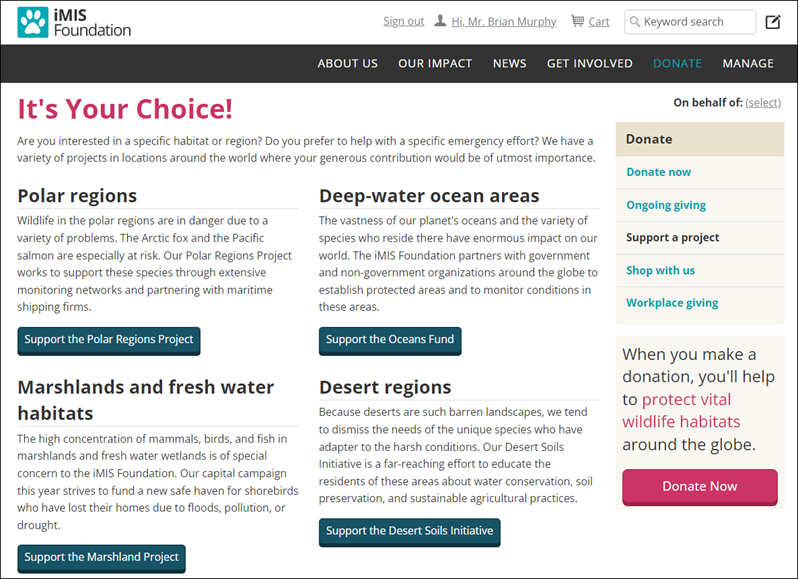
Copy and update the 'Give Now Dynamic' content record
The Give Now Dynamic content record will display each gift item dynamically through a provided Item Id. Do the following to copy and update the Give Now Dynamic content record:
- Go to RiSE > Page Builder > Manage content.
- Navigate through the following folder path: @/iCore/Fundraising
- Copy the Give Now Dynamic content record (Organize > Copy).
- Navigate to a non-system folder, then paste the content record (Organize > Paste).'
- Open the content record for edit and make the desired changes.
- Click Save & Publish.
Copy and update the 'Choose a Project' content record
Do the following to copy and update the Choose a Project content record:
-
Go to RiSE > Page Builder > Manage content.
-
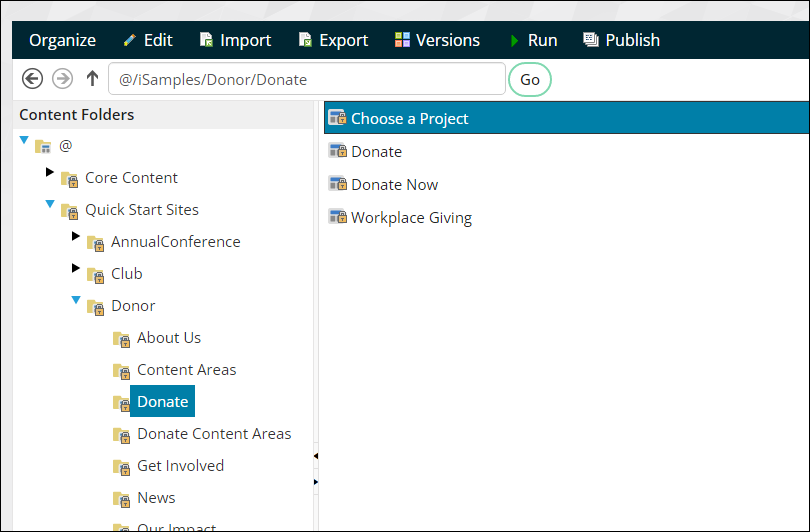
Navigate through the following folder path: @/iSamples/Donor/Donate
-
Copy the Choose a Project content record (Organize > Copy).
-
Navigate to a non-system folder, then paste the content record (Organize > Paste).
-
Open the content record for edit.
-
Locate the RestoreHabitats content item, then select Configure.
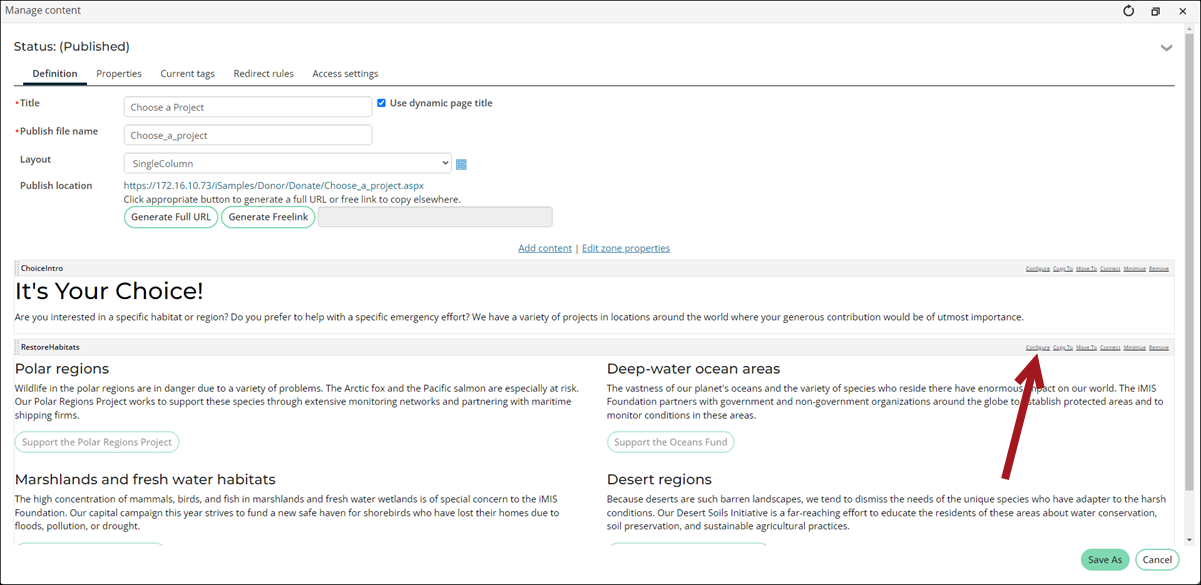
- Update the content on the page, such as the titles, descriptions, and button text.
- Update the content record and ItemId for each button:
- Highlight the button link text.
- Click the Content Link Manager button.
- From the Content or URL field, enter ~/GiveNowDynamic. This is the shortcut you will update in the following section.
- In the Additional URL parameters field, enter ItemId=, followed by the GUID of the project. See How to find the item GUID.
- Click OK.
- Repeat step 8 for each button.
- Save & Publish the content record.
Update the shortcut
If you are using the GiveNowDynamic shortcut on the public website, you should update the shortcut to point to the new content. Do the following to update the GiveNowDynamic shortcut:
- Go to RiSE > Site Builder > Manage shortcuts.
- Search for the GiveNowDynamic shortcut.
- Click the edit icon.
- From the URL or content record field, select the copied Give Now Dynamic content record.
- Click Save.
Update the Navigation Item
You must update the navigation item to point to the Support a Project content record. Do the following:
- Go to RiSE > Site Builder > Manage sitemaps.
- Select the website from the drop-down.
- Choose the donation navigation item.
- From the Content or URL to link to field, select the Choose a Project content record you created.
- Click Save.
- Click Publish.
Updated 5 months ago