

Contact reports
All reports in the Staff site are created using either IQA, or an extension of Microsoft called SQL Server Reporting Services (SSRS). There are also reports that combine IQA and SSRS, where the IQA is used to define and pull the data, while SSRS is used to define the layout of the report.
You can run out-of-the-box reports on a variety of data within iMIS. Using an IQA or SSRS report is how you can get report data on the web.
You may in certain situations want to modify an existing SSRS report. To add or remove information from the report, you must download its RDL file and make adjustments to the SQL that the report uses. For more information about modifying a report, see Modifying and creating reports.
NotePrinting a report using IE11 requires that the browser be in Enterprise Mode. Contact Tech Support for assistance.
NoteTo print a report, export the report using the PDF or Excel buttons, then print the exported report.
Contact reports allow you to display and print the contact information in helpful, user-friendly layouts. These reports can be used to detail activity participation, personal information, and statistics. You can create labels, rosters, and certificates.
iMIS provides several out-of-the-box Contact reports. To access Contact reports from the Staff site, go to Reports > Contact reports.
In many of the out-of-box reports, you can exert some control over the data contained in the report and how the data displays by specifying parameters, such as sort order and contact type.
The following Contact reports are available:
Contact Profile
From Reports > Contact reports, open the Contact Profile folder. There following reports are in the Contact Profile folder:
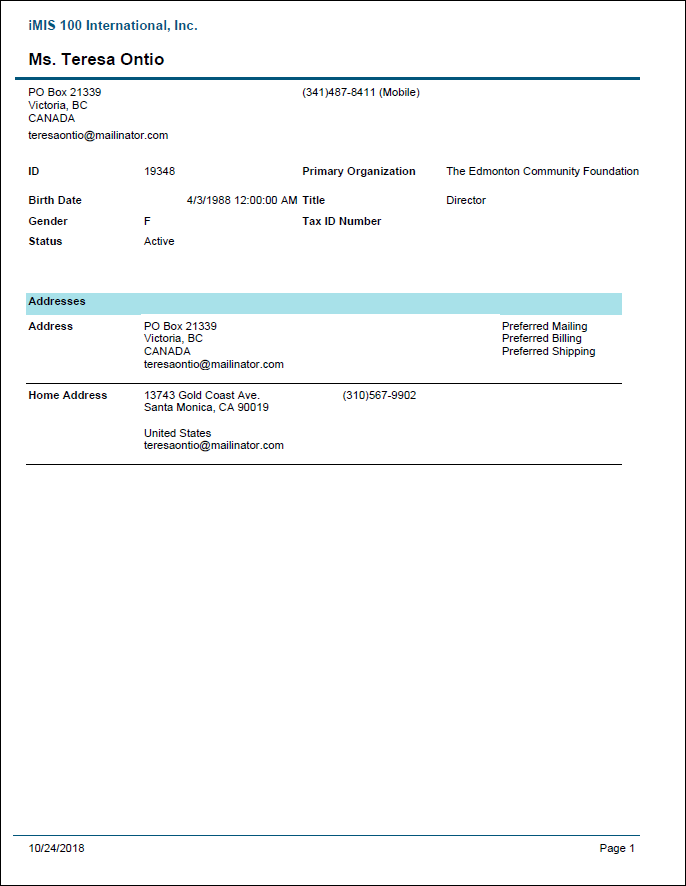
Individual Profile by ID
Contact profile information for individuals, including education and addresses. This report uses the subreports, Addresses and Education, located in the same Contact Profile folder. This report contains a required parameter for ID.
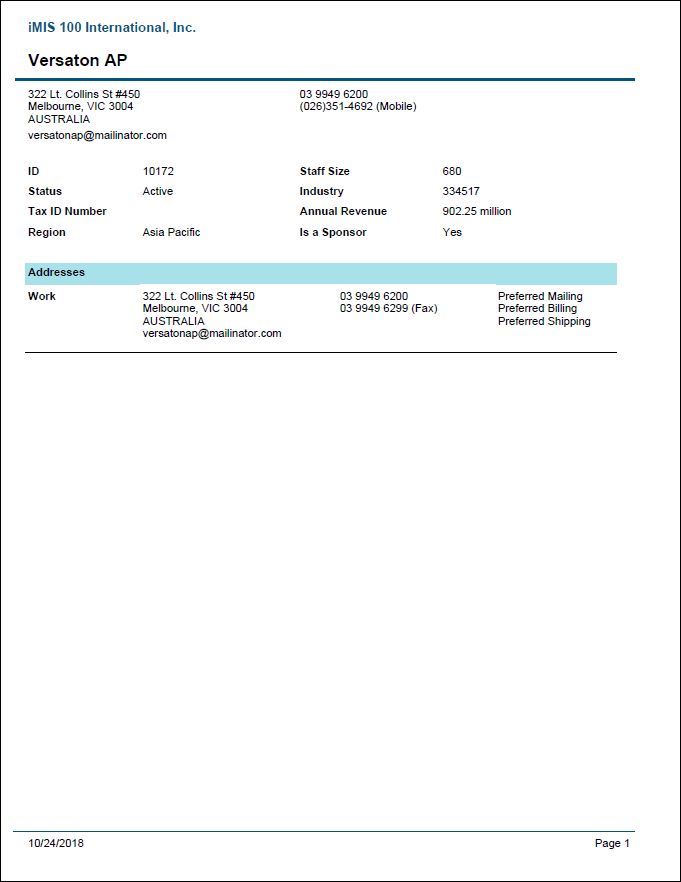
Organization Profile by ID
Contact profile information for organizations, including demographics and addresses. This report uses the subreports, Addresses and Education, located in the same Contact Profile folder. This report contains a required parameter for ID.
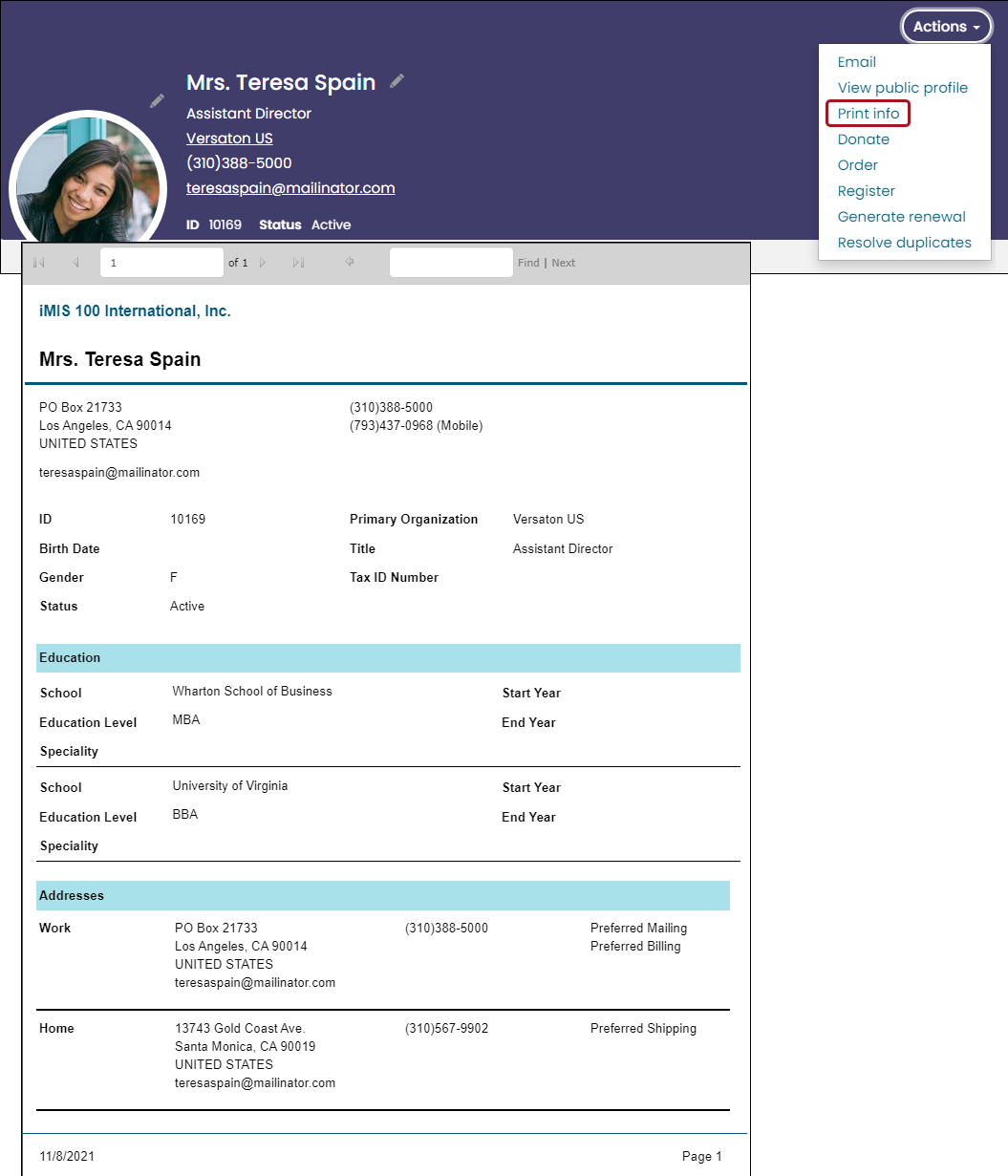
Print Profile - Individual
Intended for use from the account page. Contact profile information for individuals, including education and addresses. This report uses the subreports, Addresses and Education, located in the same Contact Profile folder. This report contains a required parameter for ID.
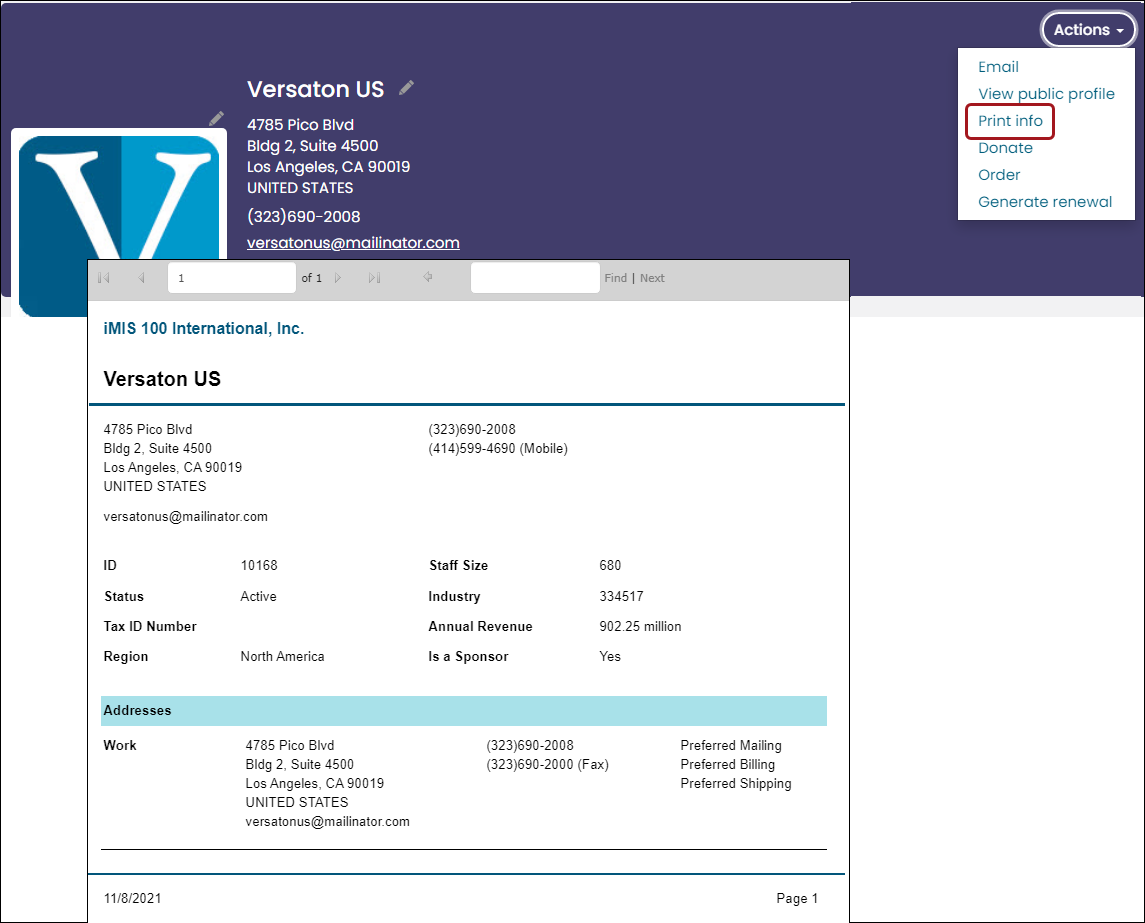
Print Profile - Organization
Intended for use from the account page. Contact profile information for organizations, including demographics and addresses. This report uses the subreports, Addresses and Education, located in the same Contact Profile folder. This report contains a required parameter for ID.
2 UP Labels
Prints 14 labels per sheet of letter-size (8.5 x 11 inches) Avery 5162 or 5262 stock.
- Source IQA - Label Reports Query
- Source file path - $/ContactManagement/DefaultSystem/Reports/Queries
-
Source Business Objects:
- ContactReport
-
FullAddressPrimaryReport
-
Relationships:
- Custom (When ContactReport.Contact Key = FullAddressPrimaryReport.Contact Key)
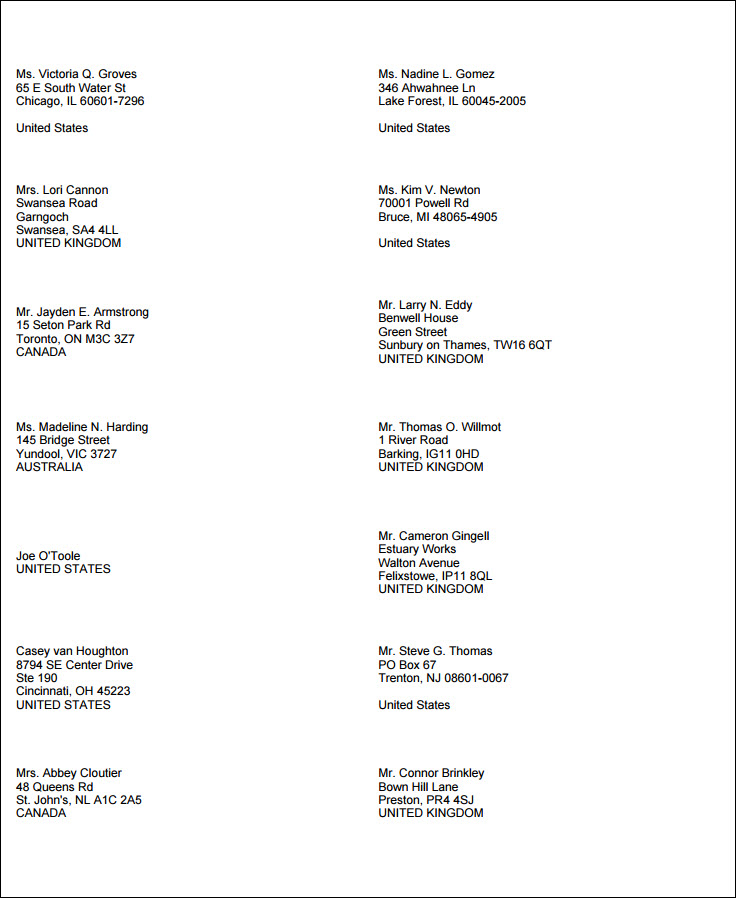
2 Up Labels A4.rdl
The 2 Up Labels A4.rdl report allows you to print mailing labels for individual or company contacts on A4-size paper (210 x 297 mm), specifically Avery L7162 stock. The report prints 16 labels in two columns per page.
You have several options for tailoring the report to your specific needs. You can:
- Select the labels’ sort order
- Limit to individual or company contacts or include both contact types
- Specify address preferences (billing, mailing, or shipping)
- Display the label text in upper-case if needed
- Exclude the address if needed
To print the report in the correct format for Avery L7162 stock, export to PDF, and then print.
📘 Note
Contact label reports should be exported to PDF and only printed from Adobe Reader. Do not print the PDF directly from the browser window as the browser settings might not be compatible with the label layout. Do not export these reports to Excel as the exported layout does not print correctly on Avery stock.
📘 Note
When printing in Adobe Reader to a stock label format, print to the actual size of the paper to maintain the correct page size. The default shrinks the size and will not align properly for the labels.
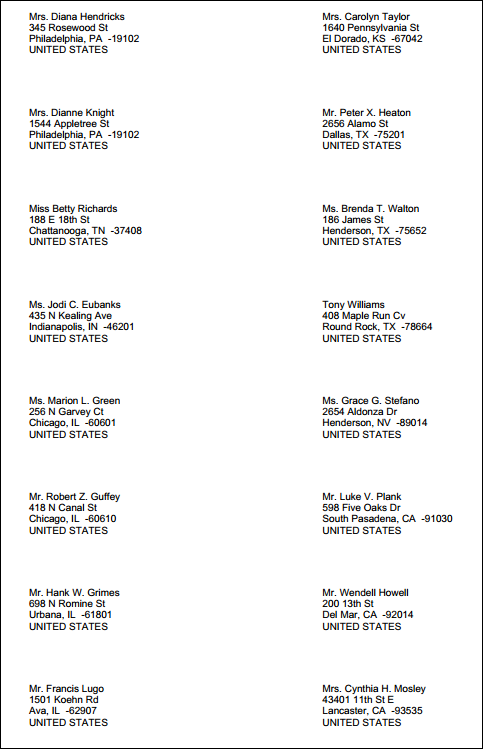
2 Up Labels.rdl
The 2 Up Labels.rdl report allows you to print mailing labels for individual or company contacts on letter-size paper (8.5 x 11 inches), specifically Avery 5162 or 5262 stock. The report prints 14 labels in two columns per page.
You have several options for tailoring the report to your specific needs. You can:
- Select the labels’ sort order
- Limit to individual or company contacts or include both contact types
- Specify address preferences (billing, mailing, or shipping)
- Display the label text in upper-case if needed
- Exclude the address if needed
To print the report in the correct format for Avery 5162 or Avery 5262 stock, export to PDF, and then print.
📘 Note
Contact label reports should be exported to PDF and only printed from Adobe Reader. Do not print the PDF directly from the browser window as the browser settings might not be compatible with the label layout. Do not export these reports to Excel as the exported layout does not print correctly on Avery stock.
📘 Note
When printing in Adobe Reader to a stock label format, print to the actual size of the paper to maintain the correct page size. The default shrinks the size and will not align properly for the labels.
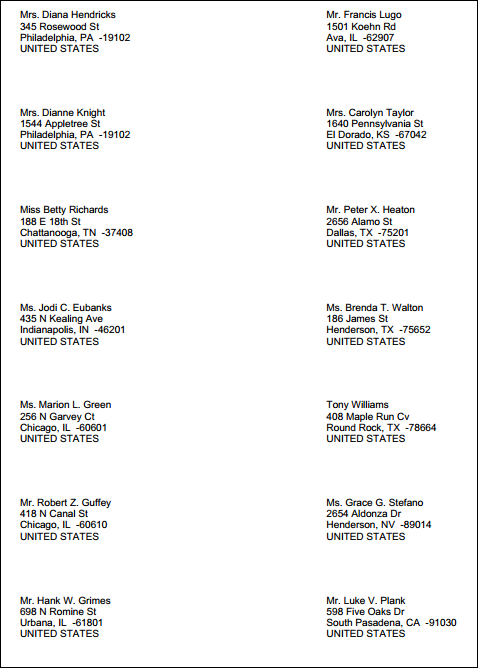
3 UP Labels
Prints 30 labels per sheet of letter-size (8.5 x 11 inches) Avery 5160 stock.
- Source IQA - Label Reports Query
- Source file path - $/ContactManagement/DefaultSystem/Reports/Queries
-
Source Business Objects:
- ContactReport
-
FullAddressPrimaryReport
-
Relationships:
- Custom (When ContactReport.Contact Key = FullAddressPrimaryReport.Contact Key)
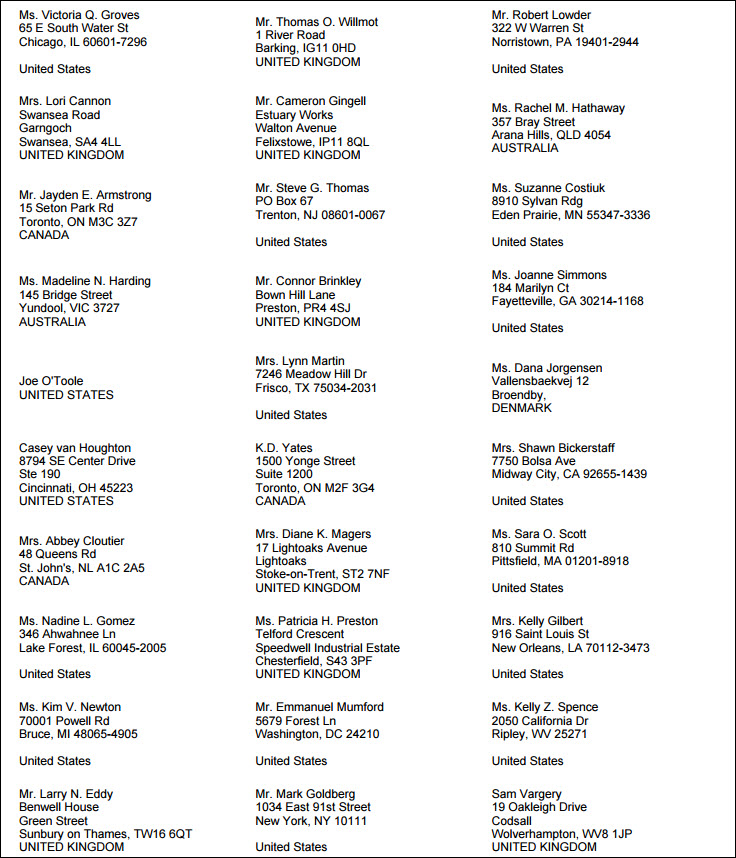
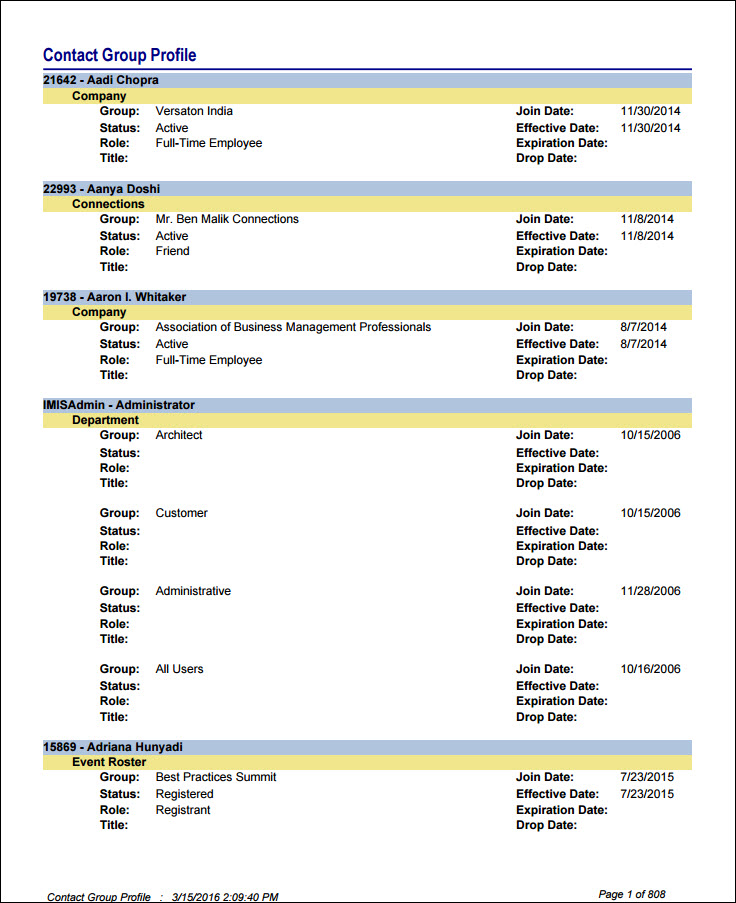
Contact Group Profile
Includes contact name and ID; group name, status and role; and dates.
- Source IQA - Contact Group Profile
- Source file path - $/ContactManagement/DefaultSystem/Reports/Queries
-
Source Business Objects:
- ContactReport
-
GroupReport
-
Relationships:
- Custom (When ContactReport.Contact Key = GroupReport.MemberContactKey)
Group Profile
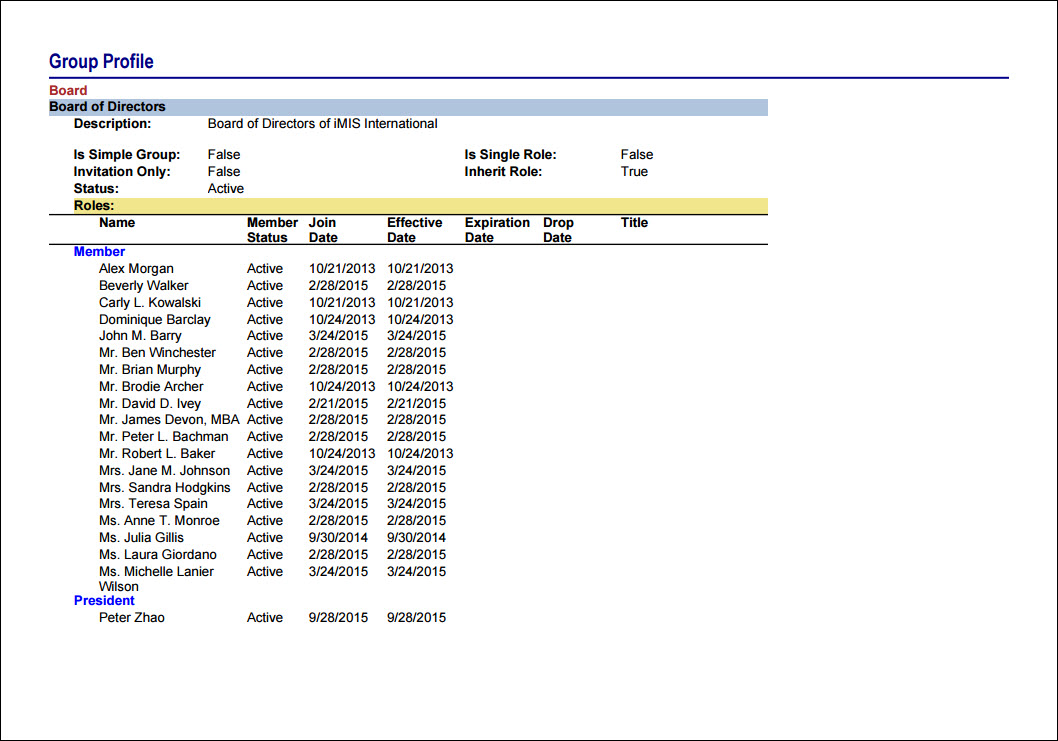
Includes a group definition and list of members.
- Source IQA - Group Profile
- Source file path - $/ContactManagement/DefaultSystem/Reports/Queries
-
Source Business Objects:
-
GroupReport
- ContactReport
-
-
Relationships:
- Custom (When GroupReport.MemberContactKey = ContactReport.Contact Key)
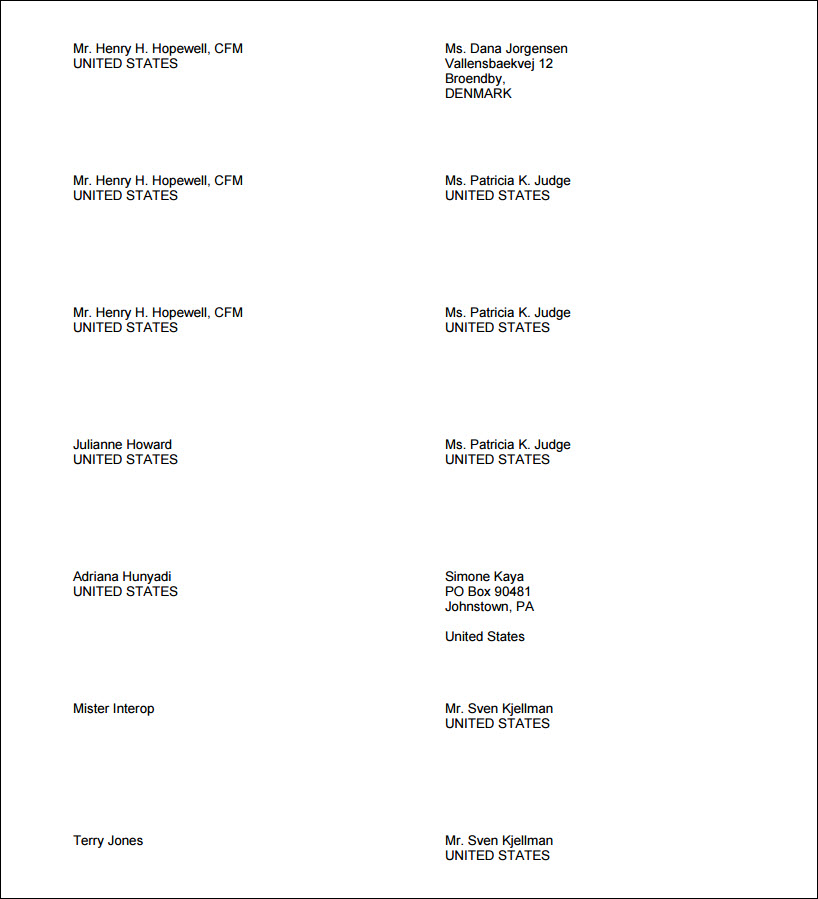
LabelsIndividual
Labels for individuals by primary address. Prints using Avery 5162 stock.
- Source IQA - Labels Individual 2
- Source file path - $/ContactManagement/DefaultSystem/Reports/Queries
-
Source Business Objects:
- Individual
- FullAddressPrimaryReport
- AddressToUse
-
Relationships:
- Custom (When Individual.Contact Key = FullAddressPrimaryReport.Contact Key)
- Custom (When FullAddressPrimaryReport.Full Address Key = AddressToUse.Full Address)
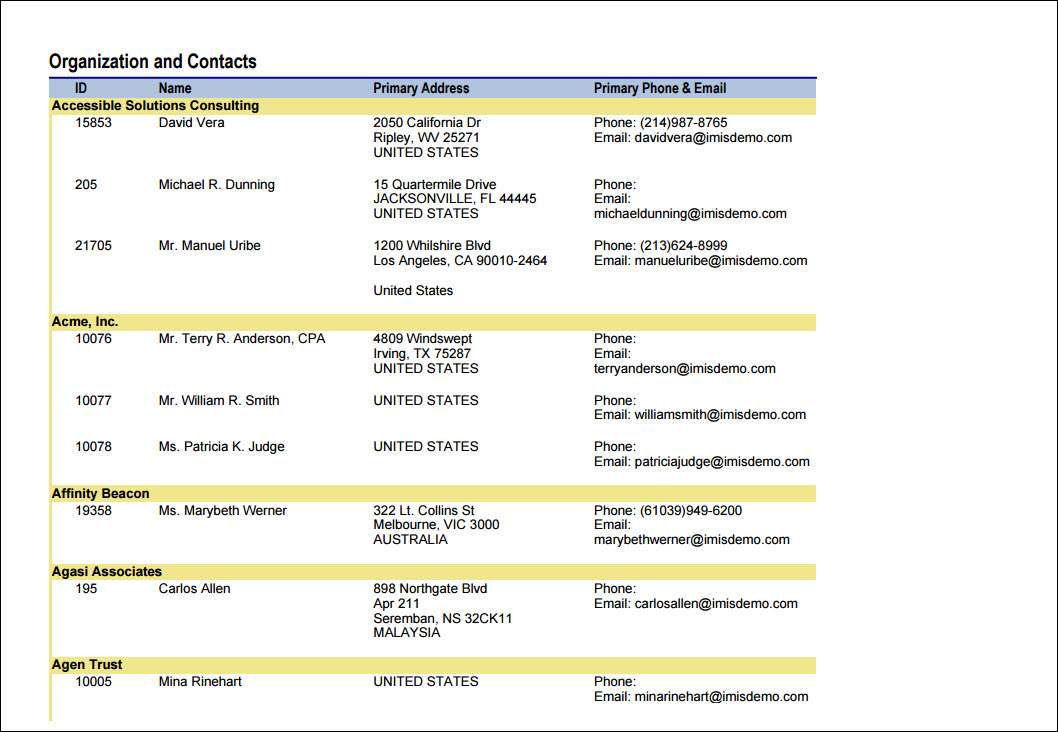
Organization and Contacts
Includes contact ID, name, address, phone, and email by organization.
- Source IQA - Company and Contact Roster
- Source file path - $/ContactManagement/DefaultSystem/Reports/Queries
-
Source Business Objects:
- Group
- GroupMember
- Individual
- Institute
- FullAddressPrimaryReport
-
Relationships:
- FK_GroupMember_GroupMain (When Group.Group Key = GroupMember.Group Key)
- FK_GroupMember_ContactMain_Member (When GroupMember.Contact = Individual.Contact Key)
- FK_Individual_Institute_Primary (When Individual.Primary Institute Contact Key = Institute.Contact Key)
- Custom (When GroupMember.Contact = FullAddressPrimaryReport.Contact Key)
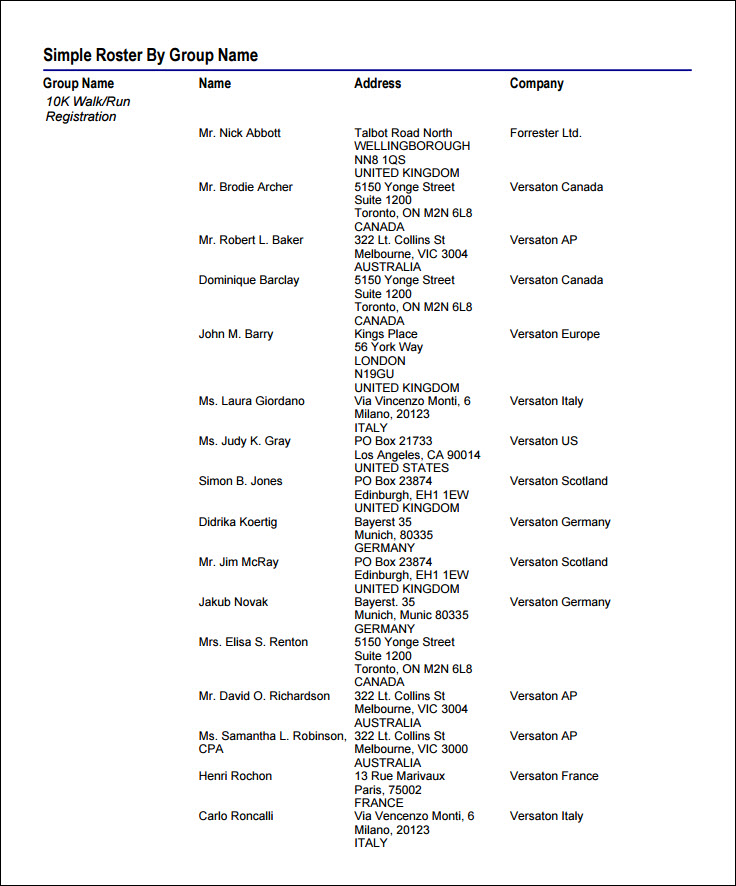
Simple Roster By Group Name
Lists individuals grouped by Group Name.
- Source IQA - Simple Roster By Group Name
- Source file path - $/ContactManagement/DefaultSystem/Reports/Queries
-
Source Business Objects:
- Group
- GroupMember
- Individual
- FullAddressPrimaryReport
- Institute
-
Relationships:
- FK_GroupMember_GroupMain (When Group.Group Key = GroupMember.Group Key)
- FK_GroupMember_ContactMain_Member (When GroupMember.Contact = Individual.Contact Key)
- Custom (When GroupMember.Contact = FullAddressPrimaryReport.Contact Key)
- FK_Individual_Institute_Primary (When Individual.Primary Institute Contact Key = Institute.Contact Key)
Updated 5 months ago