

Processing membership group renewals
It is recommended to run the renewal process regularly to identify group members with expiring terms and to generate new renewal invoices.
Processing group renewals
Important notes about renewals
Keep the following in mind when processing renewals:
- Renewal invoices cannot be generated for any contact other than the member. Selecting a Bill To contact in the cart only pertains to that particular order and transaction. The selection does not apply to any future membership renewals. You will see the Bill To contact on the batch reflect the member.
- You cannot edit the specifics of an individual invoice within the renewal batch. If there is a mistake, delete the invoice from the current batch and post the renewal batch. After that batch has been processed, you can make any corrections to the data and run the renewal again for the same run date to generate a corrected renewal invoice.
- You cannot process a new renewal batch if there is an existing unposted renewal batch.
Processing group renewals
Do the following to process renewals:
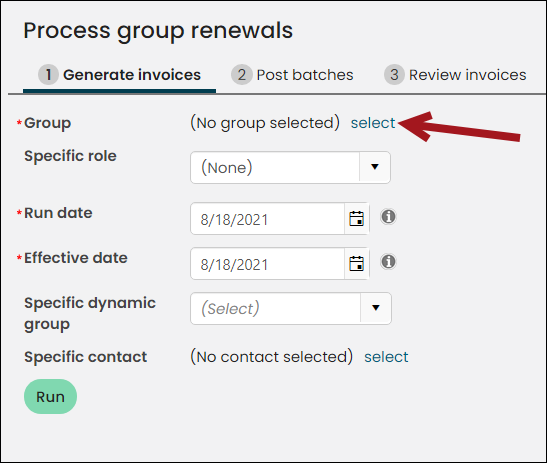
- Go to Membership > Process group renewals.
- On the Generate invoices tab, select the desired membership Group to process.
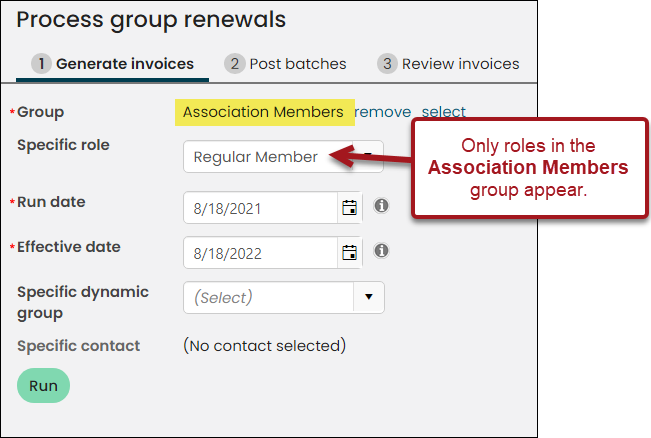
- (optional) Narrow the process to only generate renewals for a Specific role. After a Group is selected, the Specific role drop-down populates with the roles associated with the group, and only those with the selected role are picked up for renewal. When used, the Specific contact option is disabled.
- Select the Run date. This is the date that appears as the invoice date.
- Wait until the page refreshes and updates the Effective date. The Effective date determines which members are invoiced. If the member’s membership expires prior to the Effective date, then the member is picked up in this billing run.
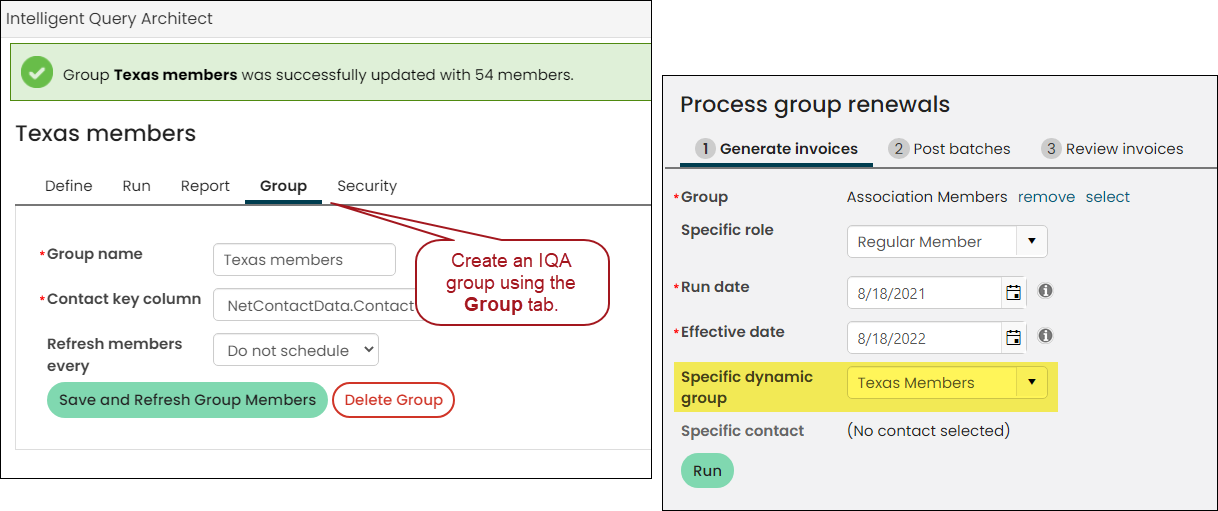
- (optional) Choose a Specific dynamic group of members to renew to narrow the renewal to only a certain query of members. Dynamic groups are powered by IQA queries. When used, the Specific contact option is disabled. See Creating groups with IQA to learn how to create a dynamic group of members.
- (optional) Select a Specific contact in order to process a renewal for a single contact. A contact can be a member of several groups that are subject to renewal, so in order to process a renewal, you must specify a Group. When a contact is selected, the Specific role and Specific dynamic group options are disabled.
- Click Run.
- If you selected a specific contact, iMIS performs a validation to determine whether the selected contact is included in the renewal. If the contact is not included in the renewal, the system displays one of the following messages:
- The contact is not a member of the selected group.
- The contact's current membership expiration date is after the effective date; it will not be renewed.
- The contact has a more recent pending membership and will not be renewed. A pending membership means that the renewal has already been generated but not yet paid. See Understanding the Group Member Detail.
- The contact has a future active membership in place so it will not be renewed. A future active membership has already been paid and has a beginning and ending date that is in the future. The future membership becomes the Current Term on its Begin date. See Understanding the Group Member Detail.
- The contact is inactive and the renewal policy does not renew inactive members.
- You cannot renew individual contacts in the Recurring Donors Group.
- Erasure is pending for this contact, so it will not be renewed.
- All group members whose membership ends before the Effective date will be included in the renewal batch.
- For the Cash accounting method, any contact with unpaid renewals is assigned a Pending status in the renewals group. After payment is received, the status becomes Active.
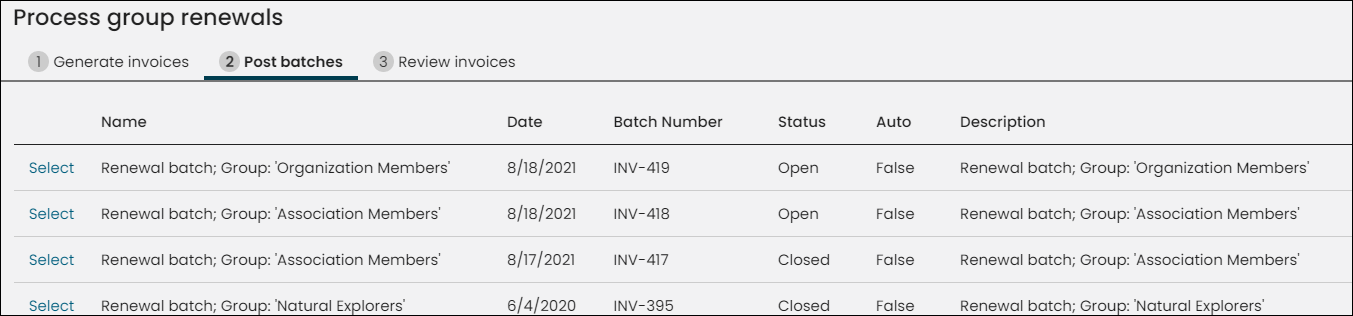
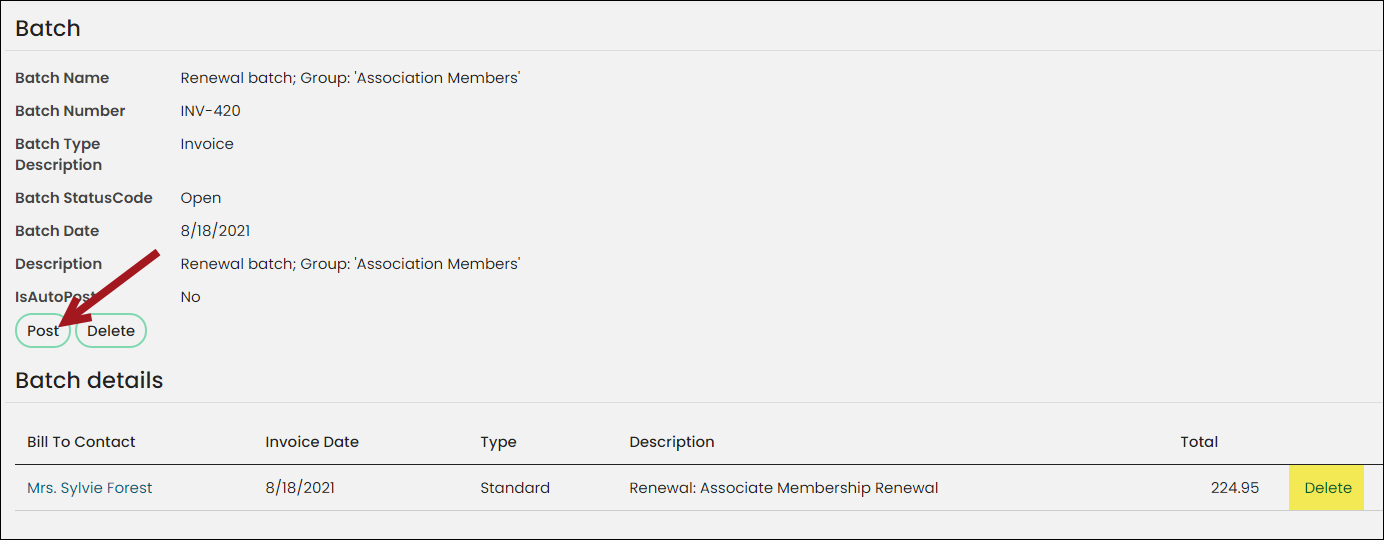
- On the Post batches tab, find the new batch that was created. It can take a few minutes to appear, depending on the number of renewals generated. If you do not see the renewal batch, go to RiSE > Workflow > Monitor processes to view the status of the renewal batch.
- Select the batch link to view.
- Check to make sure the generated invoices are correct. Delete any incorrect items.
- When ready, click Post. iMIS posts the batches and generates the invoices.
📘 Note
If you’re looking for members who joined the group recently, be sure to specify a Run date for a year later. The Effective date is related to the renewal policy date you selected. If you specified wanting to allow renewals within 30 days of the renewal date, the Effective date will be 30 days after the Run date.
📘 Note
Renewals with a blank Effective date cannot be submitted. Once you supply an Effective date, the date is not changed automatically when you modify the Run date, group, or user.

Processing a renewal from the member profile page
A Generate renewal button is available on the member profile page. This button links to the Process group renewals page. When the Process group renewals page is opened, the specific contact is already defined.
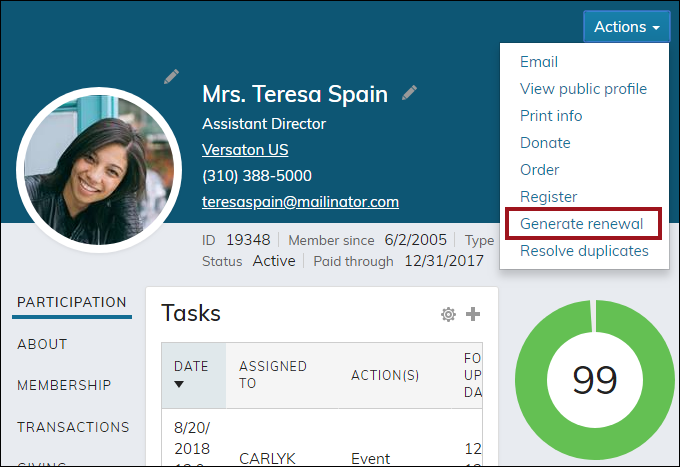
Out-of-the-box, the Generate renewal button is located on all member profile pages that only authorized staff users can see. To add this button to your custom member profile page, do the following:
- Open the member profile page content record for edit.
- Do one of the following:
- If the Big Button Panel content item is already on your content record, click Configure.
- Add the Big Button Panel content item to the page. Click Configure.
📘 Note
Out-of-the-box, these buttons are in the Print and Profile Buttons section.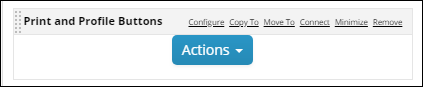
- Select Actions for the Mode.
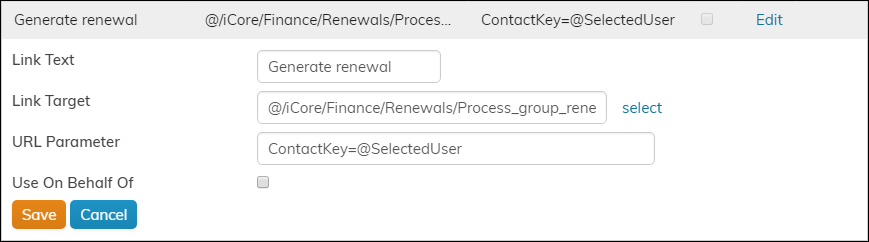
- From the Action section, click Add:
- Link Text - The name that is displayed on the button. Out-of-the-box, the default Link Text is Generate renewal.
- Link Target – Enter @/iCore/Finance/Renewals/Process_group_renewals_CCO.
- URL Parameter – Enter ContactKey=@SelectedUser.
- Click Save, then click OK.
- Save & Publish the content.
When clicked, the Generate renewal button takes the staff user directly to the Generate renewals page (Membership > Process group renewals), with the selected member already defined.
Viewing the renewal invoices
To view group renewal invoices, go to Membership > Process group renewals, and select the Review invoices tab. By default, the Open renewal invoices query results are automatically displayed. This query displays all open renewal invoices, with the exception of AutoPay renewals.
To narrow the query results, enter values for one or more of the following parameters:
- Invoice number
- Invoice date between
- Bill to name contains
- Batch number
- Description contains
The Renewal invoices (all) query displays all renewal invoices.
To view a single invoice from the query results, click the Invoice Number link, which takes you to the Invoice Summary.
The Open renewal invoices for automatic payment query displays a list of all open AutoPay renewal invoices.
Query results can be exported to Word, Excel, PDF, CSV and XML, and can also be sent by email.
To process payments for members who are enrolled for automatic membership renewal, see Processing recurring transactions (AutoPay).
Emailing renewal invoices
To email the renewal invoices query results, do the following:
-
Copy and customize the Renewal Invoice template found at Marketing > Communication templates > Templates > Samples on the Staff site. See Customizing the out of the box templates for more information.
-
Ensure that an invoice report is attached. By default, InvoiceDetails.rdl is attached to the Renewal Invoice template. For more information on how to do this, see Creating a communication with an attached report.
- Next, send the email by navigating to the Review invoices tab at Membership > Process group renewals:
- Choose a query from the Select a query drop-down.
- Enter values for one or more parameters and click Find.
- Click Email and fill out the relevant fields to complete your communication.
Updated 5 months ago