

Adding locations for events
The location of an event is actually an organization contact record in iMIS.
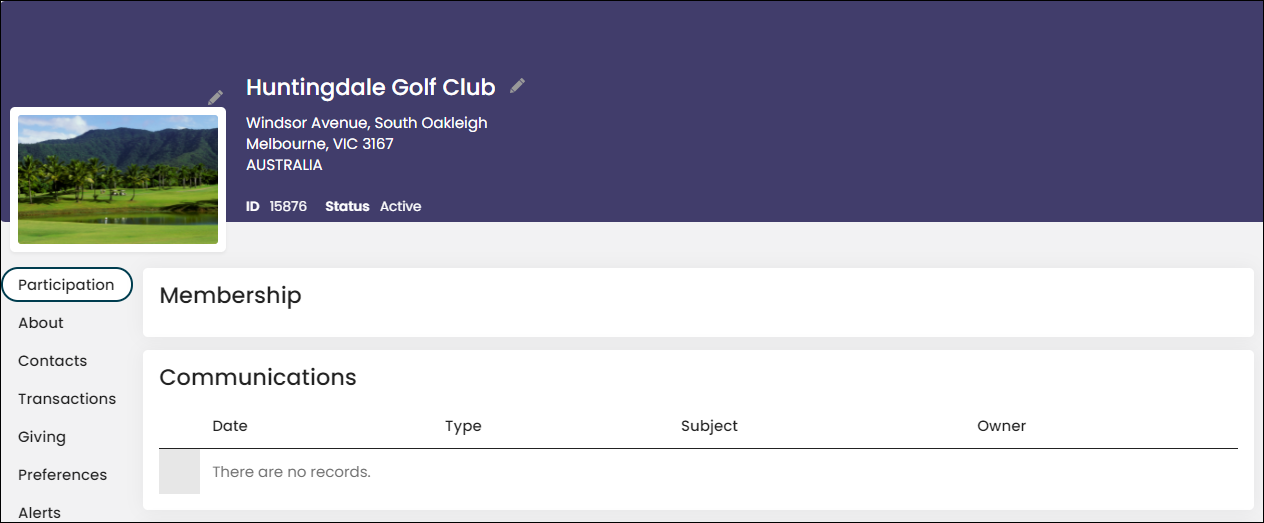
You can add event locations from the Event > Locations navigation or the event edit window.
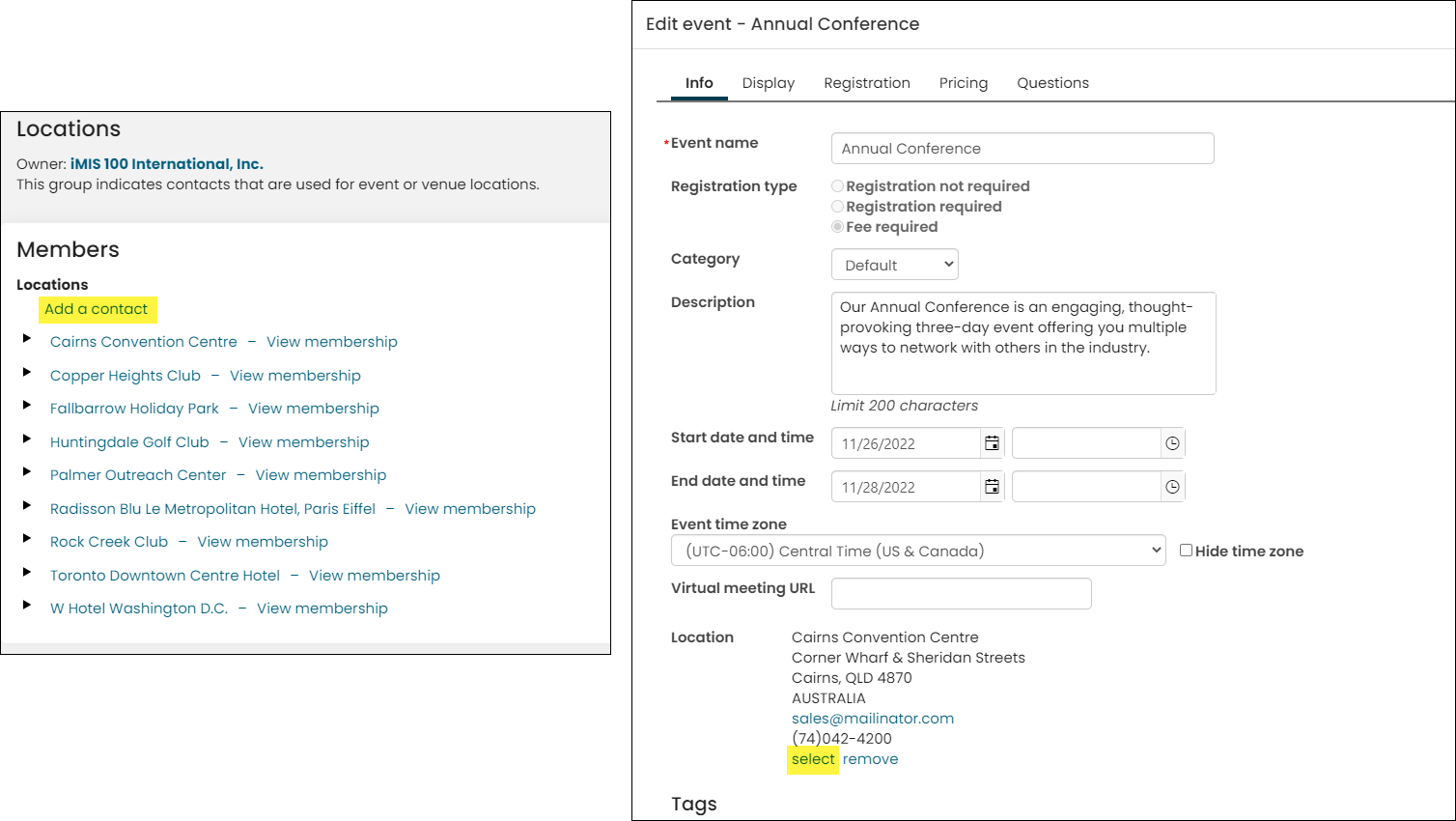
Adding a new event location
You can create new event locations from the Staff site at Events > Locations or from the event edit window.
Adding a new location from the Locations navigation
Do the following to add a new event location from the Locations navigation:
-
Go to Events > Locations.
-
Click Add a contact to add a group member.
-
Choose an existing group member or Add New to create a new group member:
- Choose an Account type of Organization.
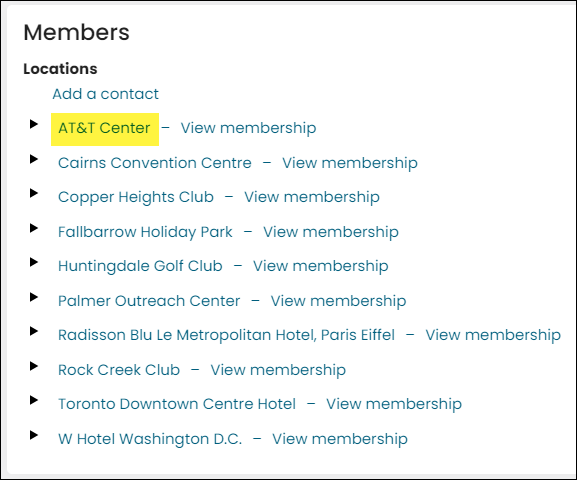
- Enter the location name in the Organization name field. For example, if the new event location is the AT&T Center, add "AT&T Center" in the Organization name field.
- Click Save.
-
Click Save & Close.
-
Click the linked name of the new location.
-
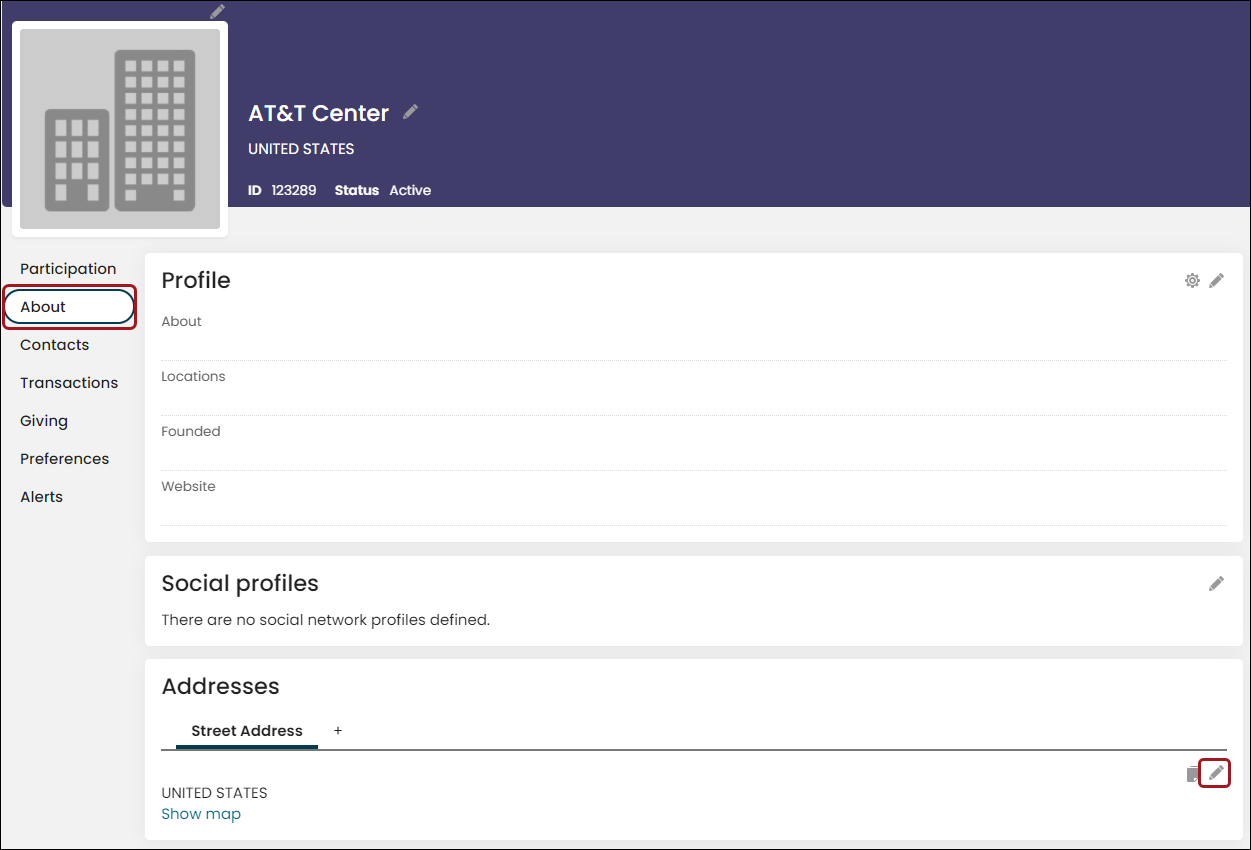
Click the About tab, then click the edit icon on the Addresses panel.
-
Enter the address for the location, then click Save & Close.
Adding a new location when creating or editing an event
Do the following to add a new event location when creating or editing an event:
-
Open an existing event for edit or create a new event.
-
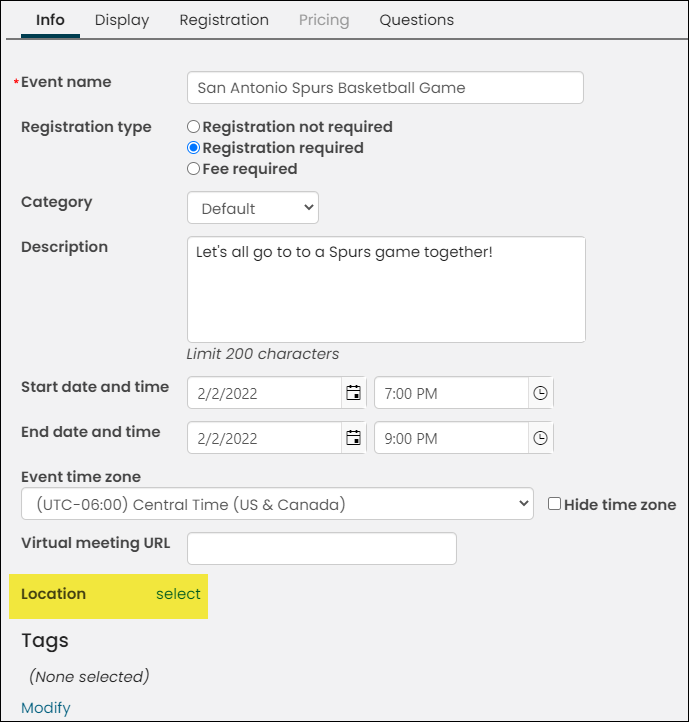
From the Location field, choose the select link.
-
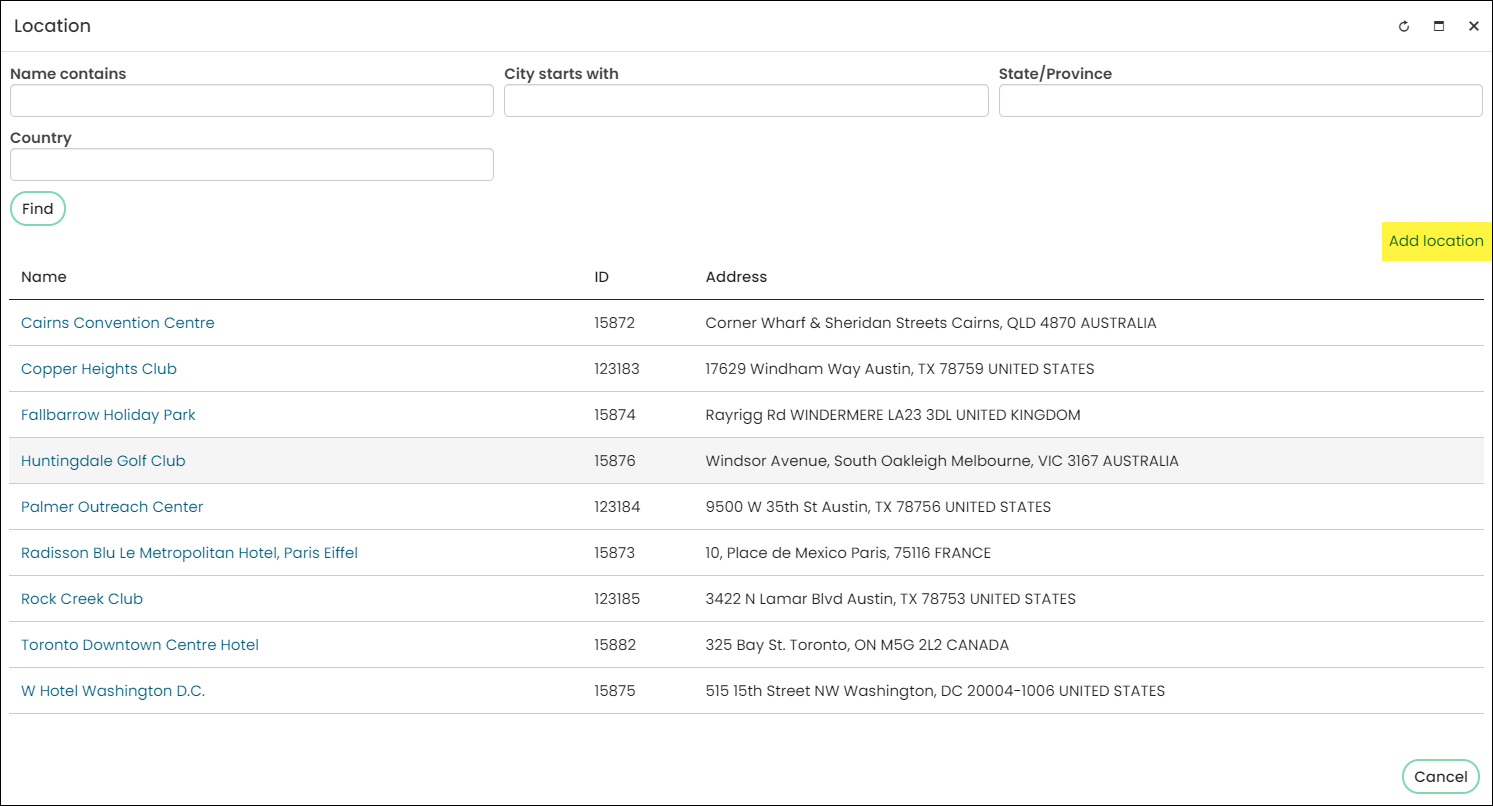
Select the Add location link.
-
Enter the location name in the Organization name field. For example, if the new event location is the AT&T Center, add "AT&T Center" in the Organization name field.
-
Enter the remaining address lines for the location, then click Save & Close. The event location will appear in the event definition window.
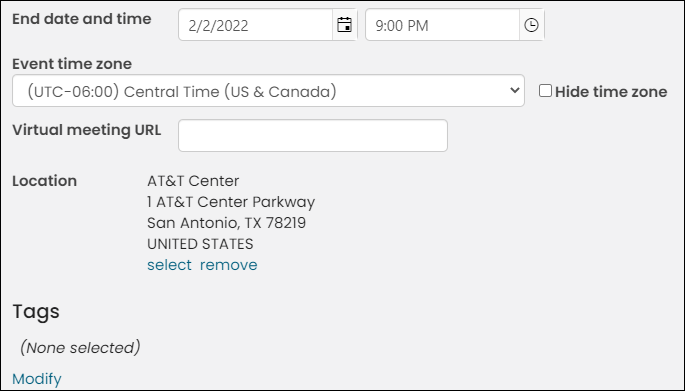
The event location will be there for future events to use as their location, as well.
Deleting an event location
Do the following to delete an event location:
- Go to Events > Locations.
- Find the location you want to delete, then select View membership.
- Click Delete membership.
The location is no longer available to be used as an event or venue location.
Updated 5 months ago