

Adjusting the amount and collection date for recurring donations
This article covers the adjustments available specifically for recurring donations, which include:
For information on viewing and cancelling recurring donations, see Viewing and cancelling AutoPay enrollments.
Changing a donation amount
Recurring donors can change the amount of an active recurring donation. Staff users can allow non-staff recurring donors to update their donation amount by enabling this option from the Staff site (Settings > Finance > Automatic payments). Staff and non-staff users can view recurring donations from the Giving tab.
NoteWhen the recurring donation amount is adjusted, the new amount will be applied to future payments; it does not affect past payments.
To update the recurring donation from the contact’s account page, do the following:
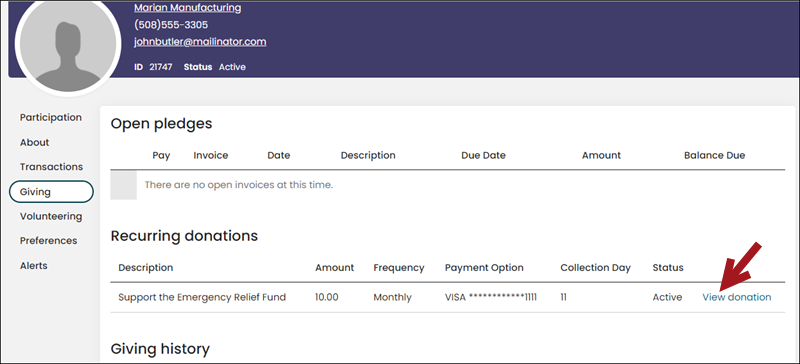
- Go to the contact's account page and click the Giving tab.
- Select the recurring donation for which you want to adjust the amount.
- Select View donation.
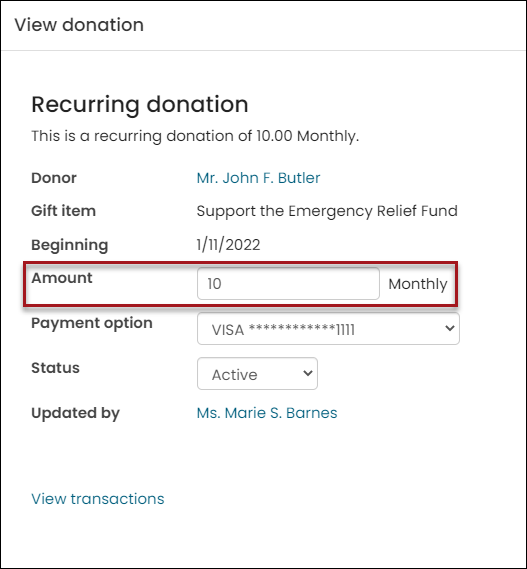
- Enter the new Amount.
- Click Save.
NoteThe donation amount for recurring UK debits cannot be updated. See Direct Debits for more information.
Changing the collection day for a recurring donation
ExampleA recurring donor emails the staff to say they need to pause their recurring donation until November 15. The staff user must update their recurring donation End date to be November 14, so the donor is not picked until November 15 or after.
Do the following to edit a donor’s collection date:
- Go to Community > Find groups.
- In the Name contains field, enter donor.
- From the System group drop-down, choose Yes.
- Click Find.
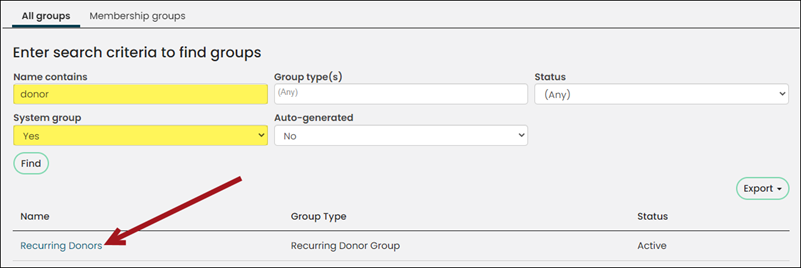
- Select the group Name.
- Find the donor in the list of contacts, then select the role next to their name (Recurring Donor or Inactive).
- From the most recent (top) row, click the edit icon.
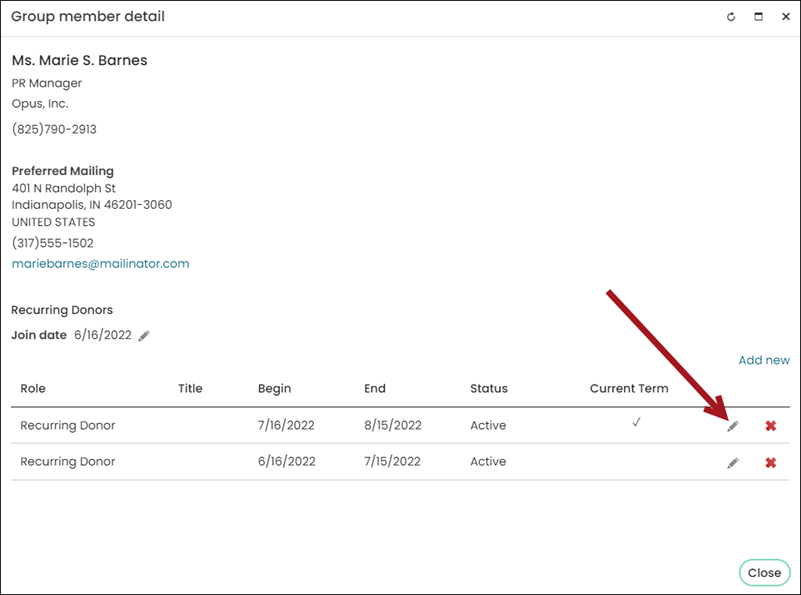
- Update the End date to be one day before you want them to be invoiced next.
- Click Save & Close.
Updated 5 months ago