

General Product Display
The General Product Display content item displays a single product that users can add to their cart.
This content item will add its title information, the product name, to the browser window or tab page title when the Use dynamic page titles checkbox is selected on the parent content record. If it is used in a website that uses a responsive theme, it will automatically adjust itself to different screen sizes.
There are additional features available for this content item:
- The content item can display collections of items, such as product kits.
- If the user has appropriate privileges, an edit link is displayed that opens the Item Creator content item. When clicked, the user can edit the product definition for the current item. The edit link is only available when viewing a product that is not contained in the cart that is currently in focus.
- If the content item is used in a website that uses a responsive theme, it will automatically adjust itself to different screen sizes.
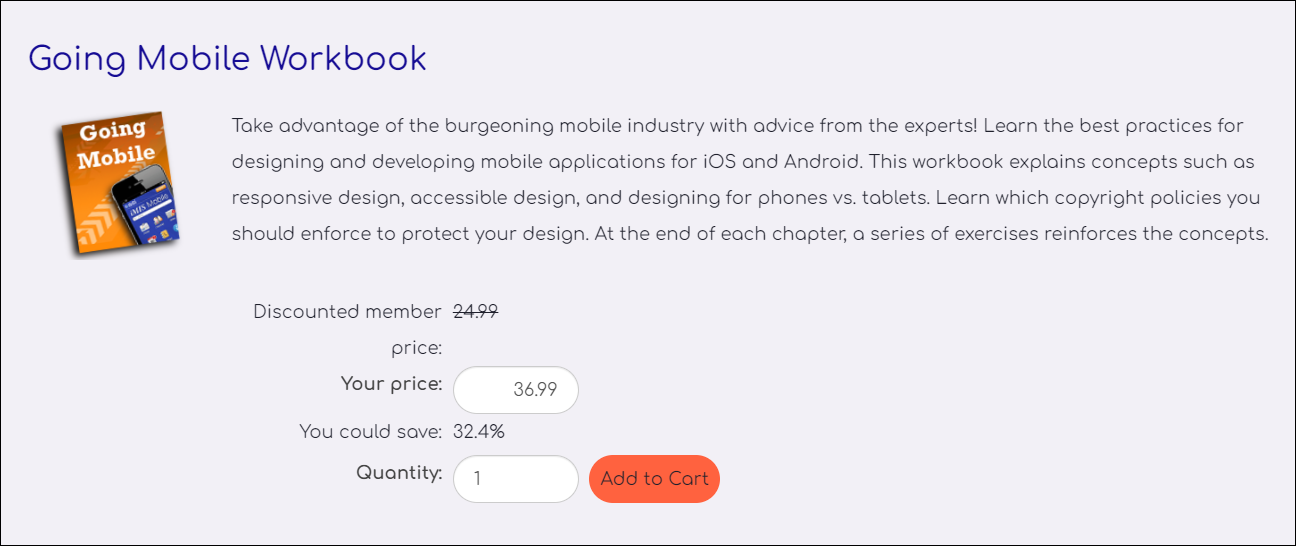
- When the Show only the comparison price which does not apply to the customer (Standard or Discount) configuration option is selected, the price that does not apply to the customer is struck through.
General Product Display configuration options
- Name - Enter a name for the content item. This text appears during design mode (configuration).
- Title - Enter the text to display above this content item on the rendered page. If blank, no title is displayed.
- Do not render in design mode - Select this option to prevent content record data from being loaded in the content editor. This improves performance during design time (configuration).
- Display a border around this content - Select this option to display a border around this content item on the rendered page.
- Default product to display - (optional) Specify the code of the product to display.
- Display Style - Controls the layout of the content item on the web page. Select Horizontal if the content item is in a wide column that spans 66% or more of the width of the web page. Select Vertical if the content item is in a narrower column that spans 65% or less of the width of the web page. By default, a Horizontal display style is selected when you add a new General Product Display content item to a content record.
Image
-
Display the item picture - Select this option to display the item picture in the listing.
-
Picture width (px) - Enter the width, in pixels, for
the displayed picture. If the picture is too large, it will be scaled down to fit
the rendered page. To disable all scaling, enter a value of 0; this allows the picture to take as much space as it requires.
Pricing
The customer price is always displayed. Comparison, Standard and Discount prices are optional and illustrate the savings a customer receives or could receive if they qualify for a discount (for example, are members):
- Customer price label - Enter the label to display the customer's price.
- Comparison prices - Choose how to display item prices:
-
Do not show comparison prices
-
Show only the comparison price which does not apply to the customer (Standard or Discount) - This option strikes through the price that does not apply to the customer.
-
Show both Standard and Discount comparison prices
- Standard price label - Enter the label to display the standard (non-discounted) price.
- Discount price label - Enter the label to display the discounted price.
-
- Show discount percentage next to Customer price - Select this option to display the
percentage the customer is saving. When this option is selected, the following
settings apply:-
Label when discount is applied - Enter the label to display when the discount is applied (for example,
Your savings:). This label displays when the Customer price is less than the Standard price. -
Label when discount is not applied - Enter the label to display when the discount is not applied (for example,
You could save:). This label displays when the Customer price matches the default Standard price. -
Discount percentage format - Select or enter a format string for the discount percentage. See Formatting Numeric Strings for more information.
-
Shopping
- Item added message - Enter the message to display when an item is
successfully added to a user's cart. - Item updated message - Enter the message to display when an item is successfully updated in the cart.
Automatic Renewals
- Automatic Renewal Top Text - Enter the text to display at the top of your Automatic Renewals message. For example, include specific information about what happens when the user chooses to automatically renew their membership. You can also include general information about the feature.
- Automatic Renewal Label - Enter the text for the label that accompanies the renewal checkbox. For example, "Yes, I would like to have my membership automatically renew each year."
- Automatic Renewal Bottom Text - Enter the text to display at the bottom of your Automatic Renewals message. For example, include information about the payment method that will be associated with the renewal and what the user should do if they want to cancel their automatic renewal enrollment.
NoteThe Automatic Renewal Top Text, Automatic Renewal Bottom Text and Automatic Renewal Label are only displayed when the Allow users to create auto-renewing memberships option is selected. See Allow users to create auto-renewing memberships.
Formatting Numeric Strings
The formatting rules for numeric strings include:
- # - Displays a number, if relevant.
- 0 - Displays a number or zero placeholder.
For example,
- 20% =
0% - 20.13% =
0.00%
For more information, see http://msdn.microsoft.com/en-us/library/0c899ak8.aspx
Notes
-
The Product Code or the Product ID can be passed as a URL parameter. Use iProductCode for a text string, such as: MUG or WATERBOTTLE. Use iProductID for the GUID product ID,
such as iProductID= 4fe78e06-d0ae-4637-8122-c4e56a92f620. -
The ID the content item uses and displays depends on the context:
-
If an On behalf of contact is selected, the content item loads the On behalf of contact's information.
-
If no On behalf of contact is selected, the content item loads the signed in user's information.
-
If the user is not signed in, the content item displays limited information.
-
If a content record contains several dynamic content items, it is recommended that you turn dynamic page titles off for the entire page in order to limit the title length.
Updated 2 months ago