

Batch Invoice Payment Processing
NoteThe Batch Invoice Payment Processing content item is only available if AutoPay is properly configured.
The Batch Invoice Payment Processing content item is used specifically with AutoPay and will send an invoice due for payment processing the Pay Central service where the payments can be taken. In the Staff site, authorized administrative users are able to call up invoices or pledges that are due for payment and begin to process those payments through the Pay Central service.
NoteAs a safeguard to prevent failed invoices from being stuck in the Pay Central service, the Pay Central service does not retain invoices without update for a period greater than five days. Therefore, UK Direct Debit invoices must be submitted no earlier than five days before payment is due. If UK Direct Debit invoices are submitted earlier than five days before payment is due, the invoices will be flagged as Failed to reconcile – timed out. Submit the invoices again within five days of the payment due date for the UK Direct Debit invoices to be processed.
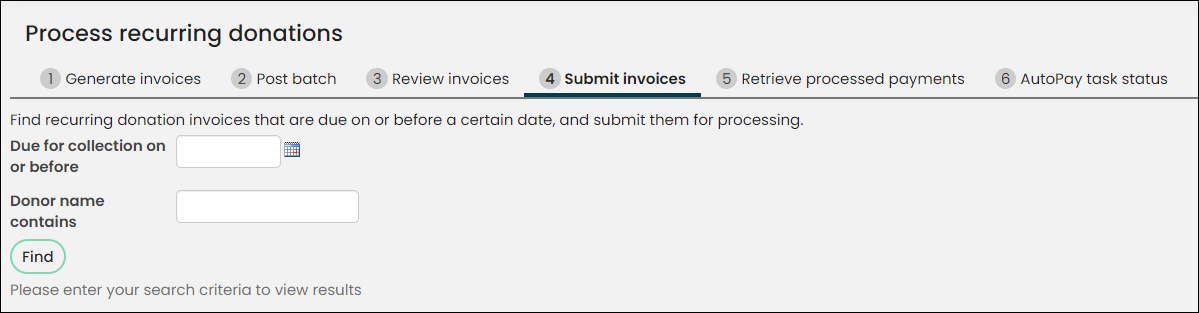
This is not a standalone content item, and is regularly used with the following content items:
This content item requires an IQA query to run and can be seen in the Staff site in the following locations:
- Fundraising > Automatic payments > Process payments, and select the Submit payments tab.
- Membership > Automatic payments > Process payments, and select the Submit payments tab.
This content item uses the Common content item configuration options, in addition to the following:
- Hide the 'Click Me' link - Enable this option to hide the 'Click Me' link.
- Source query - Select the query to run to return the list of outstanding invoices.
- Button label - The text to appear on the button to process the invoice payments.
- 'Click Me' Hyperlink Text - Enter the text to appear on the button to submit the batch. This link directs to the content specified in the Batch History Content Code.
- Payments Sent to Pay Central text - Enter the text that displays when a payment batch has been submitted.
Updated 5 months ago