

Reversing an invoice
In certain instances, a Staff user can reverse an entire invoice. This can be done whether the invoice is in an open state (has a balance) or is in a closed state (does not have a balance).
After an invoice has been reversed, any payment that was applied to that invoice remains intact, with an unapplied balance. This represents assets on the books to which the organization is not entitled. In its unapplied state, the reversed payment remains categorized as both an asset (debit-to-cash) and a liability (credit-to-unearned income). If you need to reverse the payment after you have reversed the invoice, see Recording a payment reversal.
The line items that are eligible for reversal are:
- Products
NoteThis excludes products defined with an Item class of Events and Conferences.
- Donations
- Gifts
- Membership renewals
- Join Now
The line items that are not eligible for reversal are:
- Event registrations
- Event program items
- Credit adjustments
NoteIf the invoice has eligible line items and ineligible line items, the eligible line items are reversed while the ineligible line items remain untouched.
Reversing an invoice
Do the following to reverse an invoice:
- From the Staff site, go to Finance > Invoices.
- Search for the invoice, then select the Invoice Number.
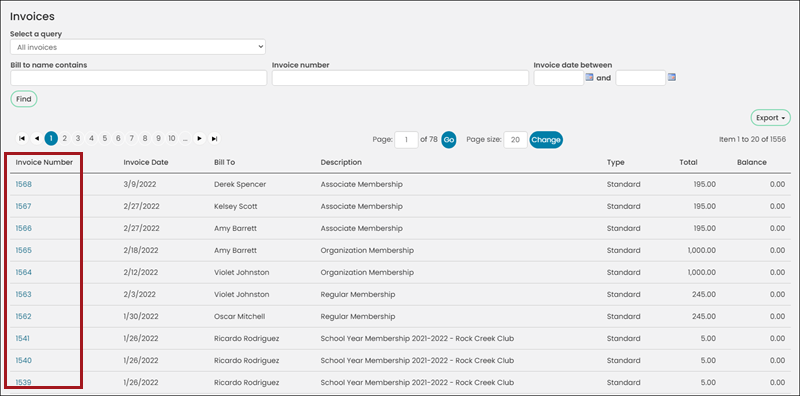
-
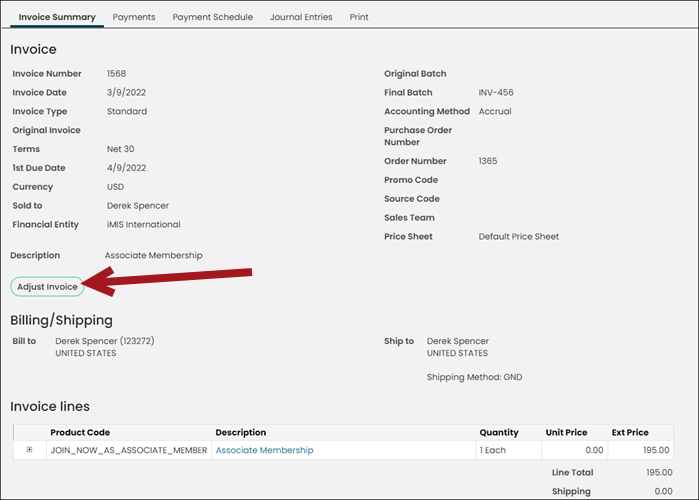
(Invoice Summary tab) Click Adjust Invoice.
NoteThe Adjust Invoice button does not appear on any invoice which has already been adjusted or reversed. It also does not appear on invoices containing line items that are not eligible for reversal.
-
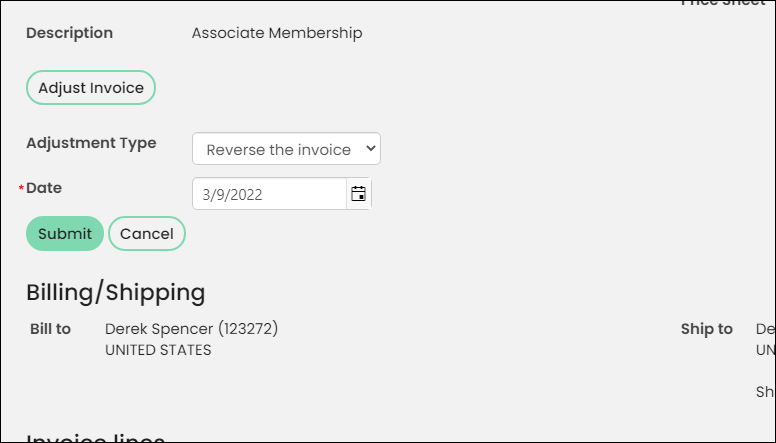
The Adjustment Type is automatically defaulted to Reverse the invoice. The Date field will automatically populate to the current date. This date can be changed to any date between or equal to the original invoice date and the current date.
-
Click Submit.
If you need to reverse the payment after you have reversed the invoice, see Recording a payment reversal.
NoteAfter you reverse a paid invoice, there will be a credit on the individual's account. To remove the credit from the account, see Recording a refund.
Updated 5 months ago