

Configuring automatic recurring donations
When your site is configured with AutoPay, donors are invited to make recurring donations monthly, quarterly, or annually.
Before you begin
Before configuring donations for AutoPay, make sure Allow users to create recurring donations is enabled under Settings > Finance > Pay Central > Automatic payments. For more information, see Configuring the AutoPay settings.
Additionally, it is recommended to review the AutoPay: Getting Started Guide if you are setting up AutoPay for the first time.
Once the above are completed, do the following to allow donors to enroll with AutoPay:
Displaying recurring donation options for donors
To allow donors to enroll with AutoPay, you will need to add the recurring donation options to your public Give Now pages. Recurring donations can only be entered through a Give Now page. Recurring donors cannot enroll through the Cart or Enter gifts (Fundraising > Enter gifts) page.
TipIf you are working from a copy of the out-of-the-box Give Now page, you may already have the Recurring Donation Creator content item on the page.
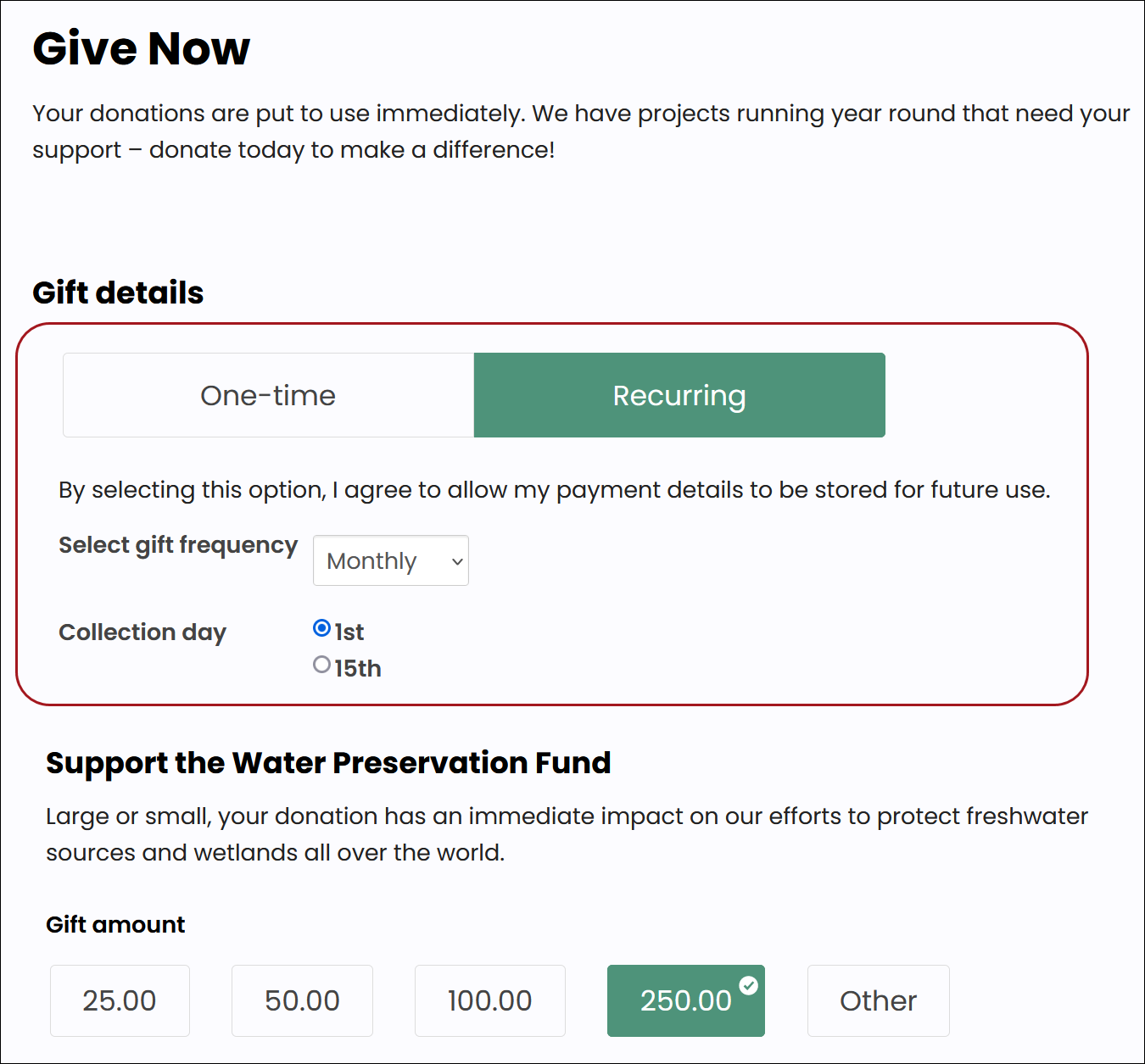
To configure the Give Now page with AutoPay, do the following:
- Open your Give Now donation page for edit.
- Add the Recurring Donation Creator content item to the Give Now page. Select the following configuration options:
- Commit sequence: Specify 3 if you want to process the donation immediately. You do not need to choose a commit sequence if you add the donation to the cart.
NoteThis Commit sequence value must be less than the commit sequence of the Payment Creator and Submit Order Button Link content items.
- 'No' option text - Configure the text for the No radio option.
- 'Yes' option text - Configure the text for the Yes radio option.
- Gift frequency text - Configure the text for the gift frequency option.
-
Connect the Recurring Donation Creator content item to the Donation Creator content item. Do the following to connect the Donation Creator and Recurring Donation Creator content items:
-
Click Connect on the Recurring Donation Creator content item. A Connect window is displayed.
-
Click Create a new connection.
-
Select the Donation Creator in the Object Consumer drop-down.
-
Click Connect.
-
Click the red X to close the Connect window.
Once you select Connect on a separate content item, the connections for the previous content item are no longer visible. The only connections that appear are the ones for the selected content item. To review connections for any content item, select Connect.
- Save & Publish the page.
Once you have displayed recurring donations as an option on your Give Now pages, donors can begin enrolling with recurring donation payments. Proceed to the Next steps to complete the AutoPay set-up process.
Next steps
To finish setting up AutoPay, review and configure the following:
- Enable the Retrieve processed payments from Pay Central task.
- (optional) Allow donors to cancel their own enrollments without staff assistance. See Allowing members and donors to cancel their own enrollments.
To begin enrolling donors with AutoPay, see Enrolling a donor with AutoPay.
Updated 5 months ago