

Setting up the iMIS Pay gateway
To configure the iMIS Pay gateway, you must have the following credentials:
| Region | Credentials |
|---|---|
| North America |
|
| Asia Pacific | Digital Key |
The credentials are obtained after you have signed a contract with Ezidebit (AP) or Global Payments (NA). See iMIS Pay Getting Started for more information.
Adding the account credentials to iMIS
Do the following to add your credentials to iMIS:
- Go to Settings > Finance > Pay Central.
- Click the Gateways tab:
- Select Add new gateway account.
- From the Gateway drop-down, select iMIS Pay.
- Enter an Account code for the gateway. This can be anything you wish, for example, simply "iMISPAY" or "IP_CC_US". Once saved, the Account code cannot be edited.
- In the Account name field, enter iMIS Pay.
- Select the Region in which you are collecting payments:
-
Canada and United States: Enter the Xweb ID, Terminal Id and Authorization Key that Global Payments sent to you.
-
Australia and New Zealand: Enter the Digital Key that Ezidebit sent to you.
NoteIt is recommended to
verify your default currency code if you select any country other than United States.
-
- Click Save & Close.
- Click the Pay Central service tab. Confirm the status notes are green.
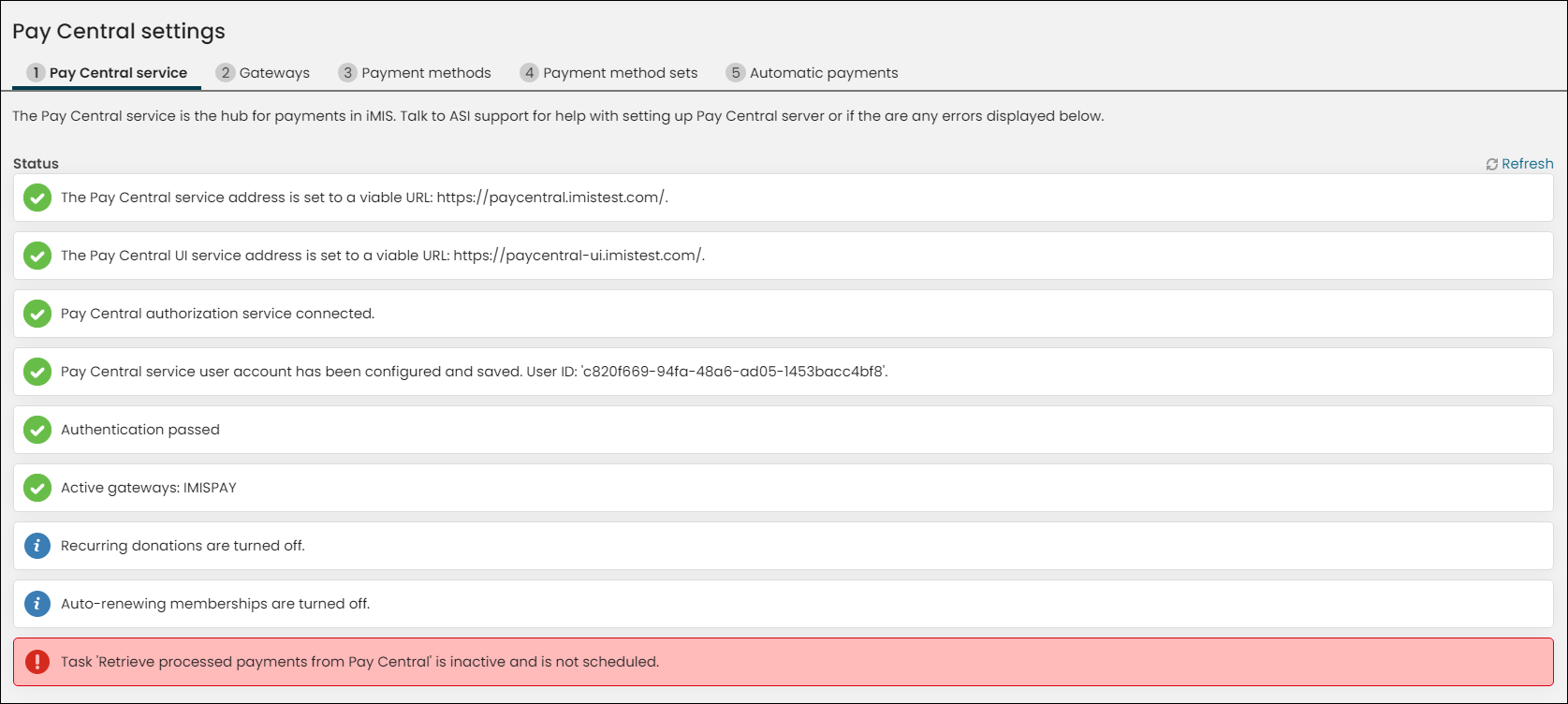
NoteThe Recurring donations, Auto-renewing memberships, and Retrieve processed payments from Pay Central status messages are optional and are not required to be green.
- Update your existing payment methods to use the iMIS Pay gateway, or create new payment methods to use with the iMIS Pay gateway. Make sure you are selecting the iMIS Pay gateway from the Gateway account drop-down.
WarningThe iMIS Pay gateway does not support updating an existing payment method for an AutoPay enrollment . Review Modifying an existing AutoPay payment method when using the iMIS Pay or Stripe gateway to fully understand how to work with this limitation.
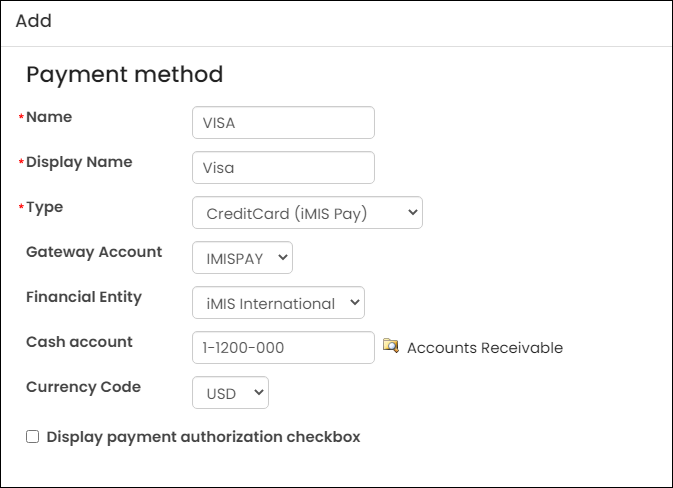 5. (AP only) If you are using the one-time bank details, you must create a new payment method:
WarningWhen you create the payment method, define the Code as either AUEFT if your association is in Australia or NZEFT if your association is in New Zealand. Make sure the new payment method is added to the correct payment method set.
- Confirm the payment methods are in the correct payment method sets, or add the payment methods to the payment method sets.
Updated 3 months ago