

Assigning security credentials and staff access
System administrators (SysAdmin) can grant access to certain areas of content for different users. System administrators are super users with access to everything in the system, including the following:
- Assign logon credentials
- Assign access for staff users
- Assign the System Administrator role to other users
- Disable user accounts
NoteStaff users do not have the access levels and permissions necessary to assign staff access. See Overview of security throughout iMIS for more.
Overview of each section
To perform any of the above, navigate directly to the contact’s account page, then click the Security tab. Alternatively, go to Community > Security > Users and search for the desired user.
User credentials
If the contact listed in the Contact information area is not an iMIS user, the fields in the User credentials area are empty. Click the red icon (X) to delete or change the username.
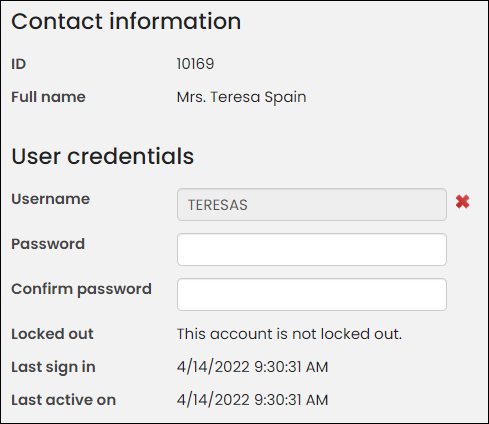
The following fields appear in the User credentials area:
- Username – Displays this authentication record's logon name . No user selected displays when the authentication record is not linked to a user record. Click the add icon (+) to create user logon credentials.
- Password/Confirm password – Input fields for changing an existing password. By default, passwords must contain at least seven characters with at least one numeric character and at least one alphabetic character.
- Locked out – Indicates whether this authentication record is temporarily blocked from gaining access to iMIS. By default, iMIS locks out an authentication record after five failed attempts to log on.
📘 Note
iMIS provides enhanced password hashing to secure all user login passwords. This enhanced password security complies with PCI 3.2 guidelines.
User information
The User information area displays after user credentials are entered.
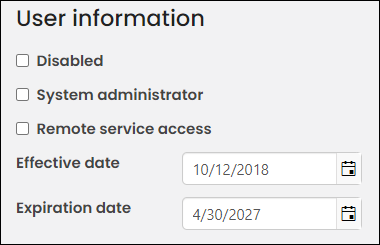
The following fields are displayed in the User information area:
- Disabled – Select this option if you do not want the selected user account to be used immediately.
- System administrator - Select this option if you want the selected user to be a System Administrator.
- Remote Service Access - Enable for users who have permission to remotely access the REST API. If external API calls are missing the Remote Service Access role on the service account, the API calls will fail until it is added. The Remote Service Access role is not required for client-side iParts, only for B2B (an application requiring its own username and password) access.
- Effective date – Enter the date when these credentials become valid.
- Expiration date – In iMIS, the Expiration date for an account is a rolling date based on the last login (sign-in) date. By default, the expiration date is five years from the last login date, and this date is reset after every login.
Assigning access
Assigning staff access
To assign someone as a Staff user, do the following:
- From the Staff site, go to Community > Security > Staff.
- Select Add a contact.
- Enter in the new staff user's name, then click Find.
- Select the user's name.
- Click Save & Close.
For information on what Staff can access, see Overview of security throughout iMIS.
Updated 5 months ago