

Creating recurring sessions for events
Recurring sessions allow you to create a program item that repeats either daily, weekly, or monthly.
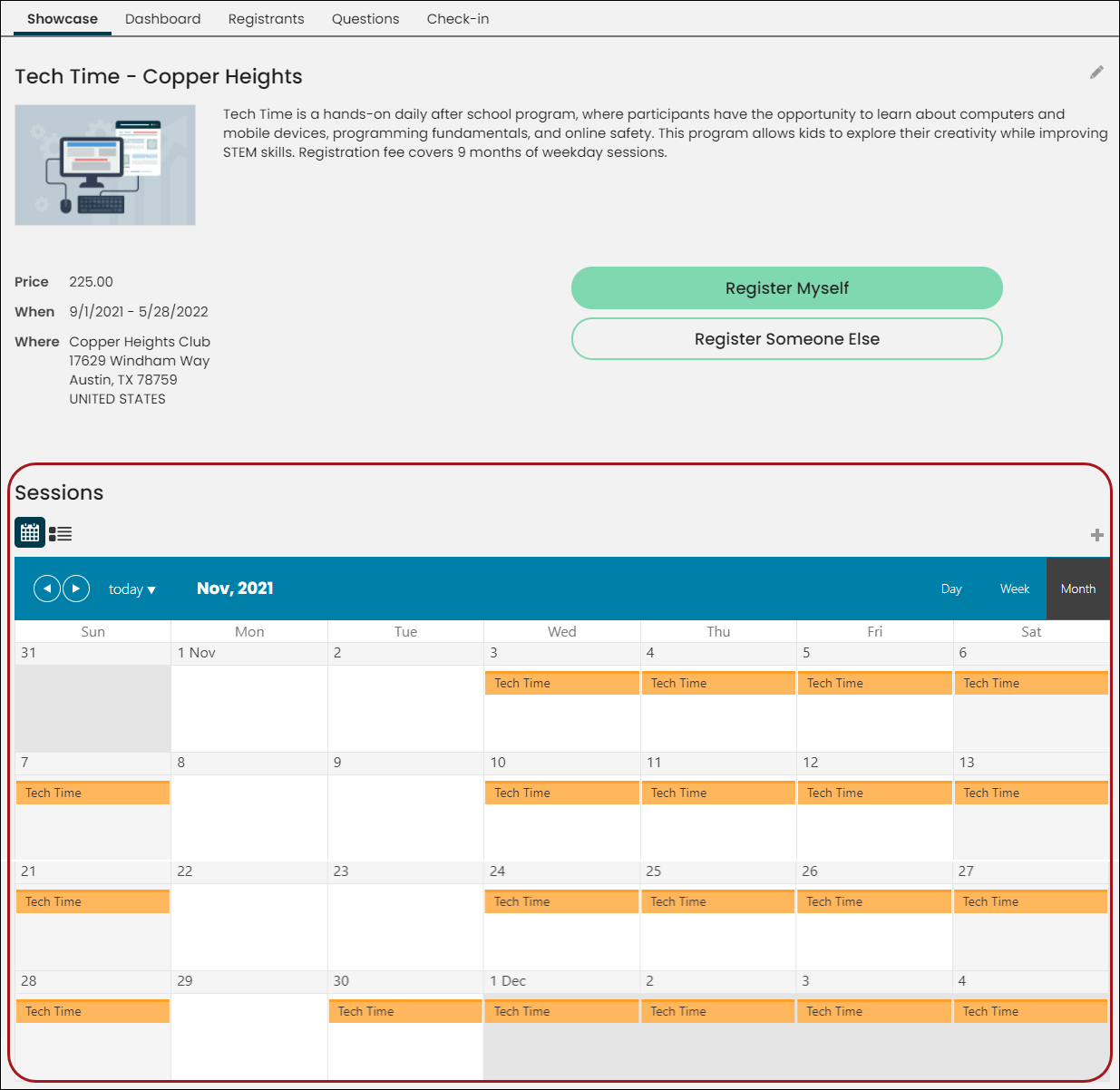
You can choose the start and end dates, start and end times, the frequency of the program, and which days the program will recur. If the program item allows registration or charges a fee, the registration or fee applies to the parent program item as a whole, not to individual sessions. A registrant can add a recurring program item to their itinerary to register for all of the sessions.
Creating a new recurring session
Do the following to create a new recurring session:
-
Navigate to an event.
-
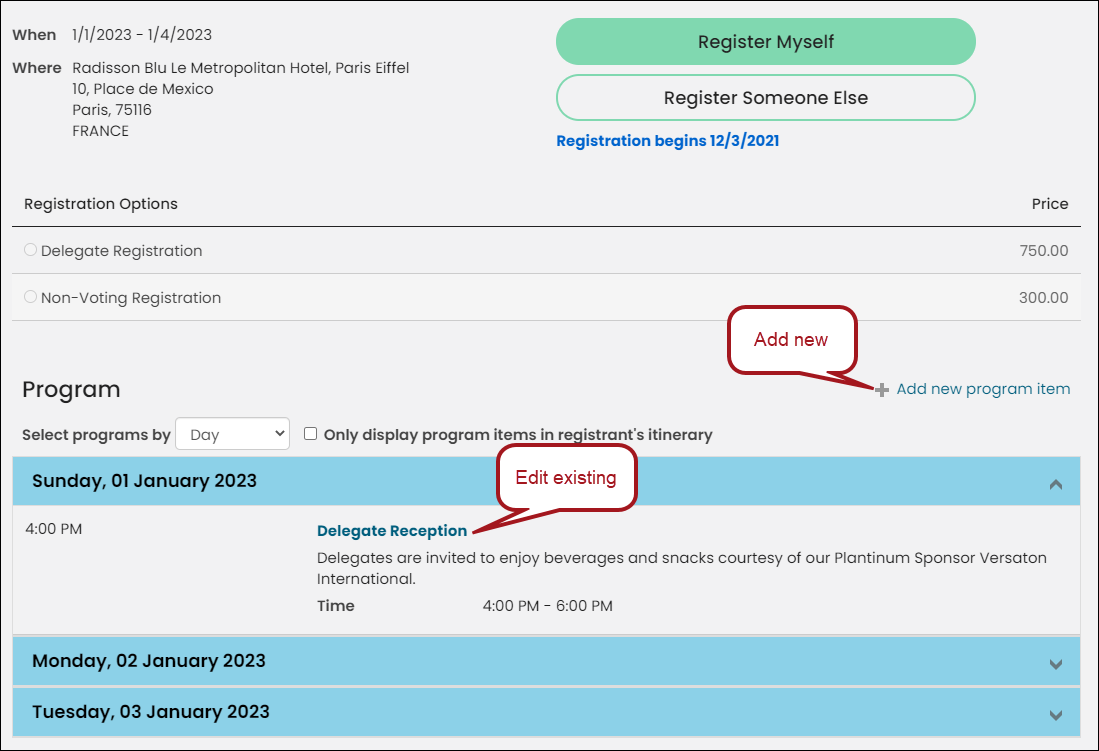
From the Program area, select Add to add a new program item, or open an existing program item.
-
For new program items, enter the required details.
-
Enable the Recurring session option, then define the following:
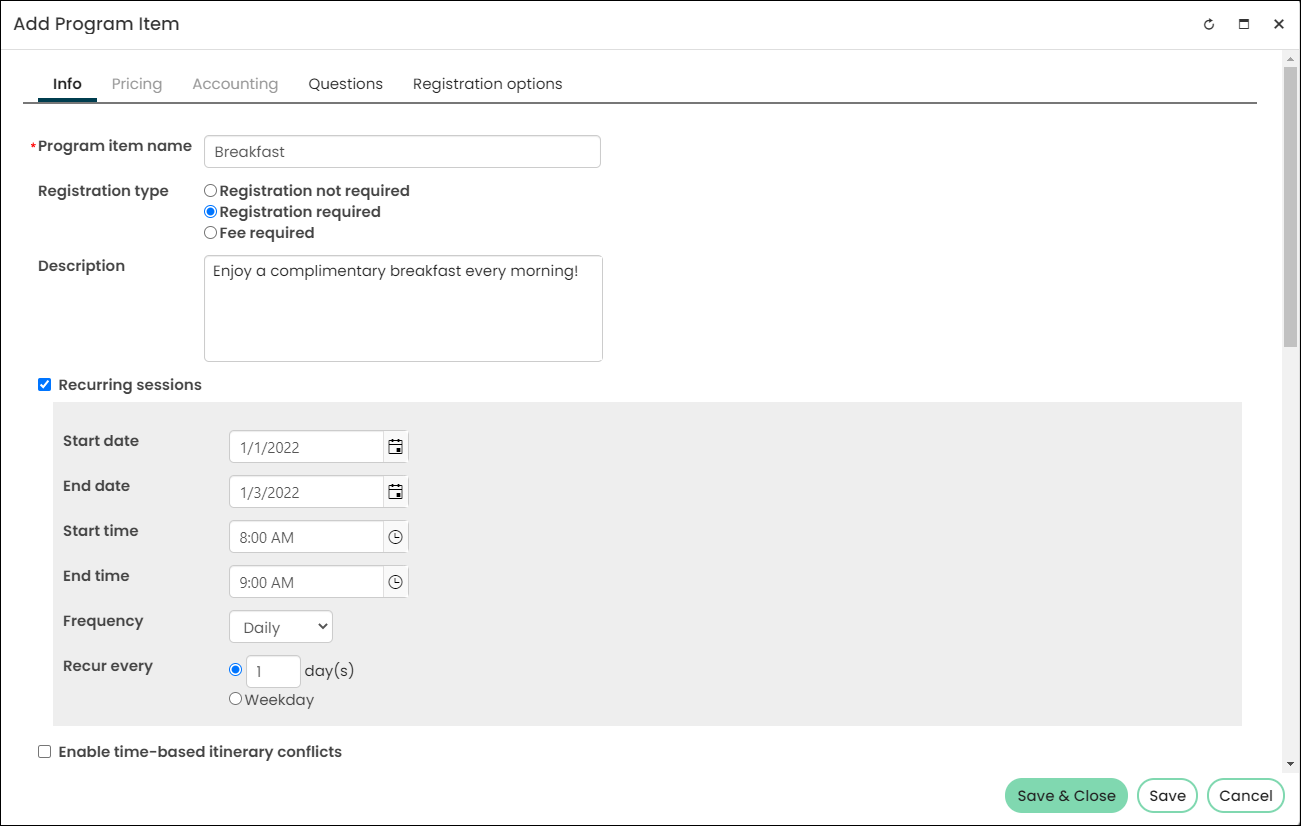
- Start date/End date - Defines when the recurring session will appear on the calendar and when it will drop off of the calendar.
- Start time/End time - Defines the time of the recurring session.
- Frequency - Choose own often the session occurs:
- Daily – Daily program items repeat every day at the same time. You can choose individual days for the program item to occur or choose Weekday if it occurs Monday through Friday.
- Weekly – Weekly program items repeat every week at the same time. You choose which days the program item will occur every week.
- Monthly – Monthly program items repeat every month at the same time. You choose which days the program item will occur every month from the drop-down menu.
-
Continue configuring the program item, then click Save & Close.
Editing or deleting recurring sessions
To edit or delete a recurring session, do the following:
-
From the Staff site, find the event.
-
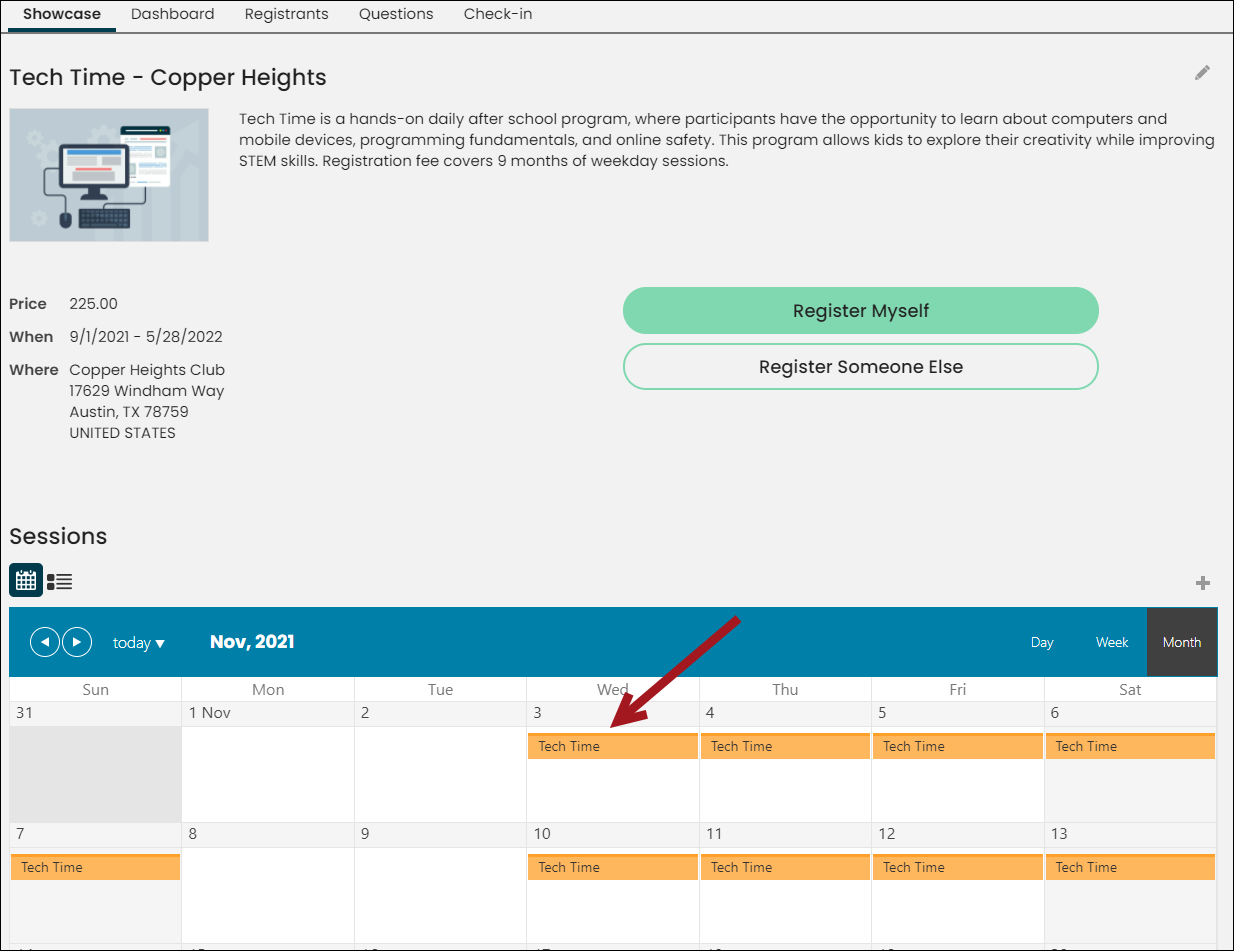
From the Showcase tab, click the recurring session.
-
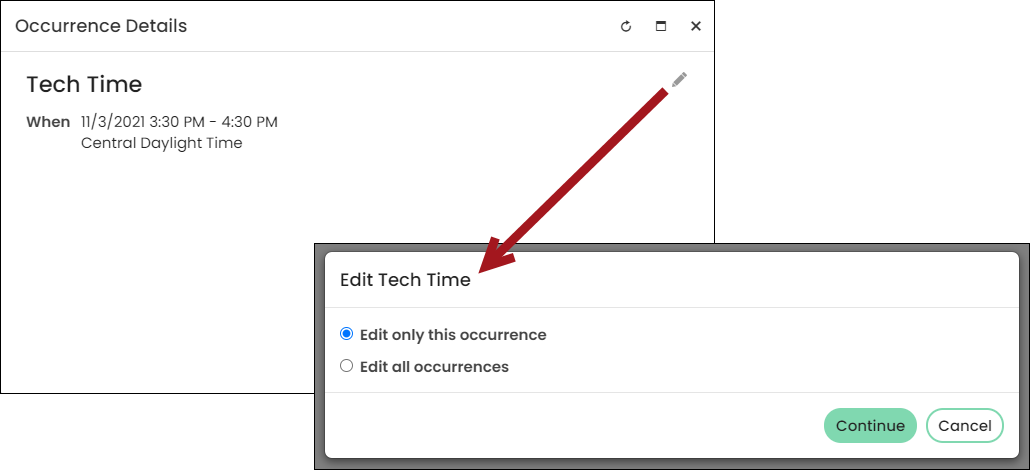
Click the Edit icon.
-
On the pop-up window, select one of the following, then click Continue:
- Edit only this occurrence
- Edit all occurrences
-
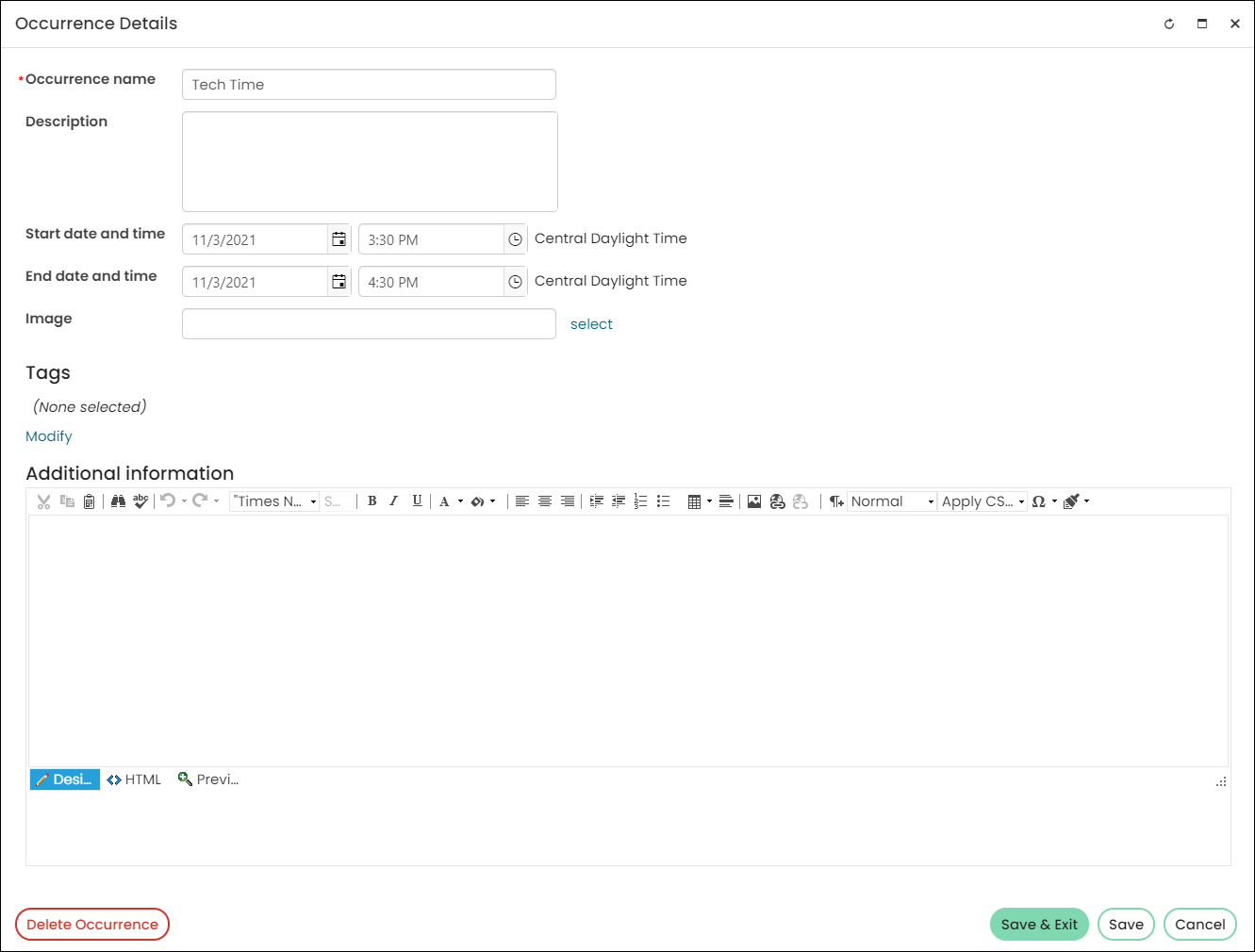
(Editing) From the Occurrence Details window, make the necessary changes. These changes could include changing the occurrence name, description, or start and end days and times along with any additional information you wish to include.
 Note
NoteIf you chose to Edit all occurrences, you will automatically be editing the parent program item. All occurrences for that program item will then be updated to reflect your changes. If you choose to change the recurrence schedule, then all of the occurrences will be recreated to match the new schedule. If you deselect Recurring sessions, then the occurrences will be removed. This also applies if they edit the program item as well.
-
Click Save & Exit.
-
(Deleting) To delete a program occurrence, click Delete Occurrence at the bottom of the window.
Displaying recurring sessions
You can use the Event Program Display or Program Item Occurrence Display content item to display recurring sessions.
Event Program Display
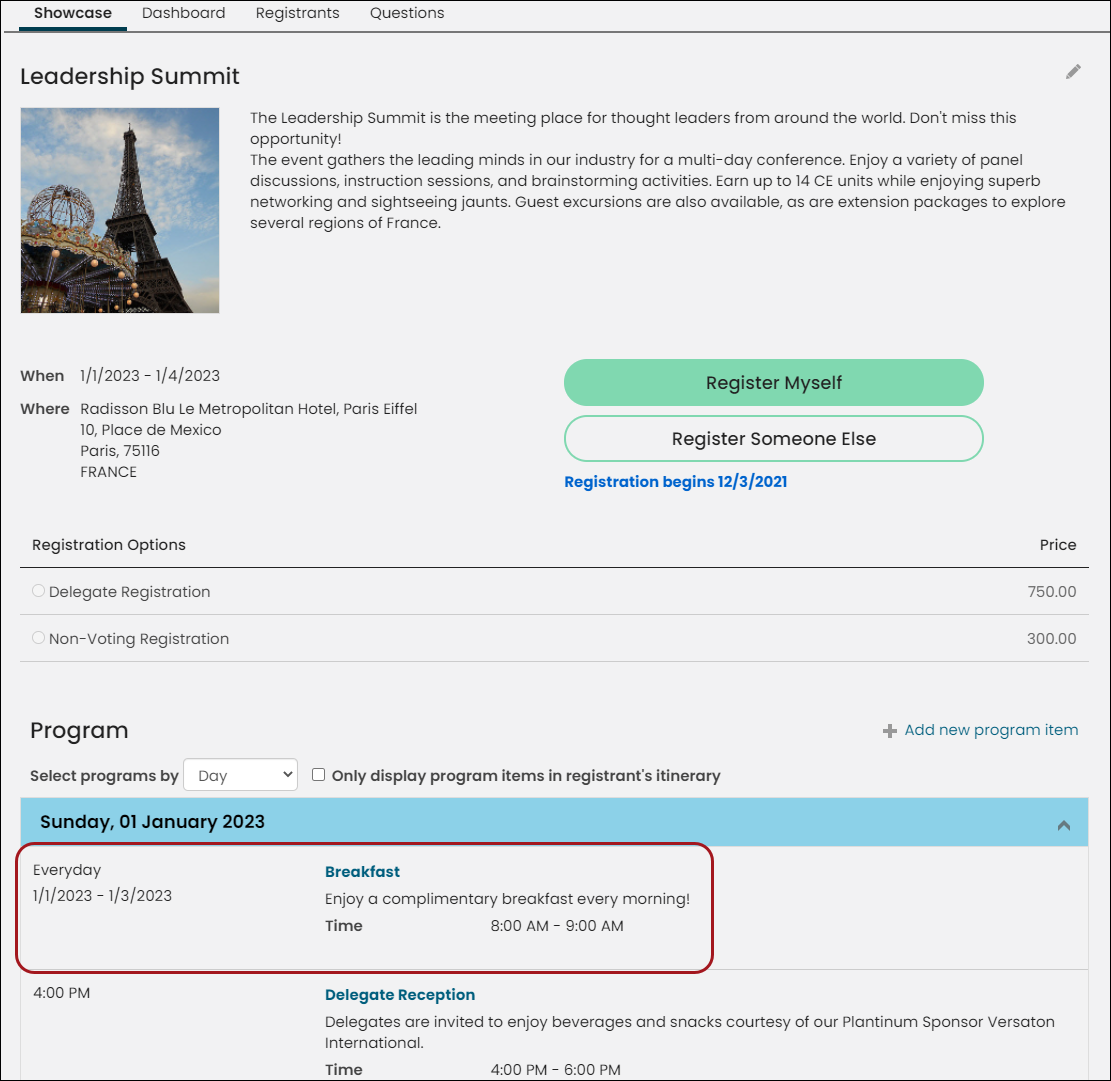
Use the Event Program Display content item. This will only display the parent program items, not the individual occurrences. Registrants can add the parent program item to their itinerary without viewing the details.
You can click on the program items to view all of the recurring sessions. This content item is recommended to display program items for one day events, events a few days long, and for events which allow registering for program items.
Program Item Occurrence Display
Use the Program Item Occurrence Display content item on the registration/event showcase
content configured with the mode Display all program items and occurrences for an event.
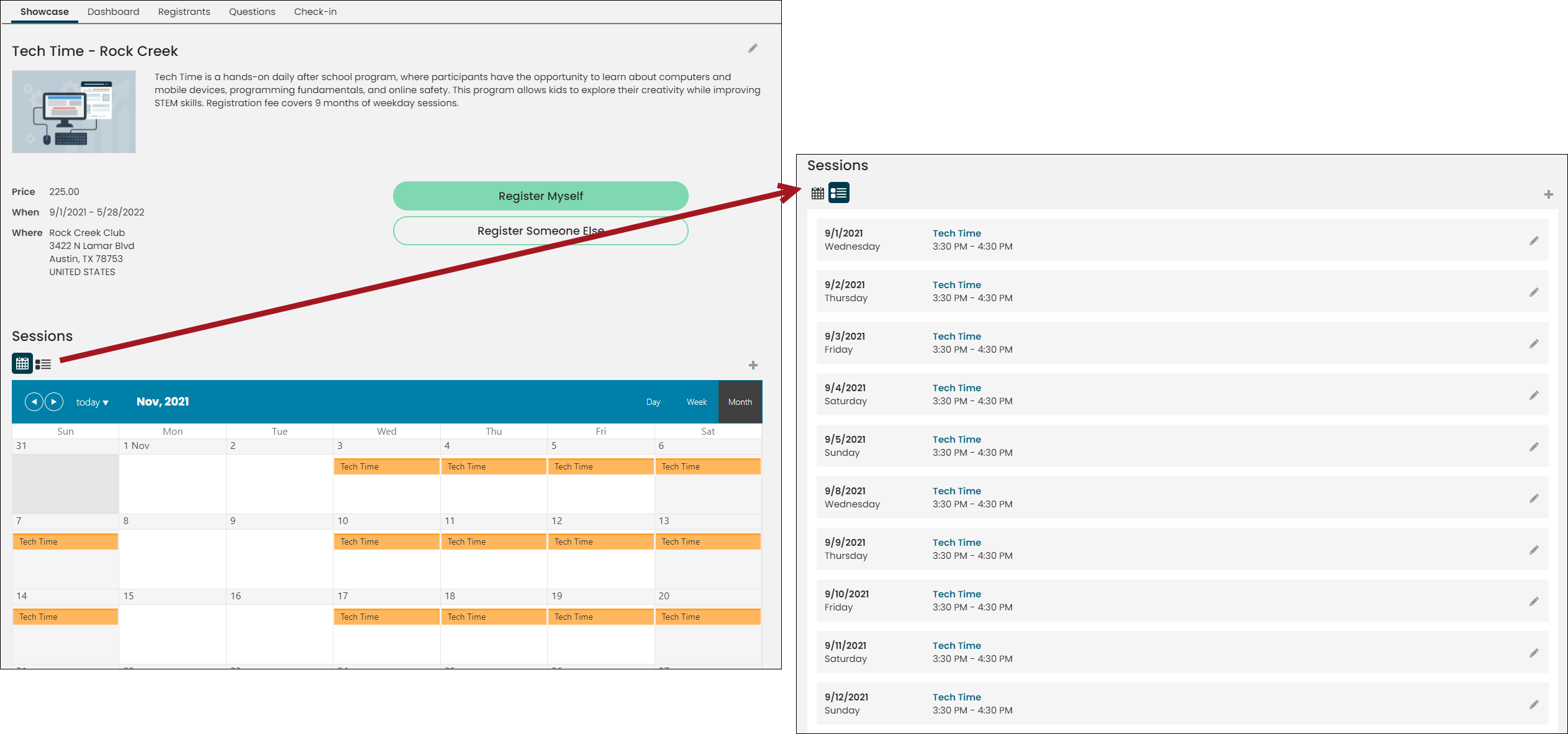
This shows the calendar by default with entries for all program items and recurring sessions included.
Registrants should click on an entry to add the program item (or series of sessions) to their itinerary,
for program items that support registration.
This content item is recommended to display program items for long-term events, when recurring sessions are included,
or when a calendar view of the program items is preferred. While registration for program items is still supported,
the Event Program Display content item may provide a better user experience when the event's program items allow registration.
Updated 5 months ago