

Setting up In-Kind gifts
In-kind gifts are a type of payment method in which goods or services are given instead of money. These in-kind gifts are distinguished from gifts of cash. Each charity can determine what types of in-kind contributions they accept (for example, clothing, food, vehicles, real estate, or securities) and configure iMIS to support their needs.
For example, a charity has a vehicle donation program where donors can donate their unwanted vehicles to support the charity's work. The charity works through a third-party to later resell the donated vehicles and uses the proceeds from those sales to fund its programs. iMIS is used in this situation to simply record the donation portion of the transaction.
Summary of an in-kind set up
The following is a summary of what the charity would need to do in order to begin accepting vehicles as donations:
- The charity creates a payment method named Donated Vehicles, then adds the payment method to the payment method set.
- The charity creates a Gift item named Vehicle Donation Program.
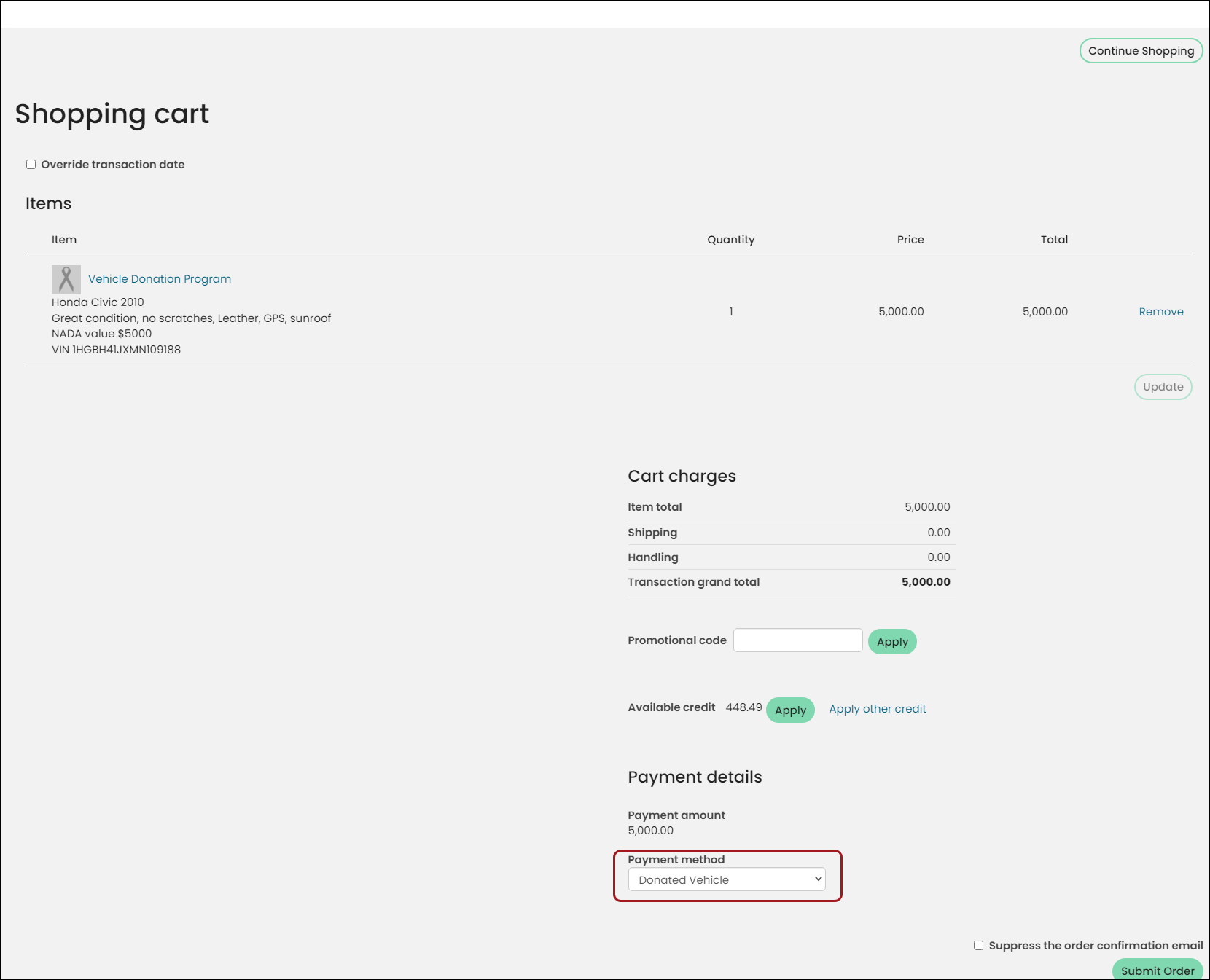
- A donor makes a donation of their 2010 Honda Civic to the charity, so the charity enters the vehicle donation on behalf of the donor using the Vehicle Donation Program gift item:
- The gift Amount should be the value that the charity assigns to the donation.
- The Description should contain any details about the donor's vehicle:
- Vehicle Identification Number (VIN)
- Description of the car's condition
- How the value was assigned to the vehicle (for example, the current NADA Blue Book value on the day that the transfer of title occurs)
- The charity chooses the Donated Vehicles payment method and completes the transaction.
Creating the payment method
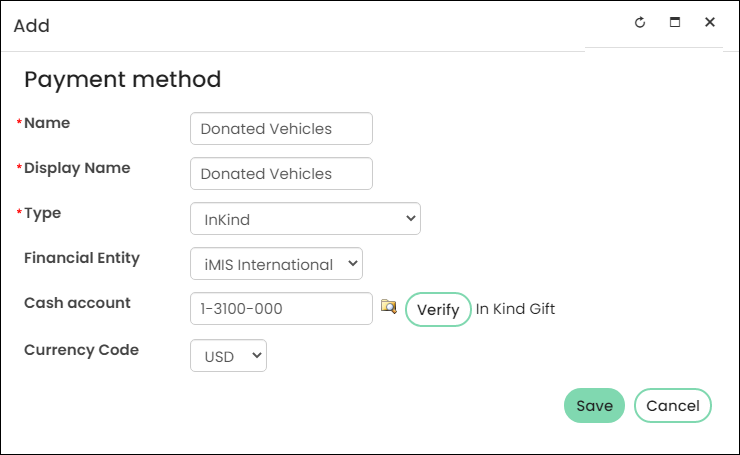
Do the following to create a payment method of in-kind:
- From the Staff site, go to Settings > Finance > Pay central.
- (Payment methods tab) Select Add new item.
- Name – Give the payment method a name that convey its purpose. For example, Donated Vehicles.
- Type – Select InKind.
- Financial Entity – Select your financial entity.
- Cash Account – Assign the appropriate general ledger account. This is the asset account to be debited when receiving this type of donation.
- Currency Code – Select the default Currency Code from the drop-down..
You can create more than one payment method using the same Type (InKind). This means that if you receive different types of assets as donations and need to debit different GL accounts for each type, you can create as many in-kind payment methods as you need. If you only use one asset account, then only one payment method is needed
- Click Save.
Updating the payment method set
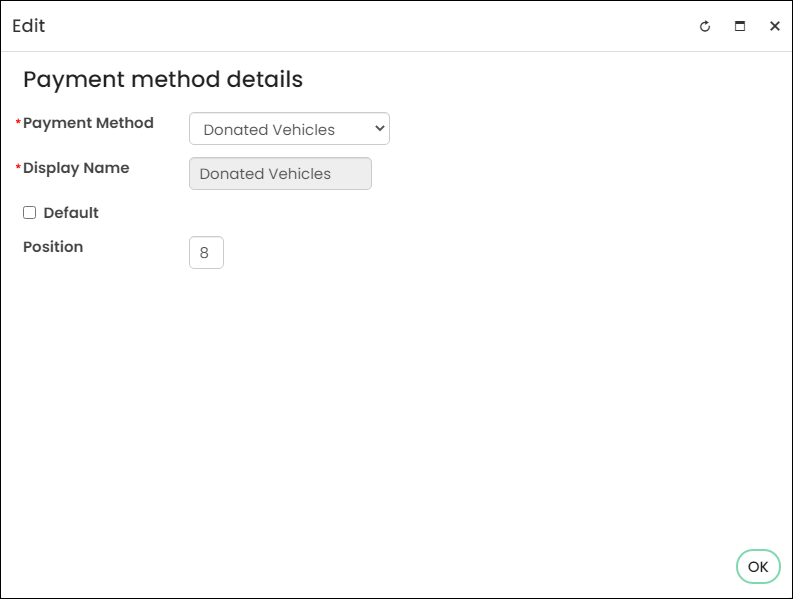
Do the following to update the payment method set to include in-kind payments:
- From the Staff site, go to Settings > Finance > Pay Central.
- (Payment method sets tab) Select the appropriate payment method set.
- Click Add.
- Select the Payment Method (Donated Vehicles).
- Enter a Display Name. For example, Donated Vehicles. This is the name that will appear in the cart when you are selecting a payment method.
- Click OK.
- Click Save.
📘 Note
Payment methods with a Type of InKind will only show up as an available payment method option for staff users.
Creating the in-kind gift item
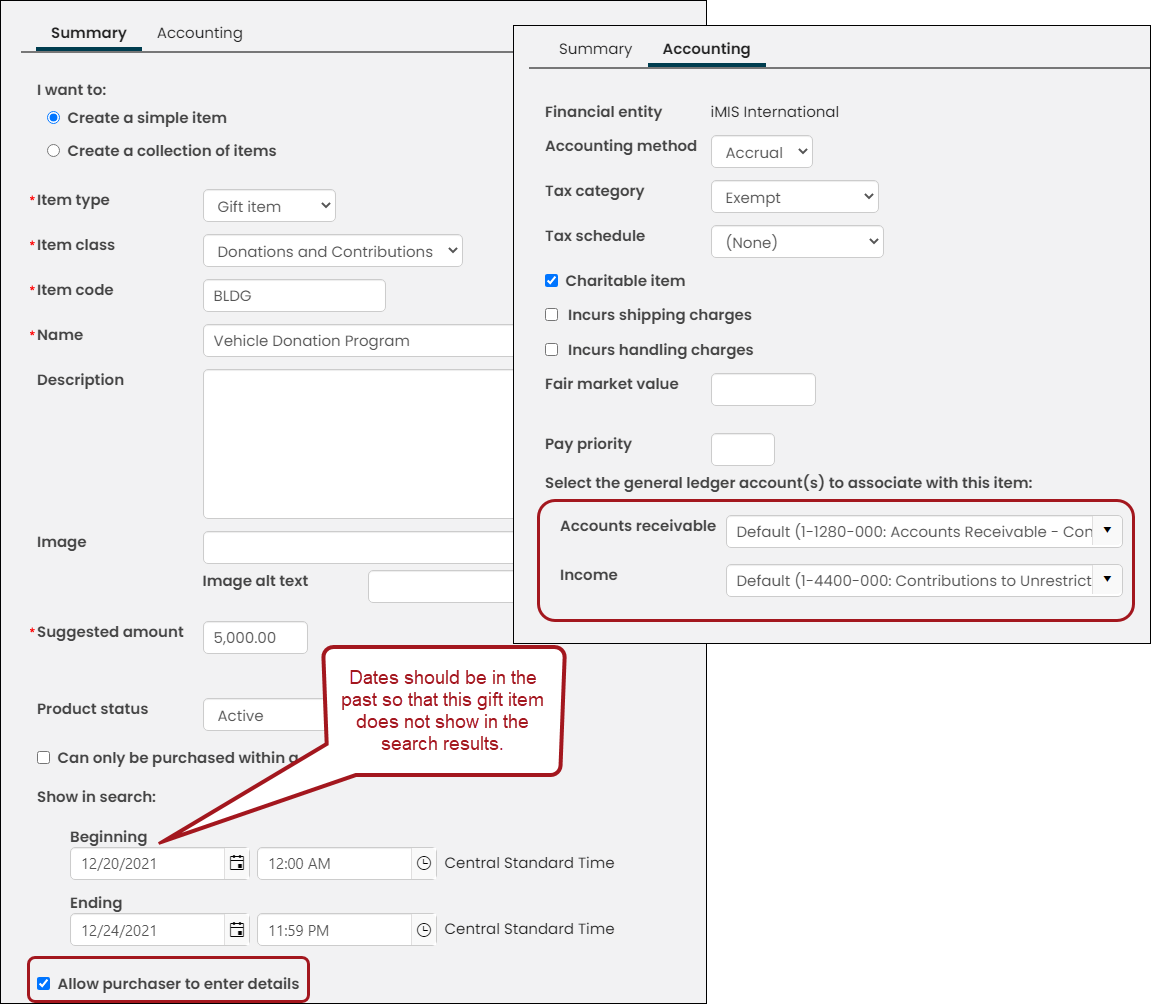
Do the following to create an in-kind gift item:
- From the Staff site, go to Fundraising > Add gift item.
- For the Item type, select Gift item.
- For the Item class, select Donations and Contributions.
- Enter the Item code, then Name the gift item after the type of donation you are expecting. For example, Vehicle Donation Program.
- Enter a Suggested amount. This is the amount that will automatically display when someone is giving to the donation item. Donors can always overwrite the suggested amount.
- In the Show in search fields, enter a Beginning and Ending date that occurs in the past. This is because you will probably only want staff entering these types of gifts, so the gift item needs to be hidden from search results. Staff users can locate this gift item by searching with Include inactive results enabled, or a navigation item can be created that points directly to this gift item that only staff have access to.
- Enable Allow purchaser to enter details.
- Click the Accounting tab.
- Select the Accounts receivable and general ledger Income accounts. These are the contributions accounts to be credited when receiving this type of in-kind donation.
- Click Save.
📘 Note
You can create more than one gift item to use for each of the types of in-kind gifts (for example, vehicles, real estate, securities, clothing, and so forth) you receive from donors if you need to credit different general ledger accounts for each type. If you only use one contributions account, then only one gift item is needed.
Entering an in-kind donation
Do the following to enter an in-kind donation:
- From the Staff site, go to Fundraising > Find gift items.
- Enable Include inactive results, then search for the gift item.
- Begin working on behalf of the desired contact:
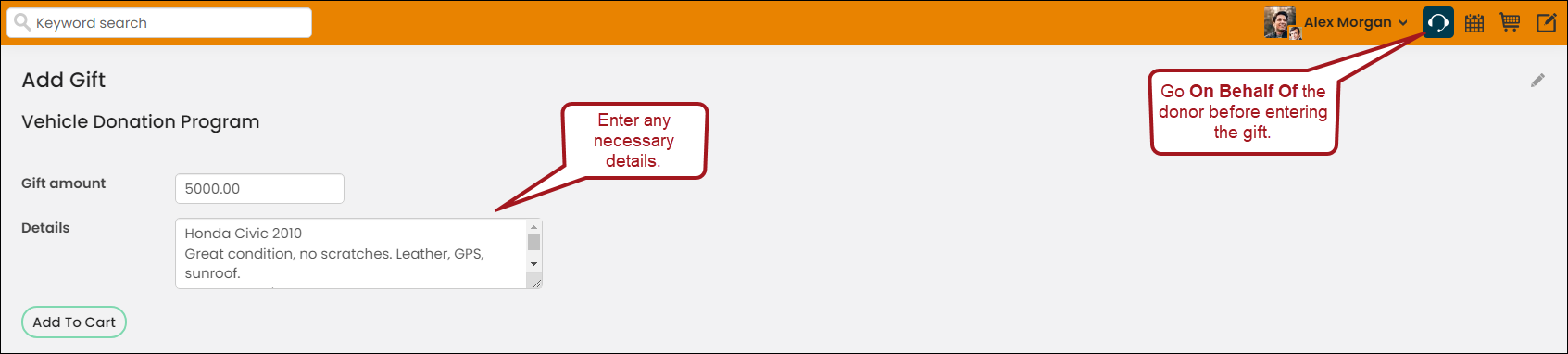
- Select the On behalf of icon.
- Search for and select the desired contact.
- In the Gift amount field, enter a value (for example, the value the charity assigns to the vehicle) for the gift.
- In the Details field, enter a description about the in-kind donation. The description should be in reference to what the donation is. For example, if someone is donating their car, you would enter Honda Civic 2010, and any other required information (VIN, car's condition, Blue Book value, and so forth).
- Click Add to Cart, then navigate to the Cart.
- From the Payment method drop-down, select the In-Kind method you created (Donated Vehicle).
- Click Submit Order.
Navigate to the donor's profile page, then click the Giving tab. The In-Kind donation can be seen in the Giving history panel. To issue the donation receipts, see Issuing and viewing charitable receipts.
Reporting and campaigns for in-kind donations
To report on specific gift items, you can use the following reports:
You are able to connect gift items to campaigns by using source codes in the URL. See Assigning a source code to a hyperlink for more information.
Updated 5 months ago