

Registering for events
For yourself or On behalf of another contact, you can view contacts' events and register them for events. Users are able to register other contacts from the same company.
If a staff user has specified a time range that the event is open for registration, potential event attendees can only register for the event if the current date falls within the date range. Staff users and System administrators can always register themselves and other contacts for the event at any time.
Event registration is only available for events with an Active status. Registrations appear in your cart along with any other items added, such as products and donations.
Do the following to register for an event:
- Go to Events > Find events.
- Search for and open the event.
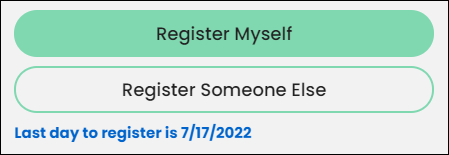
- Click Register Myself. If you would also like to register someone else, or register On behalf of someone, please see Registering Someone Else.
Note
If no registration button appears, then registration is currently disabled because of the registration time range. When a registration period is defined, notification messages display. The messages inform the user when a registration period begins or ends. The time noted in these messages is populated by the system Time zone setting.
- Answer any questions that appear below your registration status and click Save Responses.
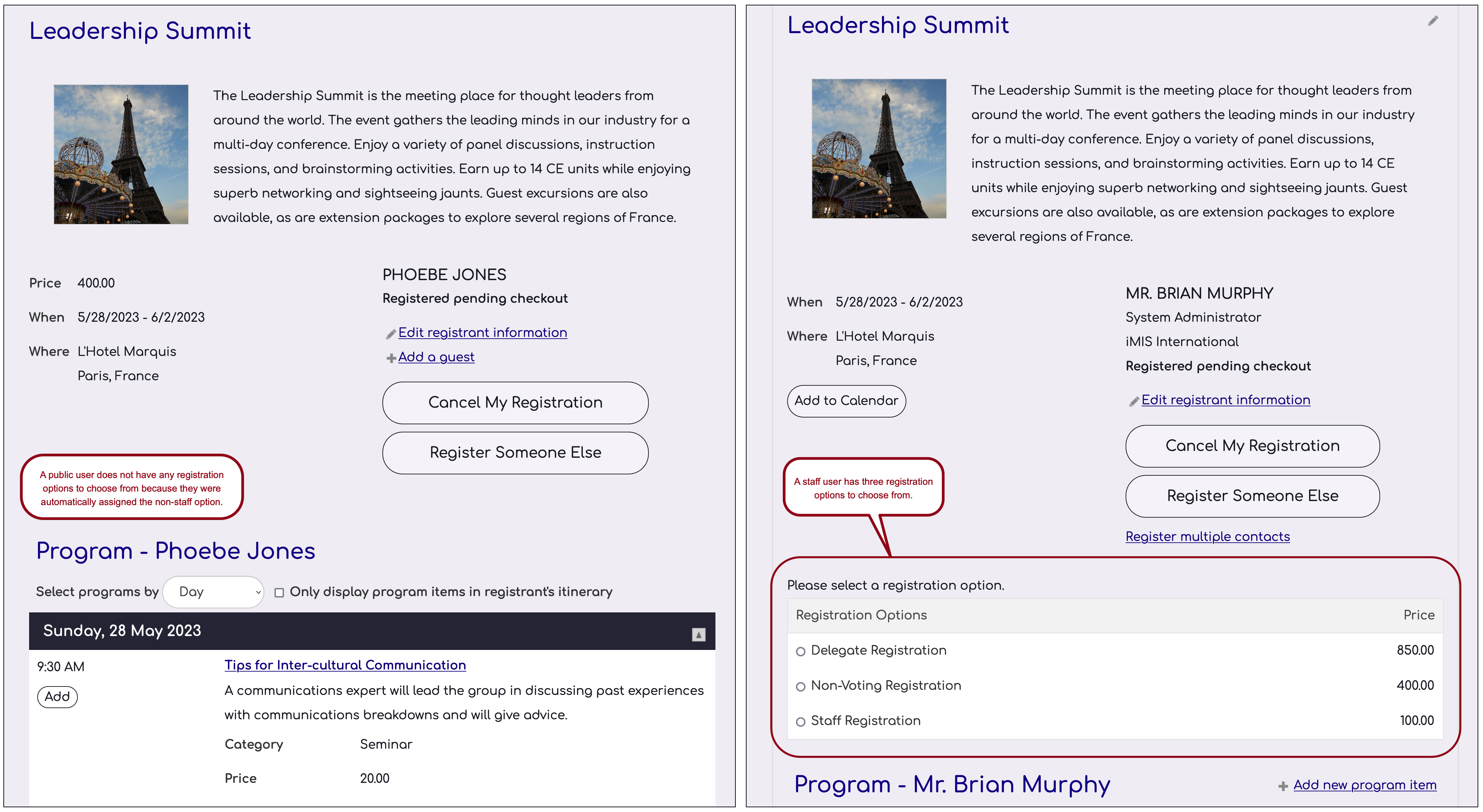
- If the event offers more than one registration option, select one. If the event is configured to offer more than on registration option but you are not seeing any to choose from, this means you or the person registering are only eligible for one of the registration options, and that option is automatically selected.
Example
The Leadership Summit offers three registration options, but two are configured for staff only. A public user clicks Register Myself and they do not have any registration options to choose from, because by default they are assigned the non-staff only registration option.
📘 NoteIf items in the itinerary are no longer available based on the selected registration option, they are removed from the itinerary. A message is displayed indicating which items have been removed. Hidden program items are not included in the displayed message.
📘 NoteIf a registration is removed from the cart, the selected program items are still in the itinerary. They can be removed on the event page.
- Select the program items the registrant will attend.
Click for details
📘 Note
When registering for recurring program items, if the program item allows registration or charges a fee, the registration or fee applies to the parent program as a whole, not to individual sessions. A registrant can add a recurring program item to their itinerary to register for all of the sessions.- Click on the program item group headings to expand and collapse the group sections.
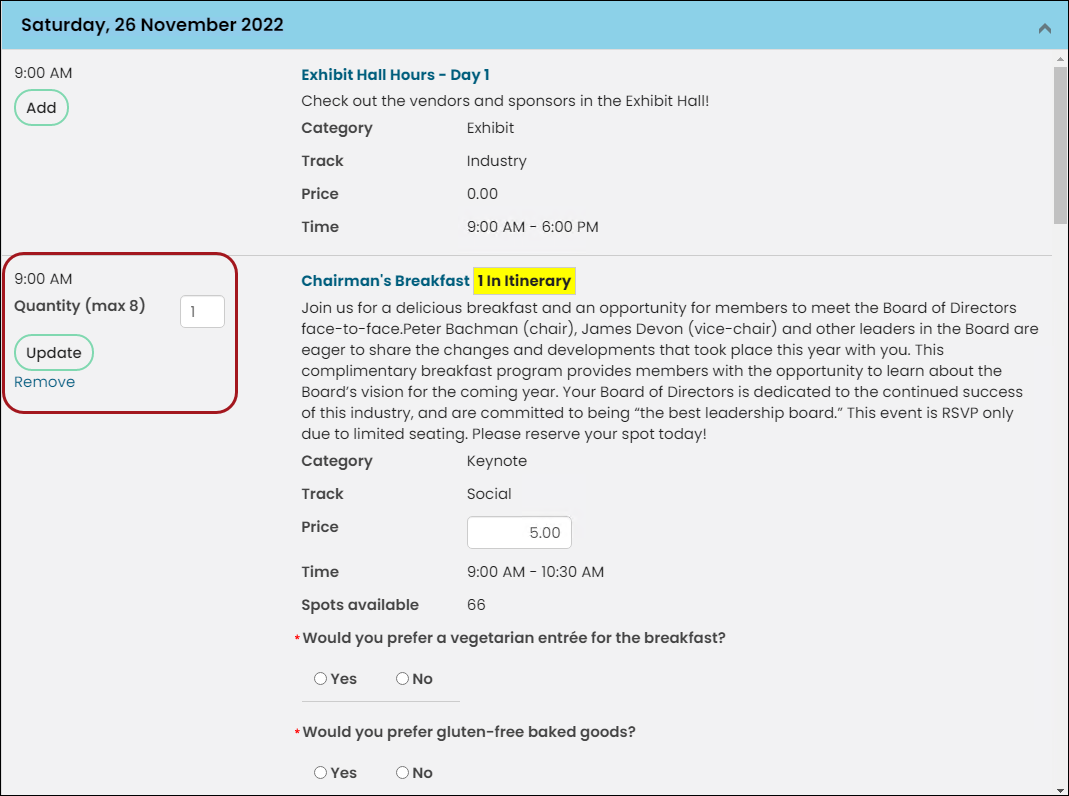
- (optional) If the Maximum Registrations per Registrant attribute for this event was set to greater than 1, you can add a number of guests to your registration. For example, if the attribute was set to 4, you can specify up to a maximum of four (yourself and three guests) in the Quantity field on the program item. If you specify a number greater than the maximum value for this attribute, you will see an error message, and the quantity will not update.
- Click Add. For each program item added, the text In Itinerary appears next to the program item name.
- If the added program item has questions, complete the question form and click Save Responses.
📘 Note
Functions set up for automatic enrollment do not have an Add link.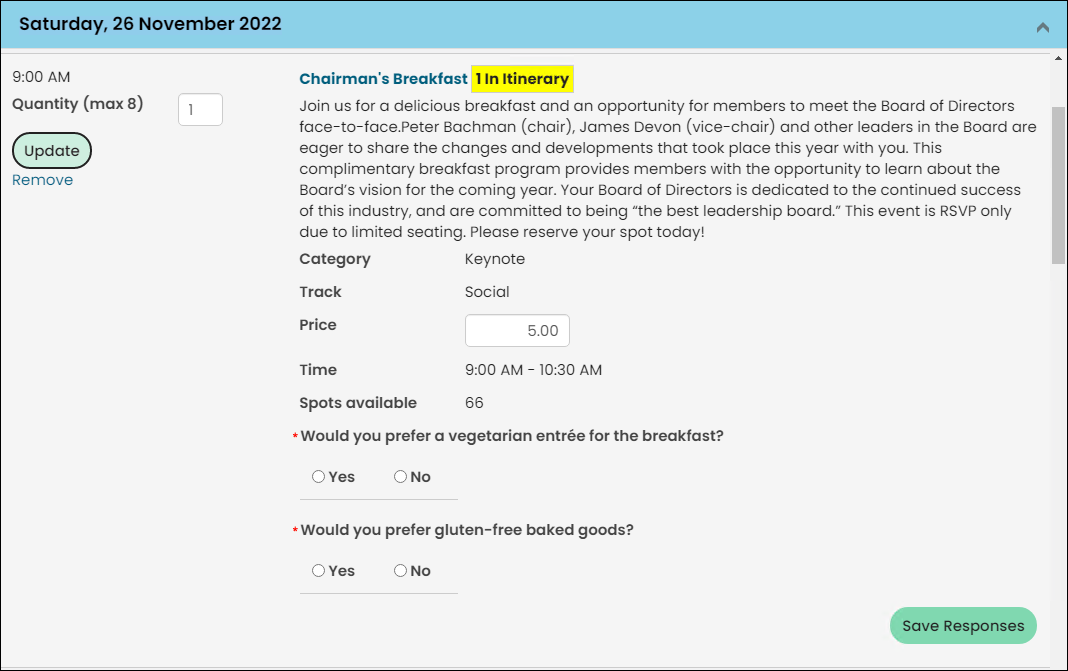
- The Cart will contain your registration checkout details.
Click for details
iMIS guides you through the payment process.
Fee-required events appear in the shopping cart. Registrants can continue shopping or proceed to checkout. The pending registration is noted in the cart counter at the top of the page, and it shows up in the cart along with any other items selected for purchase.
- If you have registered for an event that contains required questions, a reminder message displays in the shopping cart alerting you to return to the event and answer any missed required questions.
- If a contact adds an event to the cart on a date outside the registration period, a message notifies them that registration for the event is unavailable and to remove the event from the cart.
📘 Note
Any modification to responses to event-level and function-level questions will not be retained until the cart is submitted.
For example, register for RegOption1 and provide responses to related questions. If we change the registration to RegOption2 and provide responses to related questions for RegOption2 then all responses related to RegOption1 are deleted as the cart is not yet submitted.
Submit the cart for RegOption2 and then view the registration. We can edit and change the responses to related questions from RegOption2 to RegOption1. We can provide responses to related questions for RegOption1 but the answers for RegOption2 will remain in the database until the cart is submitted again.Links in the cart let users:
- Cancel the pending registration by removing it.
- Click back to the event showcase (the page with both event details and the program items).
- After checking out from the Cart, an Order Confirmation page is displayed. The Order Confirmation page reflects all registration details, including additional registrants and program item details.
📘 Note
Fee Required program items are displayed on event order confirmations. Registration required functions are not displayed on event order confirmations.📘 Note
When you have submitted the order, iMIS sends an email confirmation. This online confirmation serves only as an acknowledgment of registration from the web. - After you have completed a registration for yourself or someone else, you can return to the event and view registration details.
Updated 5 months ago