

Recurring donor is being charged every day (repeated AutoPay payments)
If a donor's card is being charged every day, it may be because they are "past-due" on their recurring donations, and iMIS is attempting to "catch them up." iMIS will process payments for anyone who is past-due at the time the recurring donation Process Automation tasks are run, so that the donor is "caught up" from their past-due payments.
An invoice is generated for a recurring donor if their term End date (specified in the Recurring Donors Group) is at least one day before the Run date.
Understanding why this happens
This may start to happen if one or both of the following are true:
-
A donor's credit card was expired or no longer valid for several months, and they recently updated their recurring payment method to use a new/valid credit card.
-
Staff previously processed AutoPay transactions manually, but now they are using the process automation scheduled tasks to completely automate the recurring donation process.
ExampleDonors enrolled with monthly recurring donations in January of 2021. The Process Automation tasks were accidentally not enabled (and no manual processes were performed either) until June 2021. The donors are charged five days in a row, because iMIS is catching them up to be current with their monthly donations. To prevent this from happening, update the donor’s collection date.
These donors are charged each time the tasks are run until their current term end date in the Recurring Donors Group is later than today’s date.
Updating the collection date for a recurring donor
Do the following to edit a donor’s collection date:
- Go to Community > Find groups.
- In the Name contains field, enter donor.
- From the System group drop-down, choose Yes.
- Click Find.
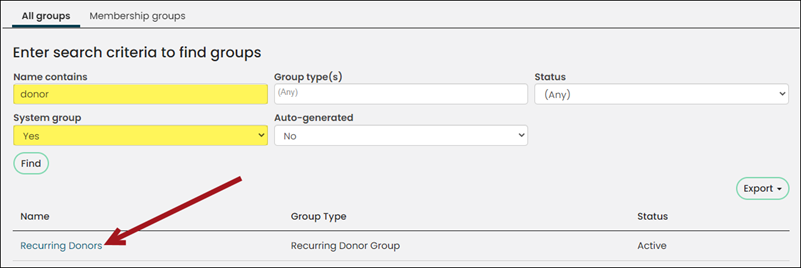
- Select the group Name.
- Find the donor in the list of contacts, then select the role next to their name (Recurring Donor or Inactive).
- From the most recent (top) row, click the edit icon.
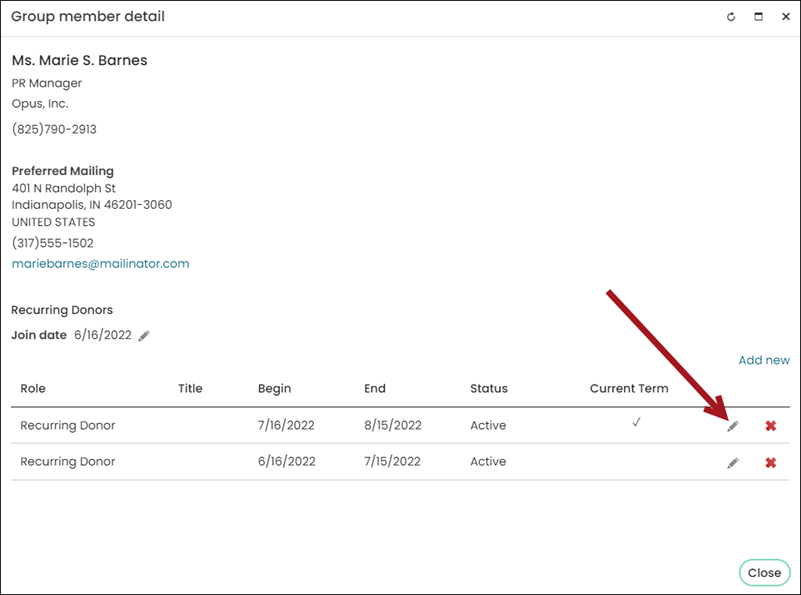
- Update the End date to be one day before you want them to be invoiced next.
- Click Save & Close.
Updated 5 months ago