

Understanding provided reports
Each out-of-the-box report located under the Reports navigation item is either an IQA-SSRS report, or a standalone SSRS report. The standalone SSRS reports have the .rdl extension. Any report without the .rdl extension is an IQA-SSRS report.
IQA-SSRS report example
- From the Staff site, go to Reports > Contact reports.
- There are both types of reports in this folder. The reports with the .rdl extension are standalone SSRS reports, and the others are IQA-SSRS reports.
- Select the 2 UP Labels report and click Edit.
- Click the Sources tab.
- From here you can specify the template and the query you want to point the report to. This report is a runtime object that takes two parameters:
- The RDL (template) from the SSRS
- The SQL (query/data) from the IQA
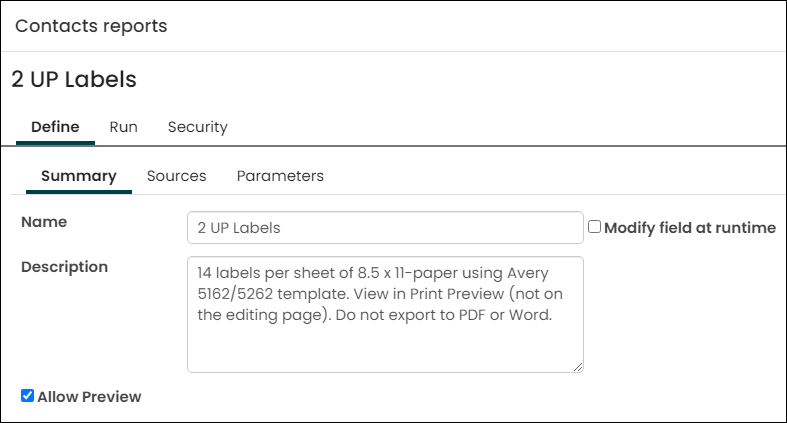
- From here you can specify the template and the query you want to point the report to. This report is a runtime object that takes two parameters:
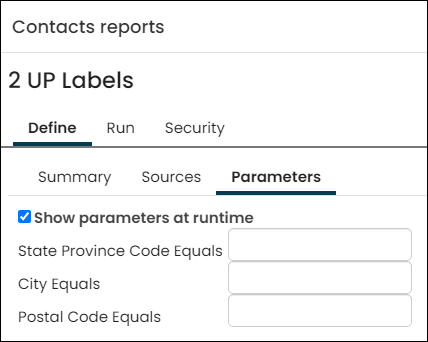
- Select Parameters. From here you can choose specific data, or information, to be pulled from the IQA. Parameters in this type of report are not required. If there are no parameters entered, all of the data from the IQA will appear in the report.
- If you are certain you do not want to specify parameters, click Run.
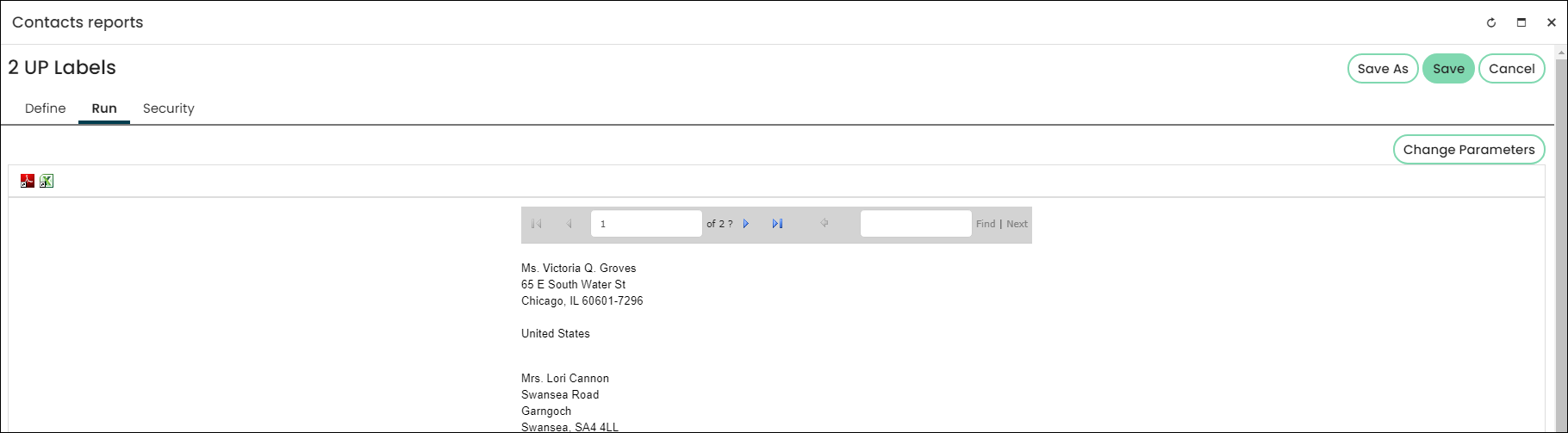
- The out-of-the-box 2 UP Labels report will display.
Standalone SSRS report example
- From the Staff site, go to Reports > Contact reports.
- There are both types of reports in this folder. The reports with the .rdl extension are standalone SSRS reports, and the others are IQA-SSRS reports.
- Select the 2 Up Labels.rdl report and click Edit. You will notice this window is much different than the 2 UP Label editing window.
- Another difference are the Access Settings. The Access Settings let you tie the report's permissions to security roles, security groups, specific users, or your organization or company's staff. Select the down arrow:
- Select Use a preconfigured security set to select preconfigured access rights, for example, select Everyone Full Control to grant full control to all users.
- Select Make this available to to customize the access rights:
- Select a Name in Specific Roles to customize permissions
- Select or add a Group in Specific Groups to customize permissions
- Select Add user in Specific Users to add a specific user and define permissions for that user
- Standalone SSRS reports can not be ran from this window like the IQA-SSRS reports can. To run this report, Save & Close any changes, then click Run.
- Unlike the IQA-SSRS reports, in order for this report to run, you must enter all requested parameters.
- Once you have the parameters defined, click Refresh.
Since standalone SSRS reports are not bound to a query, the data is defined outside of iMIS. If you modify or update the report, you can upload the new version into iMIS by clicking Choose File.
Updated 5 months ago
Did this page help you?