

Defining promotion codes
Promotion codes, or coupons, can be applied to the entire order, specific items, or specific item categories. Review the following important information before you begin creating promotion codes:
- Promotional discounts can be applied to membership fees if the discount applies to the entire order.
- Only one promotion code can be applied per cart checkout.
- Promotion codes cannot be applied to existing invoices, including those created using Pay Later.
- Promotional codes can be applied to charitable events and products but cannot be applied to donations (where donor selects or enters an amount).
You must be a staff user to create a promotion.
Do the following to create and manage promotion codes:
-
Go to Commerce > Promotions.
-
Click the Add a new promotion icon (
 ).
). -
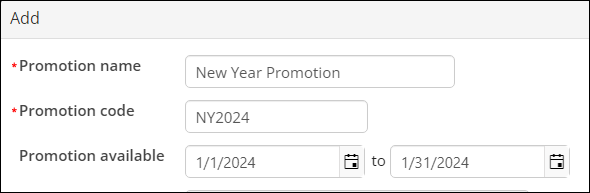
Enter a Promotion name. This name is for internal use and should use a naming convention that takes advantage of sorting group discounts together. This allows for simple promotion management.
-
Enter a Promotion code. This is the code that will be shared externally with your customers to provide the discount.
-
Enter availability dates in the Promotion available fields, unless you want your code to never expire
- For What kind of promotion is this?, decide whether the code will apply to the entire cart or to specific items or kinds of items that might be in the cart. Discounts can only apply to sales products, event registration options, and event program items.
-
Discount applies to entire order: Currently, this percentage discounting applies to every order line in the cart to which discounts apply.
-
Discount applies to specific item(s): The discount will only apply to the specific items you select. Click the Add item icon (
) to select an item and define a new item discount, either percentage or fixed amount.- Select the Item category from the drop-down, then choose the individual items to which you want the discount to apply.
- For event discounts, choose the Events and Conferences category and select each individual registration option and program item to which the discount should apply.
-
Discount applies to specific item categories: The discount will apply to the entire category. Click the Add item icon (
) to select an existing category and define a new category discount, either percentage or fixed amount.NoteWhen applying the promotion Discount applies to specific item categories to a product collection (for example, a kit or Pick One), the promotion is calculated by looking at the Item Class for each individual component in the product collection. For example, if you have a kit that contains one item in the category General Merchandise and another item in the category Publications, then regardless of the category assigned to the kit product collection, the promotions are applied based on those individual categories.
-
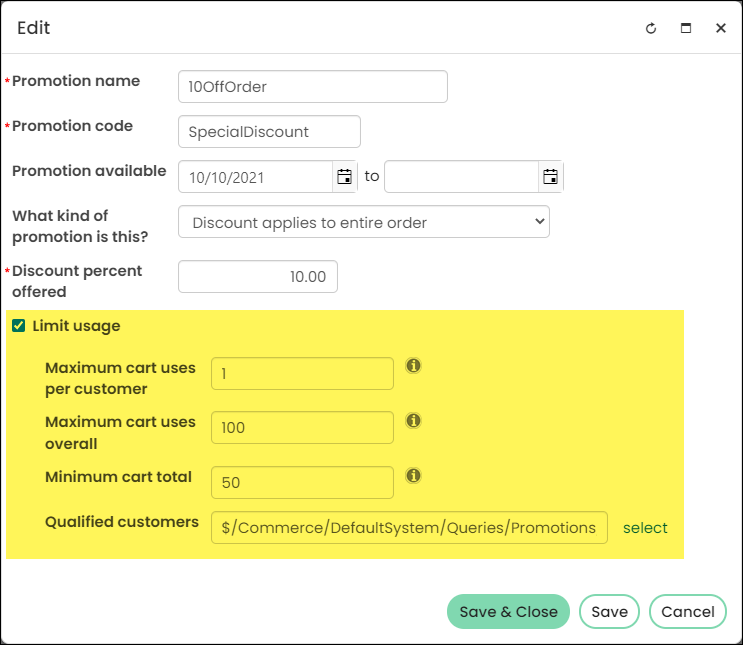
Limit usage: Enable this option to restrict usage of promotion codes to the following parameters:
-
Maximum cart uses per customer: Enter a value to limit the number of times a customer can use the promotion during check out, not the quantity the code may be applied against. Also assign a maximum number of times that a given customer may apply this promotion in the cart.
NoteEach cart with a promotion applied may contain multiple line items, which counts as only one usage.
-
Maximum cart uses overall: Define a value to limit the number of times the promotion can be used by anyone. For example, a value of 20 means the promotion has a lifespan of 20 uses. This applies to the number of times a customer may check out using a promotion code, not the quantity the code may be applied against. Also assign a maximum number of times that this promotion may be applied in the cart across all customers.
NoteEach cart with a promotion applied may contain multiple line items, which counts as only one usage.
-
Minimum cart total: The number defined is the amount, equal or greater, that must be added to the cart before the promotion can be used.
TipAssign a minimum line item total that must be included in the current cart (excluding discounts and additional charges) in order to apply the promotion.
- Qualified customers: The Qualified customers query must be configured with the following filter and display properties:
- Filter tab:
- Add only one ID property with a Prompt set to Required.
- No optional filters.
- Additional filters are allowed, as long as the Prompt is set to No.
- Display tab:
-
An ID property with an Alias of ID.
-
- Filter tab:
-
Updated 5 months ago