

Entering and reviewing order notes
Products can be configured to allow the purchaser to enter notes or details related to a purchase.
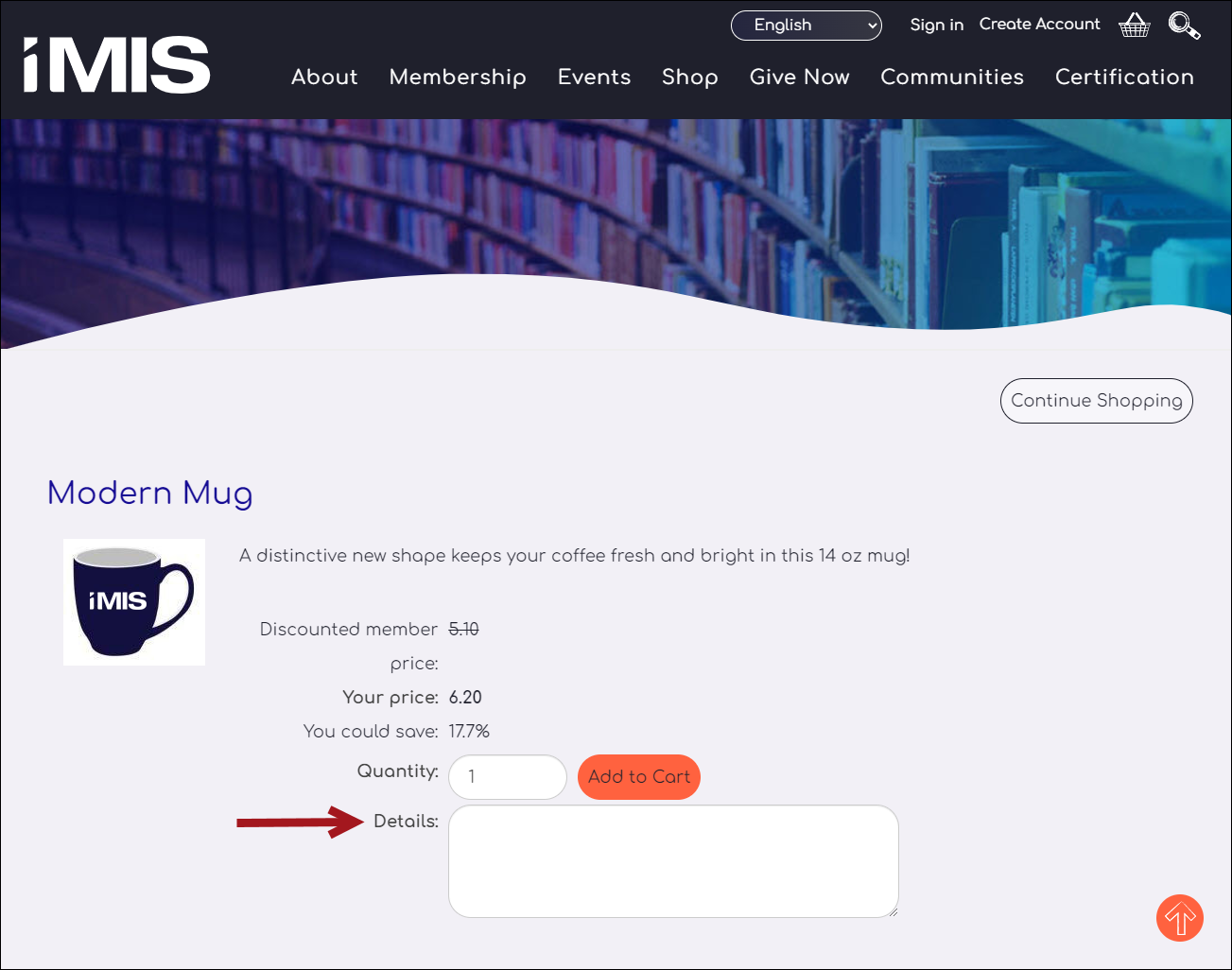
Allowing purchasers to enter notes
To allow purchasers to enter order notes, do the following:
- Go to Commerce > Find products.
- Select the product and open it for edit.
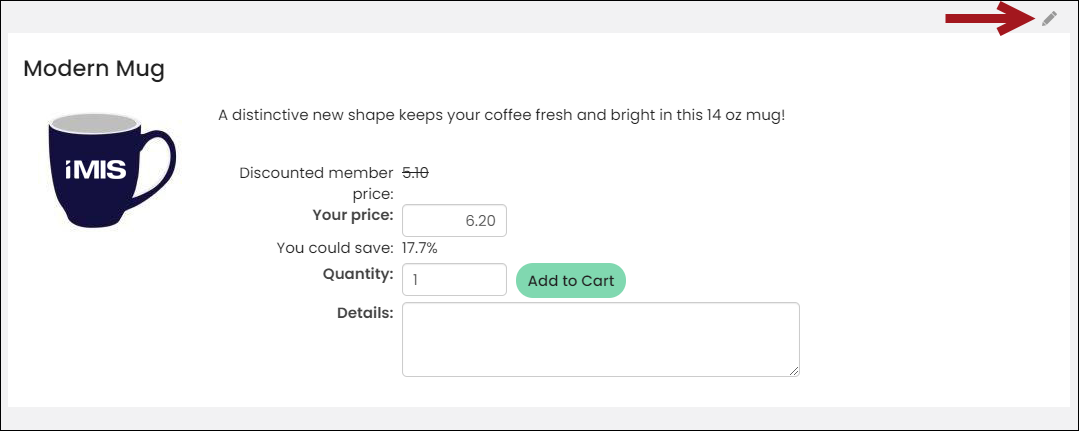
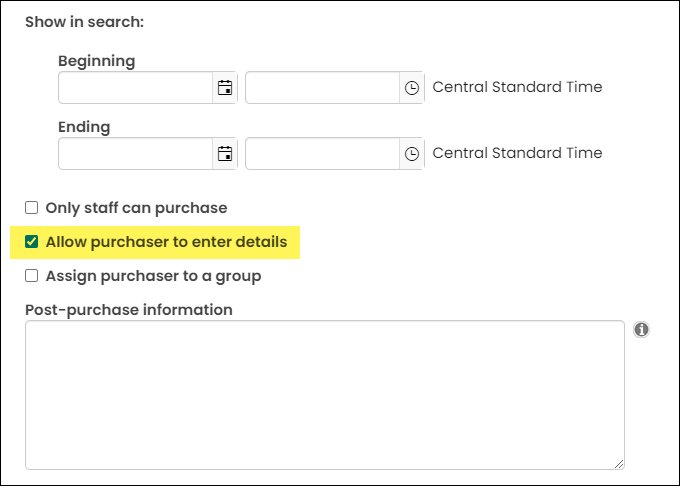
- Enable Allow purchaser to enter details.
- Click Save & Close.
Adding notes to the orders panel
To review notes related to an order, you must use the OrderLine.Note business object. This example goes over how to display order notes in the Orders panel.
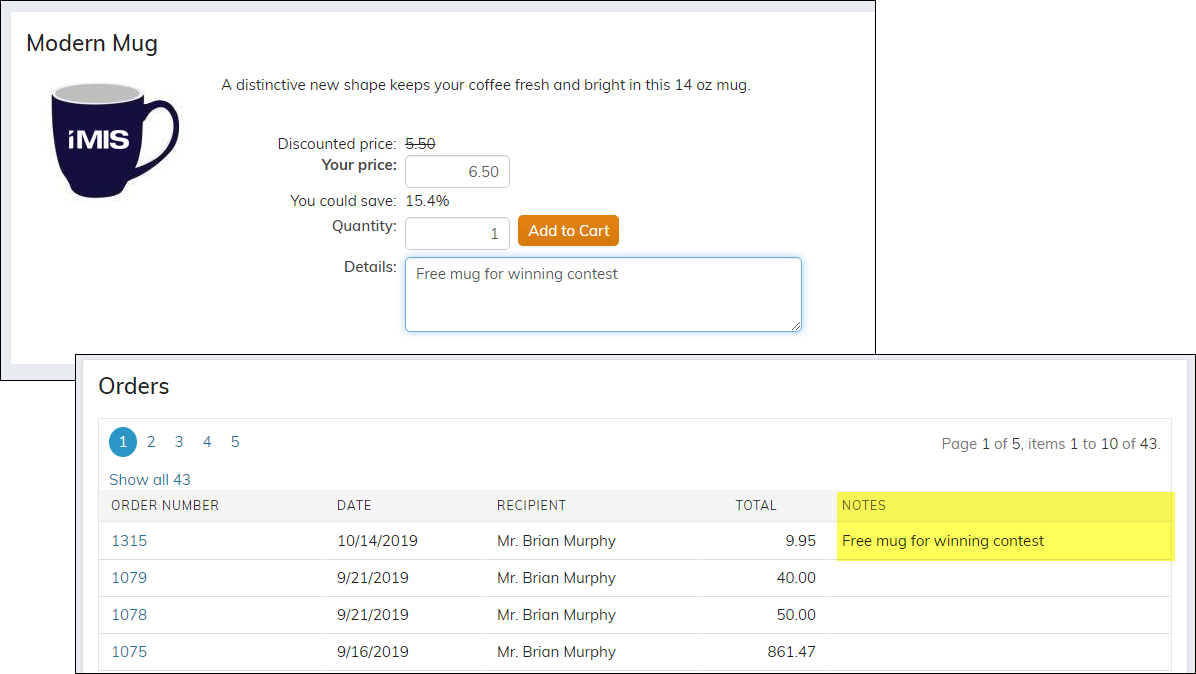
To configure the Orders panel to display order notes, do the following:
-
Go to RiSE > Intelligent Query Architect.
-
Navigate through the following folder path: $Common/Participation
-
Select the Orders query, then select Organize > Copy.
-
Paste (Organize > Paste) the query in one of your organization's query folders.
-
Open the copied query for edit:
-
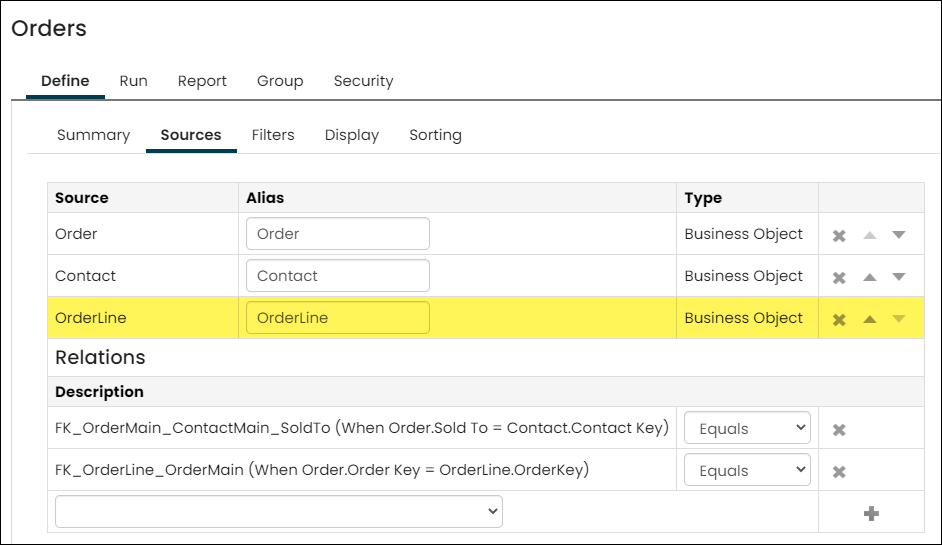
(Sources tab) Select All sources, then add the OrderLine source to the query.
-
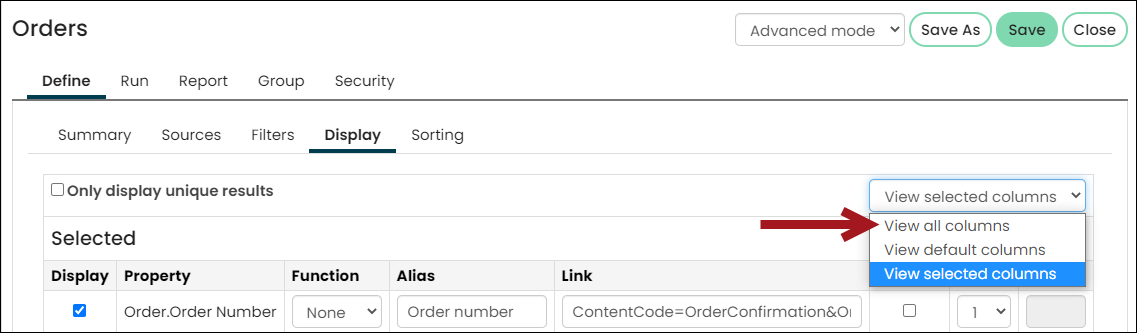
Click the Display tab.
-
From the drop-down, choose View all columns.
-
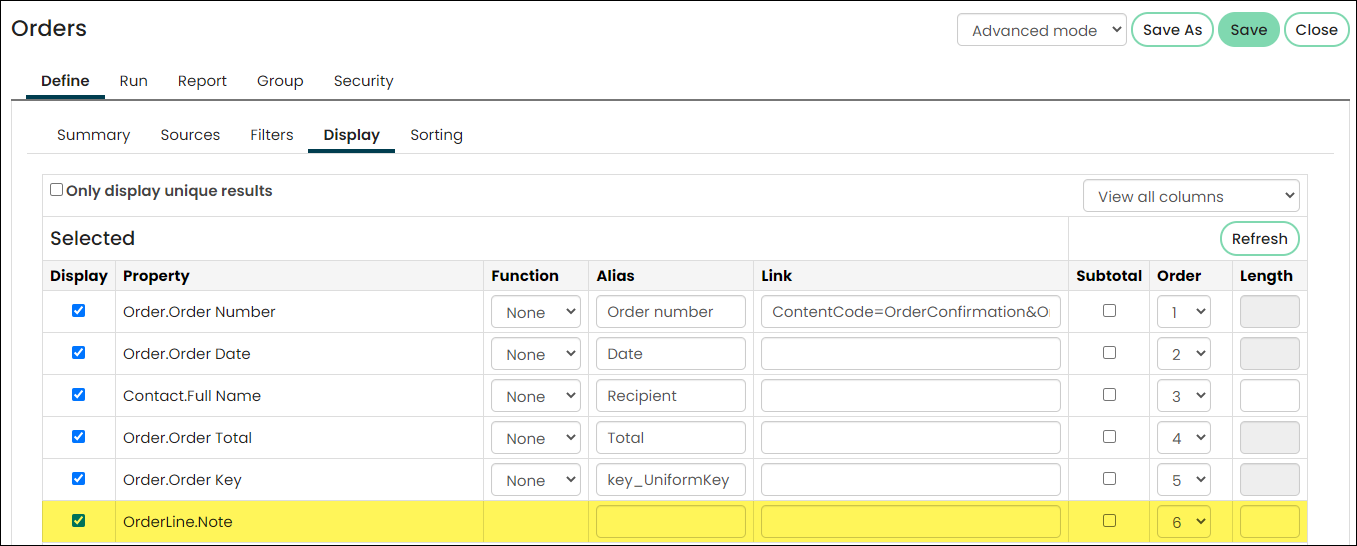
Select the OrderLine.Note property.
-
Save the query.
-
-
Navigate to an account page and open the Orders panel for edit:
NoteIf you are not already working with a copy of the standard account pages, you must save a copy before you can save and publish a change. See Understanding and modifying account pages for details.
-
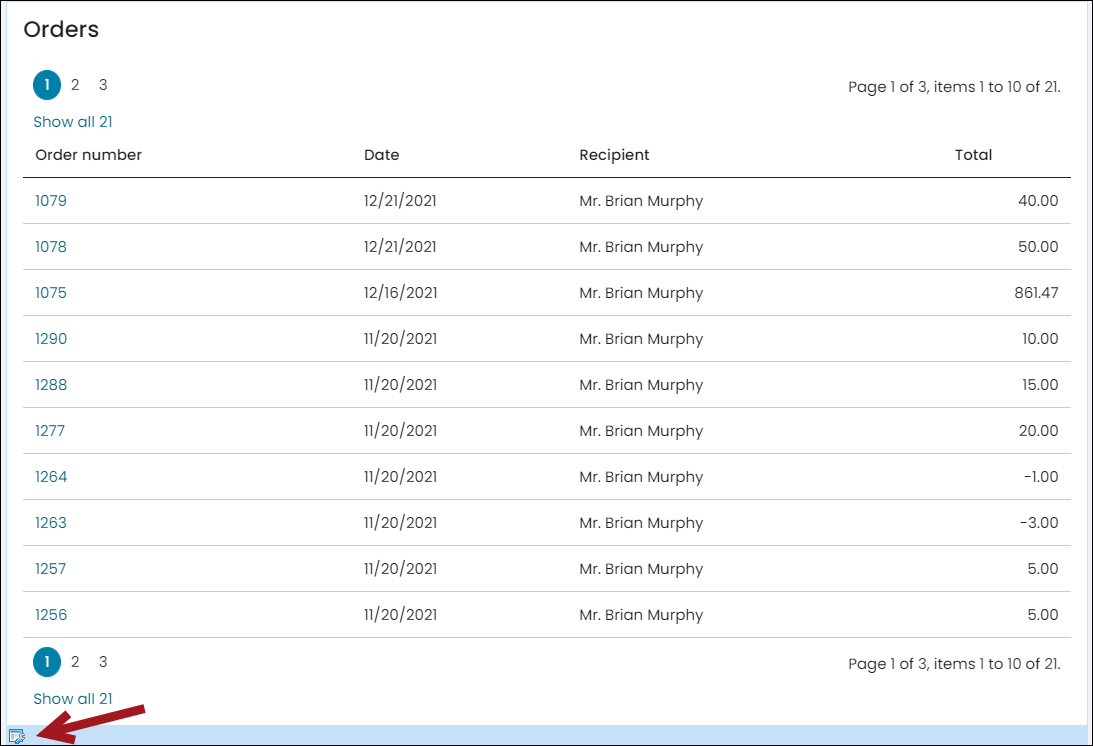
Select the edit icon for the Orders panel.
-
From the Source query or folder field, select the query you modified in step 5.
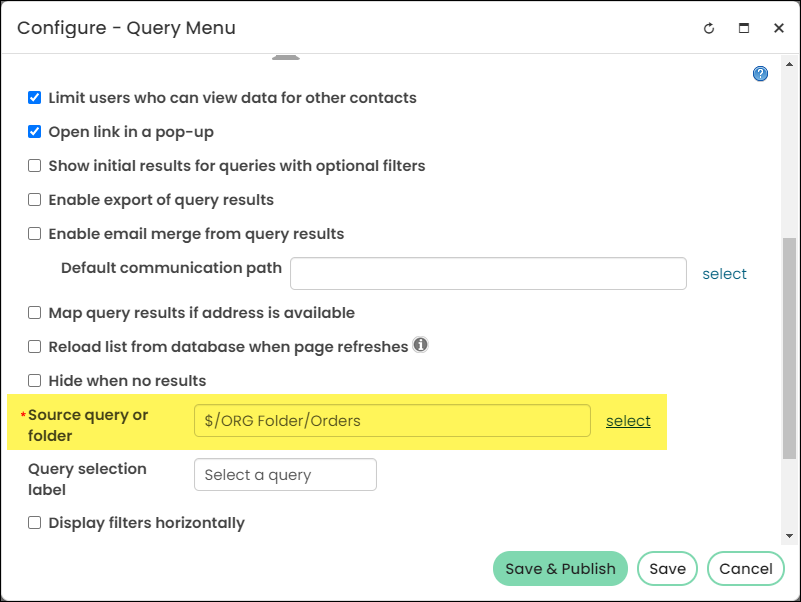
-
Click Save & Publish.
-
If an order contains any notes, the notes will appear in the newly added Note column in the Orders panel.
Updated 5 months ago