

Club reports and business objects
NoteYou must be licensed for Clubs to use a club-related functionality. Contact ASI for more information.
There are several out-of-the-box reports and business objects available that will help you retrieve and review data related to your Clubs.
Reports
To review the following reports, go to Reports > Report Writer, and open the Clubs folder:
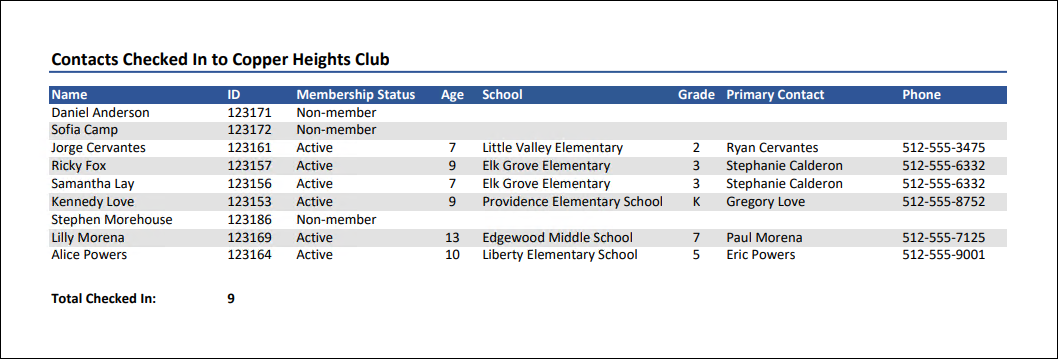
Checked In Contacts
Displays a list of all contacts currently checked into the selected club, with their iMIS ID, membership status, age, school, grade, primary contact, and phone number. At the bottom is the total number of checked in contacts.
Club Demographic Counts (Single Club)
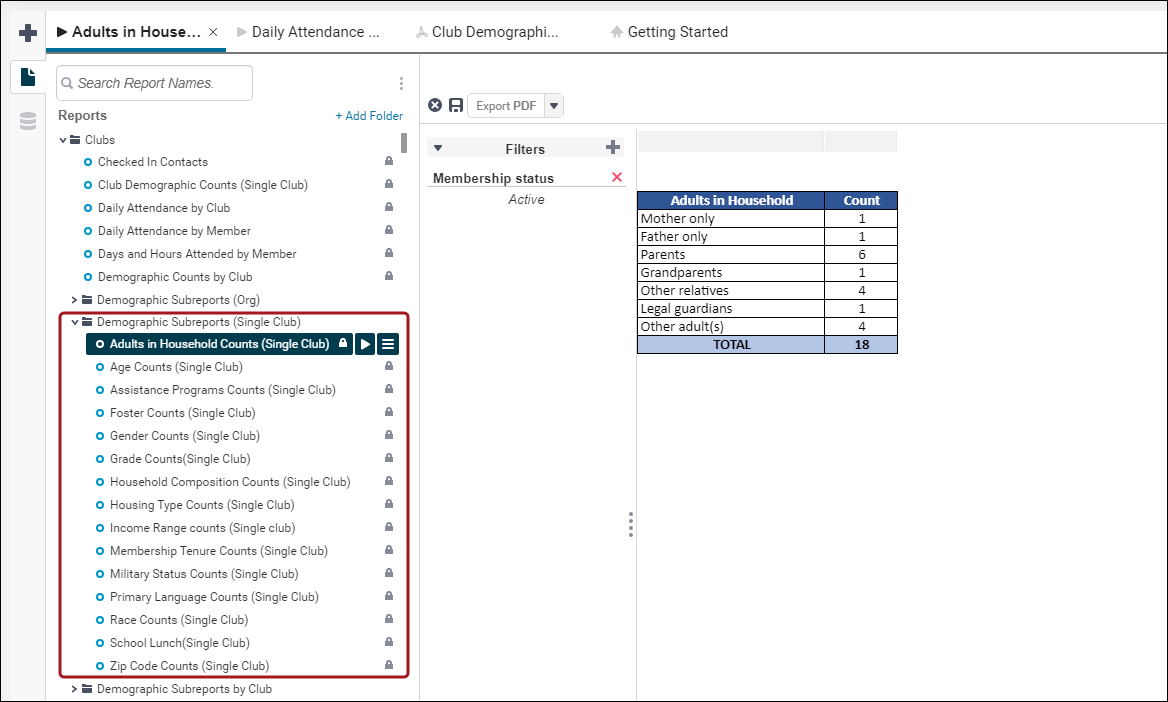
The overall demographic details for a single club, such as age, race, gender, zip code, membership tenure, grade, school, and more. Data is displayed on individual tables and is pulled from the reports in the Demographic Subreports (Single Club) folder.
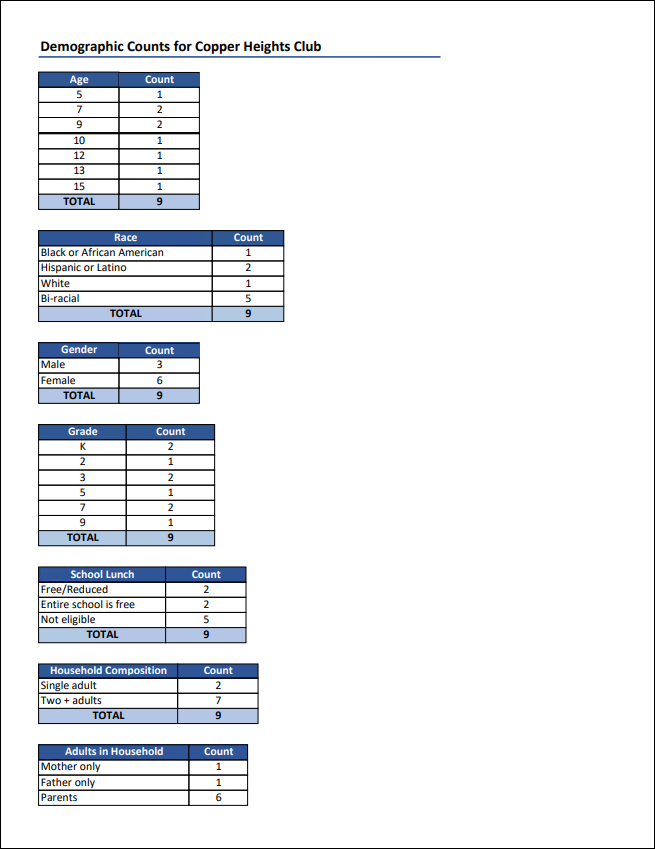
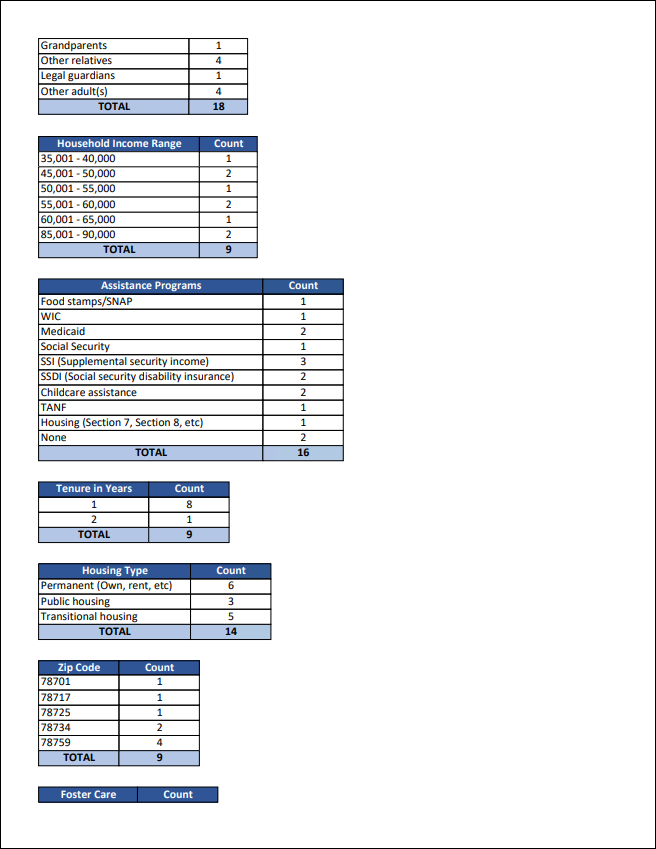
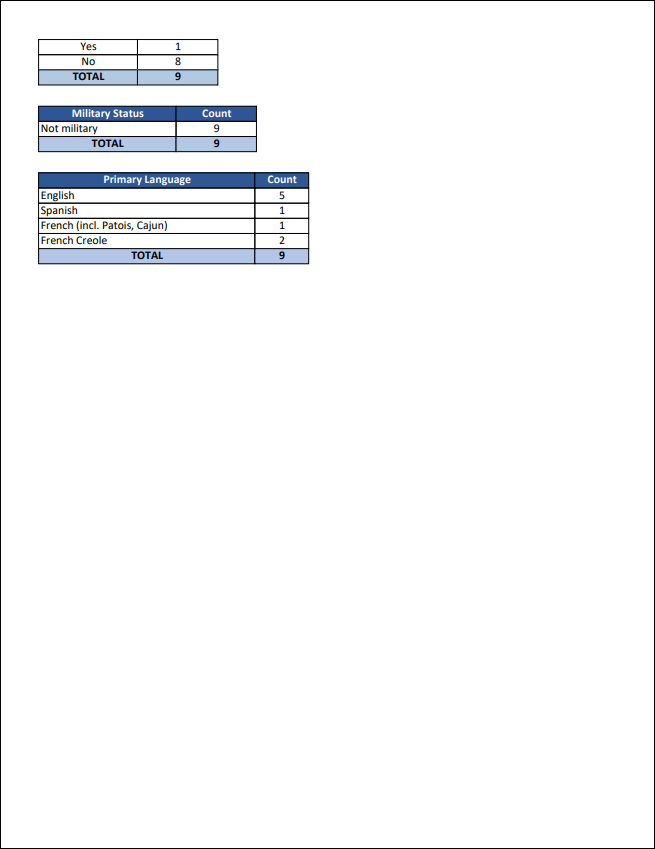
If you want to review a specific demographic in its own report, open the Demographic Subreports (Single Club) folder and run the specific report.
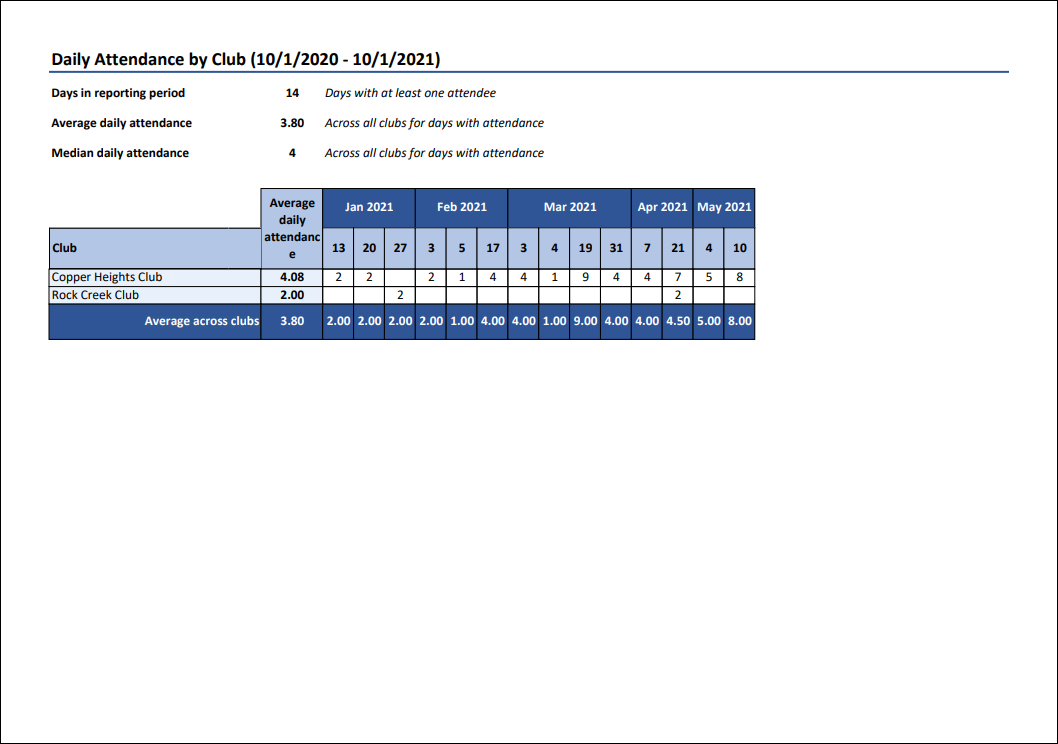
Daily Attendance by Club
Daily attendance by club for each day in the specified date range, with summary averages per day, as well as overall median attendance. Report results can be filtered by date, day of week, and club.
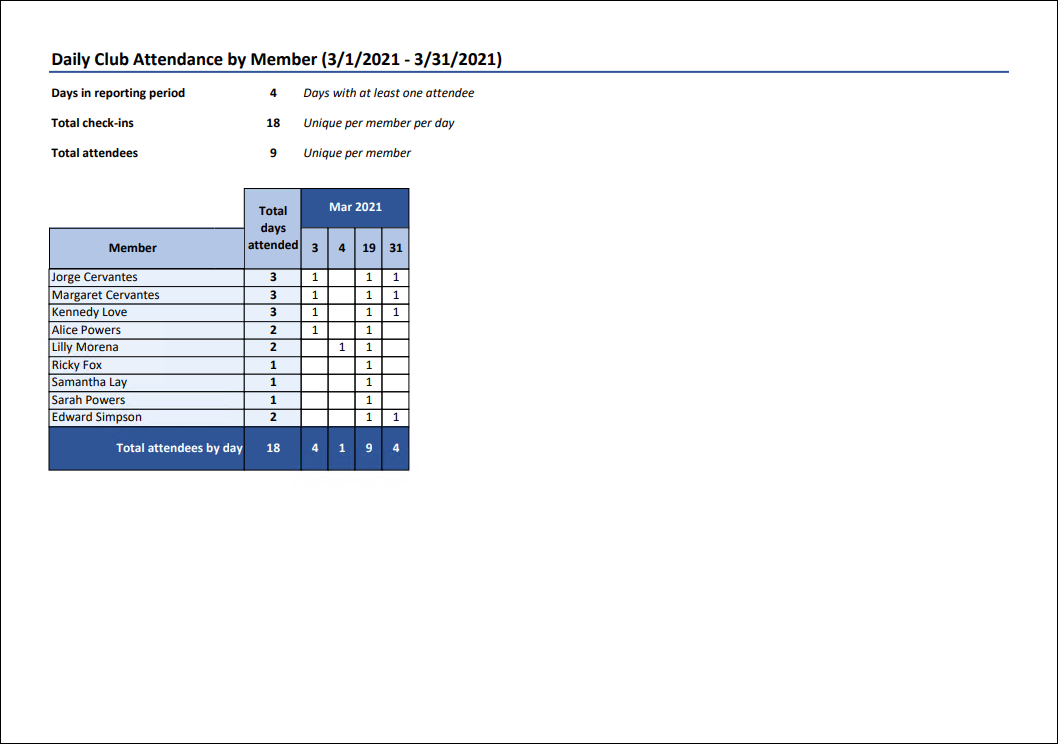
Daily Attendance by Member
Daily club attendance by member for each day in the specified date range, with summary total for total unique check-ins per day and total unique attendees. Report results can be filtered by date, day of week, and membership status. It is recommended to limit results to 40 days of attendance.
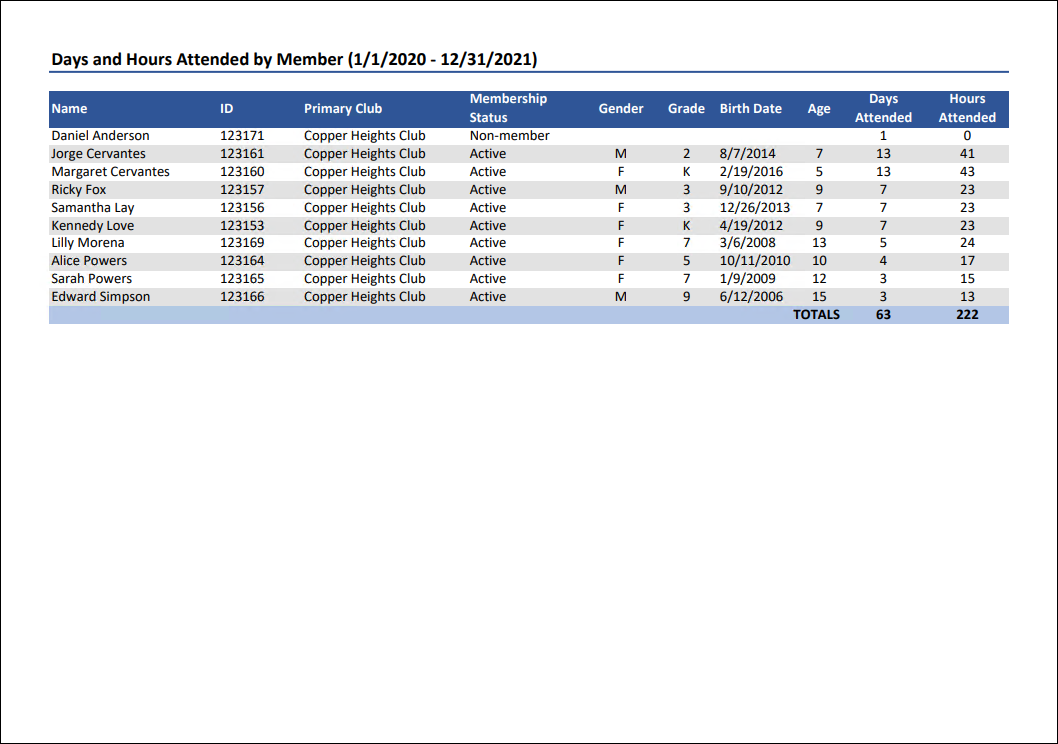
Days and Hours Attended by Member
Displays the number of days and number of hours that each member attended during the specified date range, with columns for the member's primary club, membership status, grade, gender, birth date and age. The number of hours attended is rounded from the number of minutes attended.
Only days which include a check-out are counted as a day attended, and only days with both a check-in and check-out will have the duration of hours attended included.
Demographic Counts by Club
Demographic details with counts for each club, such as age, race, gender, zip code, membership tenure, grade, school, and more.
The report is exported into an Excel spreadsheet by default but can be exported into other file formats. When exported to Excel, data is displayed on individual tabs in the spreadsheet and is pulled from the reports in the Demographic Subreports by Club folder.
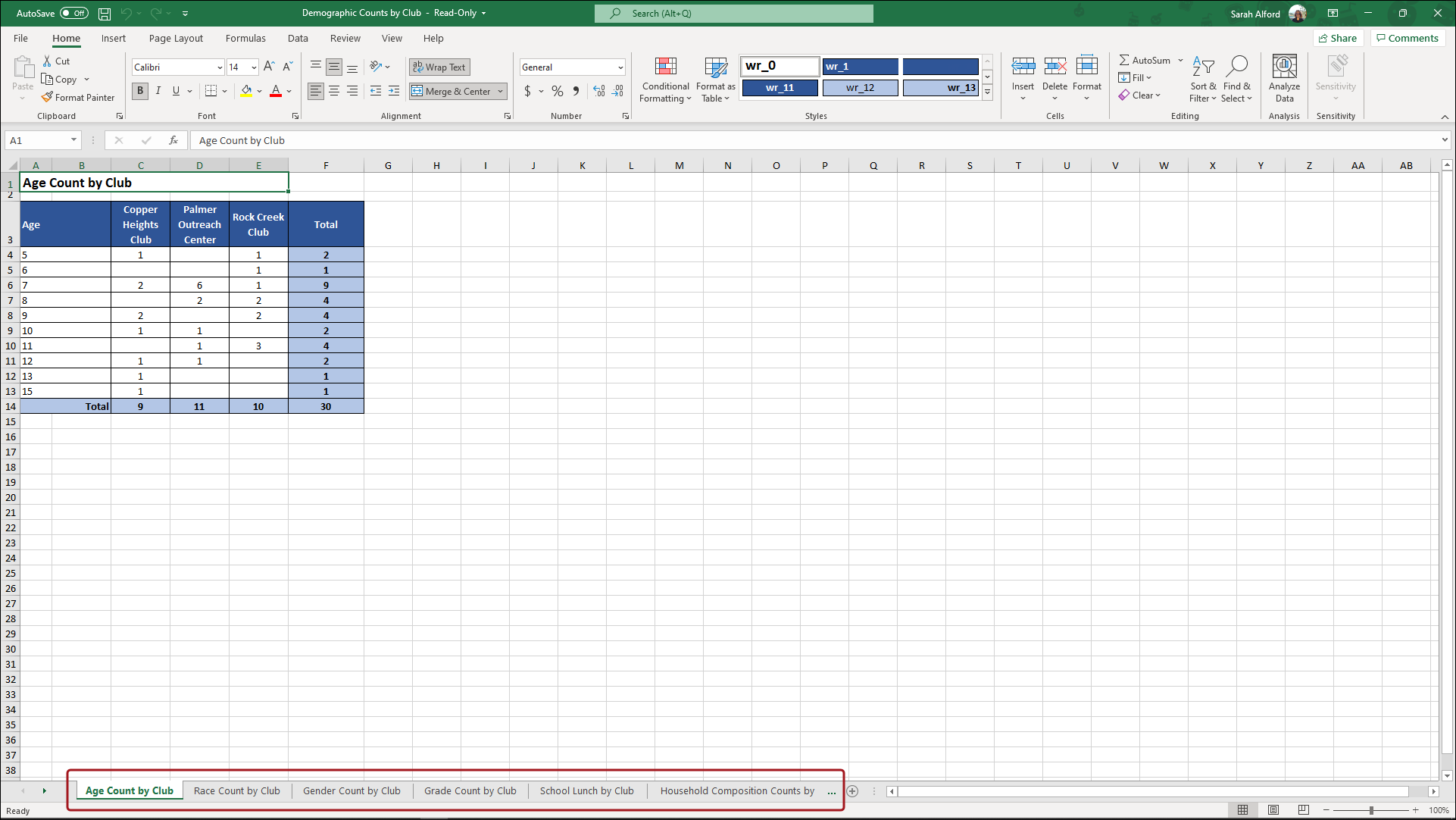
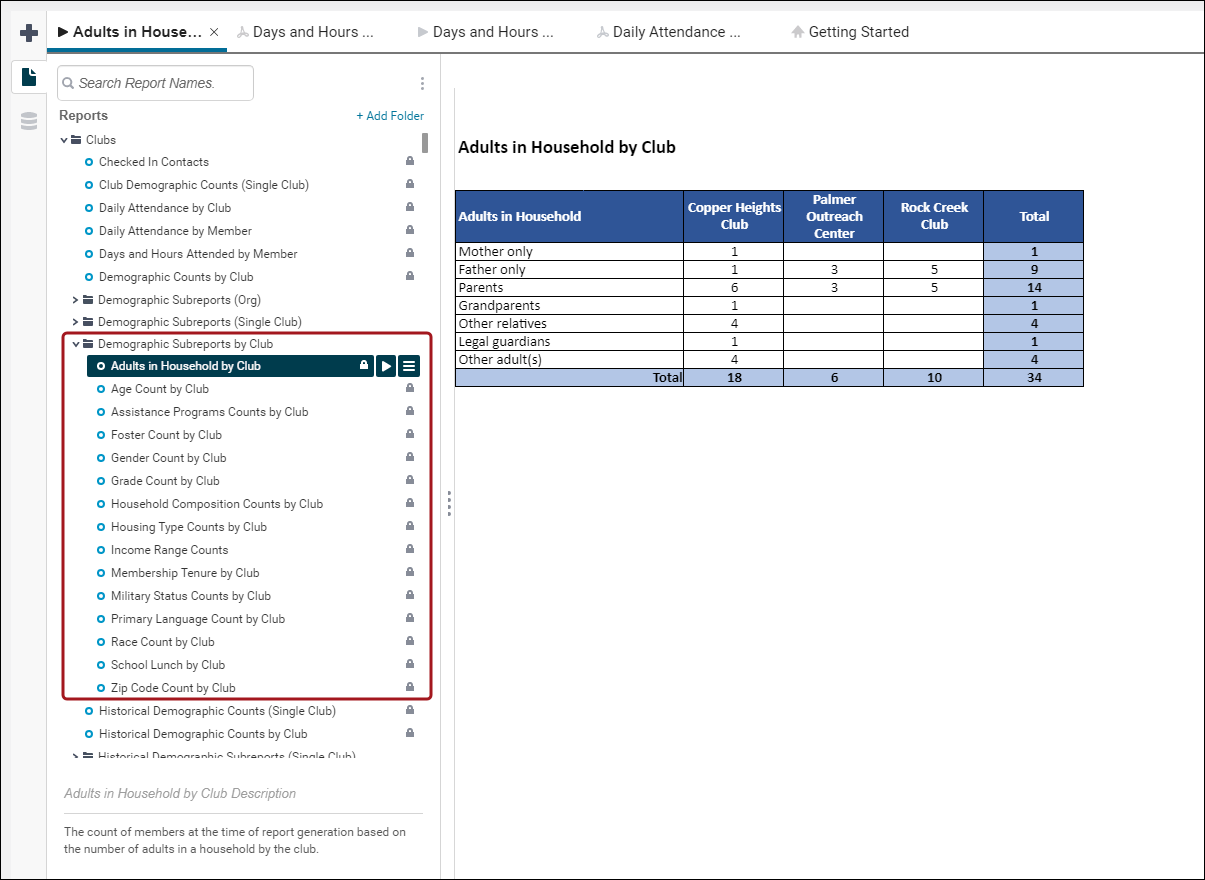
If you want to review a specific demographic in its own report, open the Demographic Subreports by Club folder and run the specific report.
Historical Demographic Counts (Single Club)
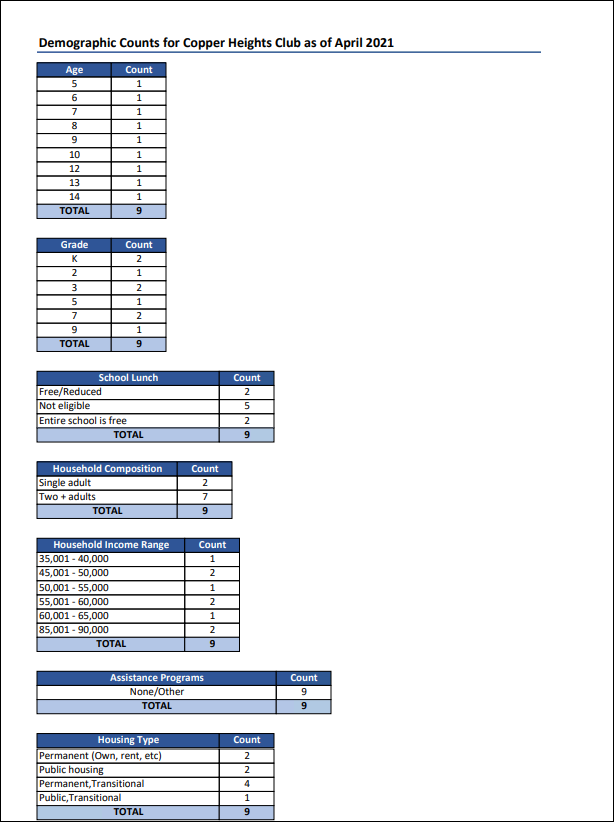
Displays counts for various demographic properties for a single club as of the month and year specified. Data is displayed on individual tables and is pulled from the reports in the Historical Demographic Subreports (Single Club) folder.
When running this report, be sure to enter a numerical value for the month, such as 4 instead of April.
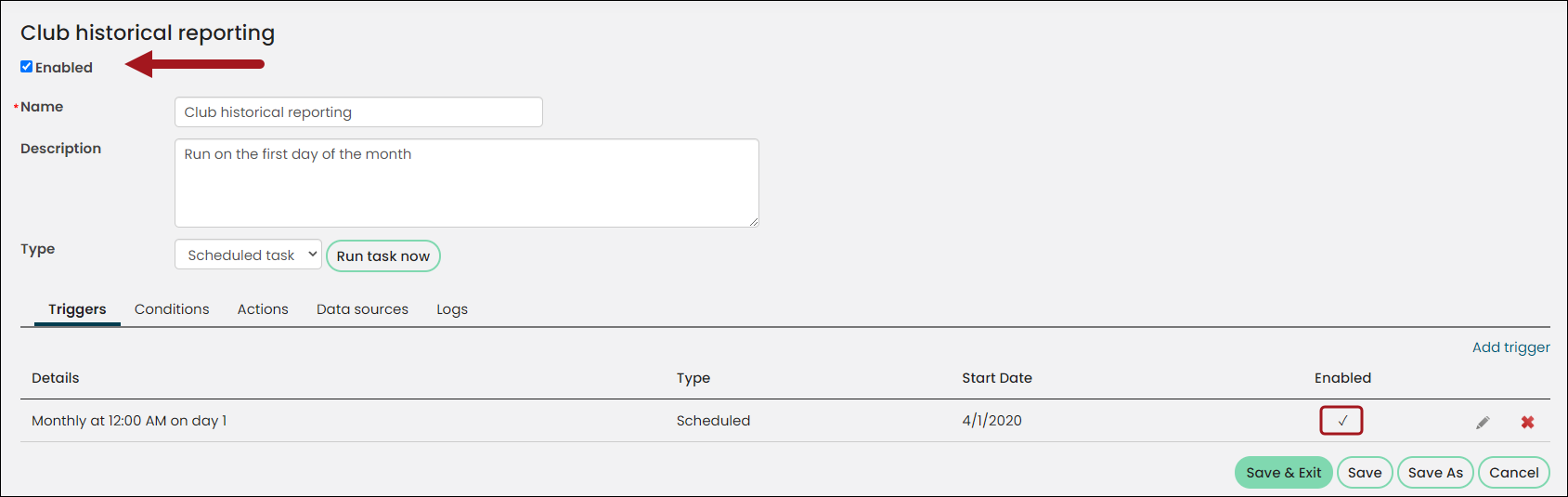
This report data is populated by running the Club historical reporting Process Automation scheduled task. To have the report data populated on the first of every month, enable the Trigger and the overall scheduled task, then click Save.
If you want to review a specific demographic in its own report, open the Historical Demographic Subreports (Single Club) folder and run the specific report.
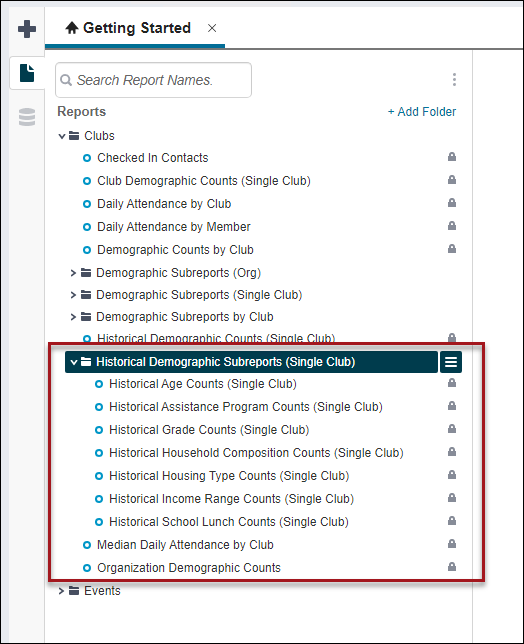
Historical Demographic Counts by Club
Displays counts for various demographic properties by club as of the month and year specified. Data is displayed on individual tables and is pulled from the reports in the Historical Demographic Subreports by Club folder.
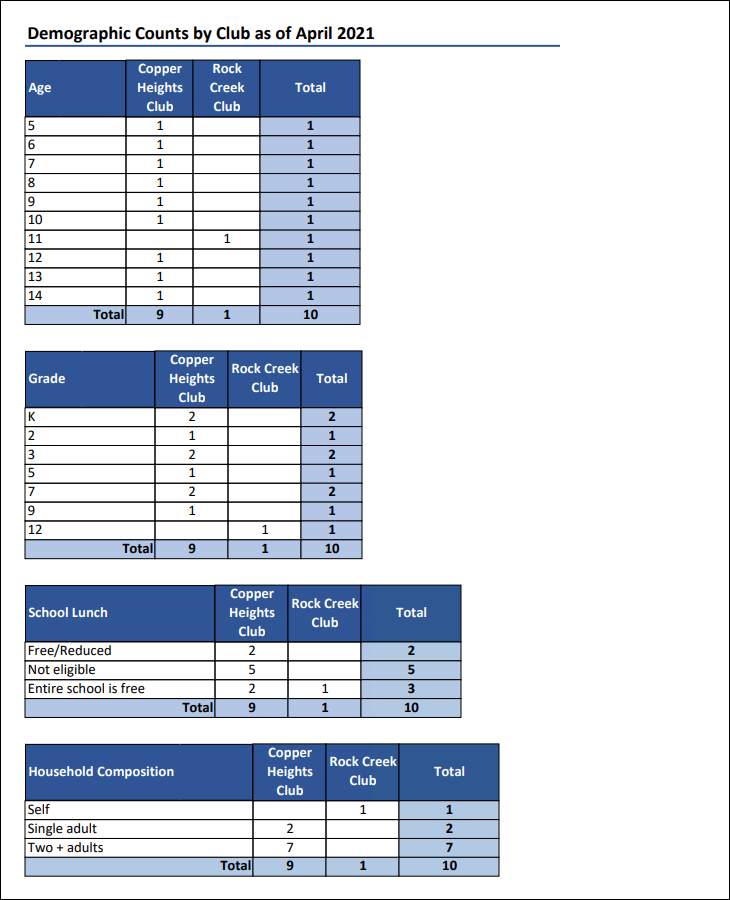
If you want to review a specific demographic in its own report, open the Historical Demographic Subreports by Club folder and run the specific report.
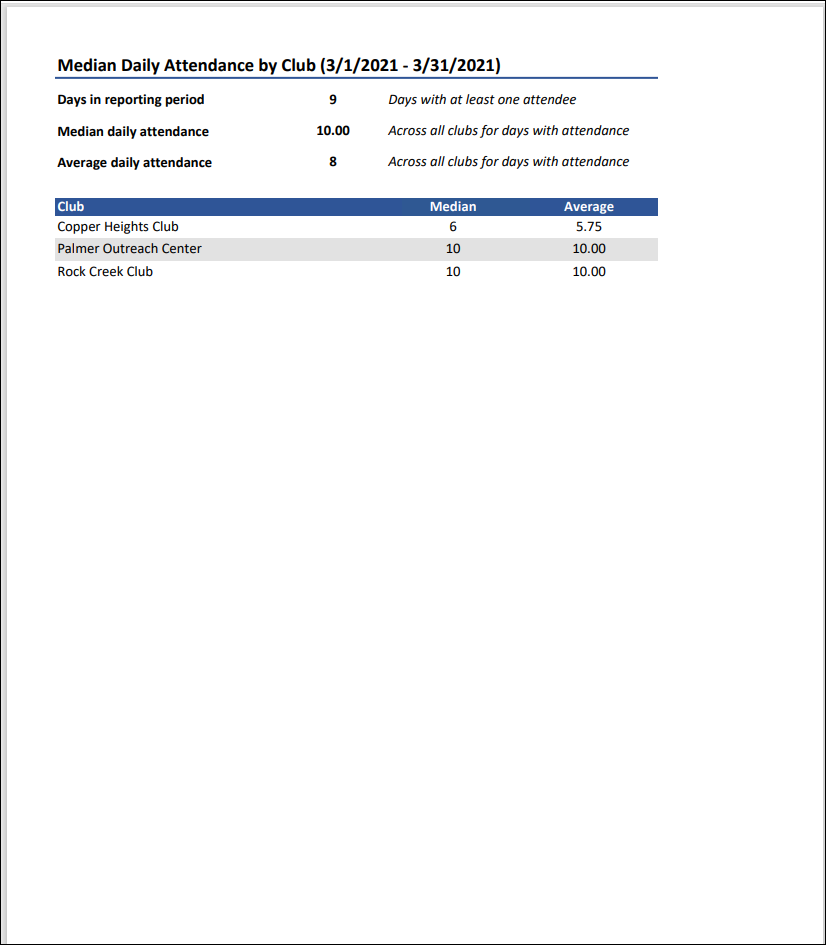
Median Daily Attendance by Club
Median and average daily attendance by club for the specified date range. Report results can be filtered by date, day of week, and club.
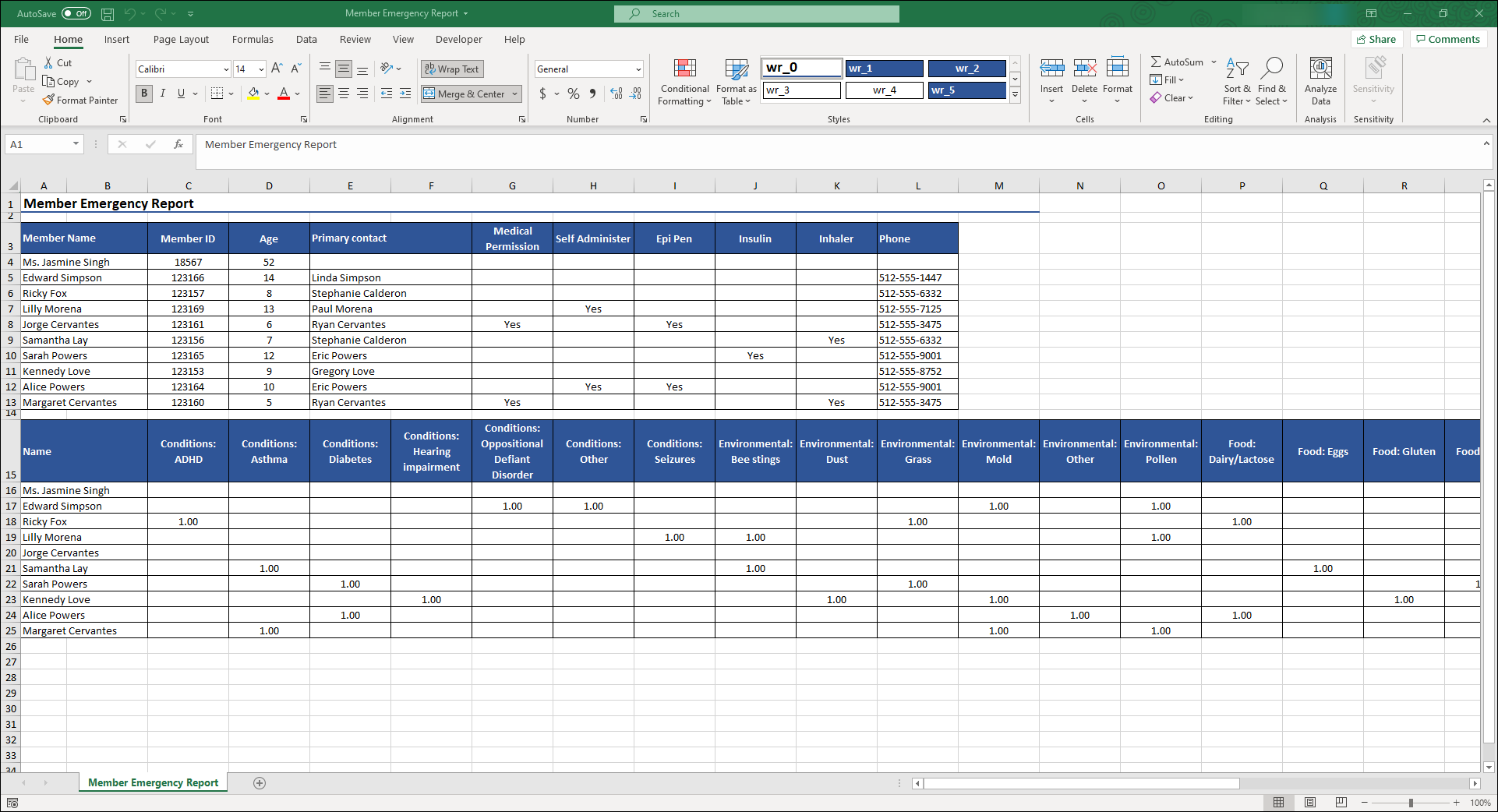
Member Emergency Report
The Member Emergency Report lists any medical conditions or allergies a club member may have. The report outlines the use of an inhaler, epi-pen, insulin, and self-administration (of medication) status by the club member. The report also lists the primary contact's name and contact information for each of the club members.
After the report is run, there are additional filters that allow you to narrow the list of returned results by those who are currently checked in to a club, membership status, member name, and member ID.
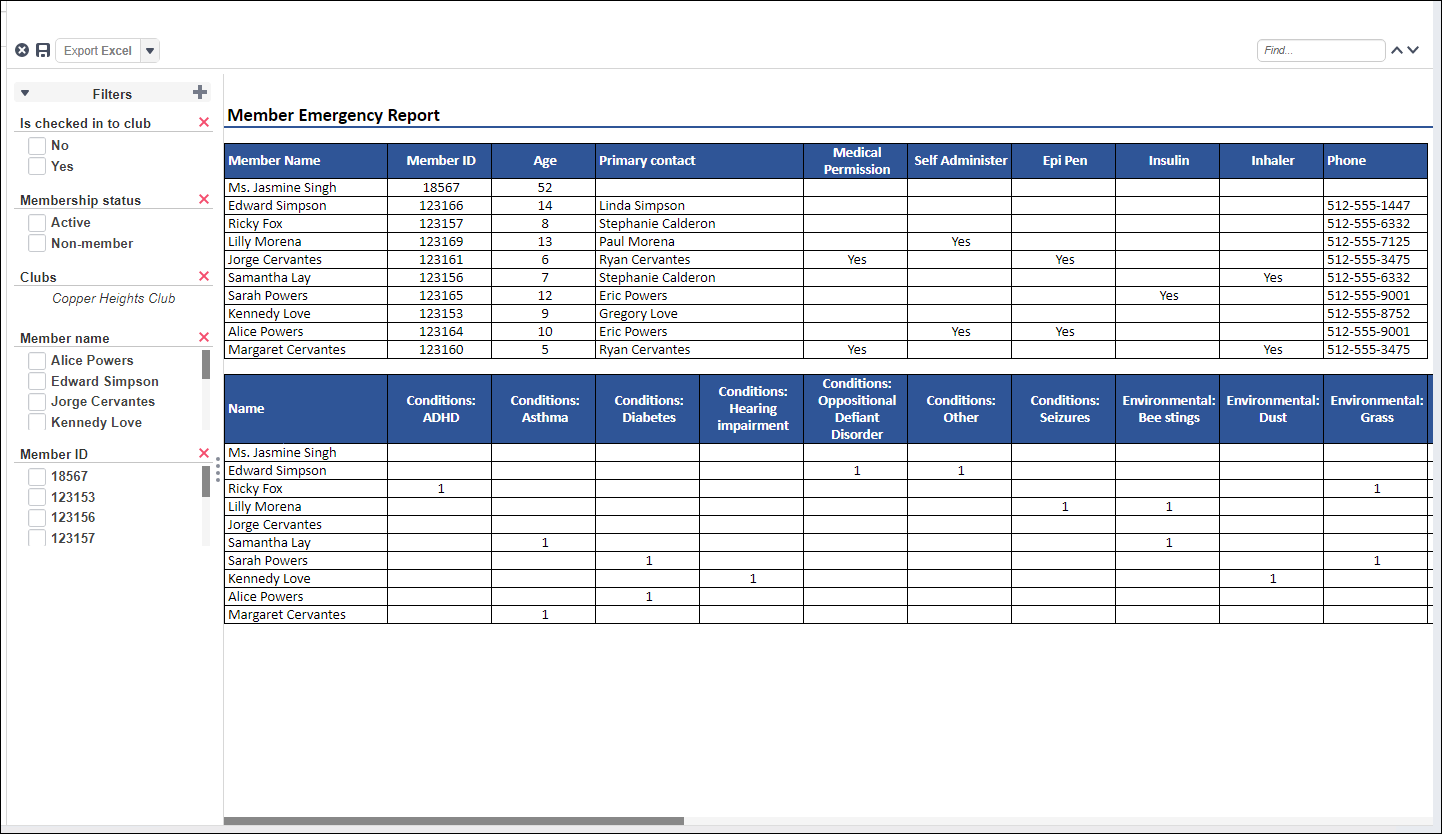
Report example after export to Excel:
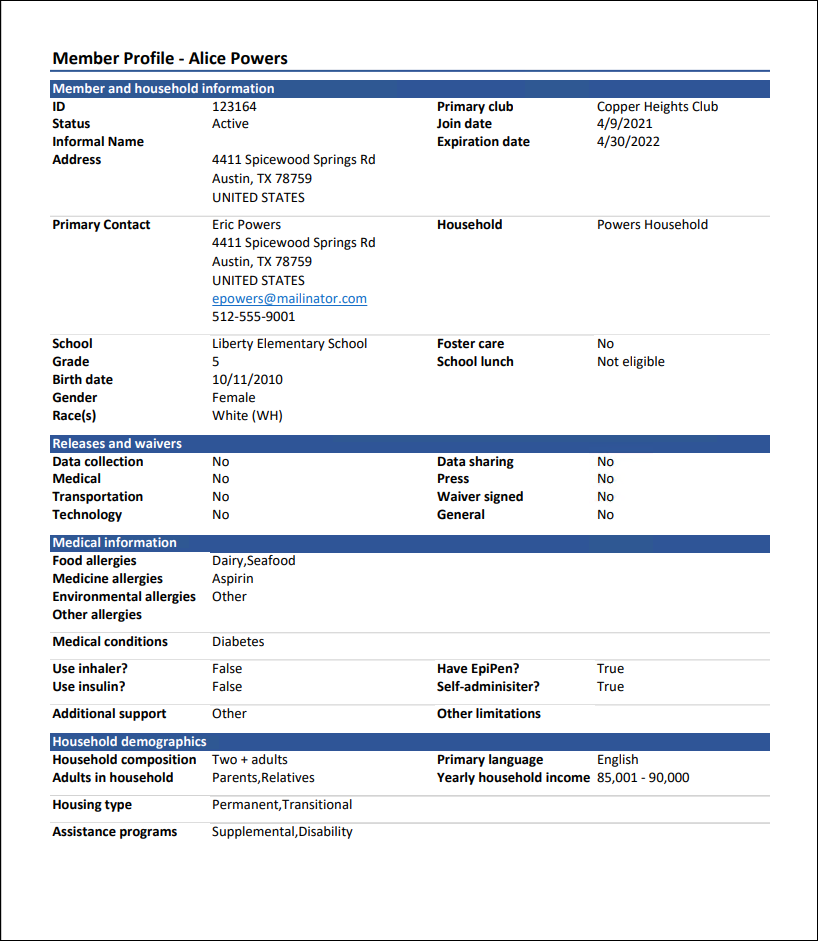
Member Profile
Displays information about the member and their household.
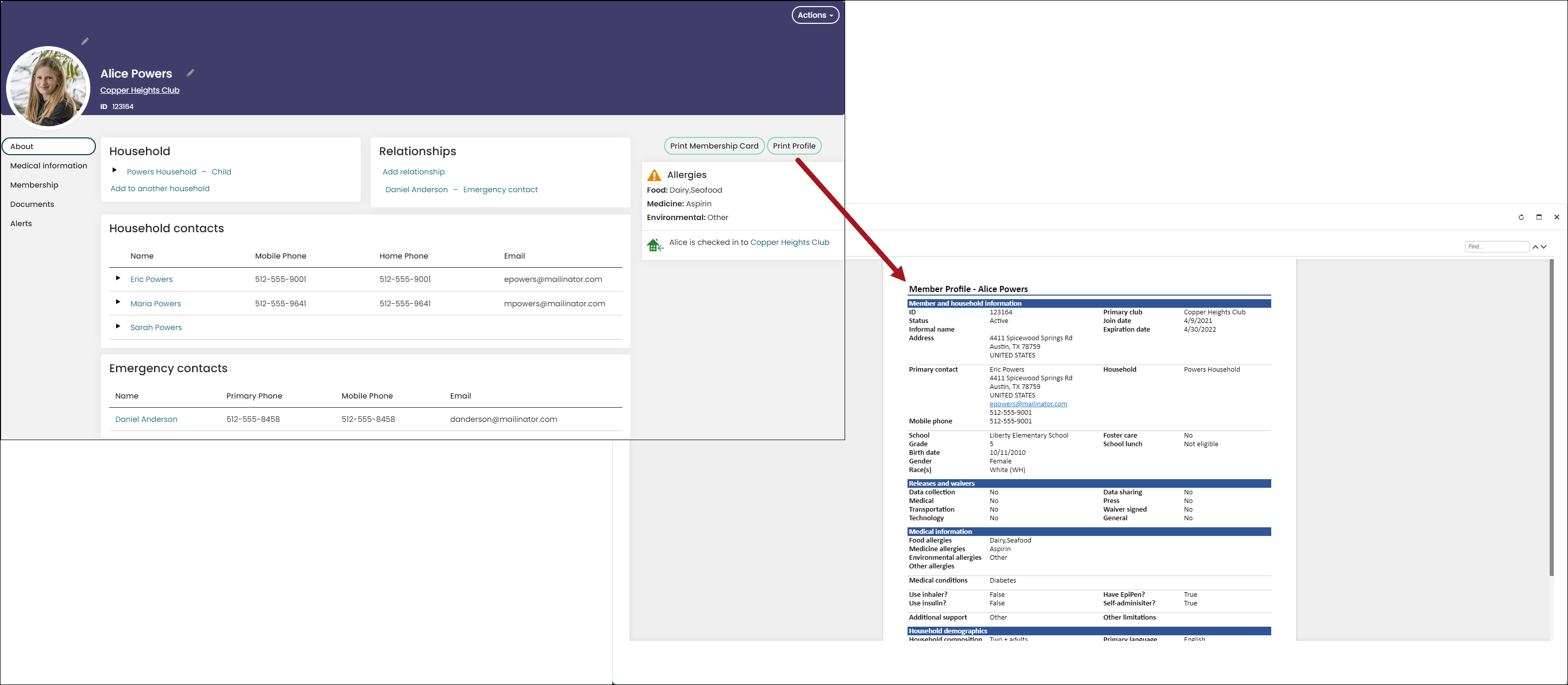
Member Profile for Selected Contact
Displays information about the member and their household. Intended for use from the member's profile page.
Organization Demographic Counts
The overall demographic details an organization, such as age, race, gender, zip code, membership tenure, grade, school, and more. Data is displayed on individual tables and is pulled from the reports in the Demographic Subreports (Org) folder.
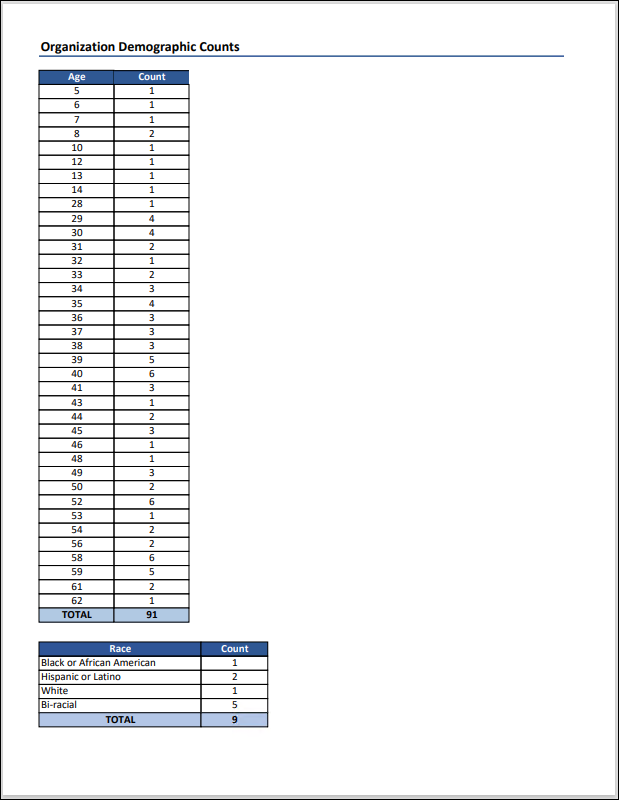
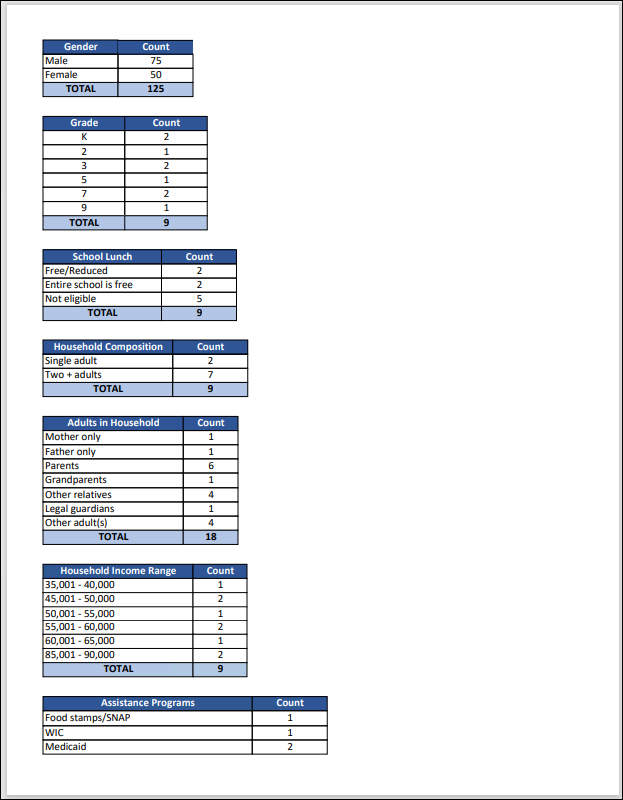
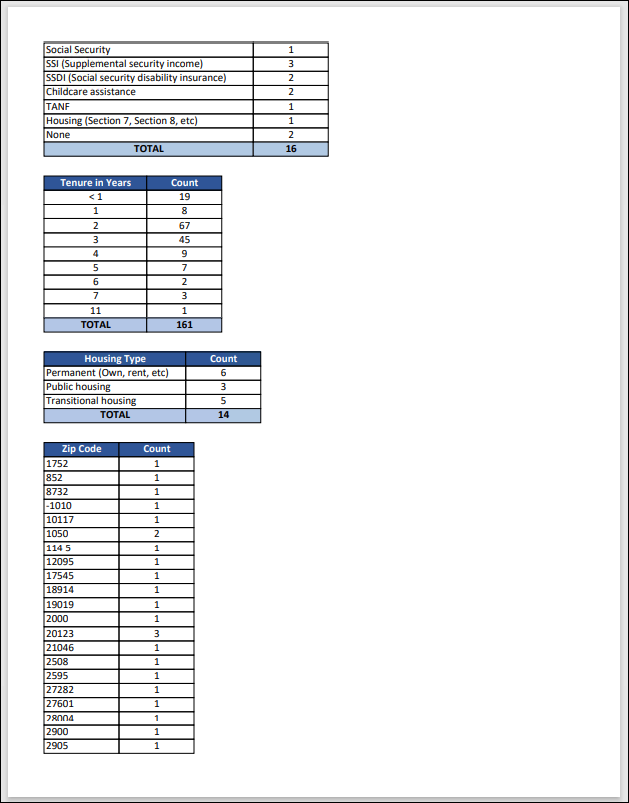
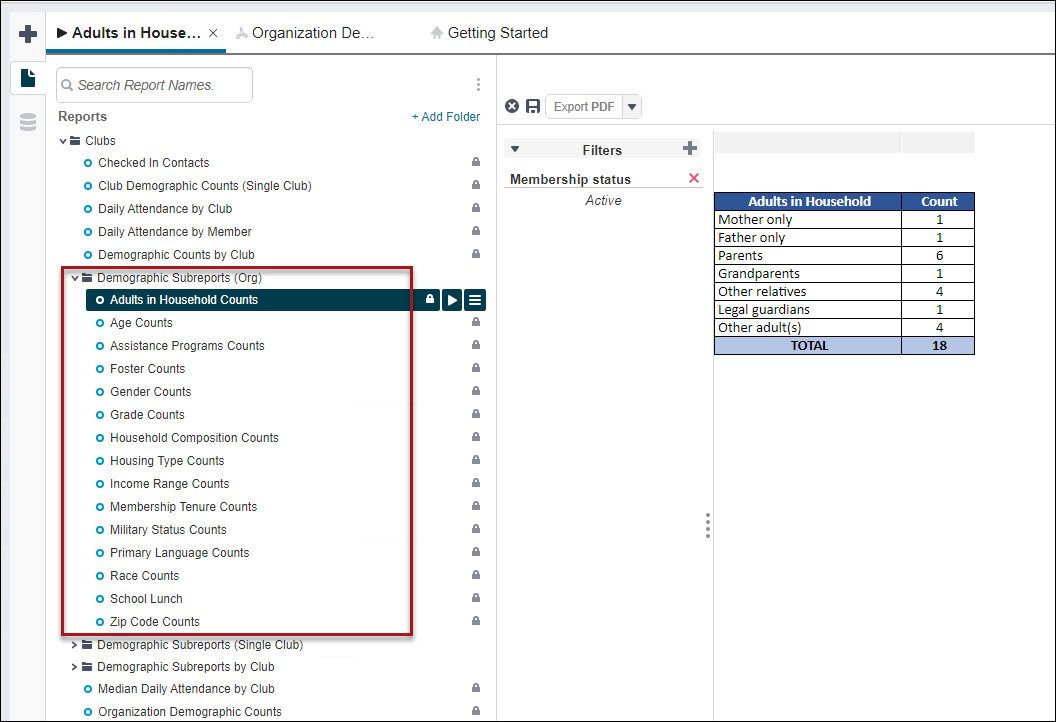
If you want to review a specific demographic in its own report, open the Demographic Subreports (Org) folder and run the specific report.
Payment Statement by Household
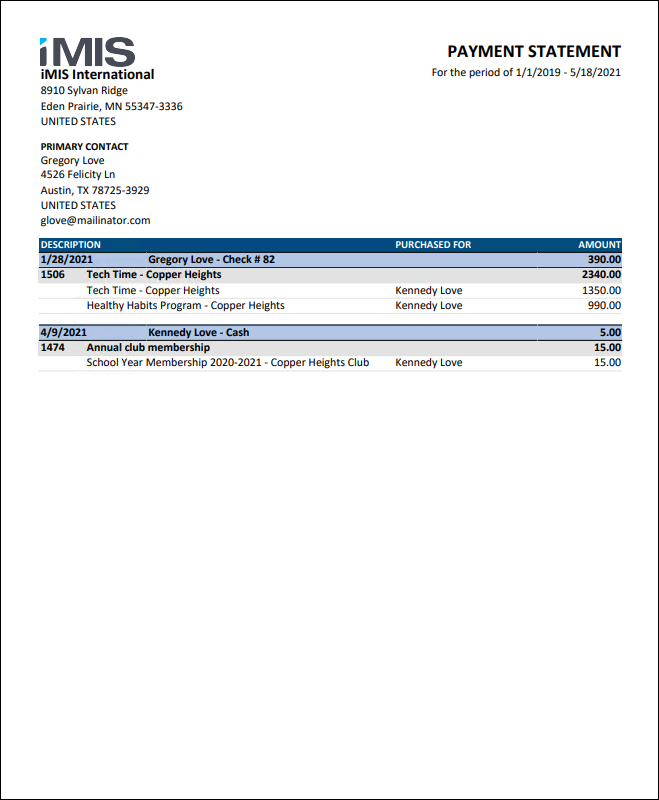
A statement of payments made by contacts in the specified household during the specified date range, including what items the payment was applied to. Does not include prepayments that have not yet been applied to any items.
Business Objects
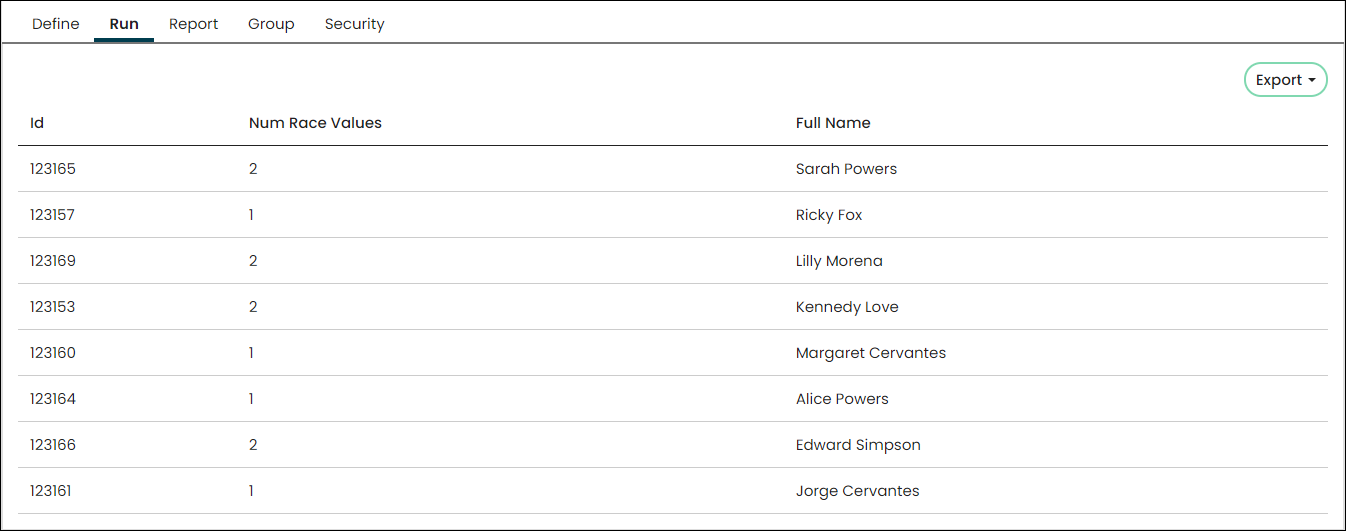
PartyNumRaceValues
Returns the number of distinct values for a contact's defined race (ClubProperties.Race), excluding Bi-racial, Multi-racial, and Choose not to answer.
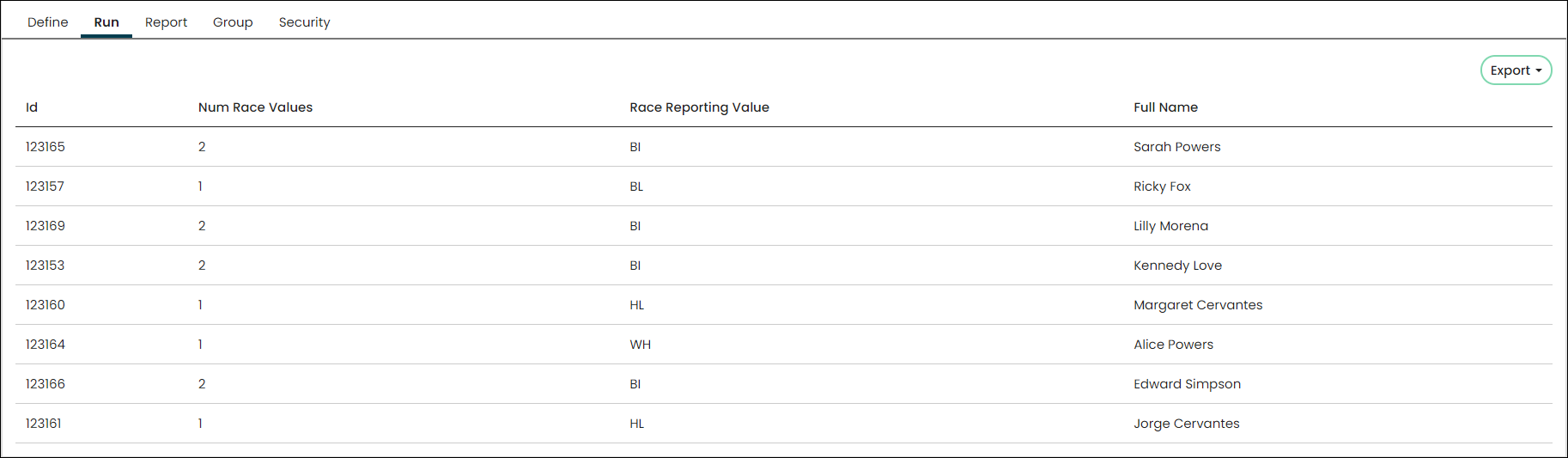
PartyRaceReportingValue
Displays a single race value for each contact. If the contact has selected two races (ClubProperties.Race), they are classified as Bi-racial (BI). If the contact has selected more than two races, they are classified as Multi-racial (MULTI).
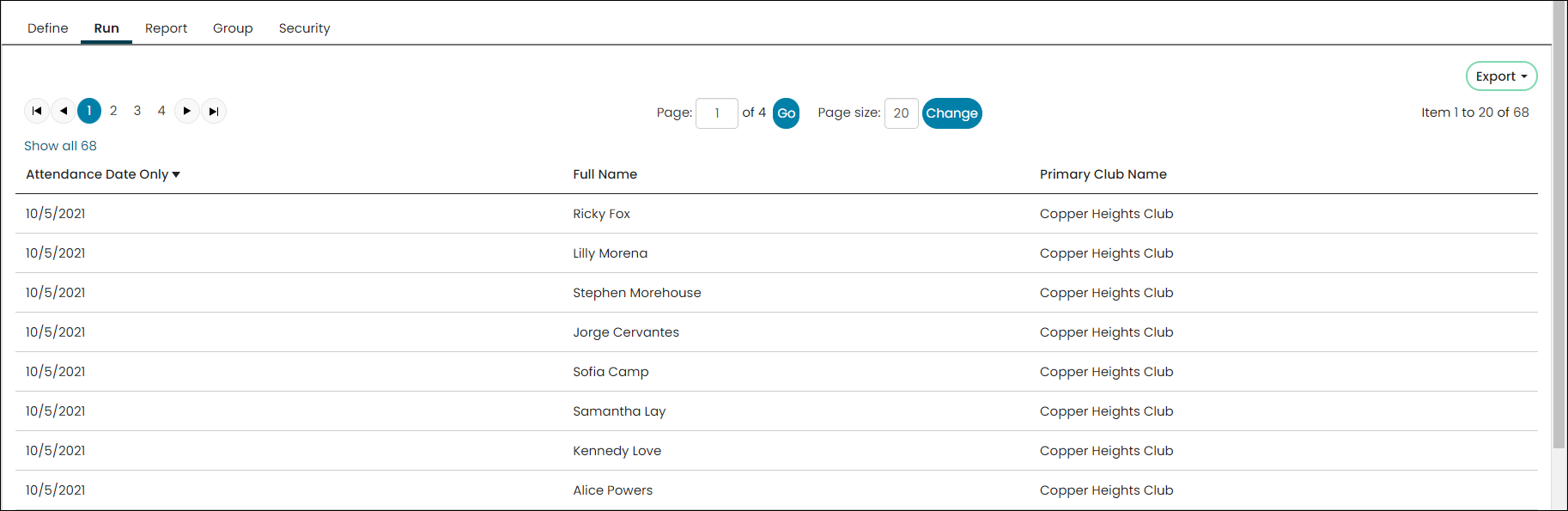
DistinctClubAttendeesByDay
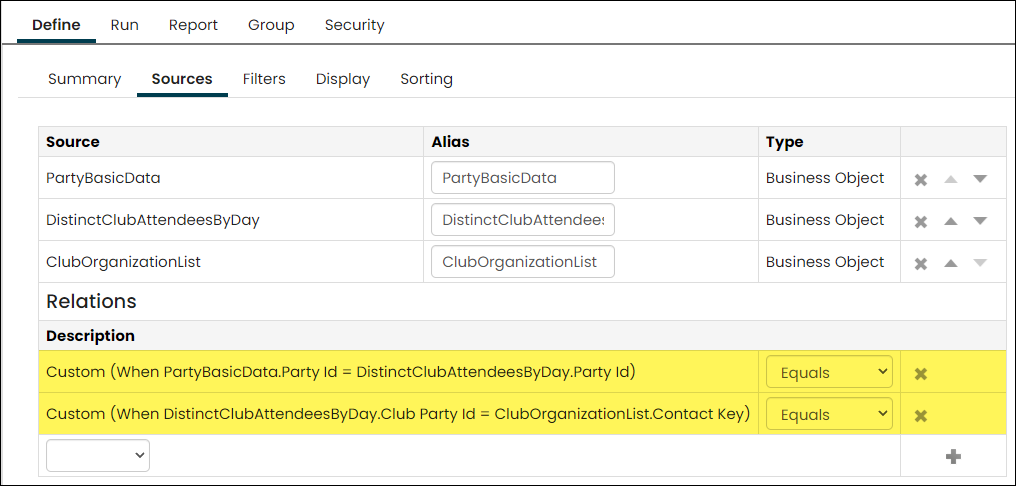
Displays each day an attendee checked into a club. Review the attendance, day, week, month, year, and more. Join this business object with ClubOrganizationList to see the name of the club and with PartyBasicData to see the name of the attendee.
ClubDistinctDailyAttendance
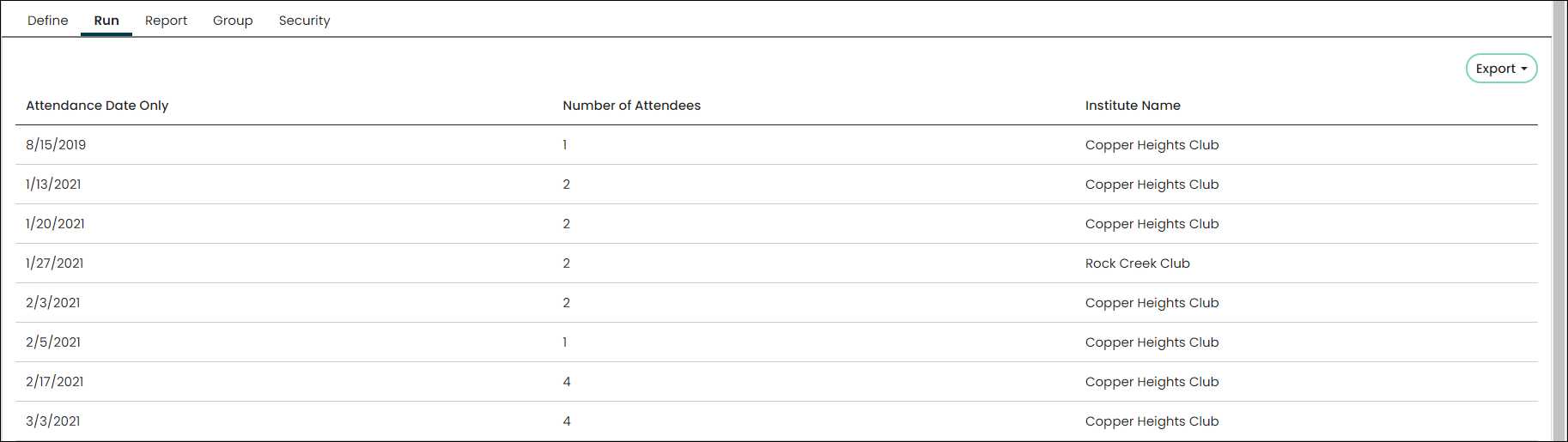
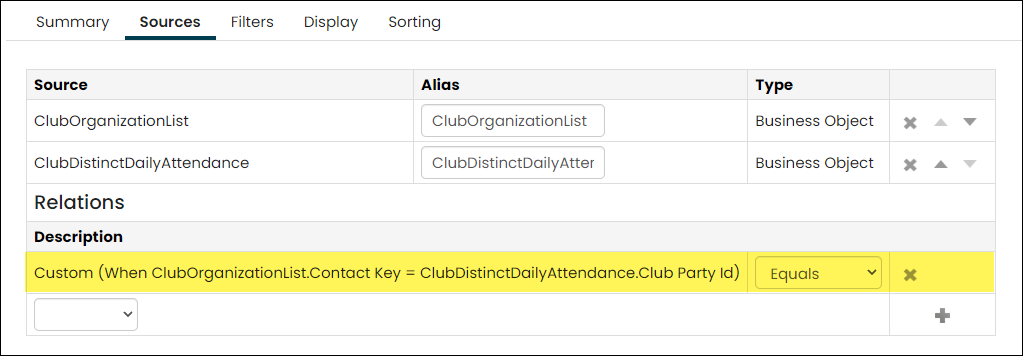
Unique count of attendees per day by club. Multiple check-ins to a club on the same day by a single attendee is counted only once. Join this business object with ClubOrganizationList to see the name of the club.
PartyAttendanceDuration
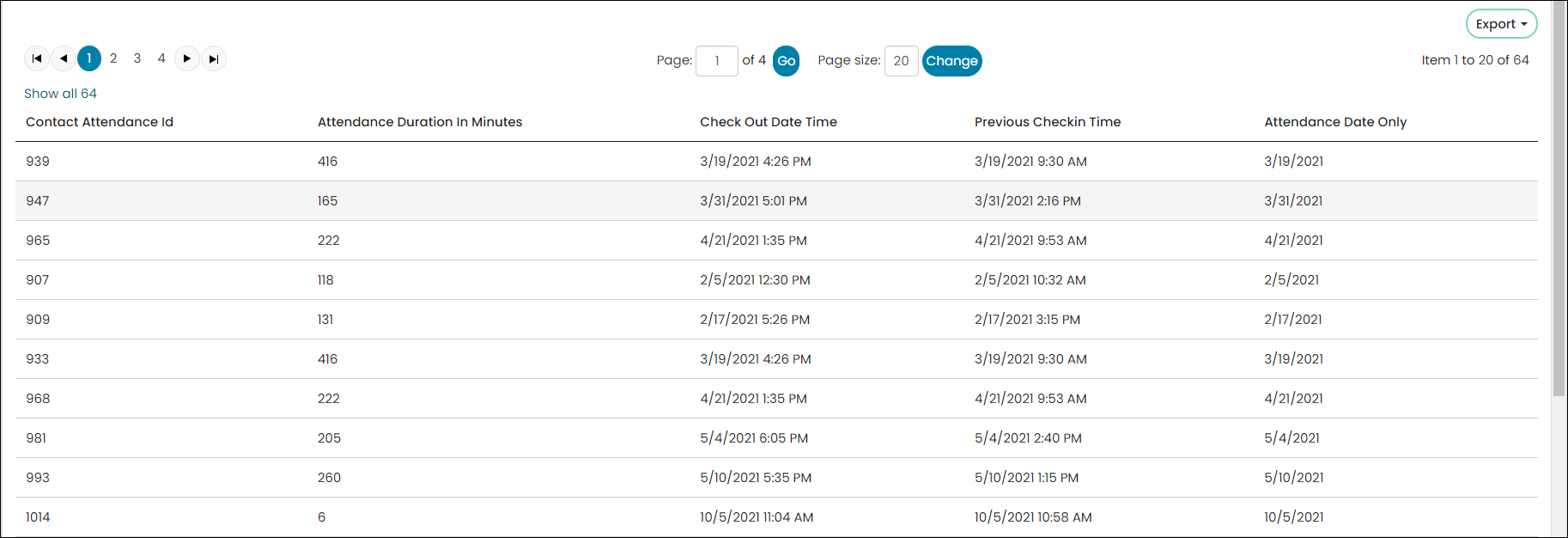
Use the PartyAttendanceDuration business object when you need to determine how long a contact was checked in to a club on each date. This business object returns the attendance duration in minutes for each combination of check-in and check-out to a club on the same date. Only attendance records with both a check-in and check-out for the same contact, date, and club are returned.
PartyAttendanceData
| When to Use | Check-in/out | Status | How it functions |
|---|---|---|---|
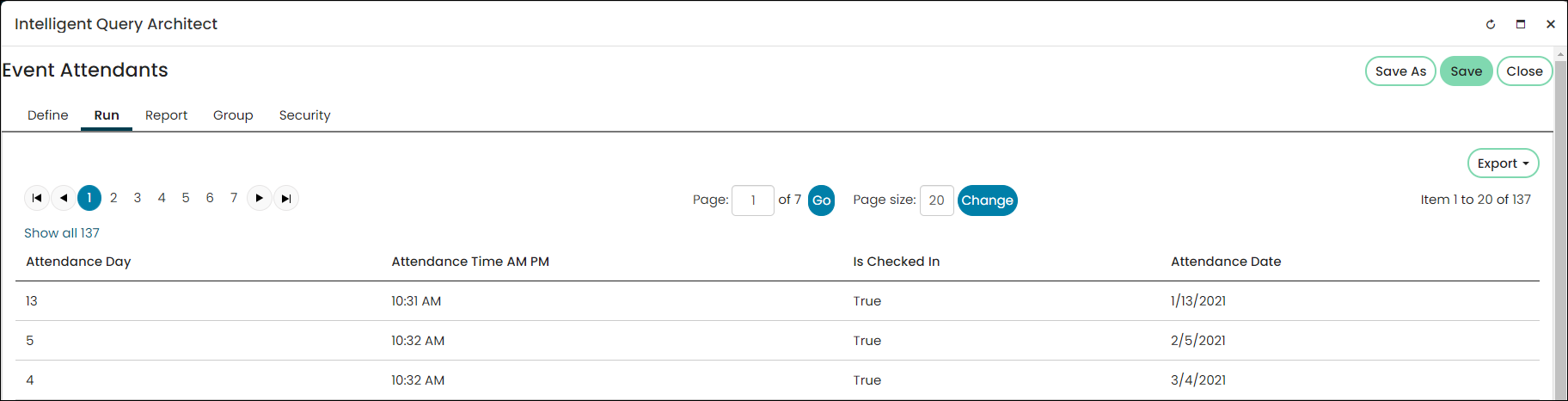
| Use for full attendance history. | Check-in | Not for current status | You can also identify or filter by the Party and/or the Club. To get counts of check-ins, you will have to filter on IsCheckedIn = TRUE or 1 AttendanceDate has the date only (no time). |
 | |||
PartyCheckinStatus
| When to Use | Check-in/out | Status | How it functions |
|---|---|---|---|
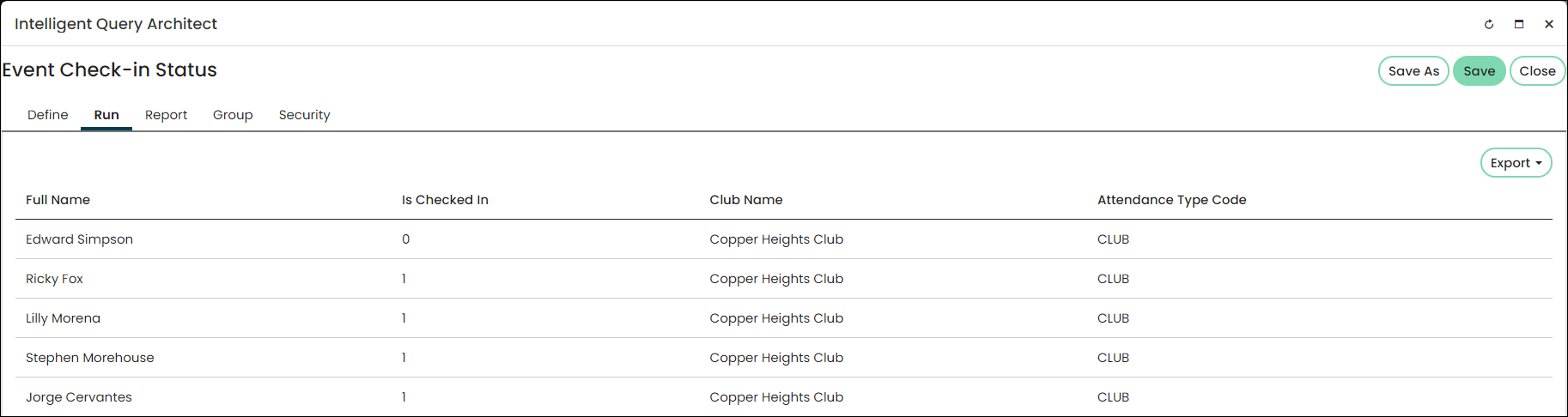
| Keeps one row per contact. Not for history. | Check-in or check-out | For current/most recent status | PartyCheckinStatus returns the most recent row per party from PartyAttendanceData. |
| |||
PartyClubCheckinStatus
| When to Use | Check-in/out | Status | How it functions |
|---|---|---|---|
| Keeps one row per contact per club. Not for history. | Check-in or check-out | For current status | Returns one row per party per club, so that you can get a contact’s most recent status for a specific club. You may have multiple rows per party, one for each club they have checked in or checked out of. |
| |||
PartyCheckinsPerWeek
| When to Use | Check-in/out | Status | How it functions |
|---|---|---|---|
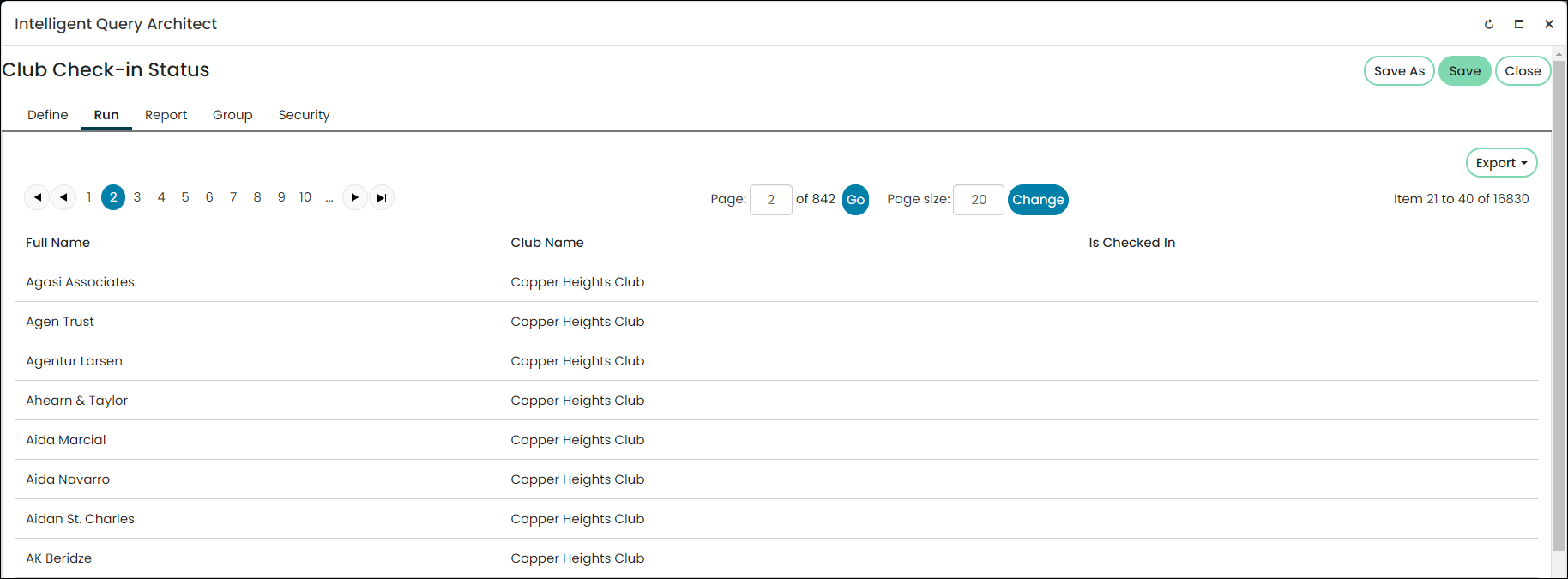
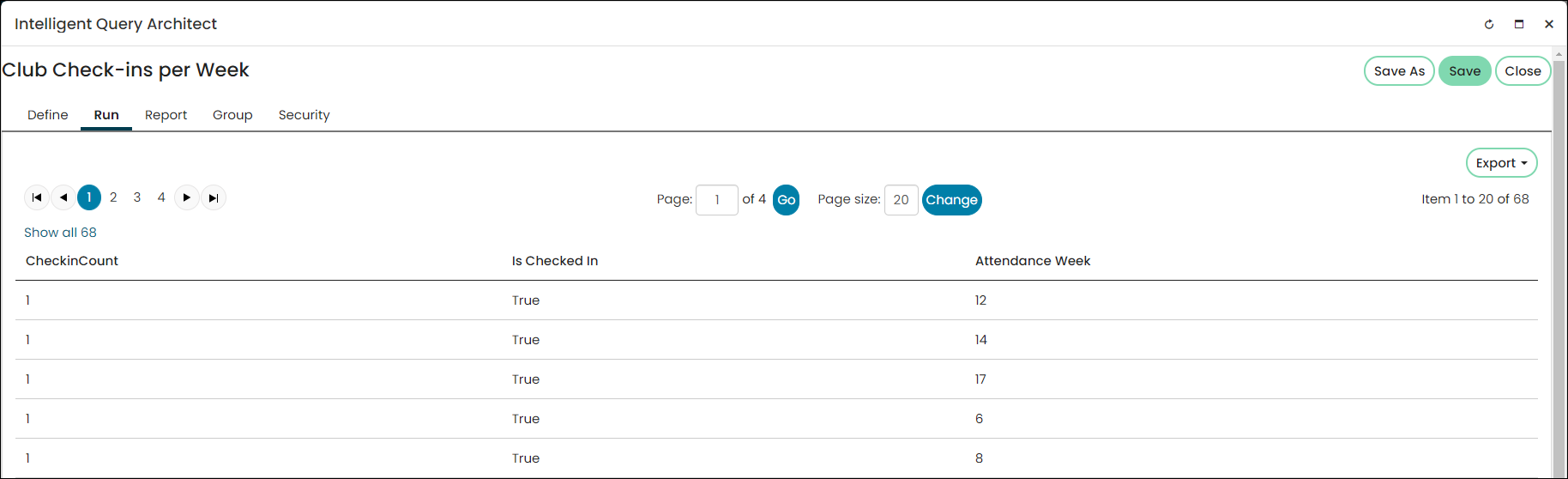
| Shows how many times a single user checked in for a given week. | Check-in | Not for current status. | Returns number of check-ins per week. |
| |||
ClubsDailyAttendance
| When to Use | Check-in/out | Status | How it functions |
|---|---|---|---|
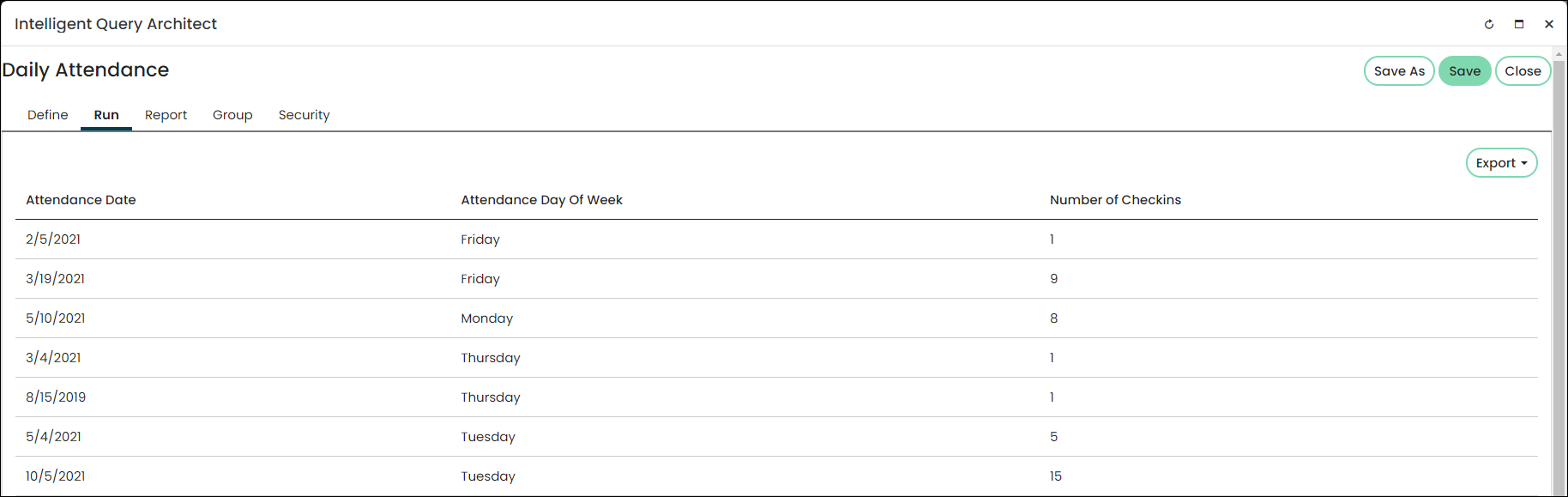
| Shows how many people checked into a given club on a given day. | Check-in | Not for current status. | Created for the dashboard and returns a total count of check-ins per day at each club (one row per day per club with a property for count). |
| |||
ClubsHourlyAttendance
| When to Use | Check-in/out | Status | How it functions |
|---|---|---|---|
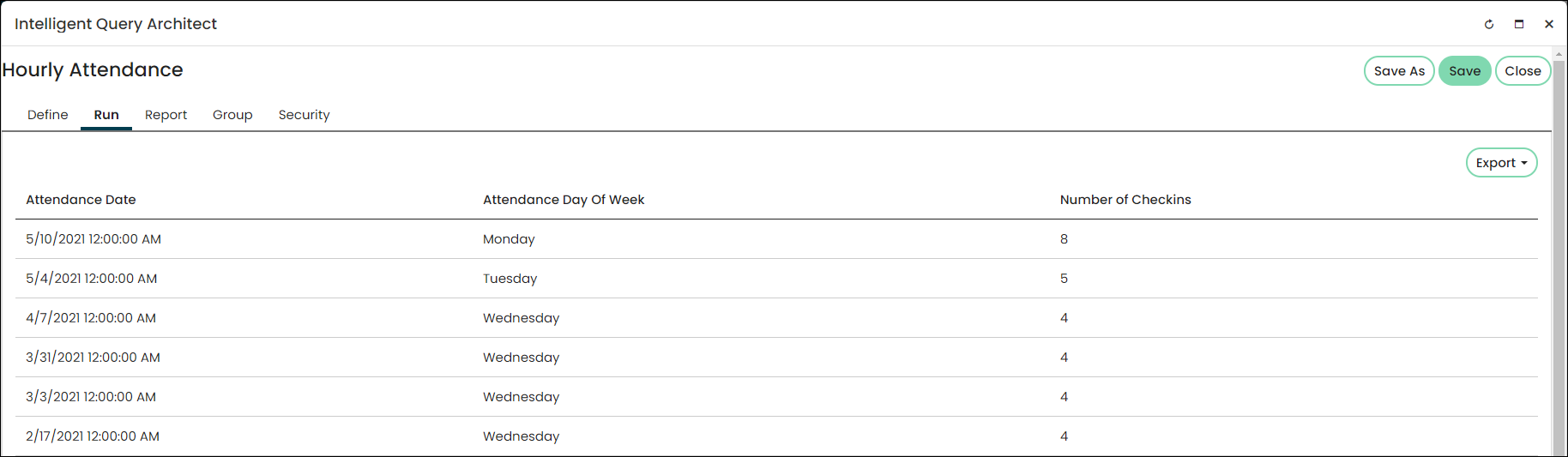
| Shows how many people checked into a given club in a given hour. | Check-in | Not for current status. | Created for the dashboard and returns a total count of check-ins per hour at each club including the date. Example: 9:00 AM on 8/26 and 9:00 AM on 8/27 are separate rows with separate counts. (1 row per date + hour per club with a property for count). |
| |||
PartyAttendanceDuration
| When to Use | Check-in/out | Status | How it functions |
|---|---|---|---|
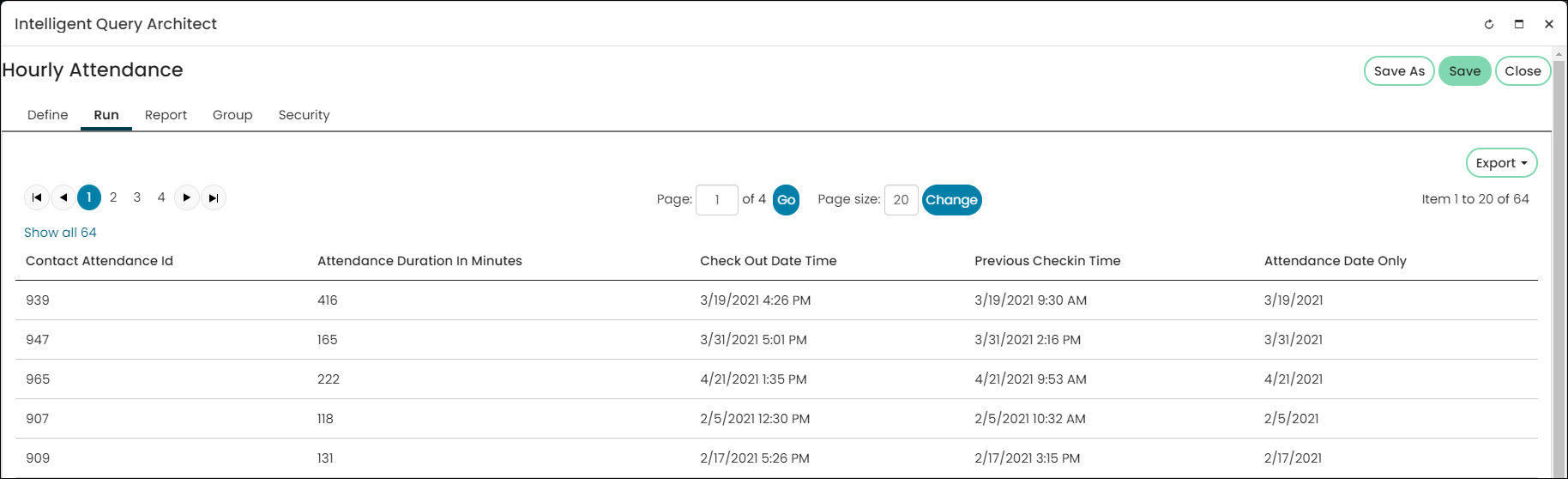
| When you need the attendance duration for the most recent check-in/out in minutes. | Check-out | Not for current status. | Returns a attendance duration in minutes for the IDs last attendance date. The exact check-in time/date and check-out time/date are listed. |
| |||
Updated 3 months ago