

Recurring Donation Creator
The Recurring Donation Creator content item provides donors the opportunity to choose to make their one-time donation recur over time. The setup options allow users to choose the frequency of their donations. The Recurring Donation Creator content item can be seen on the out-of-the-box Ongoing Giving content record (@/iCore/Fundraising/Donate).
See Configuring AutoPay for more information.
NoteThe Recurring Donation Creator is only available if you have set up AutoPay in iMIS 20-200.
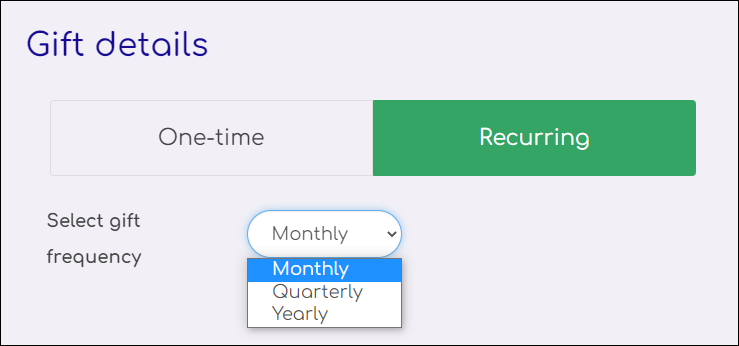
Recurring Donation Creator configuration options
This content item uses the Common content item configuration options, in addition to the following:
- Commit sequence - Allows you to explicitly define the execution order of multiple content items in a content record. The number in this field indicates the processing order for this content item, relative to the other content items in the same content record. The value must be 0 or greater. You can leave the default value of 0 if the execution order of content items is not a concern. Content items with a value of 0 are processed after any other content items with a non-zero Commit Sequence value that are on the same content record.
For example, processing a donation immediately requires that multiple content items are defined in a single content record. It does not matter the order in which the content items are defined on the page. In the scenario outlined below, where the Recurring Donation Creator is the first content item displayed on the page and the Submit Order Button Link is the last content item displayed, the Commit Sequence value controls the order in which the content items are processed. When the donation is submitted from the content record, execution control is given to each content item based on the Commit Sequence value shown in parentheses:
-
Donation Creator (2)
-
Recurring Donation Creator (3)
-
Contact Account Creator (1)
-
Payment Creator (5)
-
Submit Order Button Link (6)
-
'No' radio option text - Enter the text to display next to the No option. This button prevents a recurring donation.
-
'Yes' radio option text - Enter the text to display next to the Yes option. This button creates a recurring donation instruction.
-
Gift frequency text - Enter the text to display next to the gift frequency drop-down.
Notes
- The Recurring Donation Creator content item must have a connection to a Donation Creator content item on the same content record.
- The option to allow Recurring Donations must be enabled from the Staff Site.
- The Recurring Donation Creator content item is available to those with an AutoPay license key.
Updated 5 months ago