

Donation Creator
The Donation Creator enables users to make a donation. Using this content item in combination with other content items or on its own, supporters can either pay for the gift immediately from a donation page, or add the gift to their shopping cart and pay for it along with any other items from the store.
Staff users can also assign Soft credit to a contact who is not the donor, but who has, in some way, made the donation possible. For example, Soft credit can be assigned to a volunteer who opened their house to host a fundraising dinner where invited donors contributed to an urgent cause, but where the volunteer host did not make a specific monetary contribution. In this case, the volunteer host would receive Soft credit for the value of all contributions received that evening, since their hosting the event made those gifts possible.
NoteThis option is enabled by default in the site donation pages, but is only visible to Staff users.
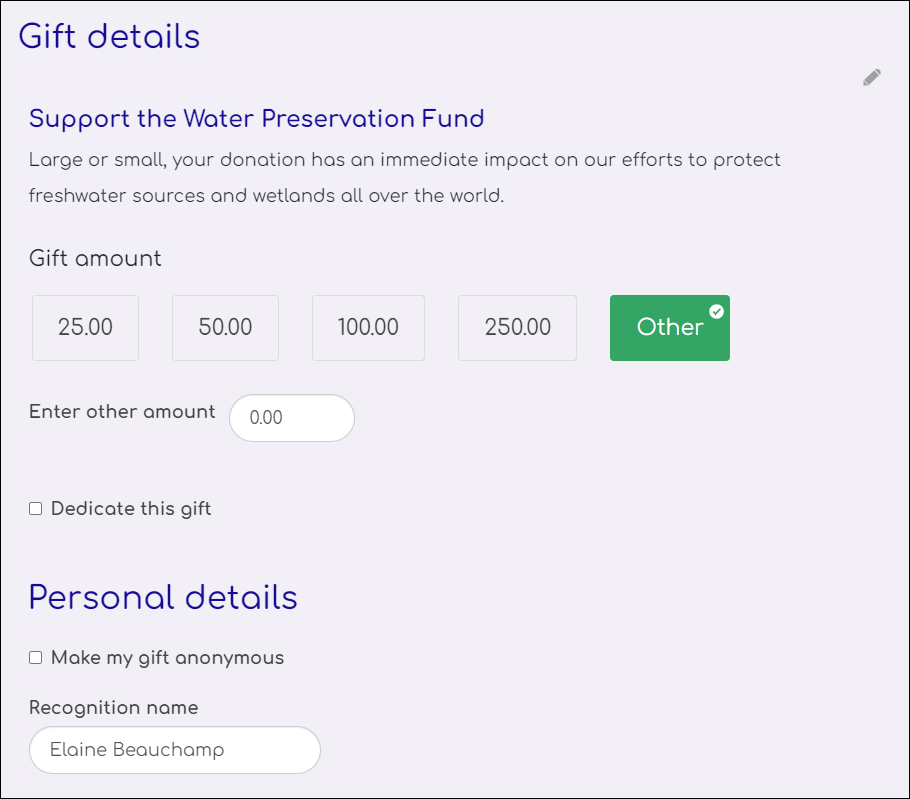
Donation Creator configuration options
This content item uses the Common content item configuration options, in addition to the following:
- Display the gift item description - If you want to display a detailed description of the donation's distribution on the rendered page, enable this checkbox.
- Allow staff users to assign soft credits - (enabled by default) Staff users can assign credit to a contact who contributed to a donation in a non-monetary capacity.
- Processing mode - Donations made through this content item can be processed in one of the following ways. Choose the option that best fits your use of this content item:
- Add donation to the cart - When selected, donations made through this content item are added as an item in the user's shopping cart. They can then check out and pay for the donation as well as any other items in their cart.
- Process donation immediately - When selected, donations can be processed and paid without using the shopping cart. If this option is selected, then other content items need to be added to the content record, with the proper Commit sequence.
- Gift item - Donations made through your website must be associated with a valid gift item code defined in iMIS. This code can be specified in the following ways:
- Set the gift item by an ItemId URL parameter - Indicates that the content record containing the Donation Creator will be dynamically populated based on the value of an ItemId parameter in the URL. If selected, you must pass a valid distribution code to your Donation Creator content item using a relative link, absolute link, or navigation item. The URL parameter is ItemId=[Distribution code]. For example, if you want to create an absolute link to a donation page for the BLDG distribution, set the URL to http://mywebsite.com/donationpage.aspx?ItemId=BLDG. Or, if you want to assign that same parameter from the navigation item instead, enter ItemId=BLDG into the URL Parameters field.
- Select a gift item - Specifies a single distribution code to be used for any donations made from the content item. If selected, this option overrides the value of ItemId parameters in the URL.
- Commit sequence - Allows you to explicitly define the execution order of multiple content items in a content record. The number in this field indicates the processing order for this content item, relative to the other content items in the same content record. The value must be 0 or greater. You can leave the default value of 0 if the execution order of content items is not a concern. Content items with a value of 0 are processed after any other content items with a non-zero Commit sequence value that are on the same content record.
For example, processing a donation immediately requires that multiple content items are defined in a single content record. It does not matter the order in which the content items are defined on the page. In the scenario outlined below, where the Recurring Donation Creator is the first content item displayed on the page and the Submit Order Button Link is the last content item displayed, the Commit sequence value controls the order in which the content items are processed. When the donation is submitted from the content record, execution control is given to each content item based on the Commit sequence value shown in parentheses:
-
Donation Creator (2)
-
Recurring Donation Creator (3)
-
Contact Account Creator (1)
-
Payment Creator (5)
-
Submit Order Button Link (6)
-
Item added message (Cart mode) - Enter the message to display when a donation is successfully added to a user's cart. This text is only displayed if the content item's Processing mode is Add donation to the cart.
-
Display image - When this option is enabled, shows images associated with gift items. If an image was not included when the gift item was created, no image is displayed. This option is enabled by default.
- Width of image - Enter a value to modify the image pixel size. The default size is 250 pixels.
Notes
- If a content record contains several dynamic content items, it is recommended that you turn dynamic page titles off for the entire page in order to limit the title length.
Updated 5 months ago