

Associating donations with specific gift items
You must associate every donation with a gift item. The associated gift item is credited with the donation.
The gift item description can also determine the description that displays above the Gift amount field on the donation page if you configure the Donation Creator content item to include this information.
Do the following to associate a donation with a gift item:
-
Go to Fundraising > Add gift item to define the gift item. For more information, see Defining gift items.
-
Once the gift is created, open the content record that contains the Donation Creator content item.
-
Select Configure on the Donation Creator content item.
-
Select the type of gift item to display from the Gift item section:
Set the gift item by an ItemId URL parameterIndicates that the Donation Creator content item will be dynamically populated with a gift item based on the value of an ItemId parameter in a URL. This option enables you to only have one donation page created but have the ability to use it for several different gift items.
ExampleYou need to provide a list of the current fundraising campaigns on the home page, each of which links to a donation page for the cause. Instead of creating a custom donation page for each campaign, you can set up a single content record that contains the Donation Creator content item configured to Set the gift item by an ItemId URL parameter.
Do the following:
-
From the donation page, configure the Donation Creator content item to Set the gift item by an ItemId URL parameter.
-
Click OK, then click Save & Publish.
-
Open the home page content record.
-
Select Add content, then choose the Content Html content item.
-
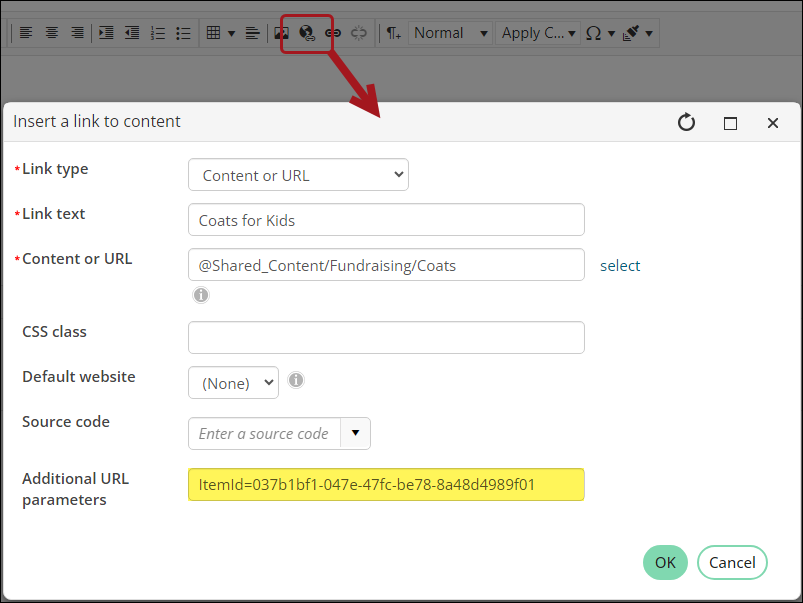
Enter the link text, then click the Content Link Manager:
- Content or URL - Select the donation page.
- Additional URL parameters - Enter the Item code in this format: ItemId=GUID.
How to find the item GUID
A GUID is a Globally Unique Identifier, and is used to identify particular items. A GUID is usually in the form of a long string of letters and numbers.
Do the following to locate a gift item's GUID:
- Go to Fundraising > Find gift items.
- Search for the gift item, then open the gift item.
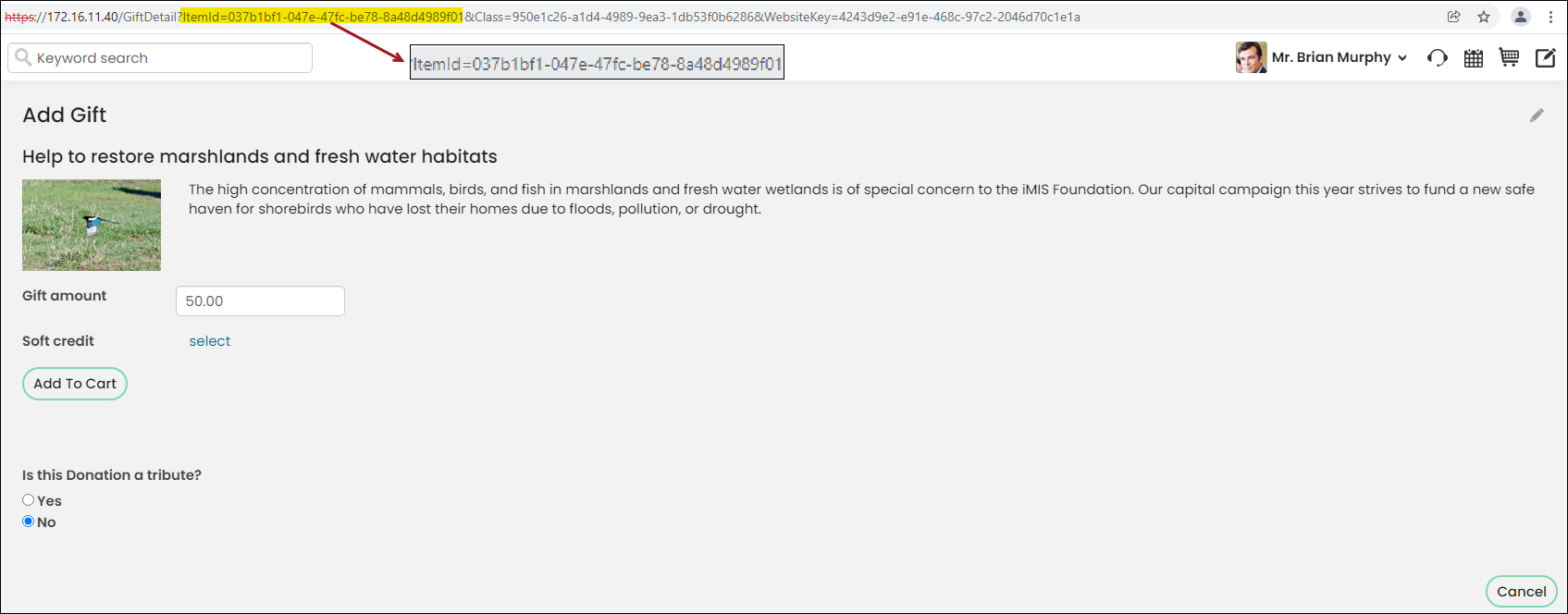
- In the web browser's address bar, you will see the ItemId. Copy the ItemId GUID. For example, ItemId=037b1bf1-047e-47fc-be78-8a48d4989f01.
-
Repeat this for the remaining items.
If the page you want to link to is not a content record in RiSE, simply enter the URL in the Content or URL field. For example, http://mywebsite.com/donationpage.aspx?ItemId=GUID.
Select a gift itemFrom the drop-down, you can select a single gift item to which donations will be made. Using this option implies that you have several different donation pages. If you want to use a single donation page for several different gift items, select the first option.
-
Updated 5 months ago