

Checking into a club program session
Each club can host program sessions, such as soccer classes on Tuesday and Thursday, swimming lessons on Wednesday and Friday, or reading room every weekday.
For each session, attendance can be recorded by checking in attendees. Review the following information to learn how to record attendance for a program session, check someone out of a session, and update attendance history for an individual.
NoteYou cannot delete an event, program item, or program session nor deselect a Recurring program item or alter recurrence data if there is attendance recorded for the item you wish to delete.
Checking into a program session
Do the following to check an individual into a specific club session:
- From the Club Staff site, go to Programs > Check-in.
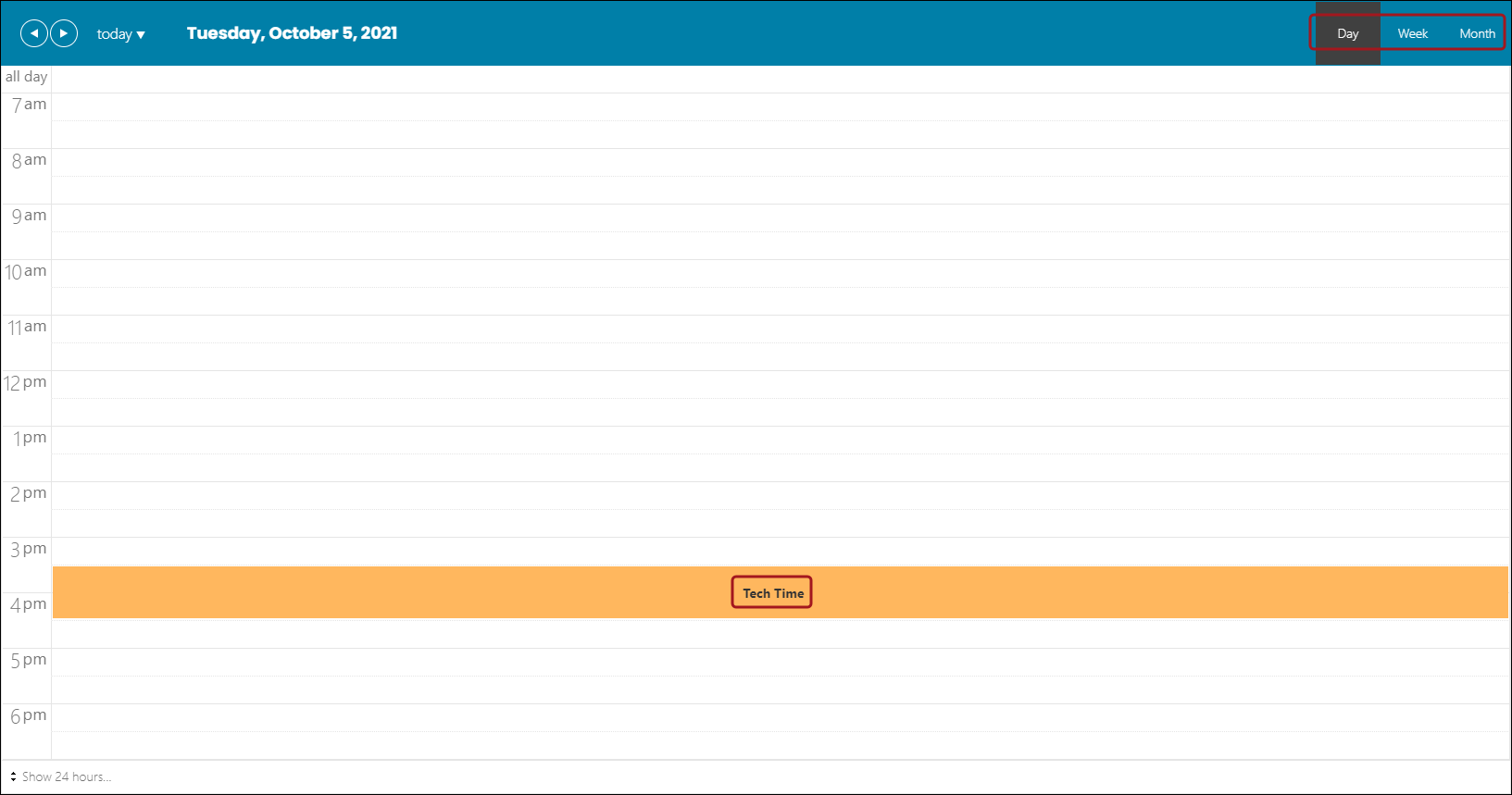
- Choose which session you want to check the individual in to. The calendar defaults to the current Day view. To select a session from another time frame, click Week or Month on the top right corner of the calendar.
- Click on the desired program session.
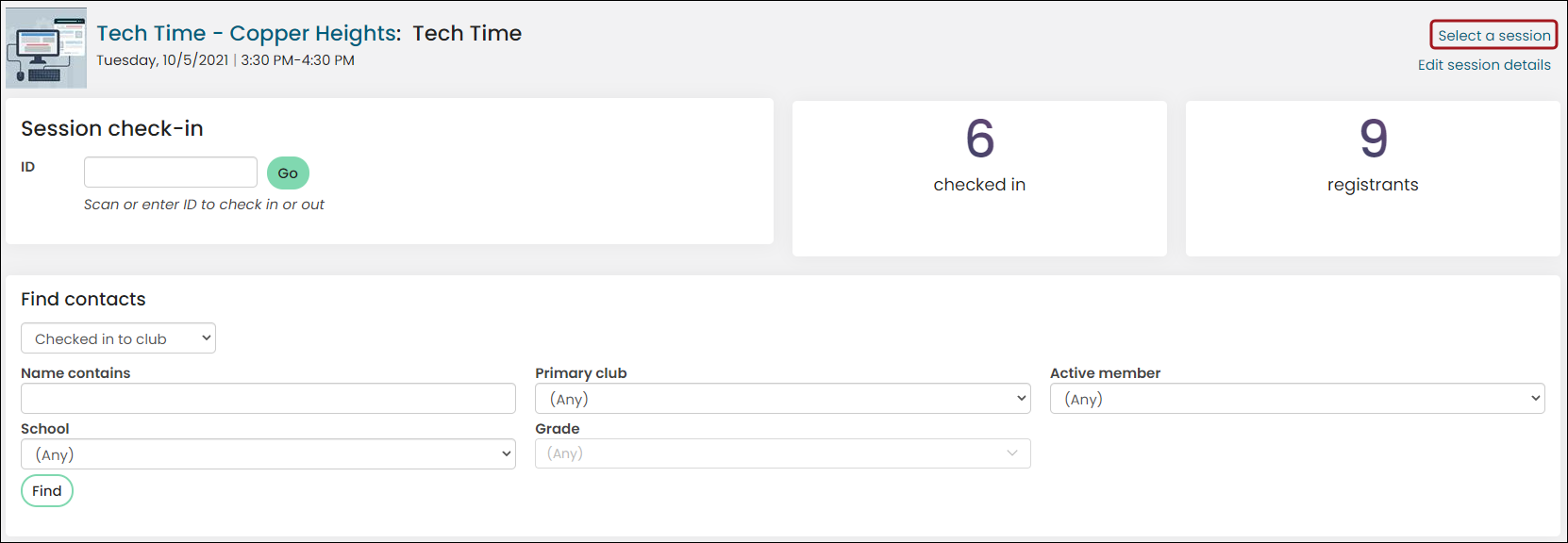
- Check in the individual by using a scanner, ID number, list of registrants, or finding an individual with a query. The individual now shows as Checked in.
📘 Note
If you need to make any changes to the session you selected, click Edit session details on the session check-in page.
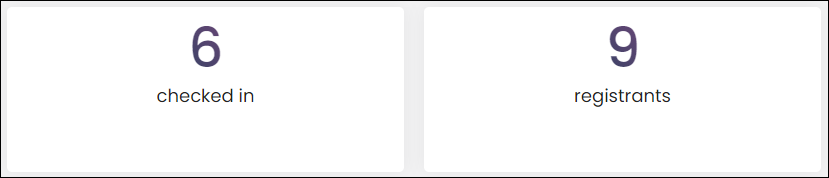
Keep in mind that just because an individual is checked in does not mean they are registered for the event or program. Click either the Checked in or Registrants counter tiles to see who’s checked in or who is registered. Checked in and Registrants are the default names of the counter tiles.
Selecting other sessions to check in to
Do the following to check an individual into another club program session:
- On the current session check-in page, click Select a session.
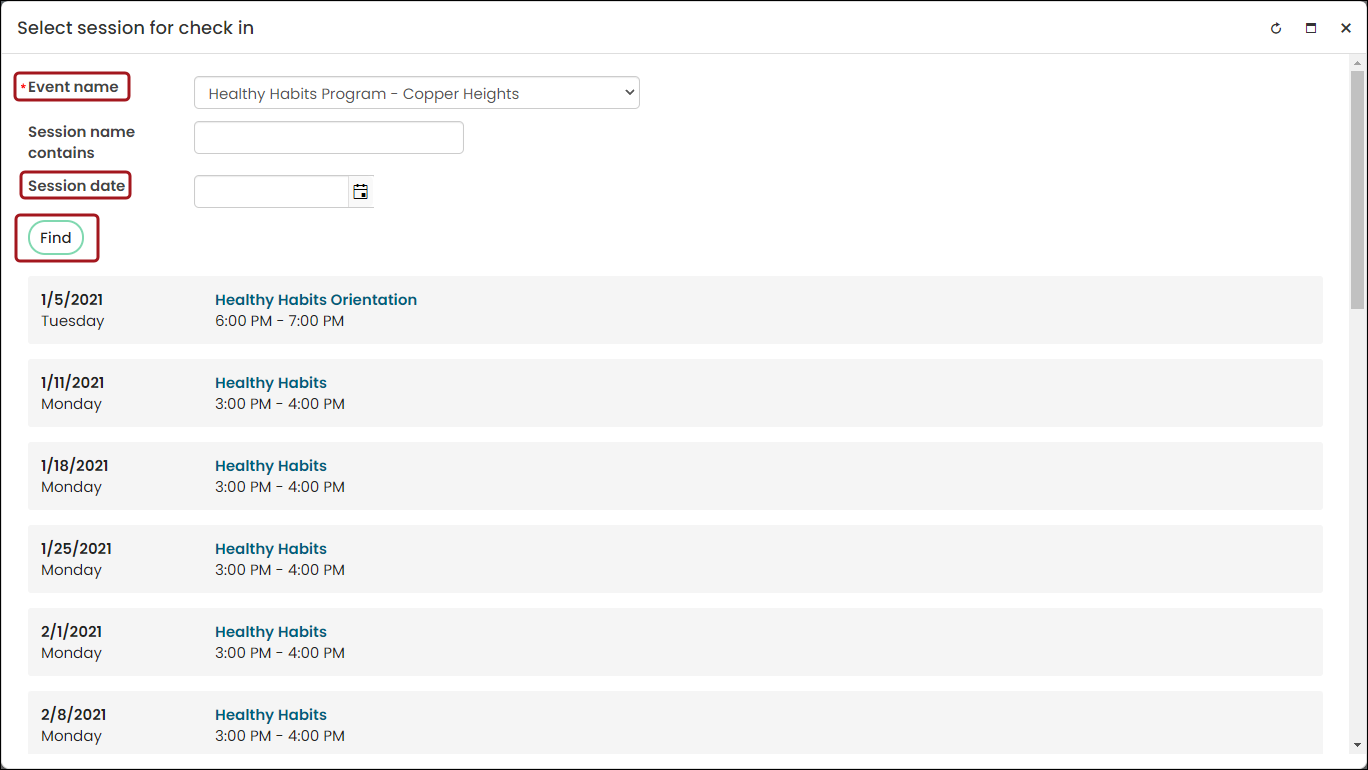
- Search for the session by using the available search filters, then click Find. A list of sessions matching your criteria appear.
- Click the desired program session and follow the check-in steps.
Checking in multiple contacts at once
To bulk check-in individuals, do the following:
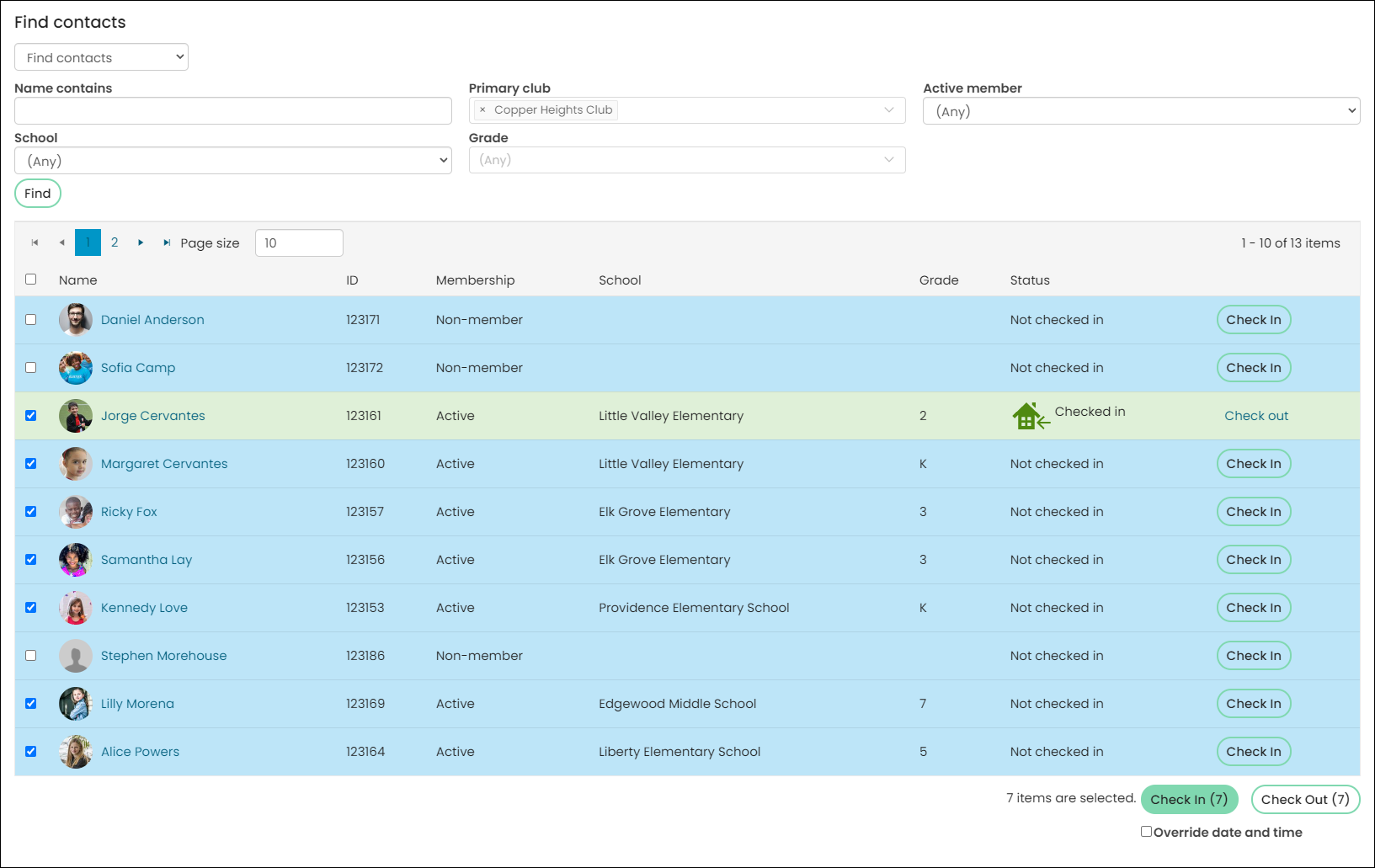
- In the session check-in screen with a session selected, select the individuals that you want to check in by enabling the checkbox next to their name. By default, it will select all the individuals on the current page, but all individuals on all pages may be selected if needed.
- Click Check in.
The selected individuals are checked in to the selected program session. Follow the same steps to do a bulk check-out of individuals from a program session.
Overriding check-in date and time
Staff users can easily override program session check-in dates and times. This ensures the individual's attendance record is accurate. To override an individual's check-in date and time, do the following:
- From the Find contacts area, enter values for the search criteria that you wish to search on.
- Select the individual you want to check in by enabling the checkbox next to their name. Enable the checkbox next to Name to check in all individuals on that page.
- After selecting one individual or all, enable the Override date and time option. Once this option is enabled, the ability to Check in or Check out individuals using the buttons above will be disabled.
- Enter the date and time. This will override the current date and time if the values you enter do not match the current date and time. The date and time that defaults will use the settings defined in the Time zone field under Settings > RiSE > Quick Setup .
- Check in or check out the selected individual(s). A Confirm check-in window will display prompting you to make sure you want to override the date and time.
- Click Yes to continue with overriding the check-in date and time.
📘 Note
The Override date and time option will only appear if you have at least one individual selected.
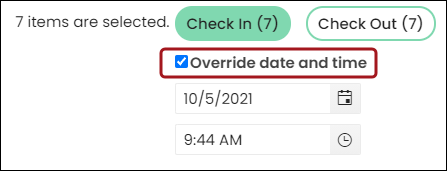
If you enabled the checkbox next to Name, you will see that all the items on that page are selected. You also have the option to select all the items from all pages and not just the current page.
All the selected contacts will be checked in or checked out with the overridden date and time.
An attendance record will be created for each selected contact with the correct date and time specified with the date overridden. When the date is not overridden and a contact is checked in that is already checked in, an attendance record will not be created.
Modifying club program attendance history
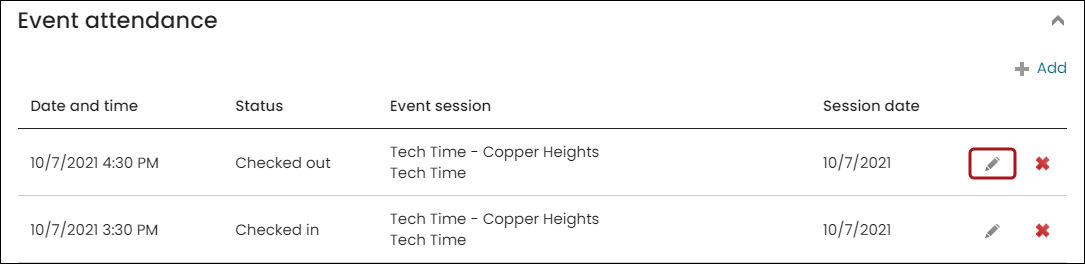
From the Staff site, staff users can review and adjust any contact's program attendance history from the Event attendance panel located on the Participation tab of the account page.
Do the following to review and modify and individual’s program attendance history:
- From the Staff site, navigate to the individual’s account page.
- Click the Participation tab, then locate the Event attendance panel.
- Click the edit icon.
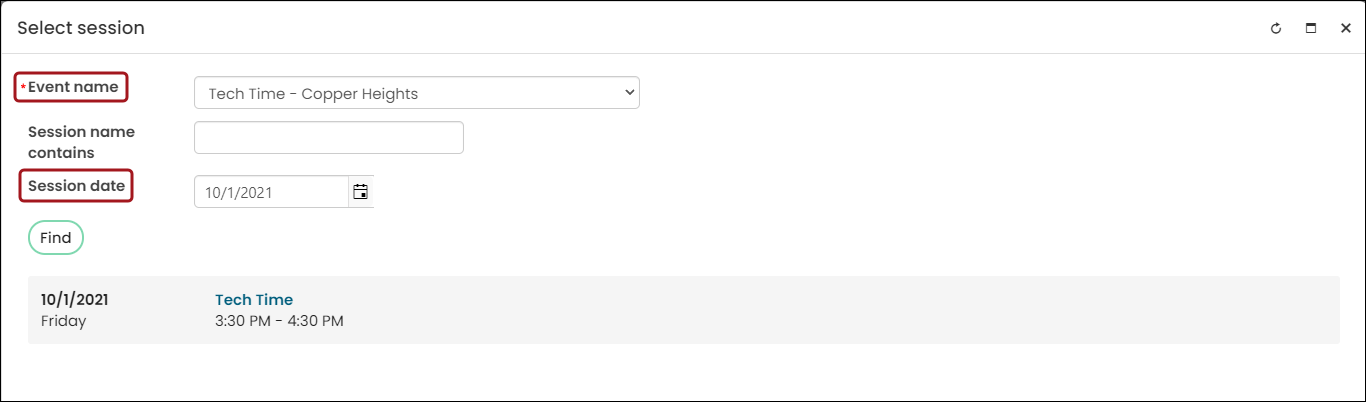
- Click Select session.
- Search for the session by using the available search filters, then click Find. A list of sessions matching your criteria appear.
- Click the session when it appears on the page. You are brought back to the Event Attendance panel.
- Edit the Date and time and Status as needed.
- Click Save.
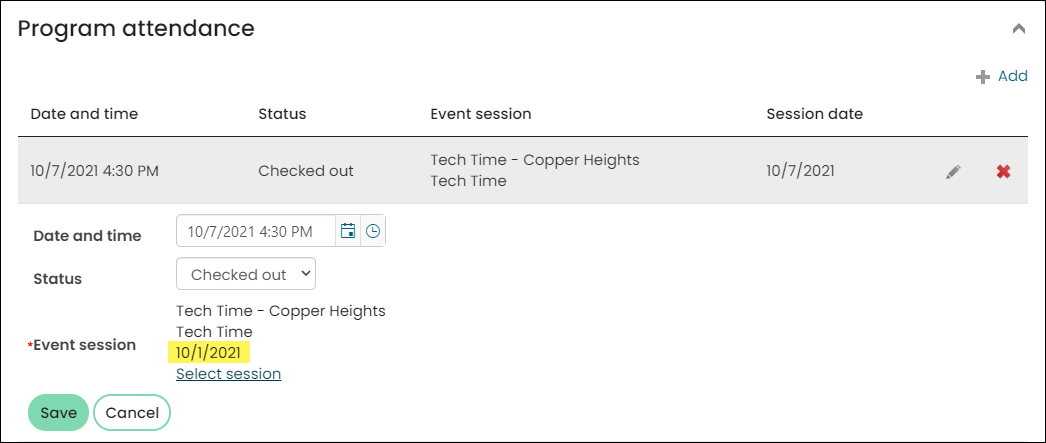
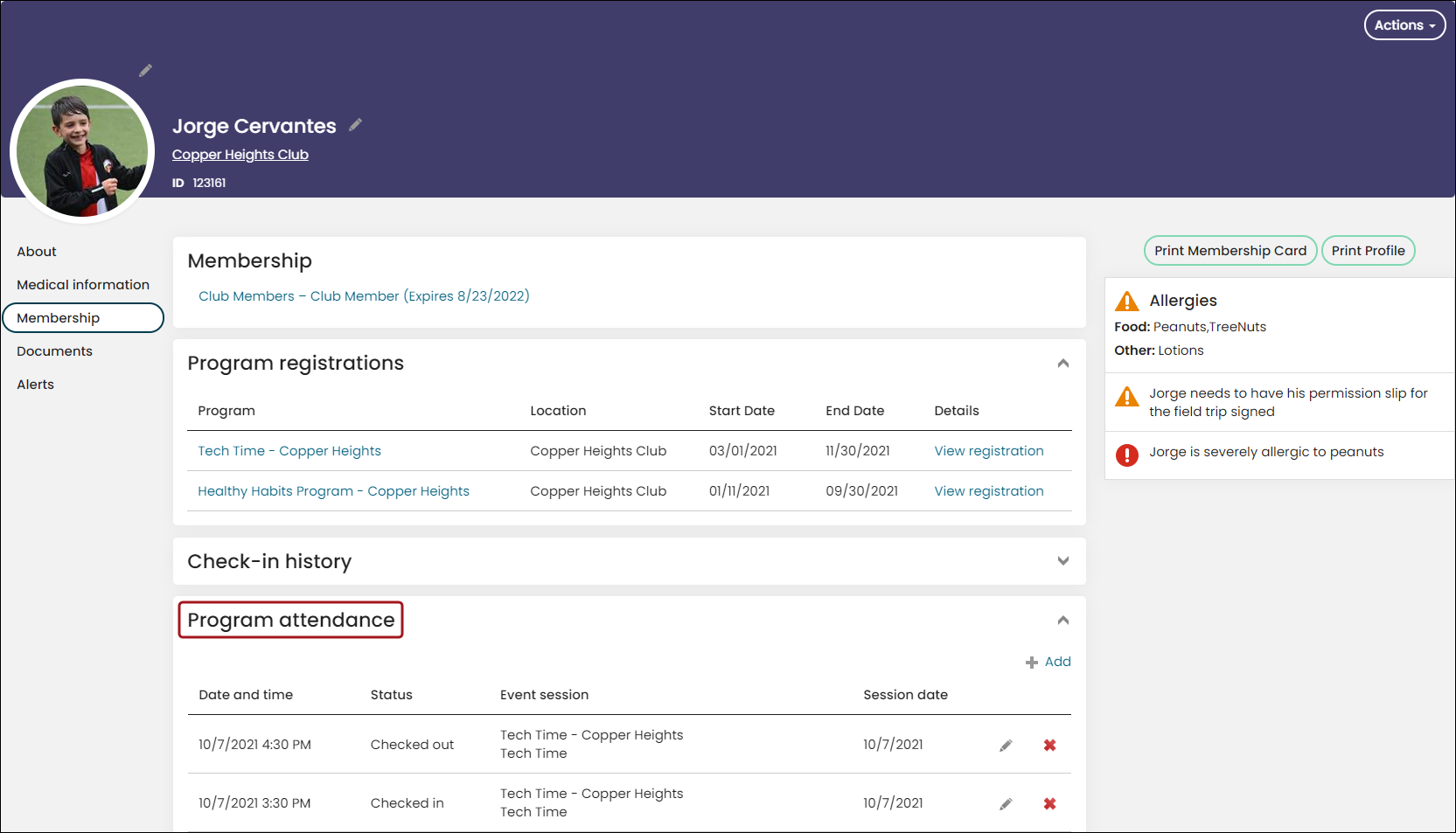
From the Club Staff site, staff users can review a member's program attendance history and manually adjust it in the Program attendance panel on the Membership tab of their account page.
- From the Club Staff site, navigate to the individual’s account page.
- Click the Membership tab, then locate the Program attendance panel.
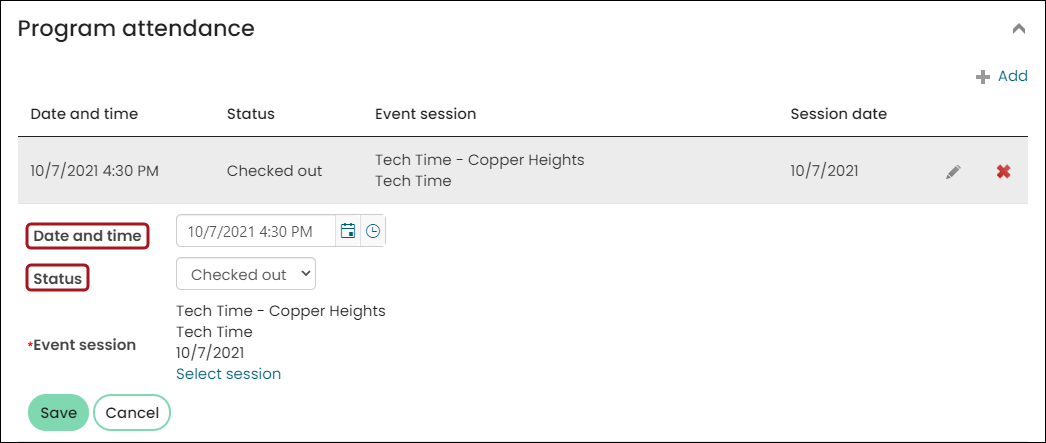
- Click the edit icon. The panel expands to show the options for adjusting program attendance history.
- Edit the Date and time and Status as needed.
- Click Save.
Updated 5 months ago