

Invoice Payment Link
The Invoice Payment Link content item is used to display a button for any of the following reasons:
- When the selected contact has unpaid invoices that are due, the button can be configured to display as a Pay open invoices option.
- When the selected contact is a member and is due for membership renewal, the button can be configured to display as a Renew Now option, allowing for the member to renew their membership directly from their profile page.
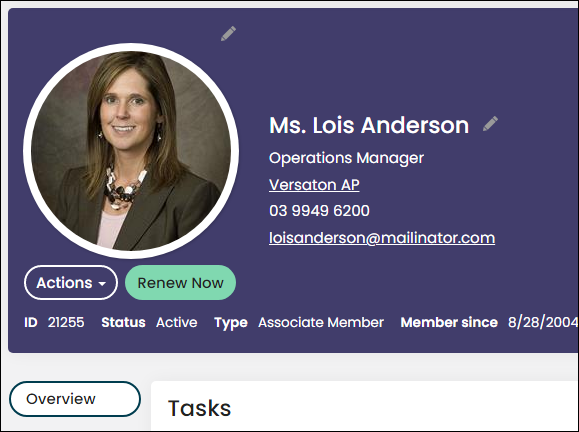
When selected, the invoice appears as a single item in the cart. Users do not have the option to selectively pay for individual line items within the invoice.
This content item can be seen on the out-of-the-box pages Account Page and Account Page Staff, and is commonly used with the following content items:
Invoice Payment Link configuration options
This content item uses the Common content item configuration options, in addition to the following:
- Button text - Enter the text to be displayed on the button users click to add invoices to the cart.
- Button Size - Choose the size of the button. The options are Small, Medium, and Large.
- Enable staff to cancel renewal - Choose to either enable or disable staff cancellation of a renewal payment. When enabled, a button appears that permits staff users to cancel the renewal invoice.
- Cancel button text - Enter the text to be displayed on the button users click to cancel invoice payment.
- Message - Enter text to be displayed above the button. For example, you can enter a message that explains to users what to expect when they click the button.
- Message when AutoPay Instruction exists - Enter text to replace the Message field text, to let users know that their membership dues will be processed using an existing AutoPay instruction.
NoteThe option to configure the Message when AutoPay Instruction exists is only available when AutoPay is enabled at the system level.
You can configure the Message when AutoPay Instruction exists to include the payment method [0].
For example, if you enter the following text:
Your membership is due for renewal and will be automatically paid using [0]
The message displayed is:
Your membership is due for renewal and will be automatically paid using [Payment Method Description].
- Choose the types of invoices to include:
- Standard - Standard invoices include items such as open invoices for customer purchases.
- Renewal - Renewal invoices include unpaid membership fees and subscriptions.
- Display options when no invoices are due - Select the option for how the content item is displayed when no open invoices are due:
- Hide button and message - When no invoice is due, the button and message are hidden.
- Show disabled button and No open invoices message - When no invoice is due, a disabled button and the No open invoices message are displayed.
- No open invoices message - Enter a message to be displayed when no invoice is due.
- Enable join button for non-members and inactive members - Enabled by default, this configuration option displays a button that allows non-members and inactive contacts to join as a member. Staff users and company administrators can perform a membership join on behalf of a contact. When a company administrator is performing a Join Now, the non-member or inactive contact is automatically joined to the company.
NoteIf the contact is not a non-member or inactive contact, then this button is not displayed.
When enabled, the following Join options are displayed:
- Display to staff users only - When enabled, the Join Now button is displayed on non-member and inactive-member profile pages, but the button is only visible to staff users.
- Button text - Enter the text that appears on the button.
- Message - Enter text to be displayed above the button. For example, you can enter a message that explains to users what to expect when they click the button.
- Content or URL to link to - Select the content or URL to which users are sent when they click the Join Now button.
Notes
- To display buttons horizontally, enter the following in the CSS class field: invoice-payment-link-inline
- The content item displays a conditional button to pay an outstanding renewal invoice. When the user clicks the button, the renewal item is placed into the cart.
- The button appears only to users who have permission to update the selected contact. This includes staff, Company Administrators, and users viewing their own profile.
- If users have more than one unpaid invoice, all invoices are added to the cart. Users can select which invoices they want to pay from the cart.
Updated 5 months ago