

Payment Creator
The Payment Creator content item can be used to accept payment details in a shopping cart or on a donation page. In both cases, use this content item with other content items to complete a transaction. Select a processing Purpose that best fits your use of this content item:
- Cart - This is the default purpose. Select this option if you want the orders submitted for processing from a shopping cart.
- Donation - Select this option if you are placing the Payment Creator on a donation page, or are using it for donation purposes.
To use this content item, it must be connected to other content items. See Creating online donation pages for more information.
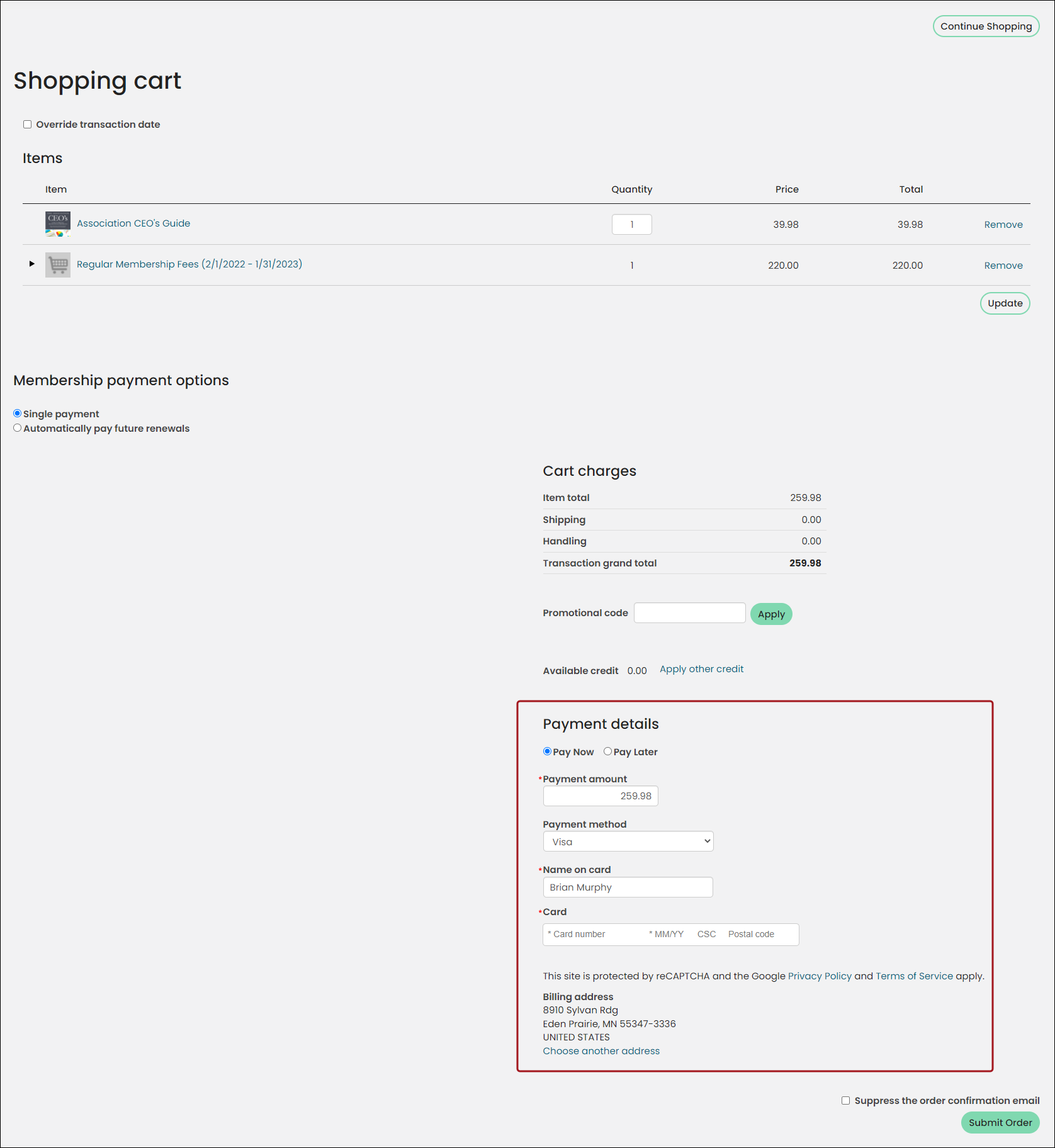
This content item uses the Common content item configuration options, in addition to the following:
- Purpose - This content item can be used to accept payment details in a shopping cart or on a donation page. In both cases, use this content item with other content items to complete a transaction. Select a processing type that best fits your use of this content item:
-
Cart - The default. The order is submitted for processing from a shopping cart.
-
Donation - Required to use this content item in combination with the Donation Creator content item to create a standalone donation page.
NoteWhen configured for a Donation purpose, the Payment Creator content item must have a connection to a Donation Creator content item on the same content record.
-
- Display Update button - Select this option when the content item appears on a page without a Submit Order Button.
NoteDo not enable this option when the Purpose equals Donation.
Do not enable this option when enabling PayPal Express, which requires the Submit Order Button content item.
- Commit sequence (required when Purpose equals Donation) - Commit sequence affects how multiple content items interact on a page. Enter a non-zero number to specify the order that changes are saved relative to other inline editable content items on the rendered page. The default of zero (0) means the save order is unimportant.
Notes
-
The Choose another address link opens a window that is configured for address verification. Postal addresses
entered through this window are automatically uploaded to a service that verifies and standardizes the address. Users can then either
accept the suggested address, or keep the original as they entered it. -
When users select United Kingdom from the Country drop-down, a Postal lookup field
appears, allowing users to search for an address using a postal code. Users can then select the correct address from a list of returned
addresses generated by the iMIS address verification service. -
Users see the warning
Invalid card number
if their entry fails the check digit algorithm for credit card verification. -
The address is passed to the card authorization gateway and can be used to validate
a credit card, depending on
the gateway provider. -
Donations:
- Selecting addresses - For credit and debit donations, the donor's name and
address are passed to the card authorization gateway and can be used to validate
the card. Only authenticated users see the link to Choose another address.
Unauthenticated users (guests) must enter a valid address in the Contact
Account Creator content item, which is then used to validate the card. - Commit sequences - A donation page that processes payments immediately
(instead of through the cart) must include the Payment Creator. Processing a
donation immediately requires the content items to reside on the same
content record, but they can display in any order. The Commit sequence values, not the placement order, control
when
the content items are processed. When the donation is submitted from the content
record, execution control is given to each content item based on the Commit sequence
value shown in parentheses:- Donation Creator (2)
- Contact Account Creator (1)
- Submit Order Button Link (3)
- Payment Creator (4 or 0)
- Selecting addresses - For credit and debit donations, the donor's name and
-
Configuring payment options:
-
When Purpose equals Cart - When paying by credit or debit card, the user
can specify an alternative card address by either selecting an existing address
or entering a new one.
Updated 5 months ago