

Cancelling an event registration
Users and staff acting on behalf of users can cancel event registrations before and after checking out. If the ability to register someone else is enabled, you can delete others’ registrations in bulk from the shopping cart.
WarningOnce a registrant has paid for an event and the registration has been created, any cancellation must be made by a staff member.
Staff users can create a cancellation fee and work on behalf of registrants to cancel their registrations, charging them a cancellation fee. The registration record is retained until the event is closed, which enables you to reactivate it later during the registration process.
Users can also cancel an unpaid program item registration.
Cancelling a registration before checking out
Users and staff acting on behalf of users can cancel an event registration before submitting the registration in the Cart. Do the following to cancel a registration before submitting the registration in the Cart:
-
Select Events > Find event or Search for the event.
-
Select the desired event.
-
Click Cancel Name's Registration.
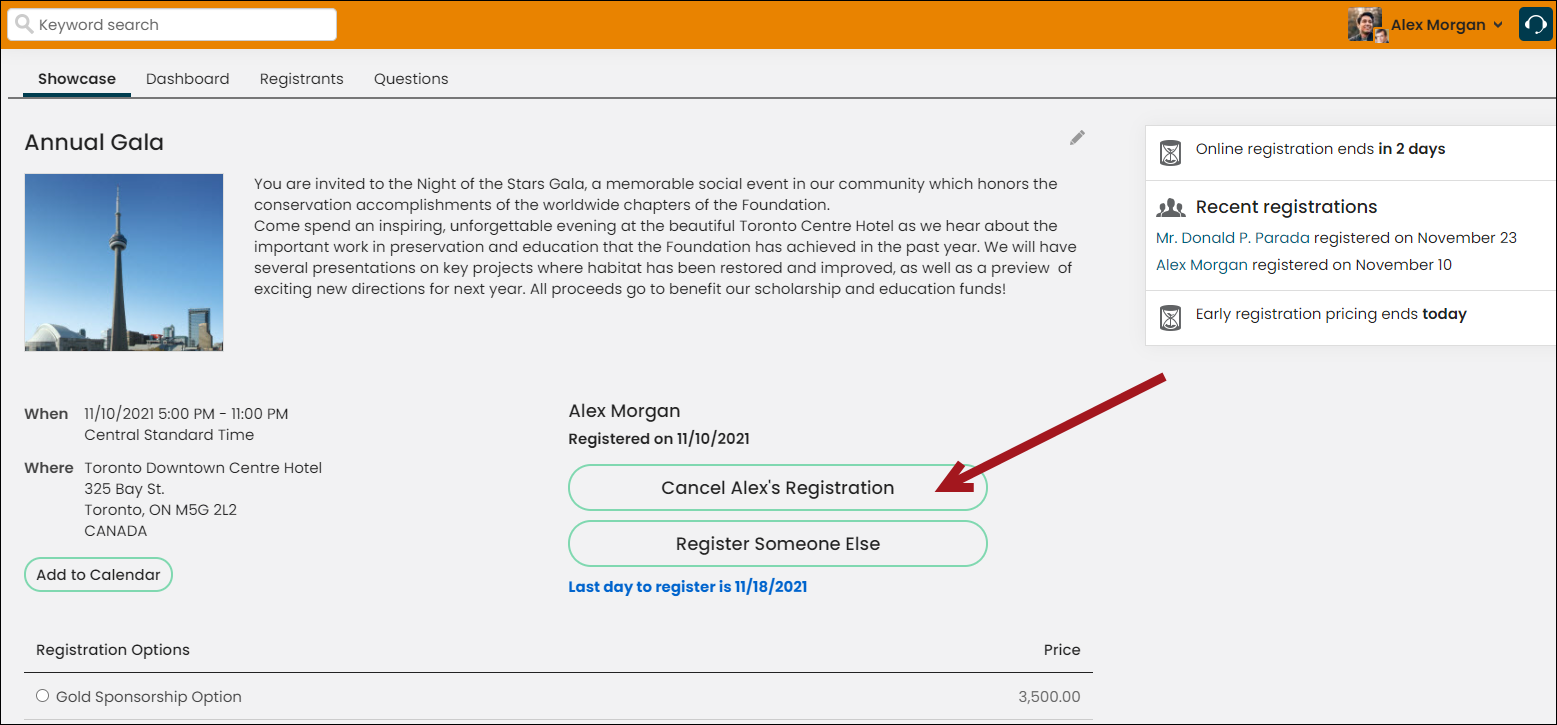
Cancelling an event registration before checking out has the effect of cancelling registration for any or all of its program items as well.
NoteThe group membership status updates accordingly. The registrant's group membership reflects a cancelled status.
📘 NoteIf the ability to register someone else is enabled, you can delete others’ registrations in bulk from the shopping cart.
Cancelling registration after checking out
After a registrant has paid for an event and the registration has been created, a cancellation must be made by a staff member:
- From the Staff site, go to Events > Find events.
- Search for the event for which you want to cancel the registration.
- Select the event Showcase tab.
- Click the On behalf of icon and begin working on behalf of the registrant.
- Click Cancel Registrant's name's Registration.
- Click the Cart icon
- Review the Cart details of the cancellation, then click Submit Order.
- After clicking Submit Order, the order confirmation displays. If the person already paid for the registration, there will be an open credit applied to their account. If the person had not yet paid for the registration, there will be no open credit on their account.
- Go to the registrant's profile page and click the Transactions tab.
- In the Orders section you will see the cancelled registration, along with a negative Total. This amount is applied as an open credit to the registrant's account.
Cancelling a program item registration
Users can also cancel a program item registration if they have not yet paid for it.
- Select Events > Find events or Search for the event.
- Select the desired event.
- Click Remove for the desired program item.
Updated 5 months ago