

Refunding payments
This article covers how to process or record a refund:
- Processing a refund - Credit card and ACH payments processed through the iMIS Pay or Stripe gateways can be refunded directly from iMIS. For all other gateways, processing a refund payment must be manually performed through the gateway.
- Recording a refund - If you process refunds outside of iMIS, the related invoice must be recorded as refunded. If you are processing a refund for a cash or check payment that was not processed through the gateway, it is still important that the payment is recorded as refunded, so that general ledger accounts are kept balanced and correct.
Before you begin: Required configurations
Review the following information before refunding payments.
Populate the GL accounts
👍 Tip
This is extremely important. In addition to the referenced accounts in this section, it is important that all Default accounts are correctly defined in iMIS before processing payments and refunds. See Defining the default financial accounts.
The Unearned Income account represents a bridge or clearing account between accounts received (AR) and accounts paid (AP). Use the Unearned Income account for the debit distribution entries in the AP entries in the same manner that you use the clearing account for the credit side of the AR reversal entries. See Accounting for Unearned Income for more information about the Unearned Income account.
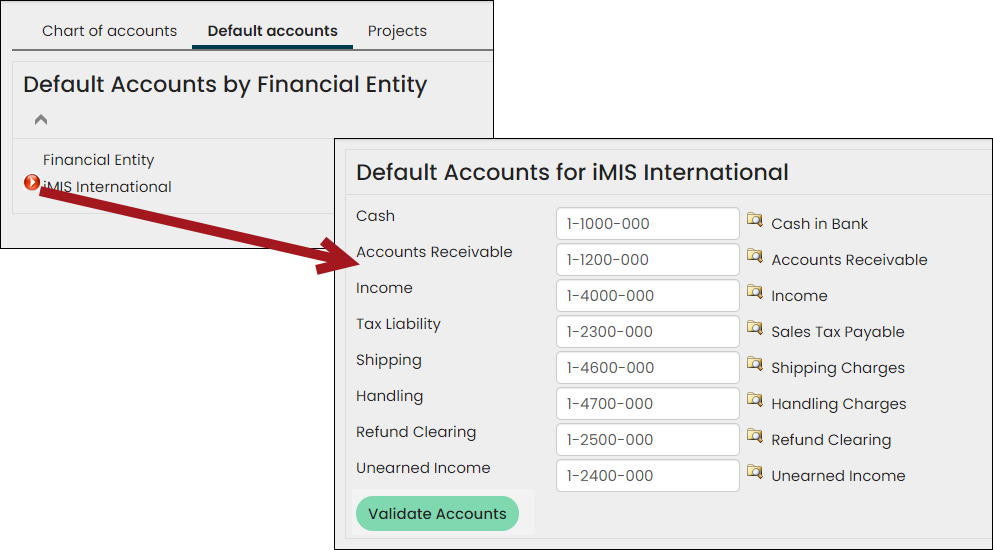
Double-check that the Unearned Income general ledger account is populated
- Go to Settings > Finance > GL accounts.
- Click the Default accounts tab.
- Click the red icon.
- Make sure the Unearned incomeand Refund Clearing accounts are correctly populated. See Defining the default financial accounts for more information.
Understanding the refund accounts
The GL journal entry generated after the credit card or check refund is recorded will debit (or reverse) the unearned income liability for the amount refunded. iMIS uses the default Unearned Income GL account for the financial entity assigned to the original payment.
The offset account to unearned income depends on whether the refund was issued by check or by credit card:
- Credit card: The credit offset is to the Cash GL Account established for the credit card payment method associated with the refund.
- Check: iMIS assumes that the check was issued (and accounted for) through an accounts payable package.
Since the accounts payable package will credit the cash account for a check refund, you should use the Refund Clearing account when recording the payable/payment through the accounts payable package (or when recording the manual check). The entries to Refund Clearing in accounts payable and in iMIS will offset each other, yielding a net effect of zero. See the Accounting for Unearned Income for more information about the Unearned Income account.
Processing a refund
Credit card and ACH payments processed through the iMIS Pay or Stripe gateways can be refunded directly from iMIS.
Do the following to process a refund:
- Reverse the invoice. The invoice must first be reversed before you can refund the payment.
- Go to Finance > Pay Central > Find payments.
- Search for the payment.
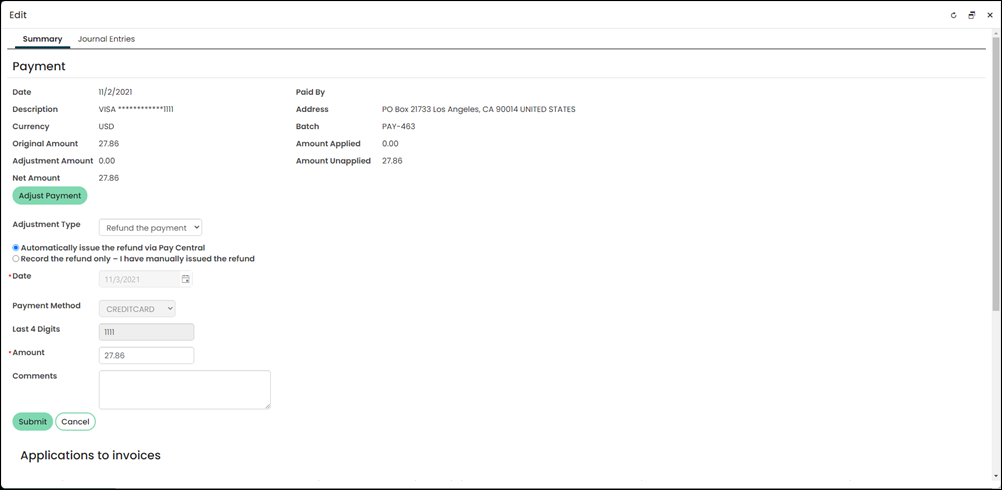
- Click Select to open the Payment window.
- Click Adjust Payment.
- Leave the Adjustment type set to Refund the payment.
- Leave Automatically issue the refund via Pay Central enabled. If you are not using the iMIS Pay gateway, you do not have this option and refunds must be processed through your payment gateway.
- Enter an Amount to refund. The Amount to refund must be greater than 0 and less than or equal to the original payment amount. If there are credits on the related invoices, the Amount to refund defaults to the total credit amount. For example, if an item is removed from the original order invoice, generating a credit of 10, the Amount to refund should default to 10.
- Enter any Comments you want to add concerning the refund.
- Click Submit. After your refund is processed, it will appear in the Original applications panel.
📘 Note
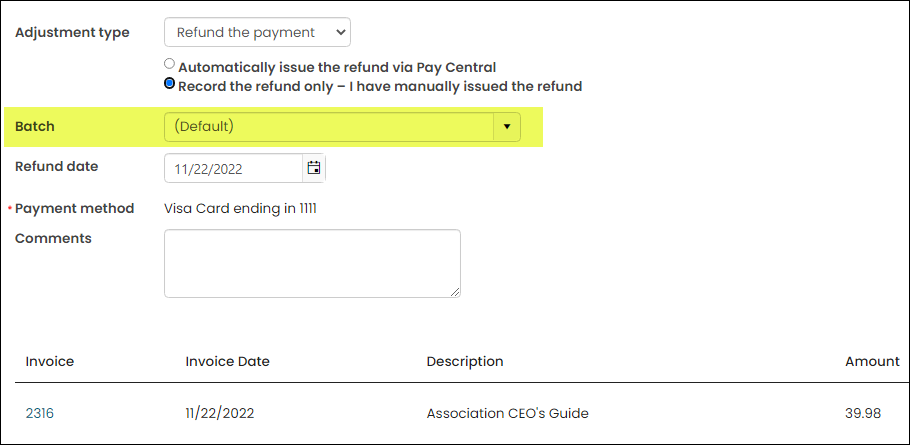
You can manually select the batch if Manual batches is selected for the Batch mode for staff web transactions field located at Settings > Finance > General. If the user is logged in as MANAGER, the batch drop-down will not appear.
📘 Note
The payment method used to make the original payment is identified in the Payment method field. The Payment method cannot be changed when processing a refund. The payment method is tied to the original payment.
Recording a refund
If you process any type of refund outside of iMIS, the related invoice must be recorded as refunded.
Do the following to record a refund:
- Manually process the refund through your payment gateway or bank:
- Credit card: Manually process the refund through your payment gateway.
- Check: Manually process the refund through your accounts payable system.
Click for details
When the refund payment method is a credit card, the recording of a refund credits the cash account.
The debit offset will go against the Unearned Income account. The same accounting transaction will be generated for both a payment reversal, if the payment is in a fully unapplied state at the time the reversal is processed, and a credit card refund. See Accounting for Unearned Income for more information about this account.
If the credit card transaction was credited after settlement occurred, a payment adjustment should be processed as a refund versus a reversal, even if the credit card payment is being credited due to user error. This is because the charge and the credit both appear on the customer’s account, offsetting each other.
Click for details
When the refund payment method is by check, the cash account is never impacted.
The expectation is that a refund check has been cut, which credits the cash account for the amount of the refund. Recording a check refund instead debits the default Refund Clearing account for the financial entity assigned to the cash account or payment method. This same clearing account should be used as the offset when recording the accounts payable (or general ledger) transaction connected to the refund. See Defining the default financial accounts for more information.
- Reverse the invoice. The invoice must first be reversed before you can refund the payment.
- Record the refund in iMIS. Go to Finance > Pay Central > Find payments.
- Search for the payment.
-
Select the payment for which you want to record a refund.
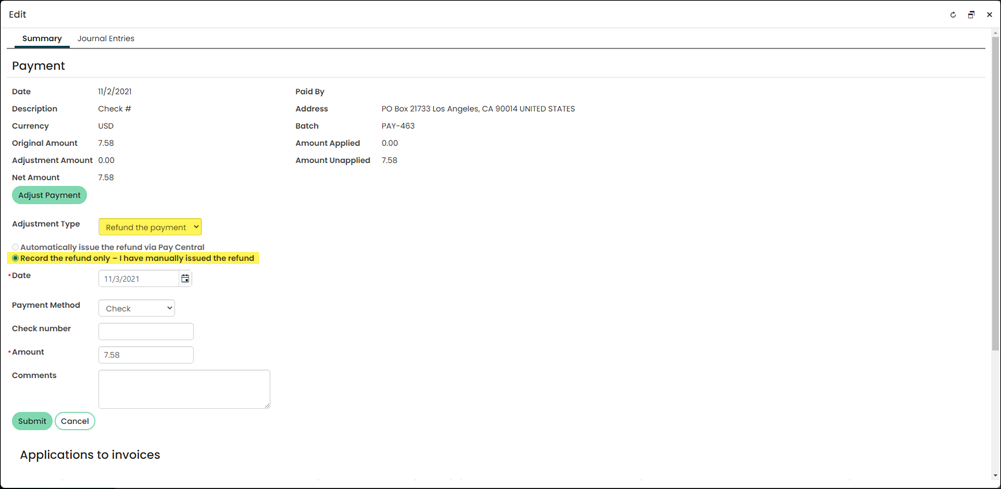
- Click Adjust Payment.
- Leave the Adjustment type set to Refund the payment.
- In the Date field, enter the date the refund was issued. For example, if you issued a check refund through your gateway yesterday but are recording the refund today in iMIS, enter yesterday's date.
- Select the Payment method to which the refund was issued. By default, the original payment method for the transaction is selected (if it can be identified). Depending on the selected Payment method, do one of the following:
- Credit cards: The credit card number defaults to the last four digits of the card used in the original payment. Never change the default payment method or the last four digits when recording a credit card payment, unless for some exceptional reason, a different form of payment was used to issue the refund.
- Checks: Enter a Check number.
- (optional) Enter any Comments you want to add concerning the refund.
- Enter an Amount to refund. The Amount to refundmust be greater than 0 and less than or equal to the original payment amount. If there are credits on the related invoices, the Amount defaults to the total credit amount. For example, if an item is removed from the original order invoice, generating a credit of 10, the Amount should default to 10.
- Click Submit. After your refund is submitted, the refund will appear in the Journal Entries tab in the Journal entry details.
🚧 Warning
Never change the default payment method or the last four digits when recording a credit card payment, unless for some exceptional reason, a different form of payment was used to issue the refund. Choose the same payment method you manually refunded. The payment method must have an associated Cash Account.
Updated 5 months ago